Track your orders
See all your orders in one list, find the one you need and follow its progress from placed to completed.
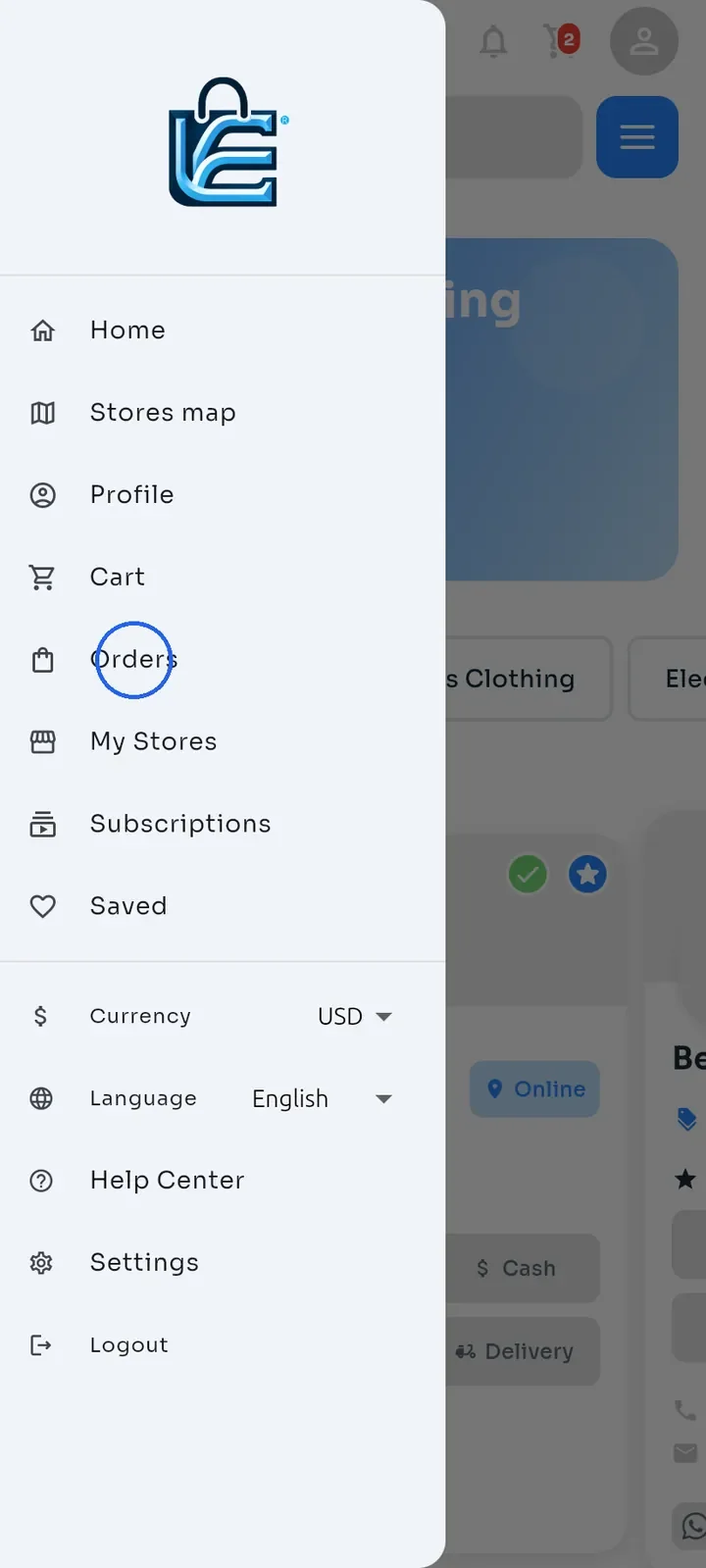
On the Home screen, tap the menu icon at the top left, then tap Orders.
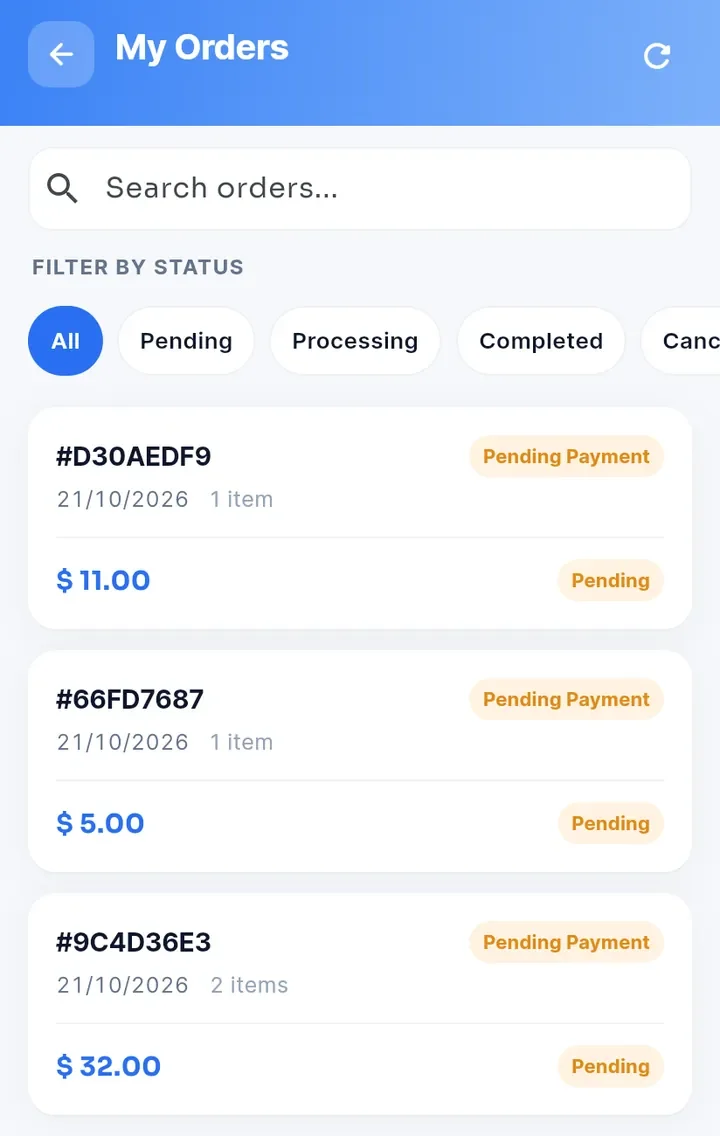
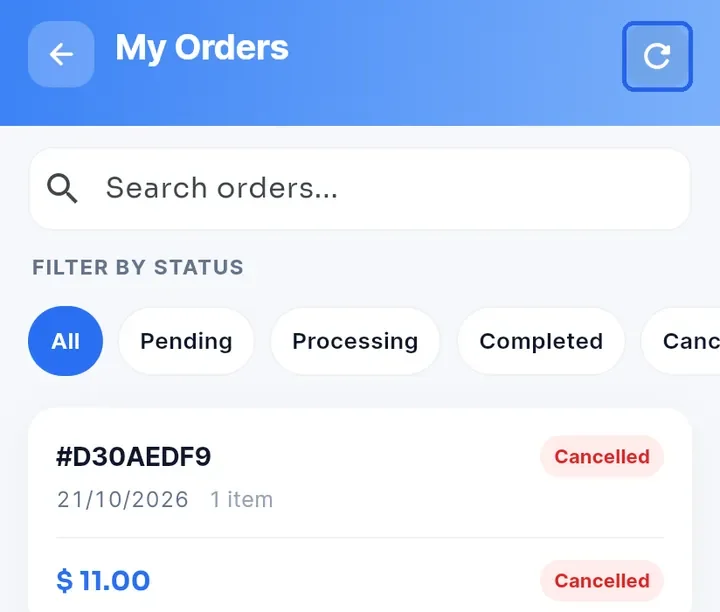
My Orders opens with your newest orders first. Each card shows the order number, the date, the number of items and the total, with the order status at the top right and the payment status at the bottom right.
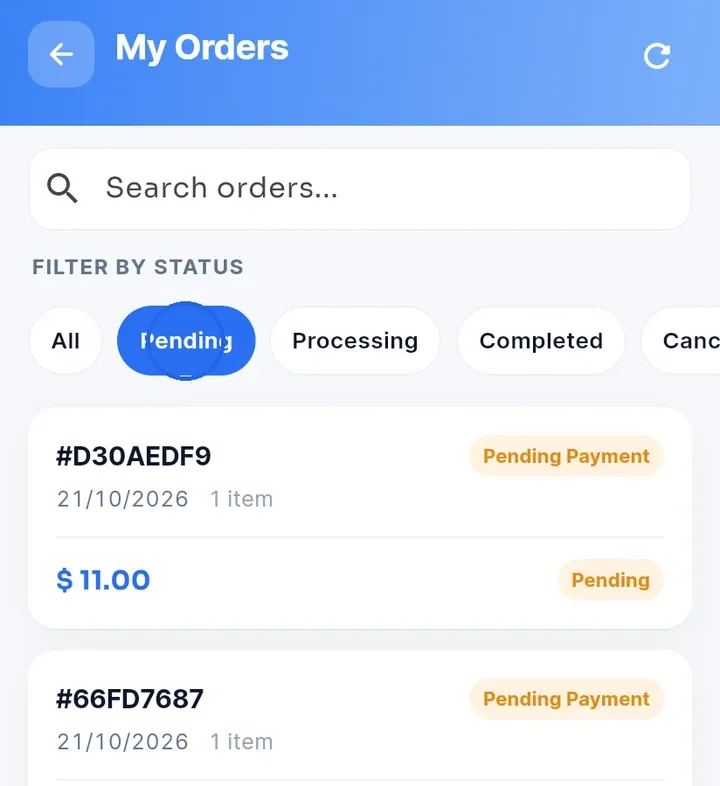
To see only some orders, tap a status chip: Pending, Processing, Completed or Cancelled. Pending also shows orders that are Pending Payment. Tap All to see every order again.
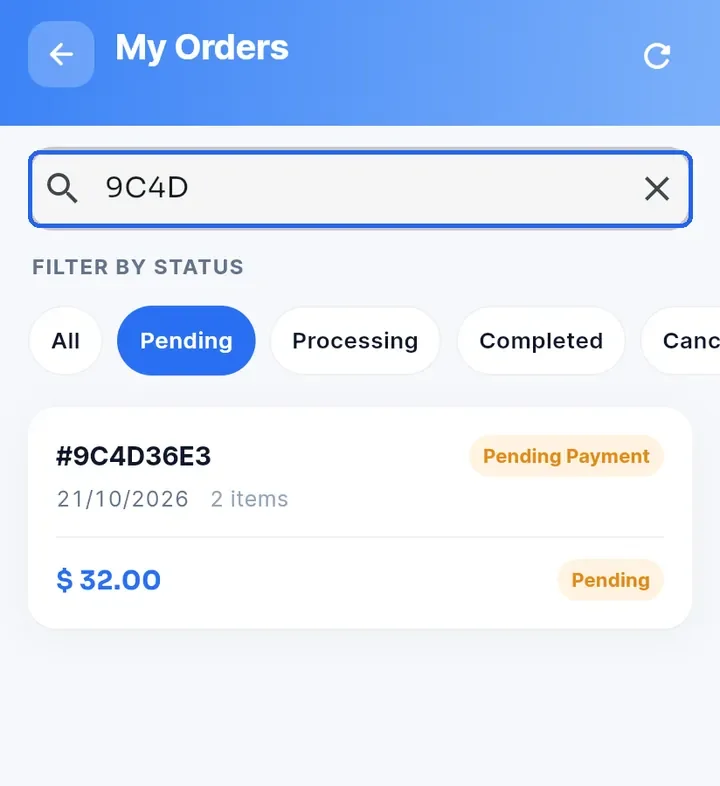
To find one order, type part of its number in Search orders.... Only the matching orders stay in the list.
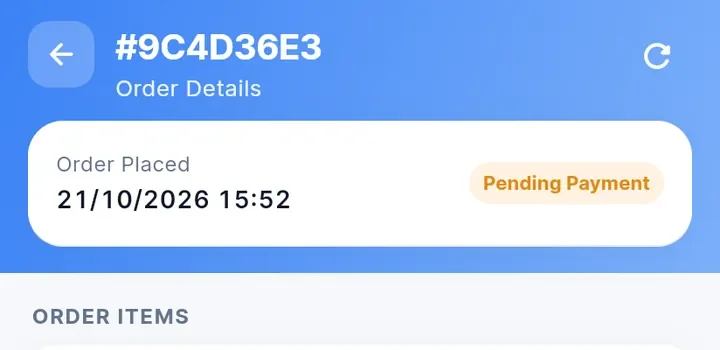
Tap an order card to open Order Details. The label at the top shows the order status, for example Pending Payment.
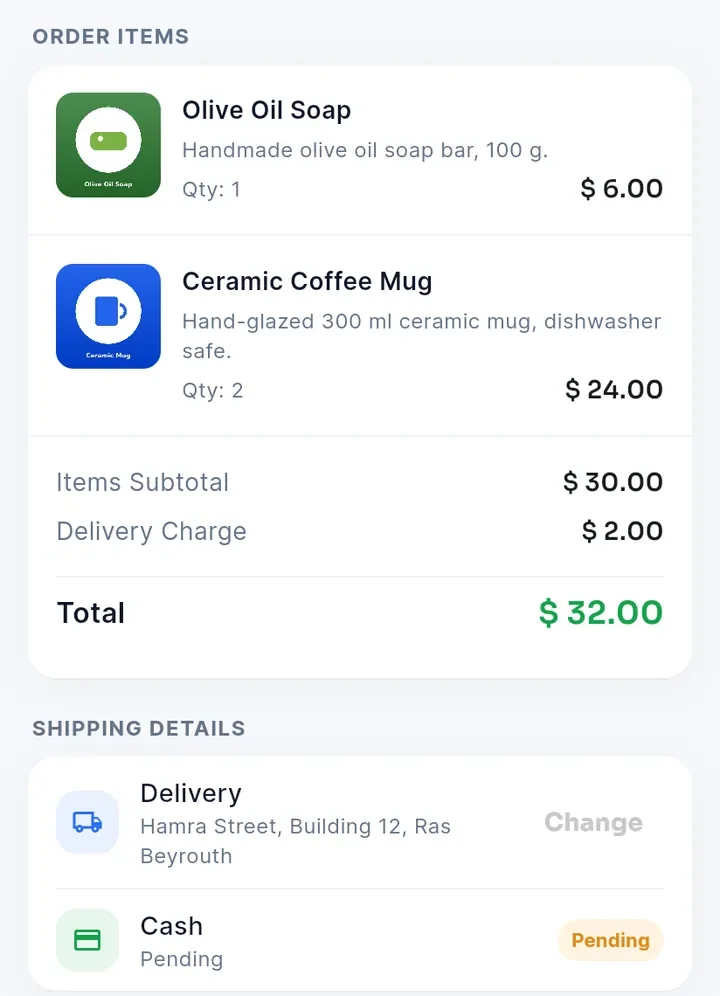
Scroll down to Order Items to see what you ordered, the quantities, the Items Subtotal, the Delivery Charge and the Total. Shipping Details shows Delivery or Pickup and the payment method with its status.
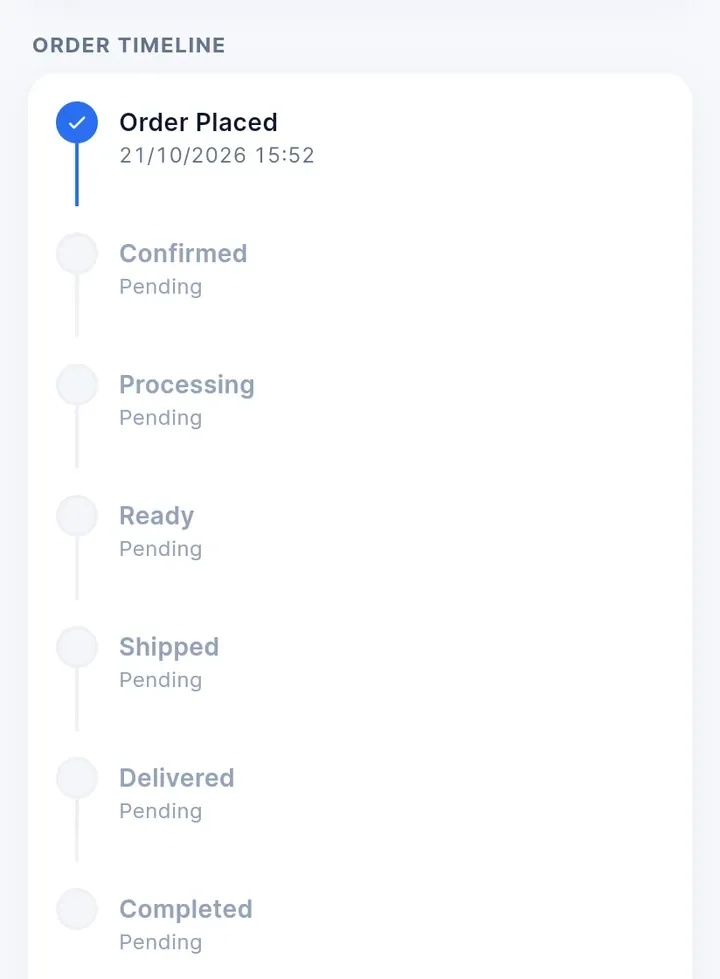
Keep scrolling to Order Timeline. It lists the stages Order Placed, Confirmed, Processing, Ready, Shipped, Delivered and Completed. Finished stages are blue and show their date and time. Stages still to come show Pending.
Tip: the list does not always update when you come back from an order. Tap the refresh arrow at the top right to reload it. The same arrow reloads Order Details.