Add your store contact details
Add your store email and verify a store phone number with a code sent to WhatsApp.
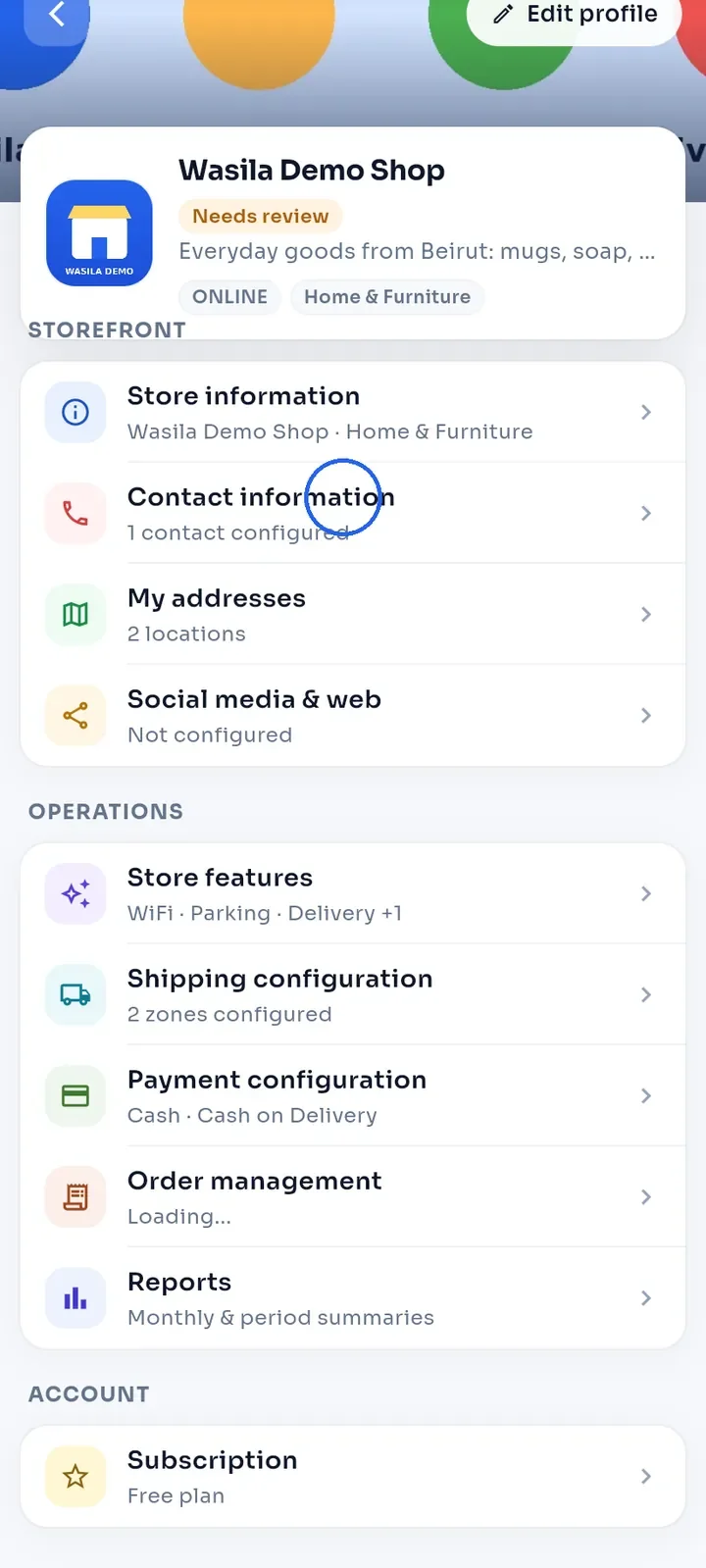
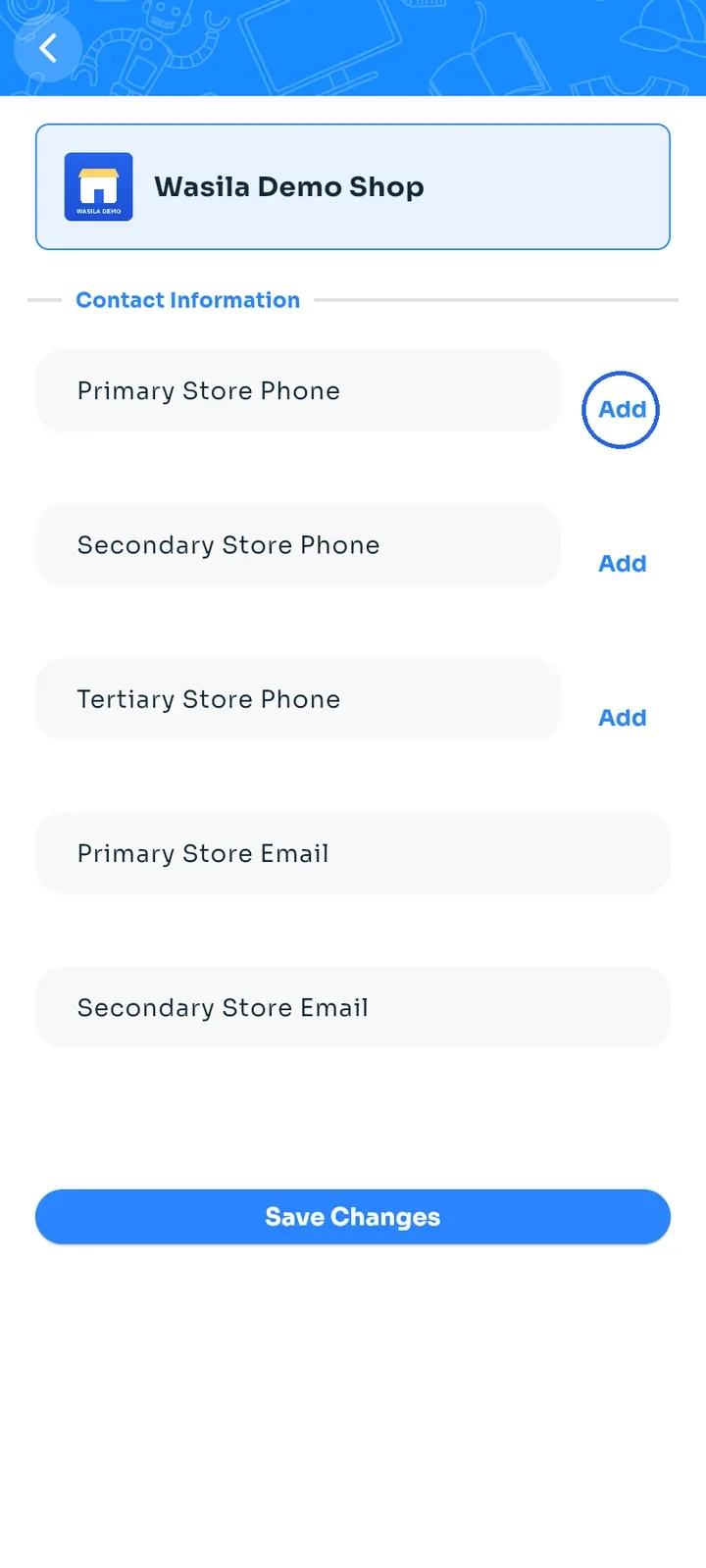
On the store dashboard, tap Contact information.
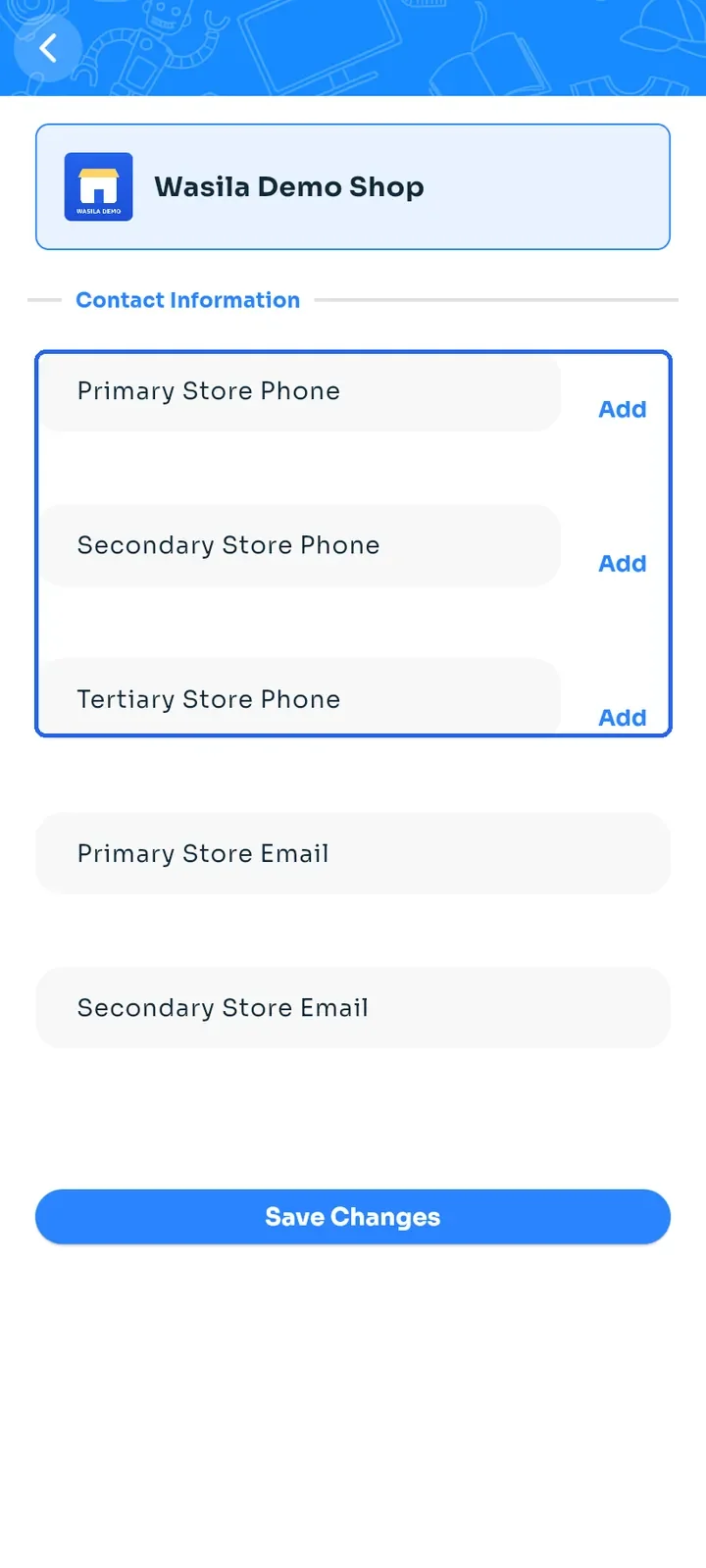
The screen has three phone slots (Primary Store Phone, Secondary Store Phone, Tertiary Store Phone) and two email fields (Primary Store Email, Secondary Store Email).
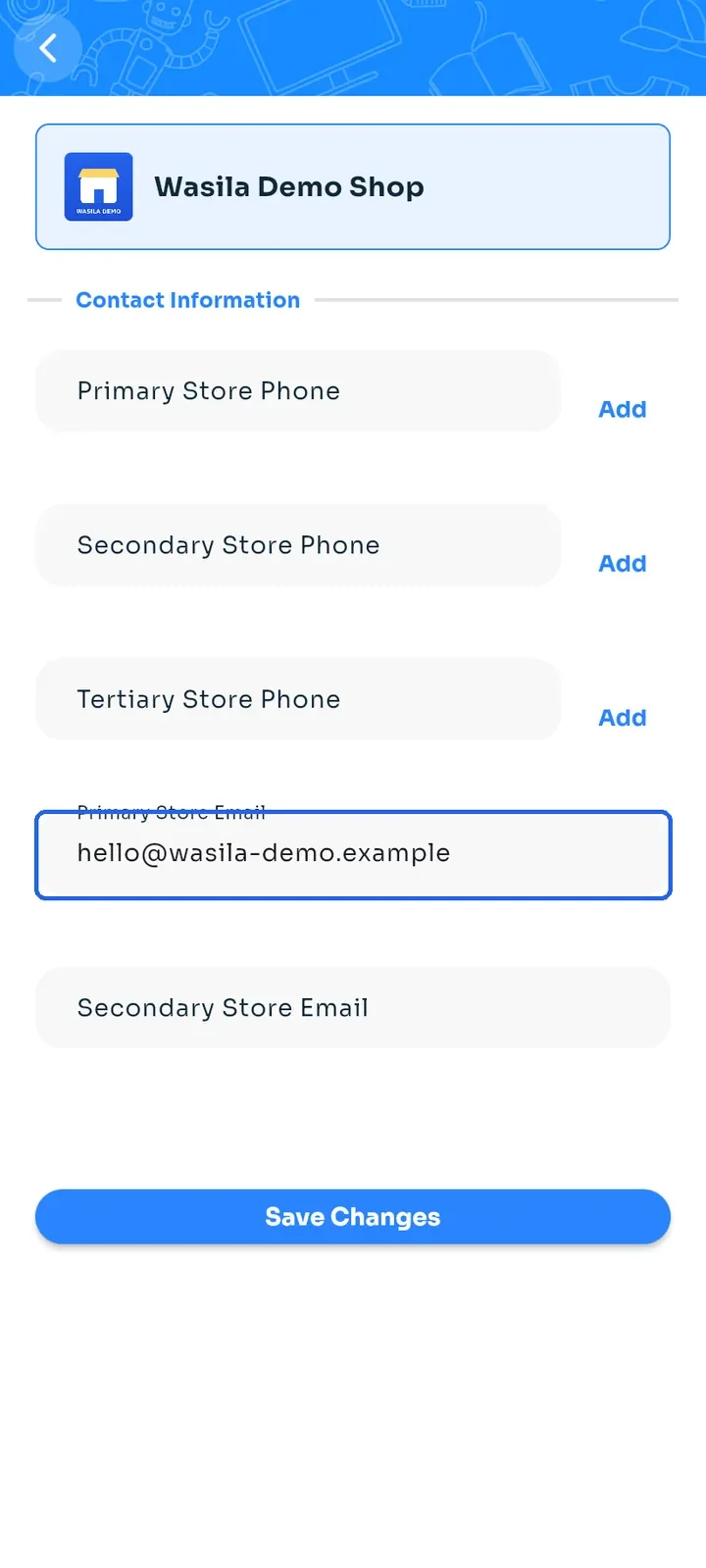
Tap Primary Store Email and enter your store email, for example hello@wasila-demo.example.
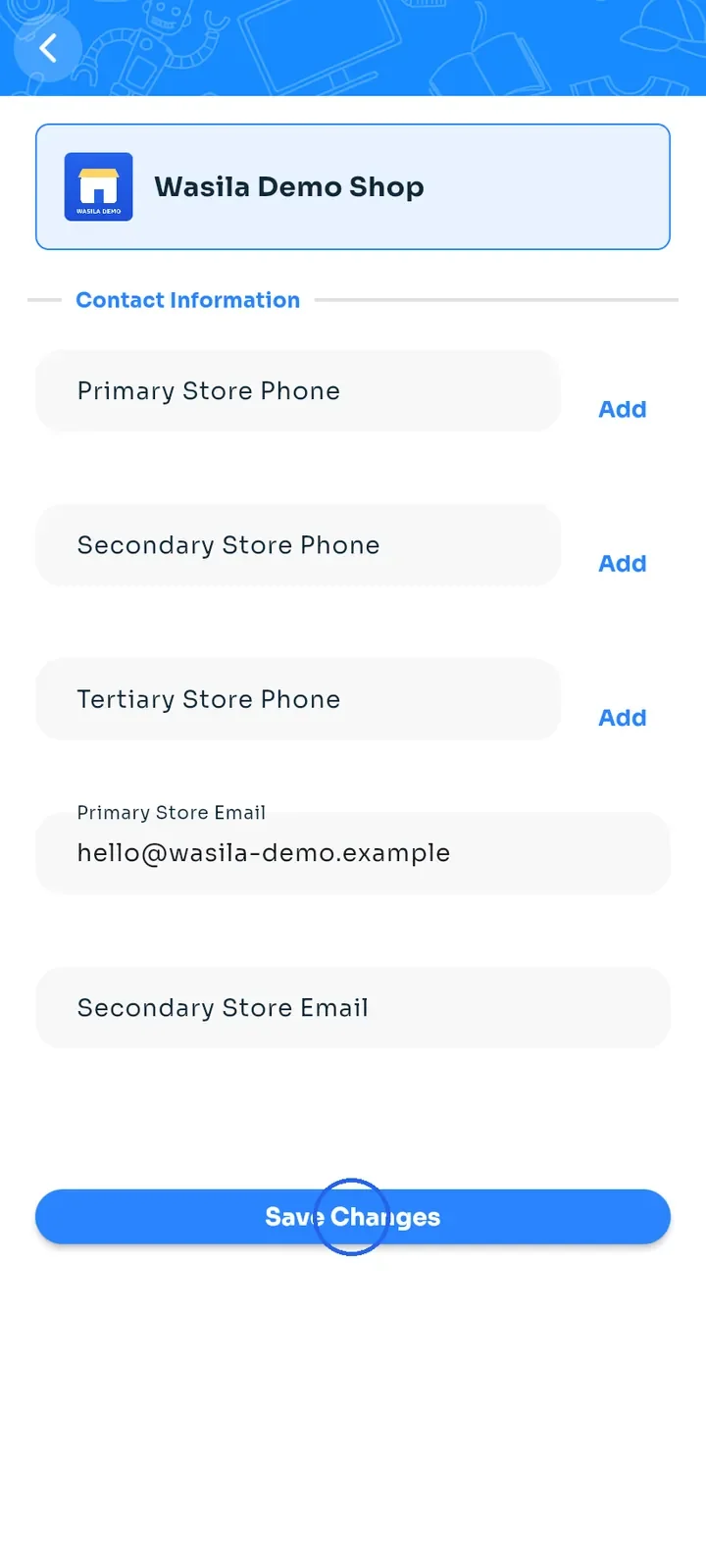
Tap Save Changes. The screen stays open and may not show a message. To check that your email is saved, go back and open Contact information again.
To add a phone number, tap Add next to a phone slot.
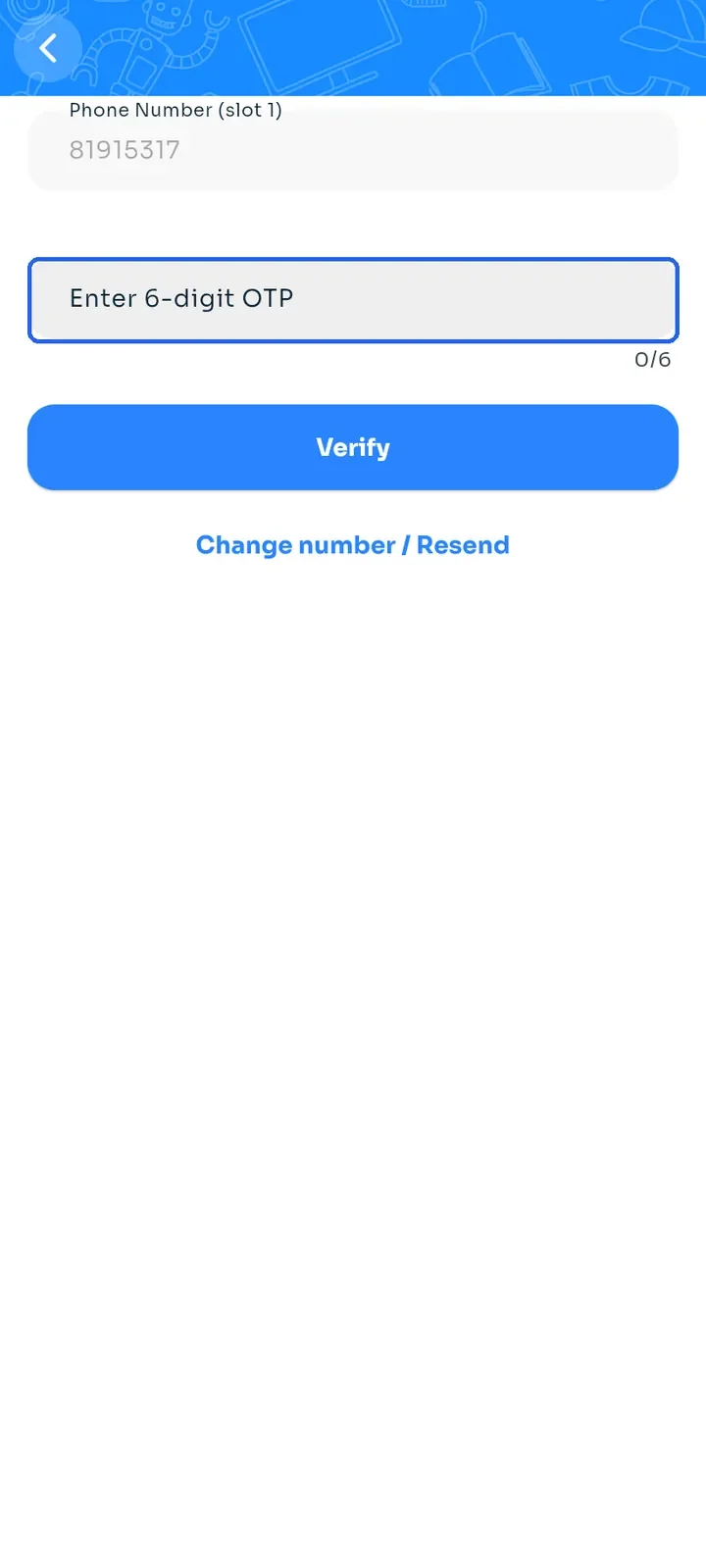
Enter your phone number in the Phone Number (slot 1) field, for example 70123456 or +96170123456.
Tap Send OTP via WhatsApp. A 6-digit code is sent to that number on WhatsApp.
Enter the code in Enter 6-digit OTP and tap Verify.
Tip: if the code does not arrive or the number is wrong, tap Change number / Resend.
Note: a phone number is added to your store only after you verify it with the code.