Manage a store order from start to finish
Open an order, move it through each status until it is completed, and see which statuses are final.
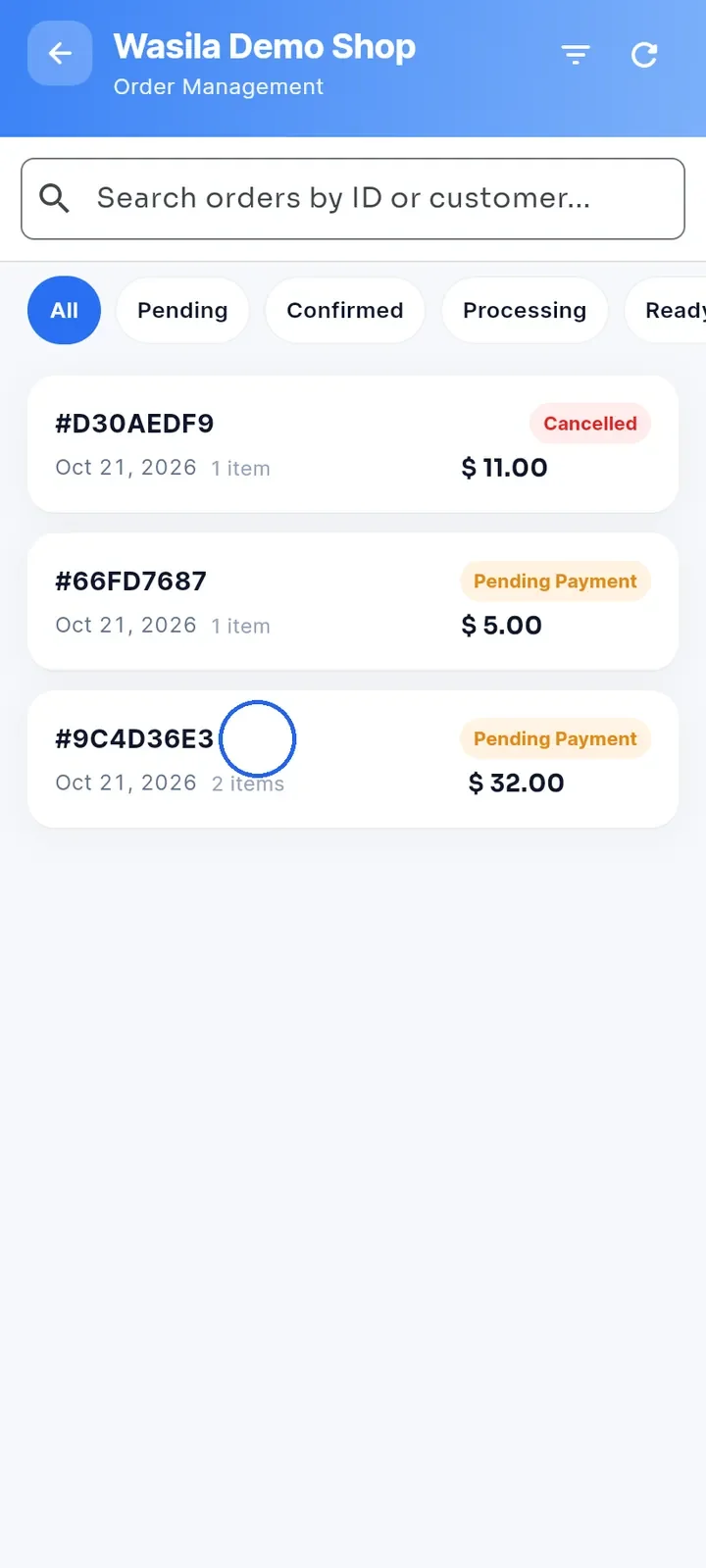
On your store dashboard, tap Order management, then tap an order in the list to open it.
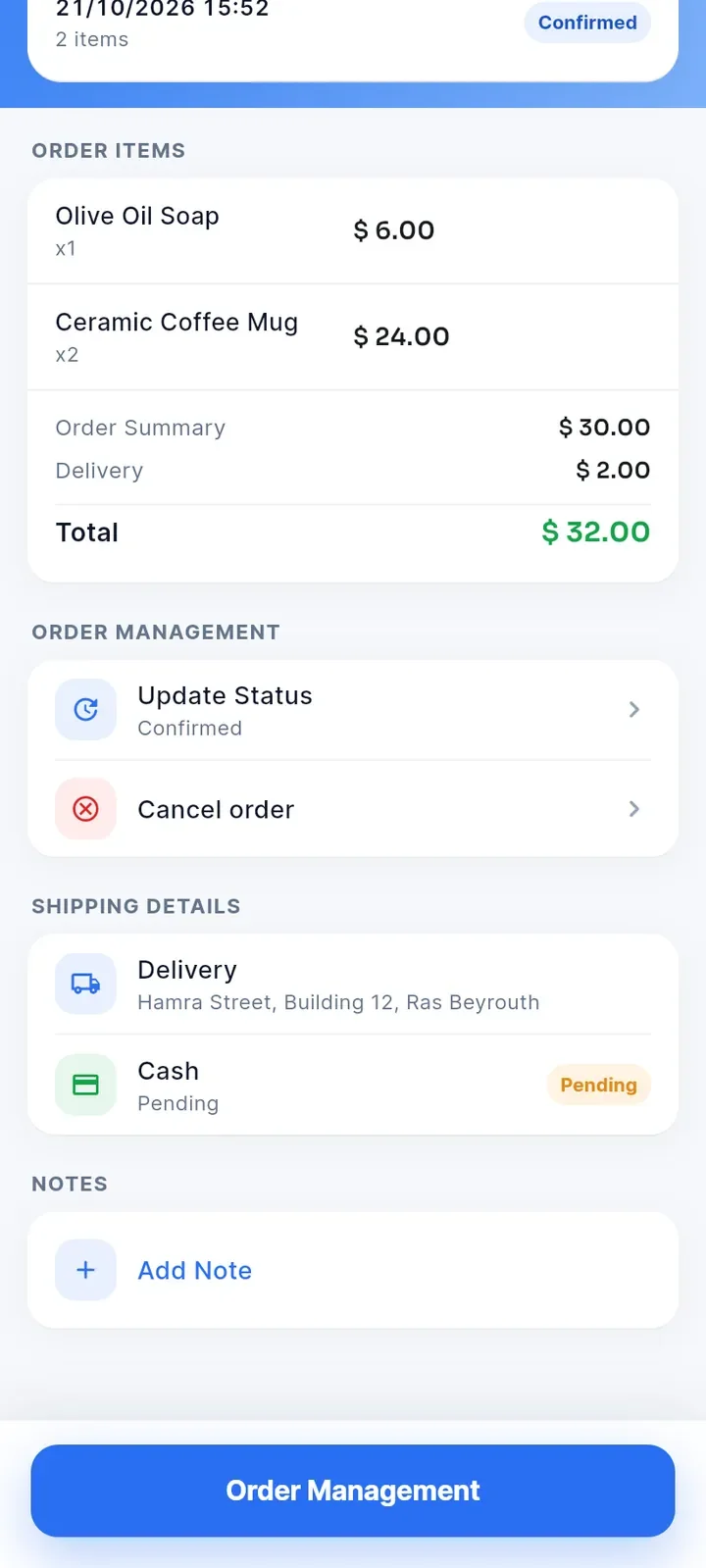
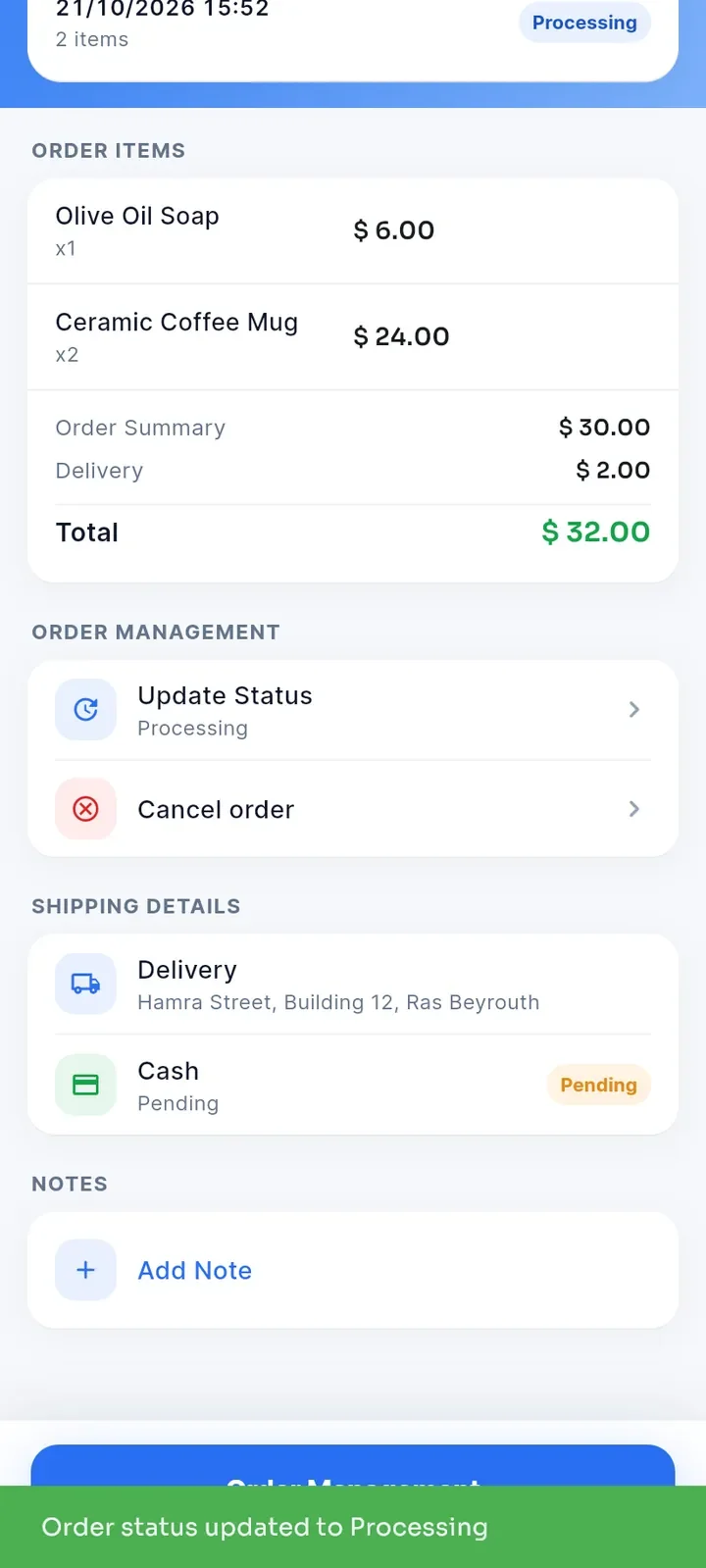
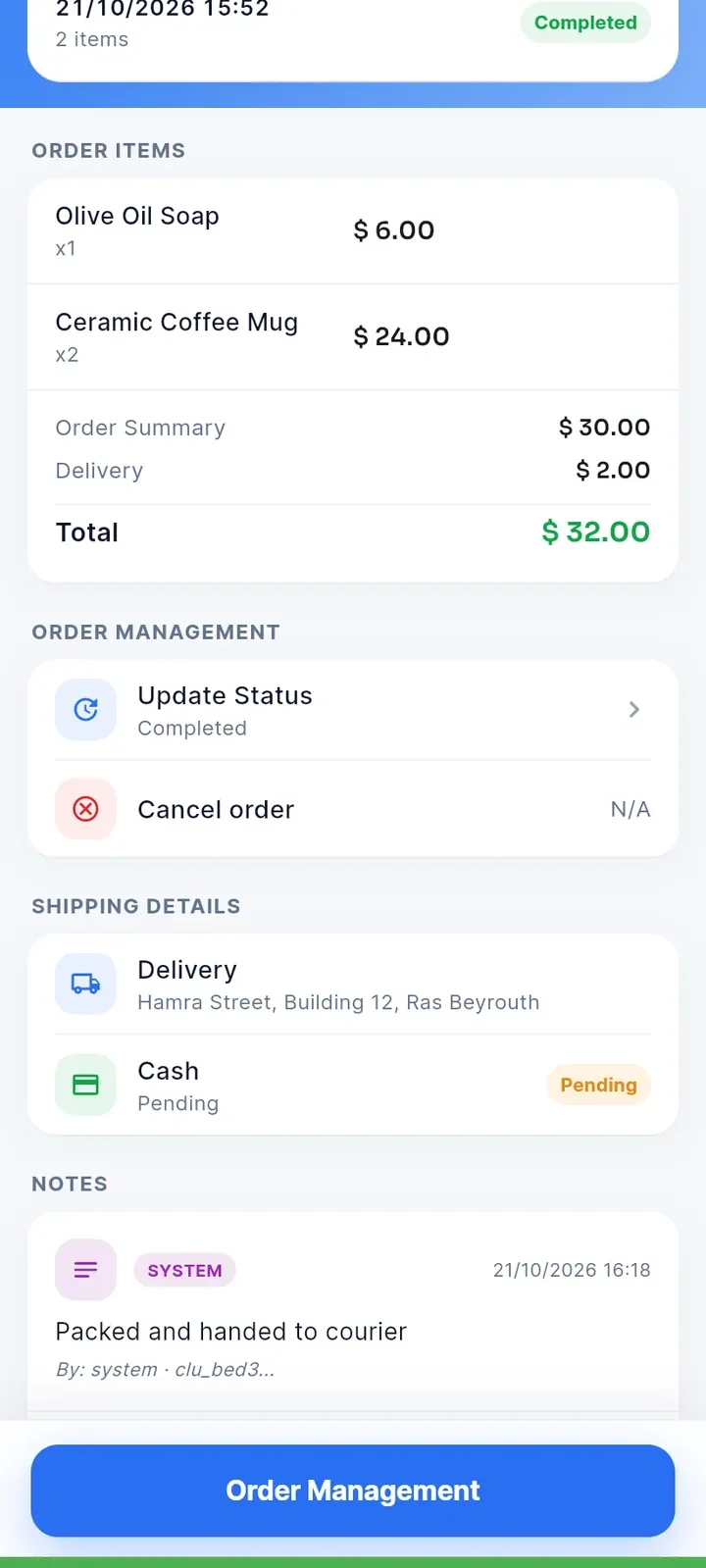
At the top you see the order date, the number of items and the status. Below are Order Items with the totals, Order Management, Shipping Details (delivery address or pickup place, and the payment method with its status) and Notes. The screen does not show the buyer's name or a status history.
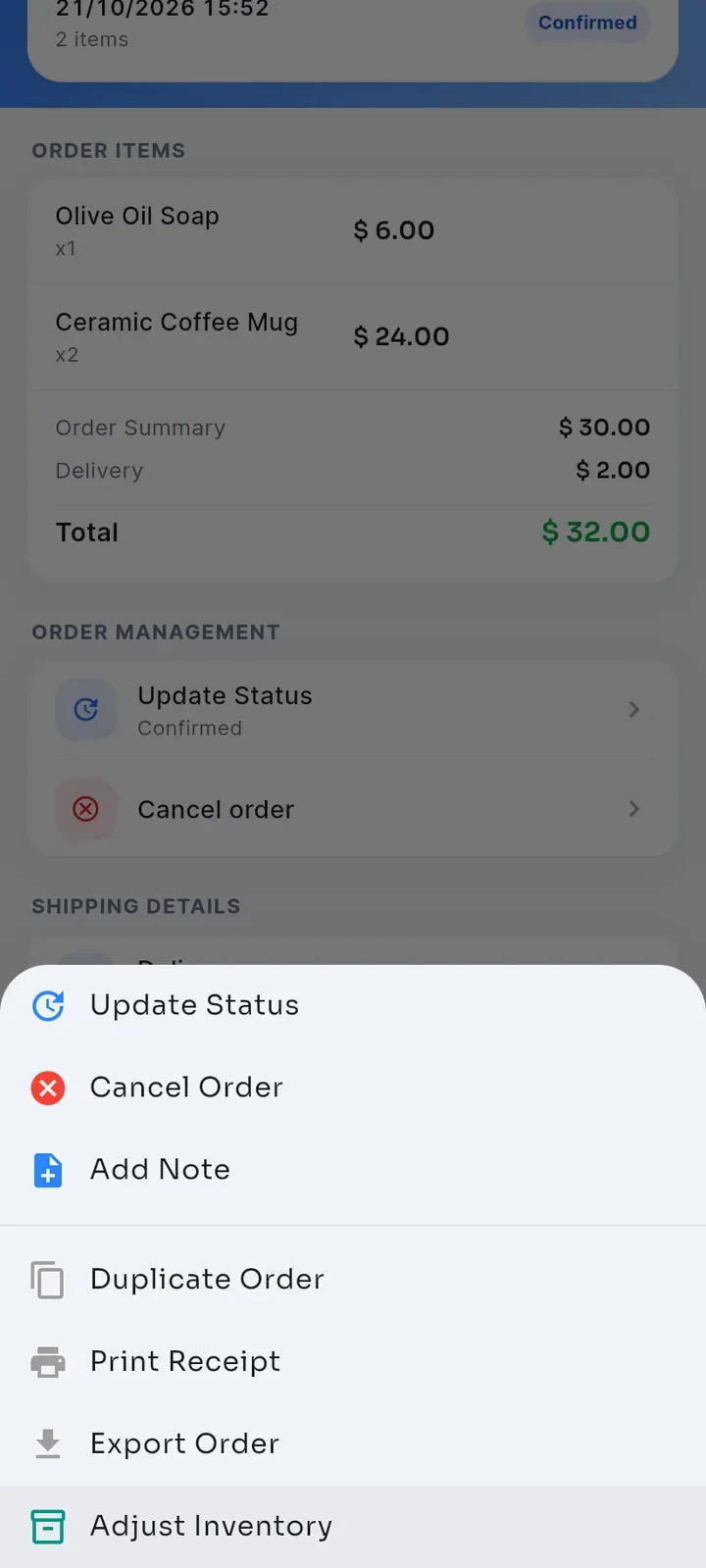
Tap the blue Order Management button at the bottom to see all actions: Update Status, Cancel Order, Add Note, Duplicate Order, Print Receipt, Export Order and Adjust Inventory.
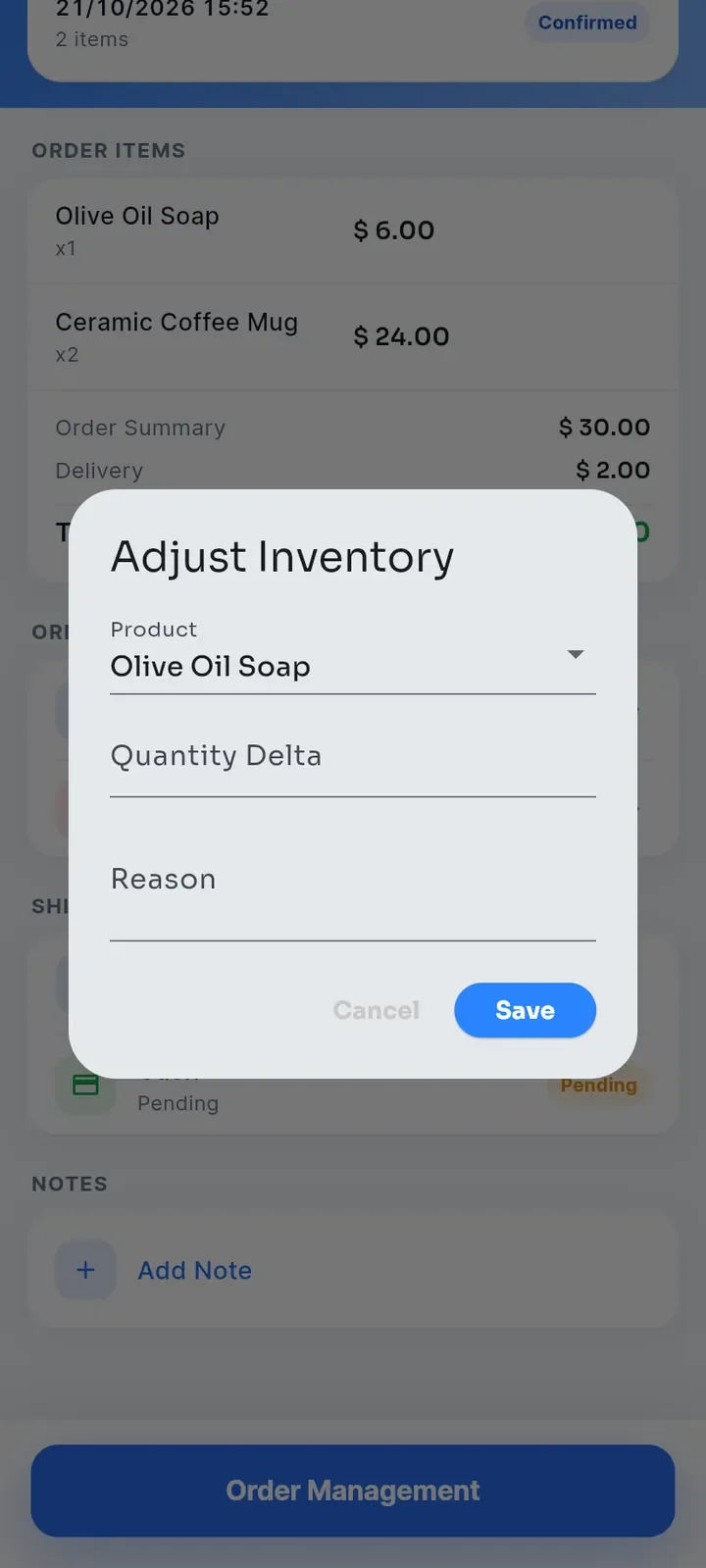
Tap Adjust Inventory to open a form with Product, Quantity Delta and Reason. Tap Cancel to close it without changing your stock.
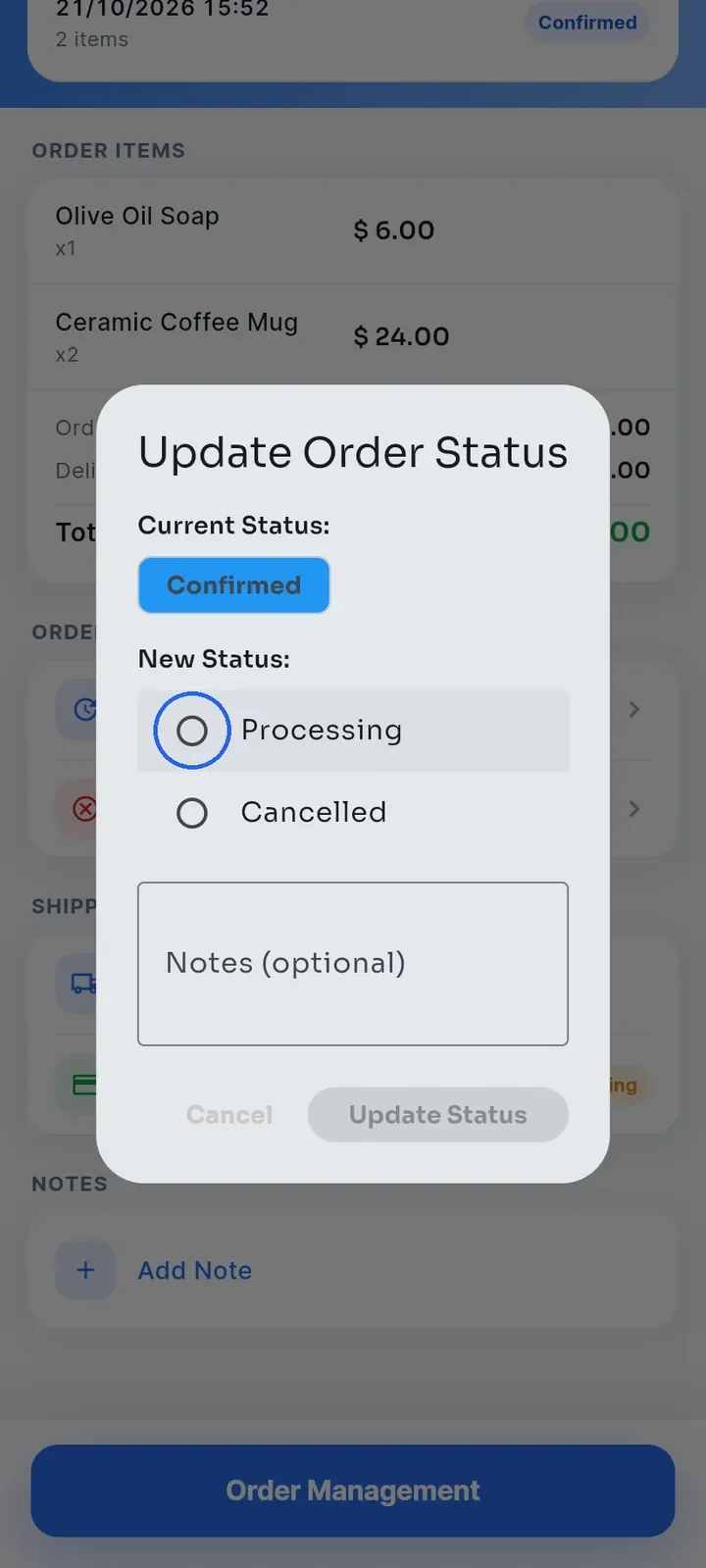
To change the status, tap Update Status. The window shows the Current Status and only the statuses you can move to next, here Processing or Cancelled. Choose the new status, add Notes (optional) if you want, and tap Update Status.
A green message confirms the change, for example Order status updated to Processing, and the new status shows at the top.
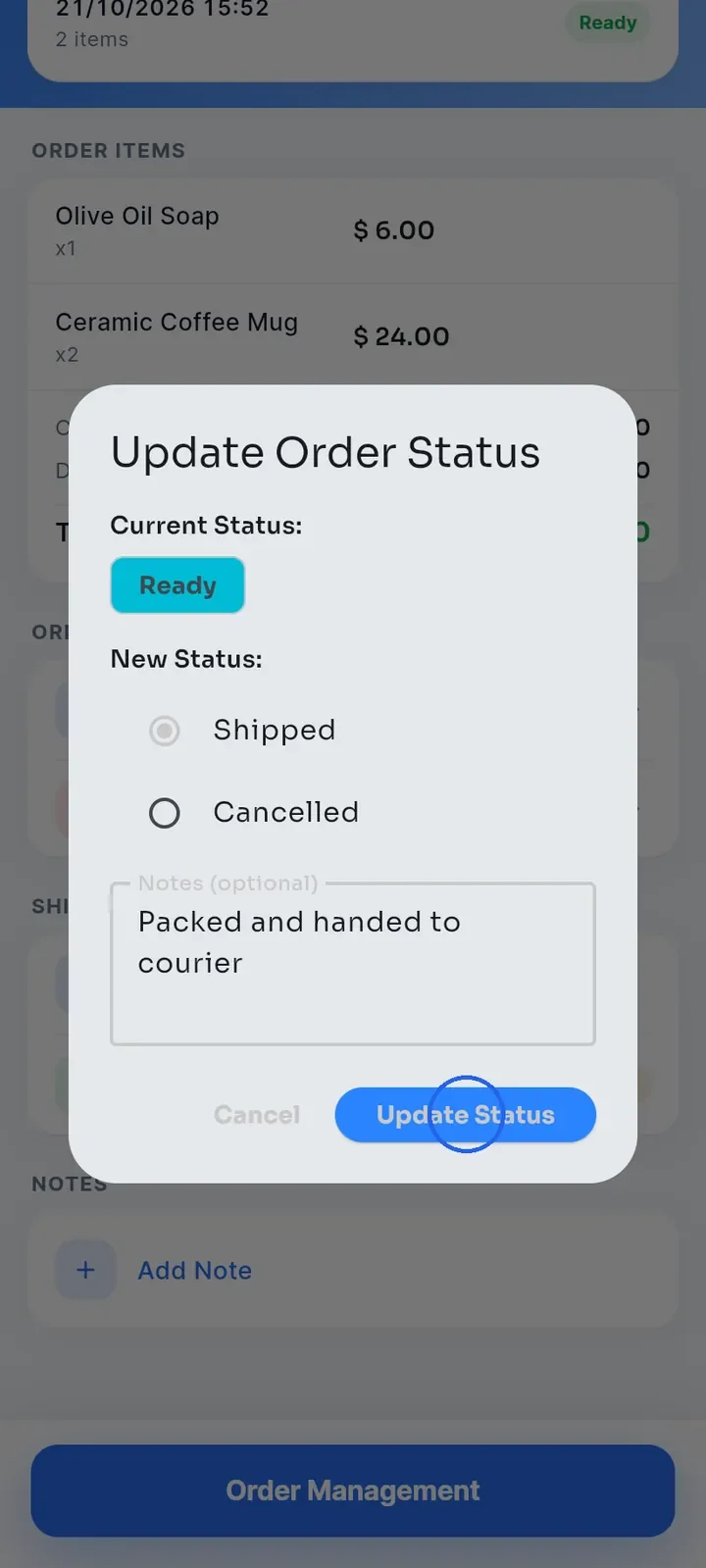
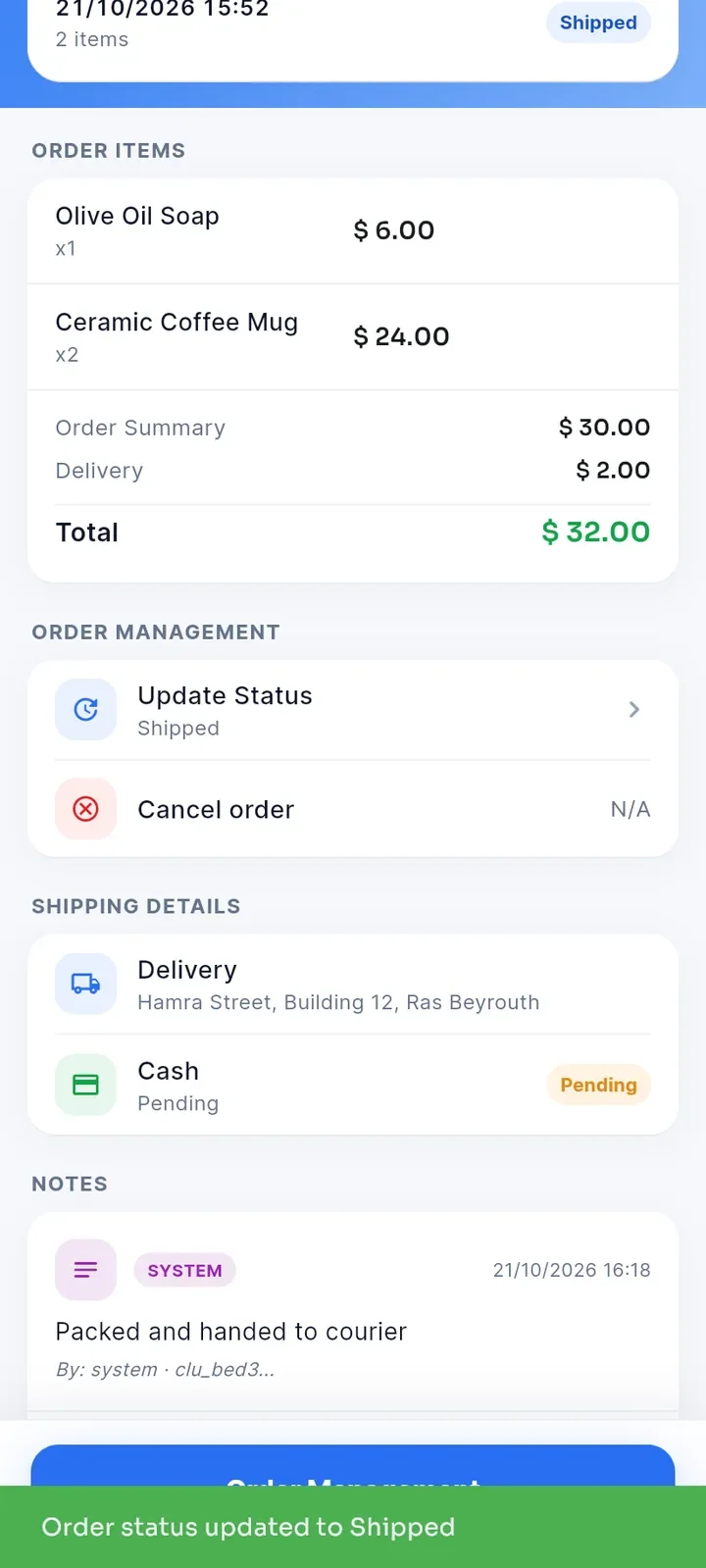
Repeat for each next status. After Confirmed, an order moves to Processing, Ready, Shipped, Delivered and Completed, one status at a time. In this example, the note "Packed and handed to courier" is added when moving to Shipped.
The note you type in the status window appears under Notes with the SYSTEM label. To add a note without changing the status, use Add Note.
After Delivered, choose Completed. The status at the top changes to Completed and Cancel order shows N/A.
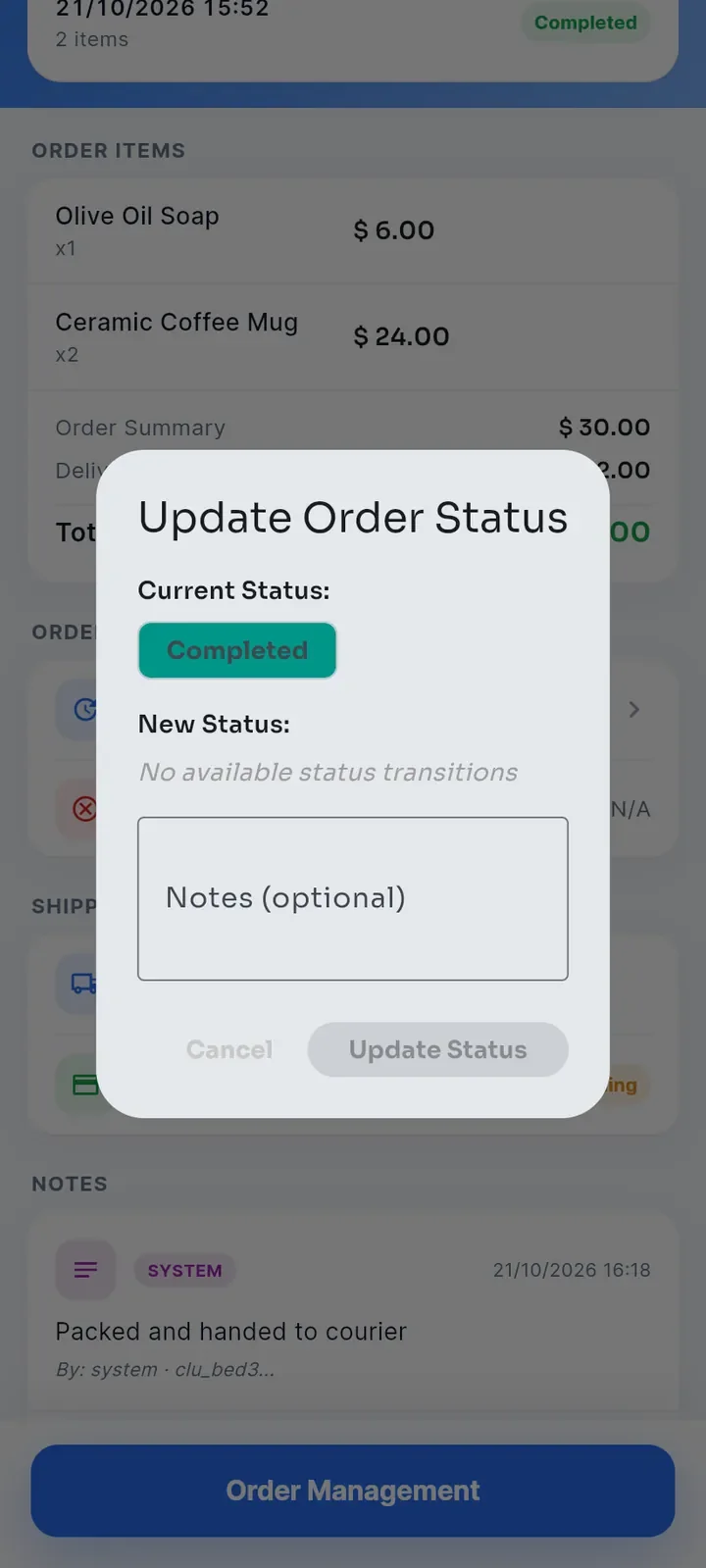
Open Update Status again. It shows No available status transitions: Completed, Cancelled and Refunded are final, so the status cannot change any more.
Note: Cancel order works while the order is Pending up to Ready. From Shipped on it shows N/A, although Update Status still lists Cancelled up to Delivered.
Tip: the buyer sees the current status in My Orders and Order Details in their app, so you do not need to message them about each change.