Edit, hide or delete a product
Change a product, hide it from shoppers without deleting it, or remove it for good.
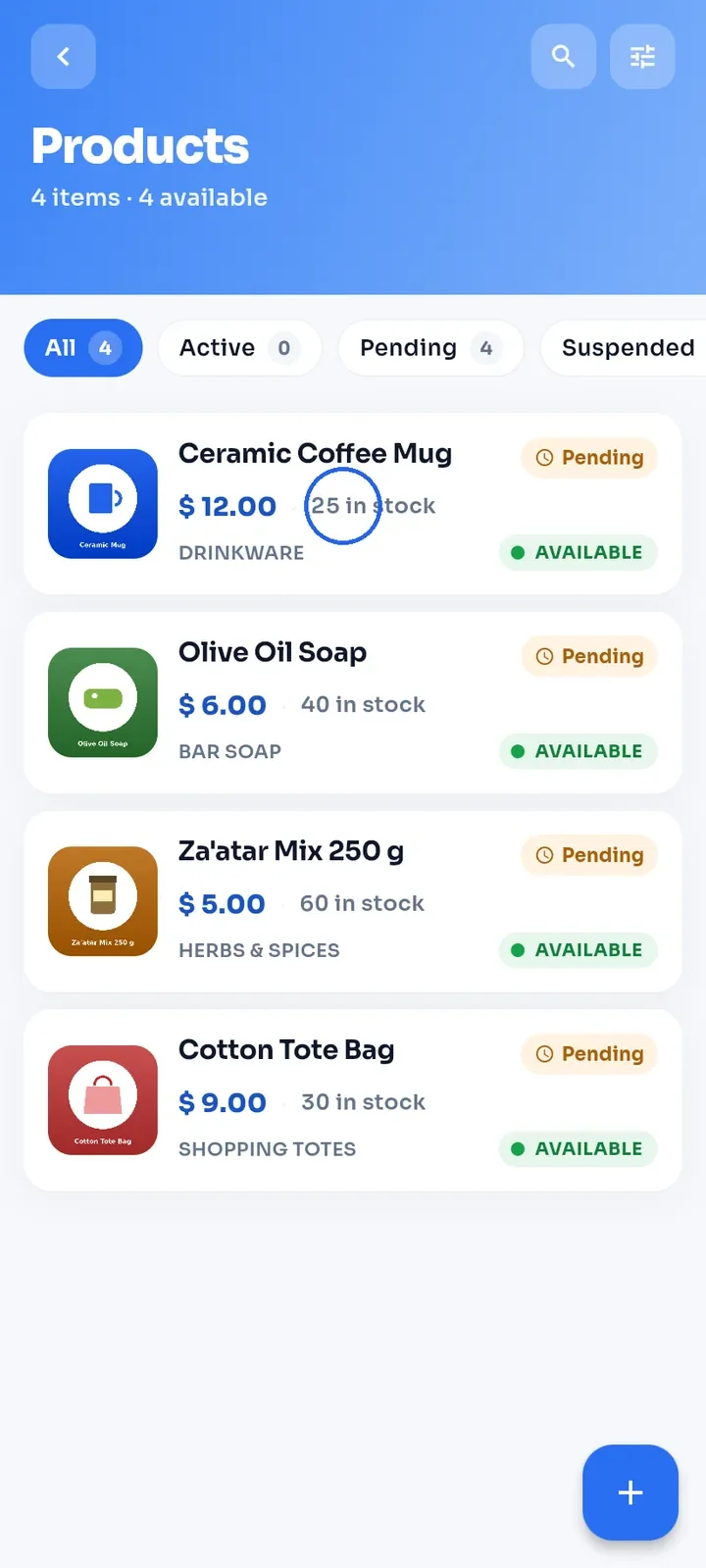
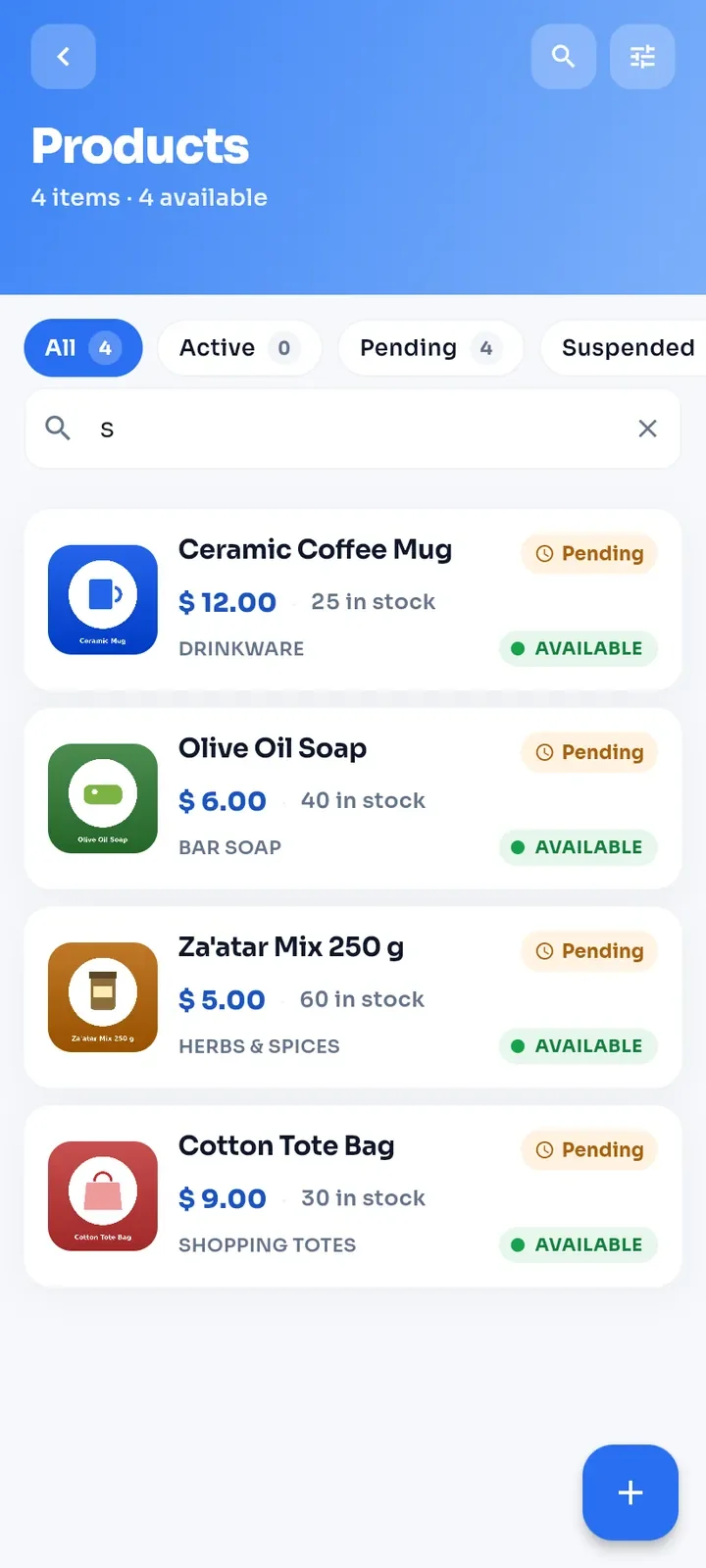
In My Stores, tap Products on your store card. Tap the product you want to change.
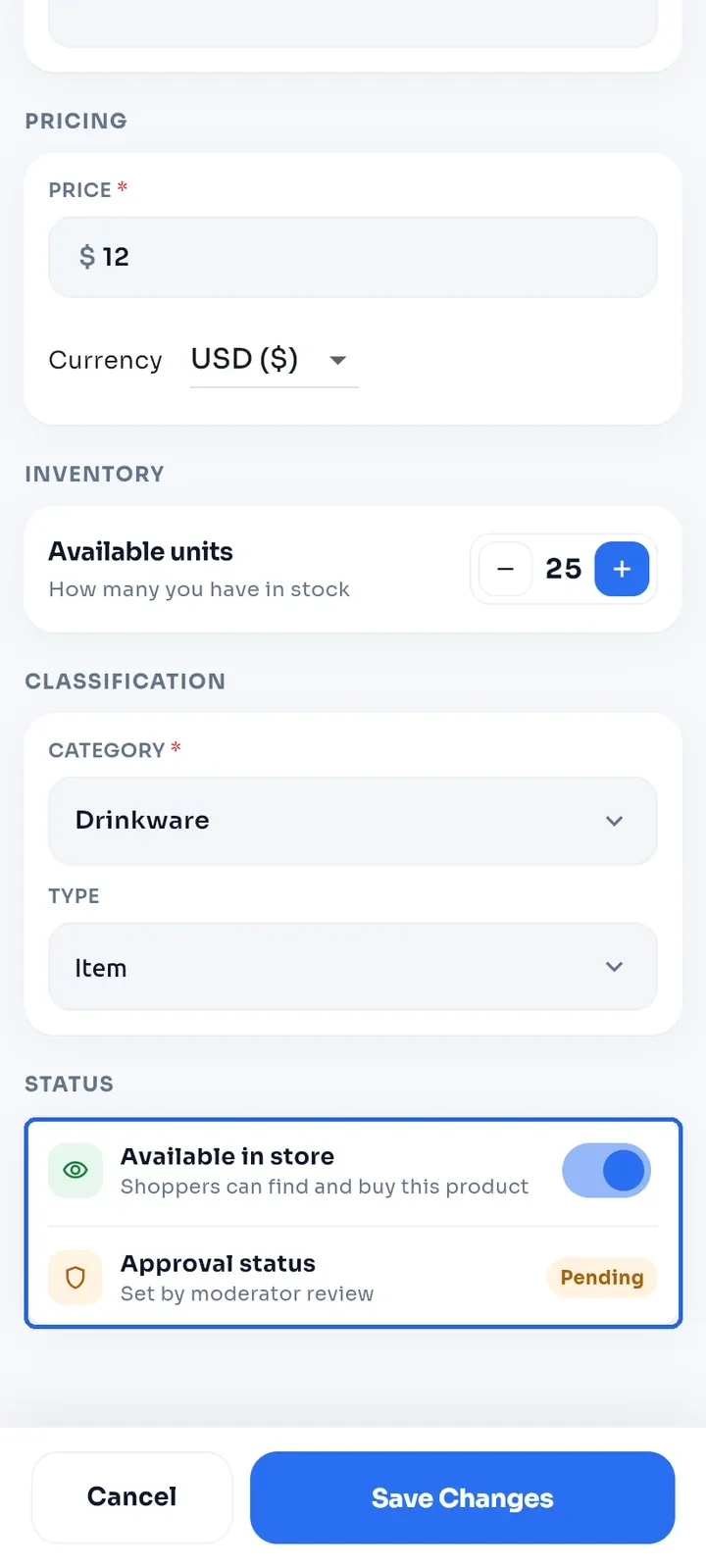
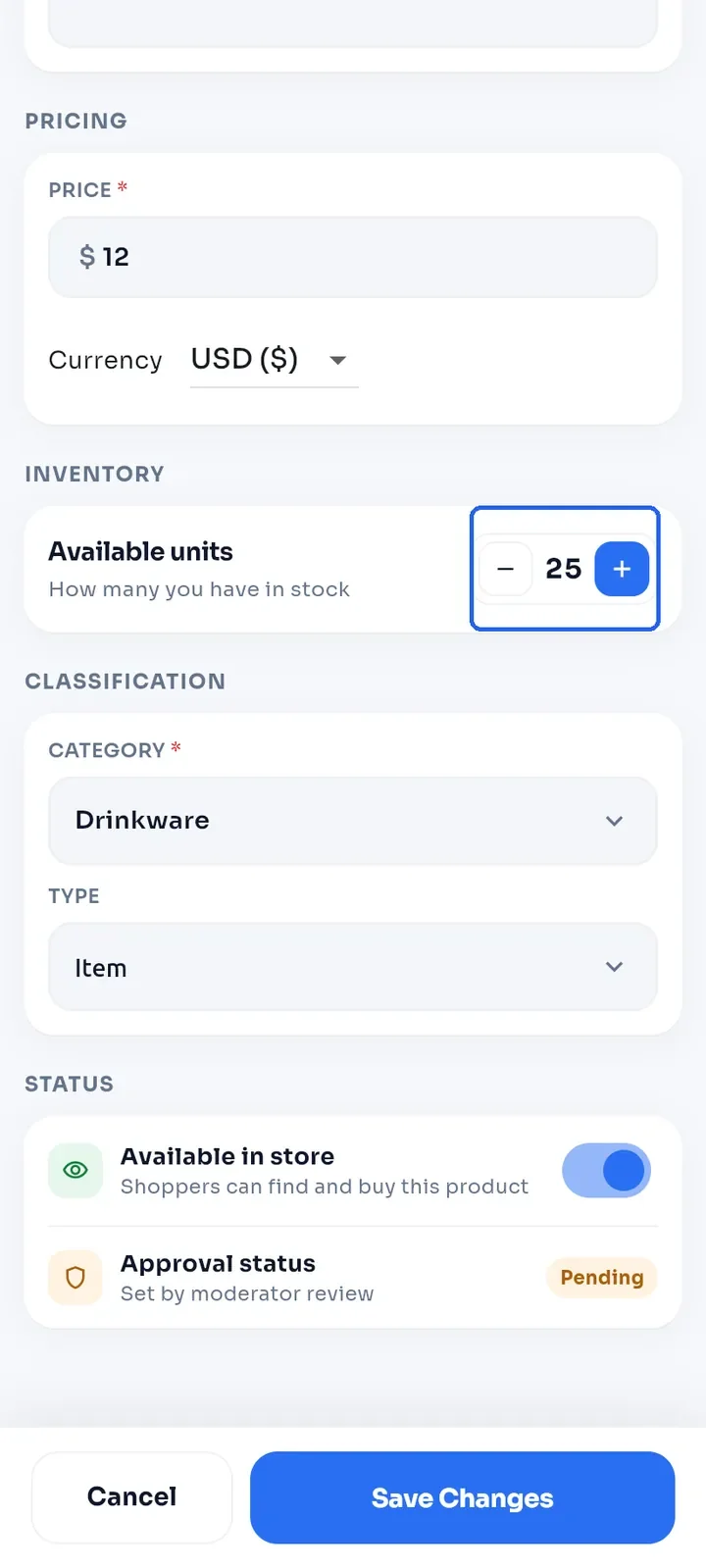
Scroll down to STATUS. Available in store decides whether shoppers can find and buy the product. Approval status (for example Pending) is set by the E-Wasila team when they review the product.
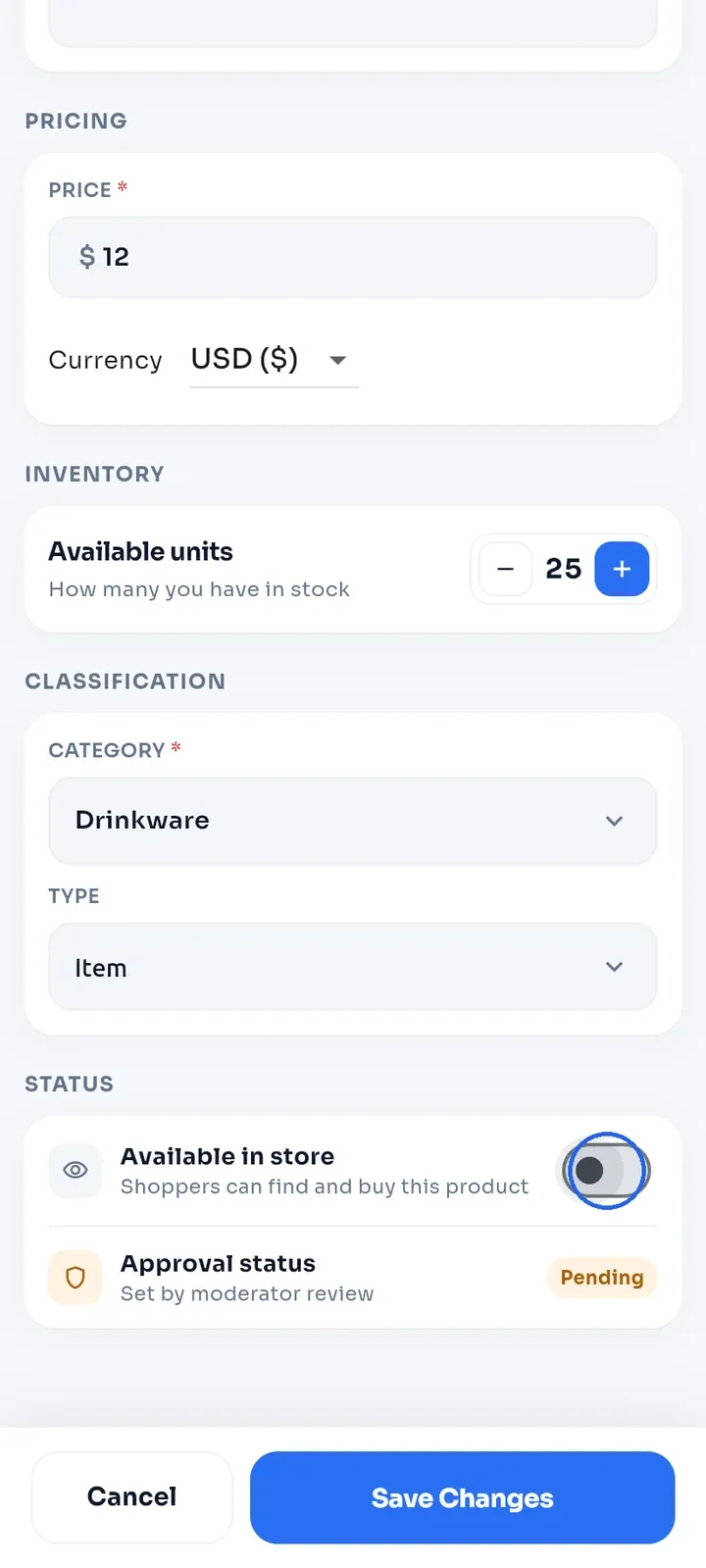
To hide the product, switch Available in store off and tap Save Changes.
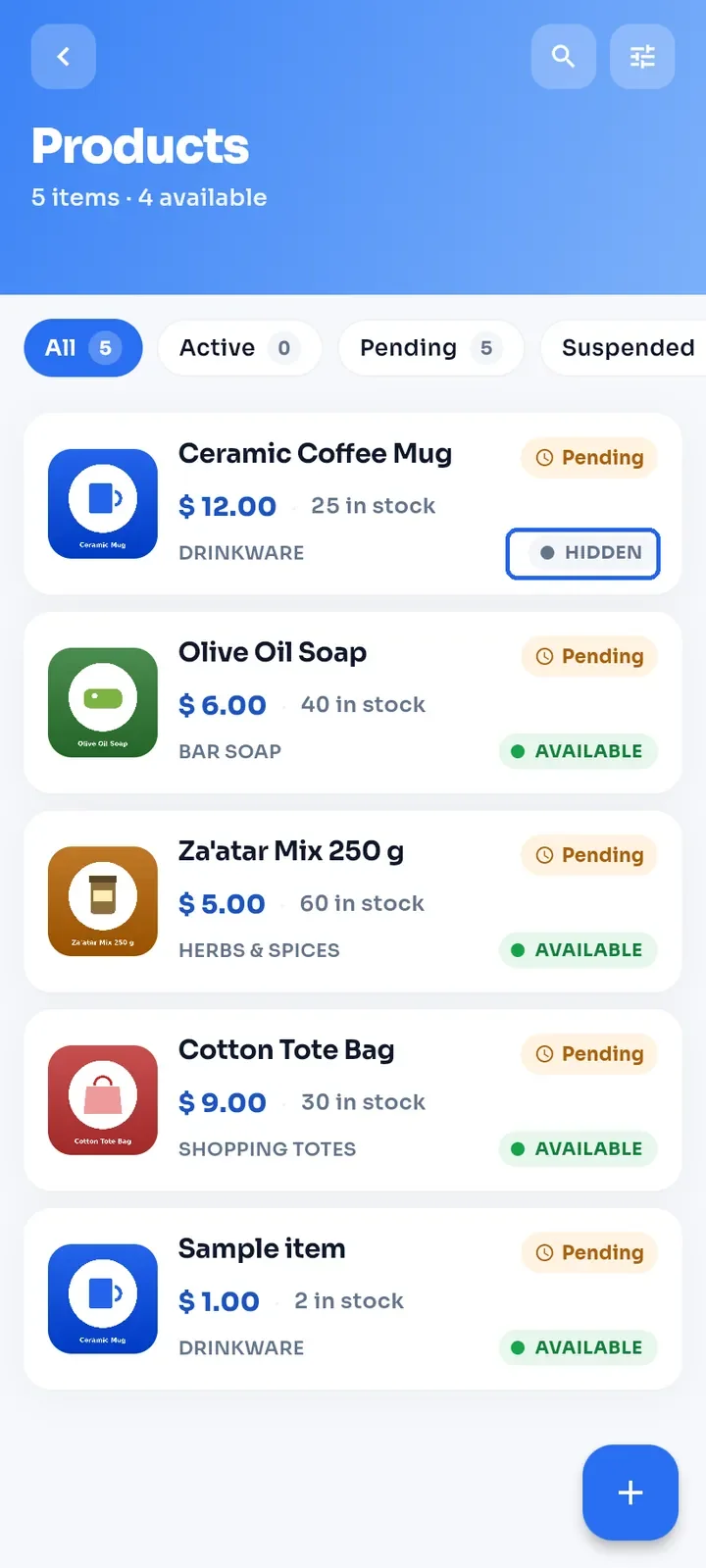
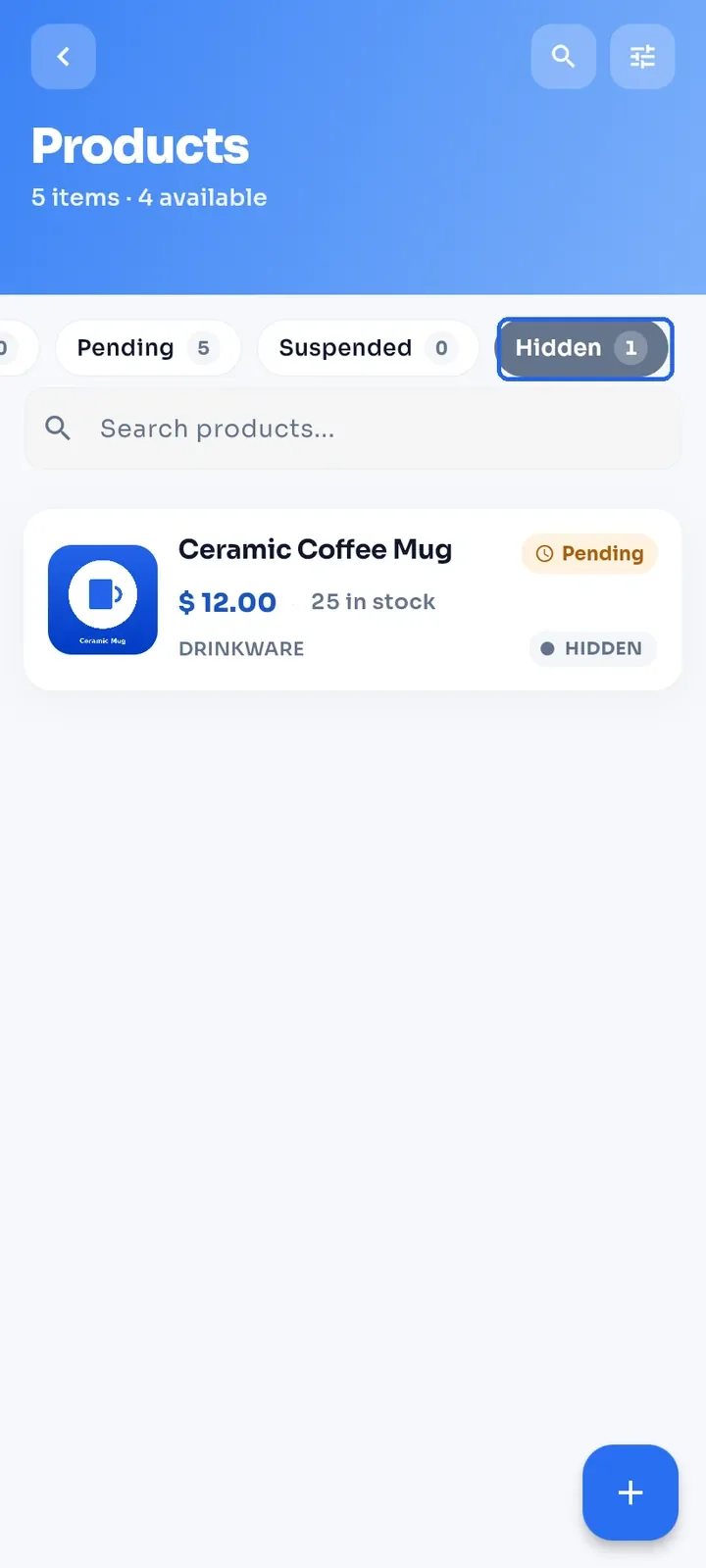
You return to the list. The product now shows a HIDDEN tag and no longer counts as available.
To see only hidden products, swipe the filter chips at the top to the left and tap Hidden.
Tip: to show a hidden product again, open it, switch Available in store back on and tap Save Changes.
To change your stock, open the product and tap - or + next to Available units. You cannot type the number.
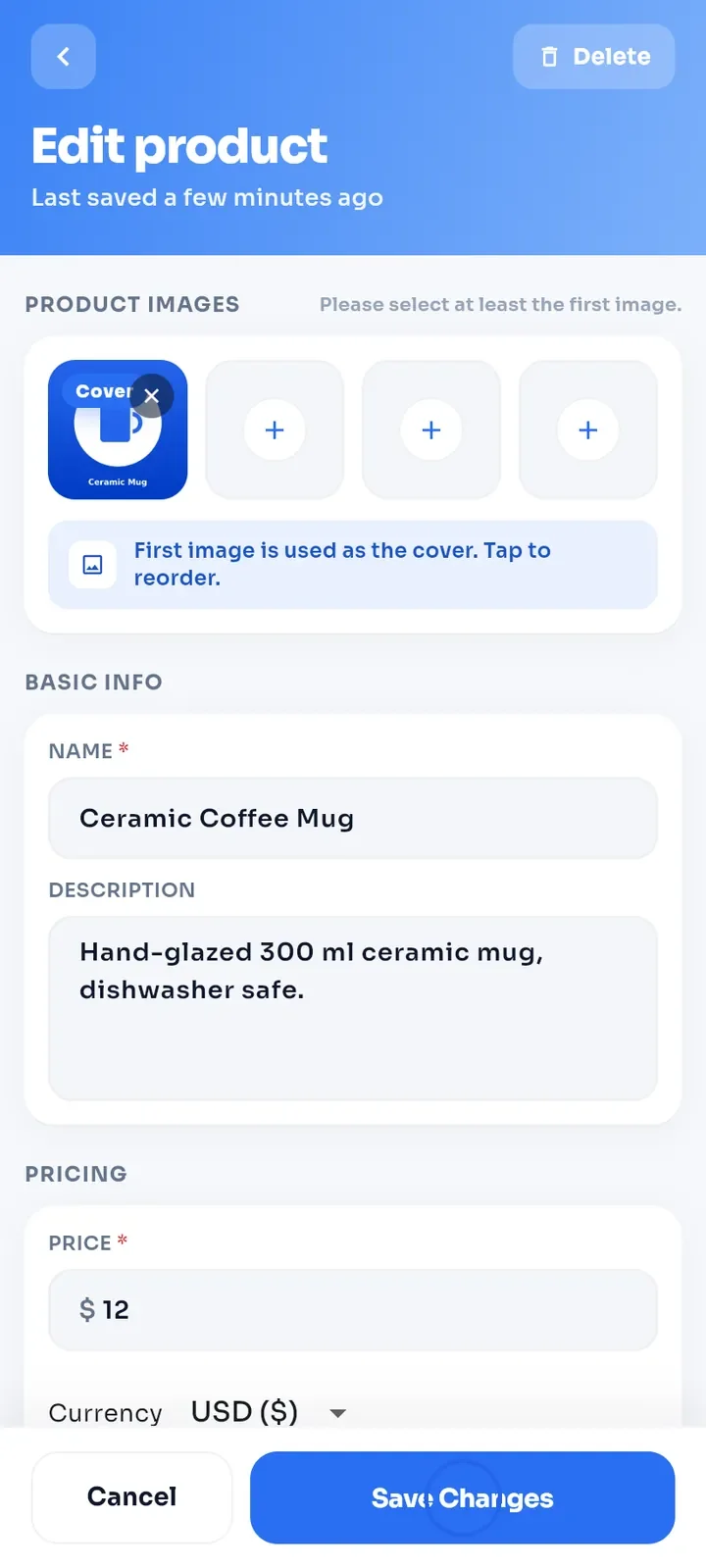
Change any other field you need, such as the photos, NAME or PRICE. Then tap Save Changes.
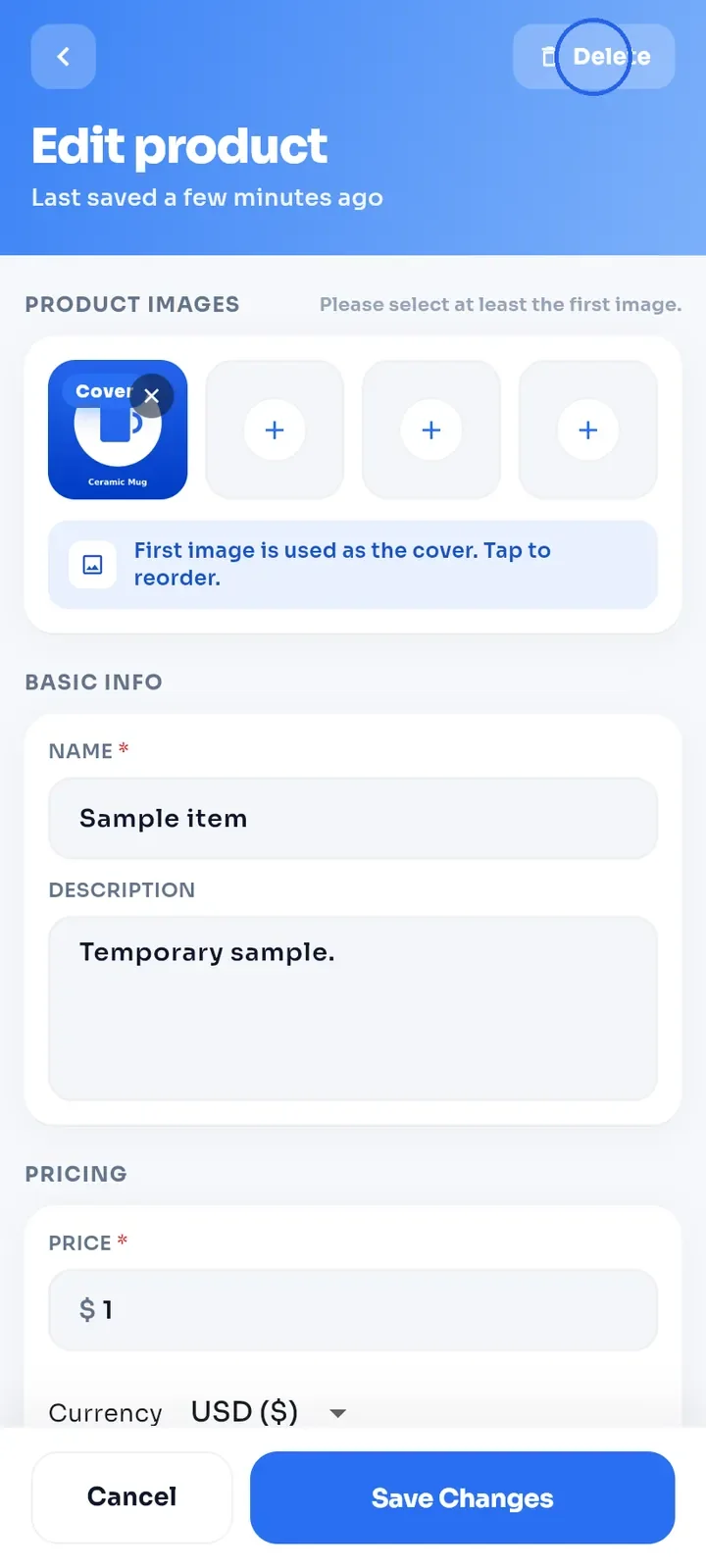
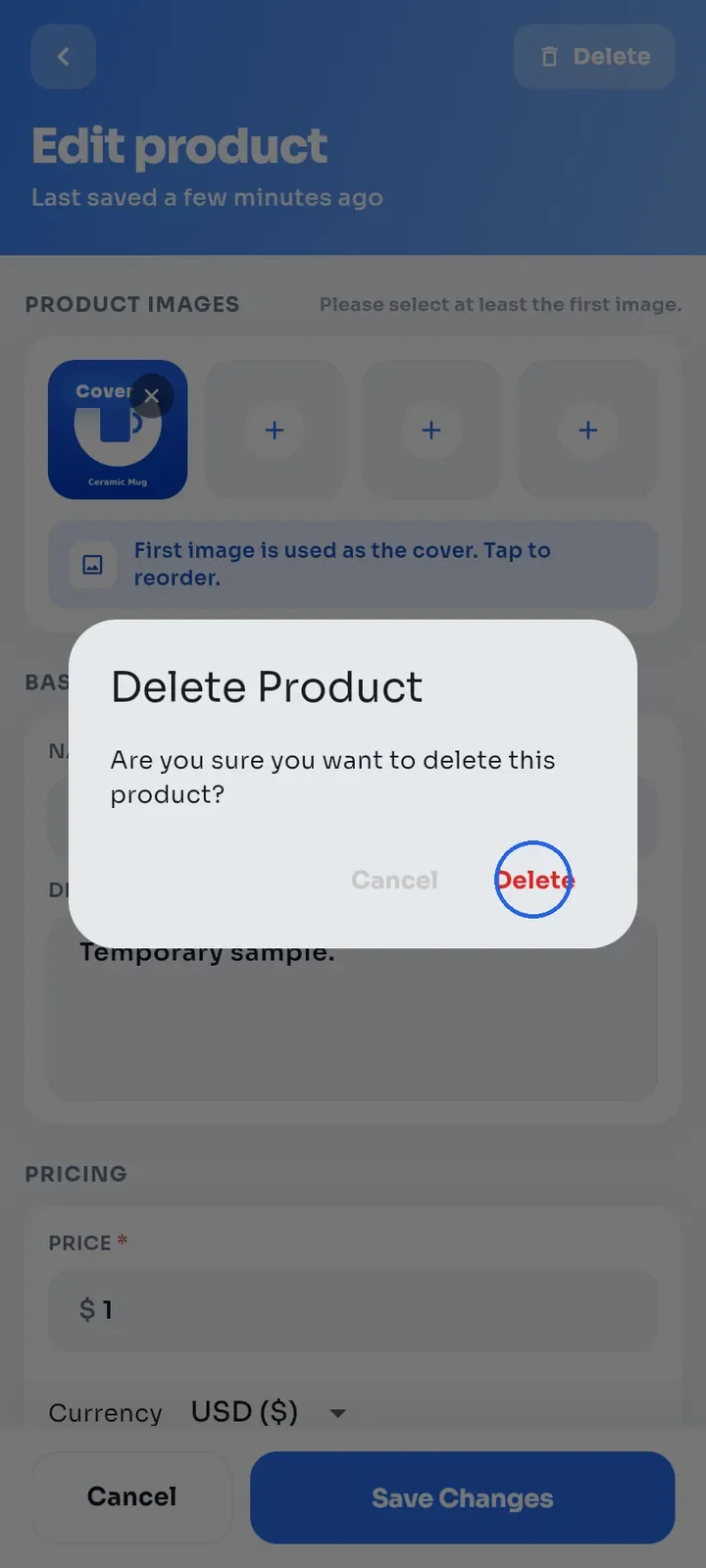
To delete a product, open it and tap Delete at the top right.
In the Delete Product dialog, tap Delete.
You return to the list, and the product is gone.
Note: you cannot undo a delete. To stop selling for a while, hide the product instead.