Change the delivery address of an order
Move a pending delivery order to another saved address in the same delivery zone.
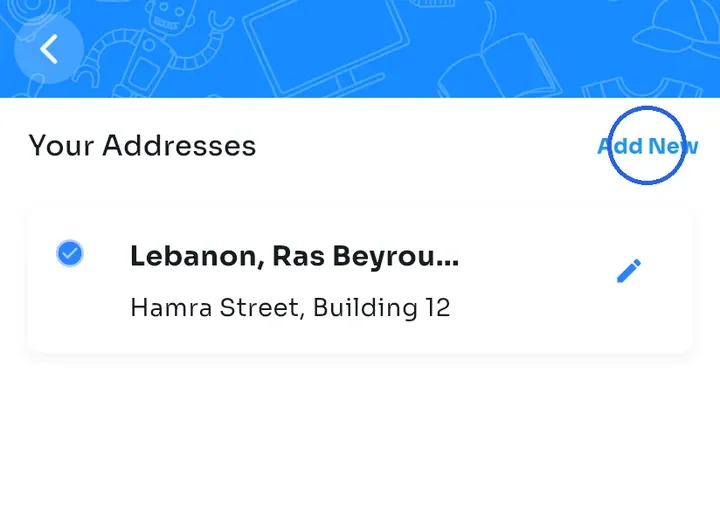
If the new address is not saved yet, save it first. Open My Profile, tap My Addresses, then tap Add New (see the guide "Add and edit a delivery address").
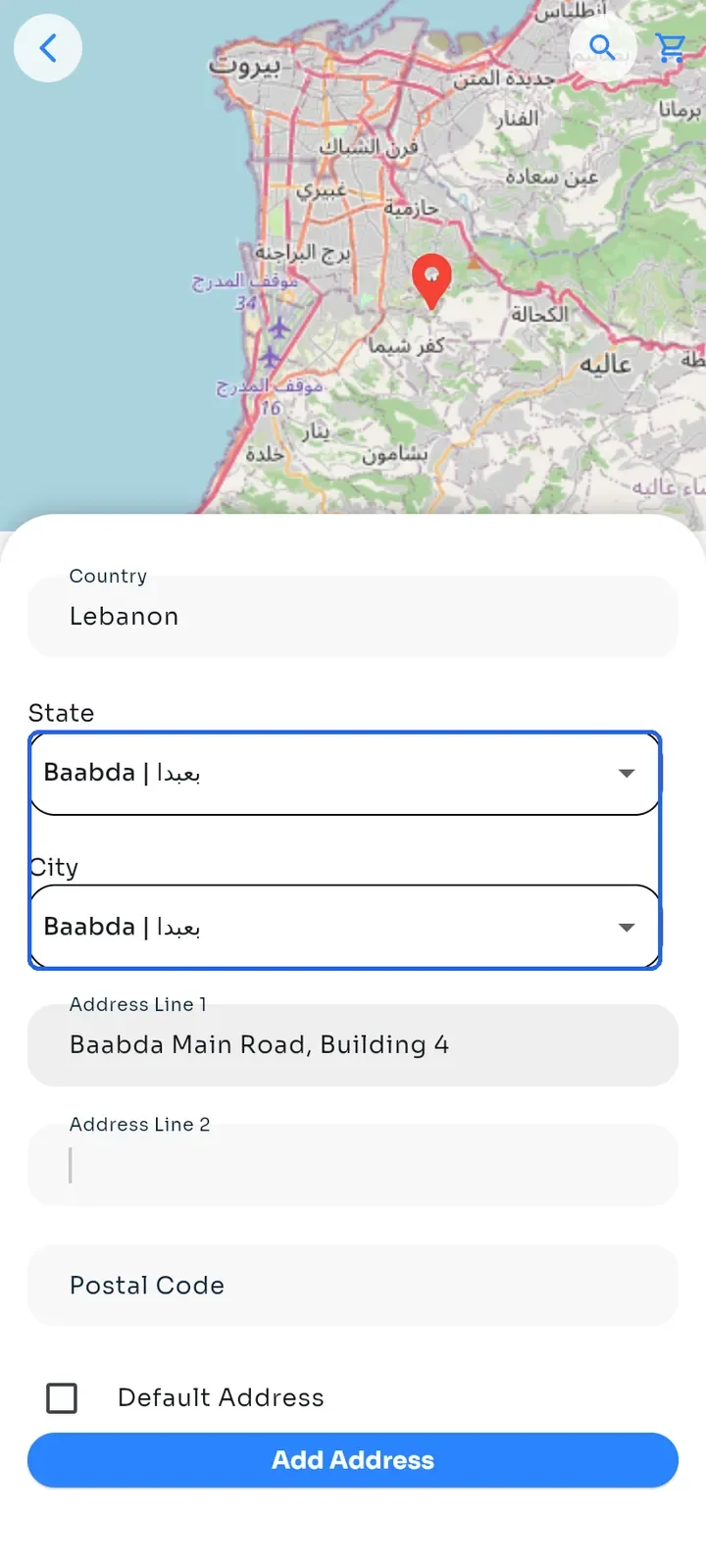
Tap the map to place the pin, choose the State and City, and type the street in Address Line 1. Leave Default Address unticked if you need this address only for this order.
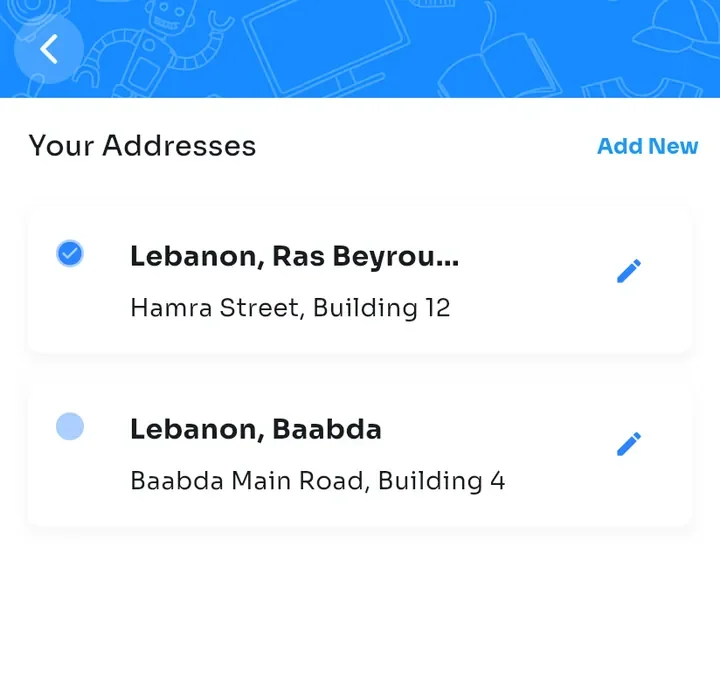
Tap Add Address. The app shows "Address added successfully!" and the new address appears in Your Addresses. Your default address keeps its blue tick.
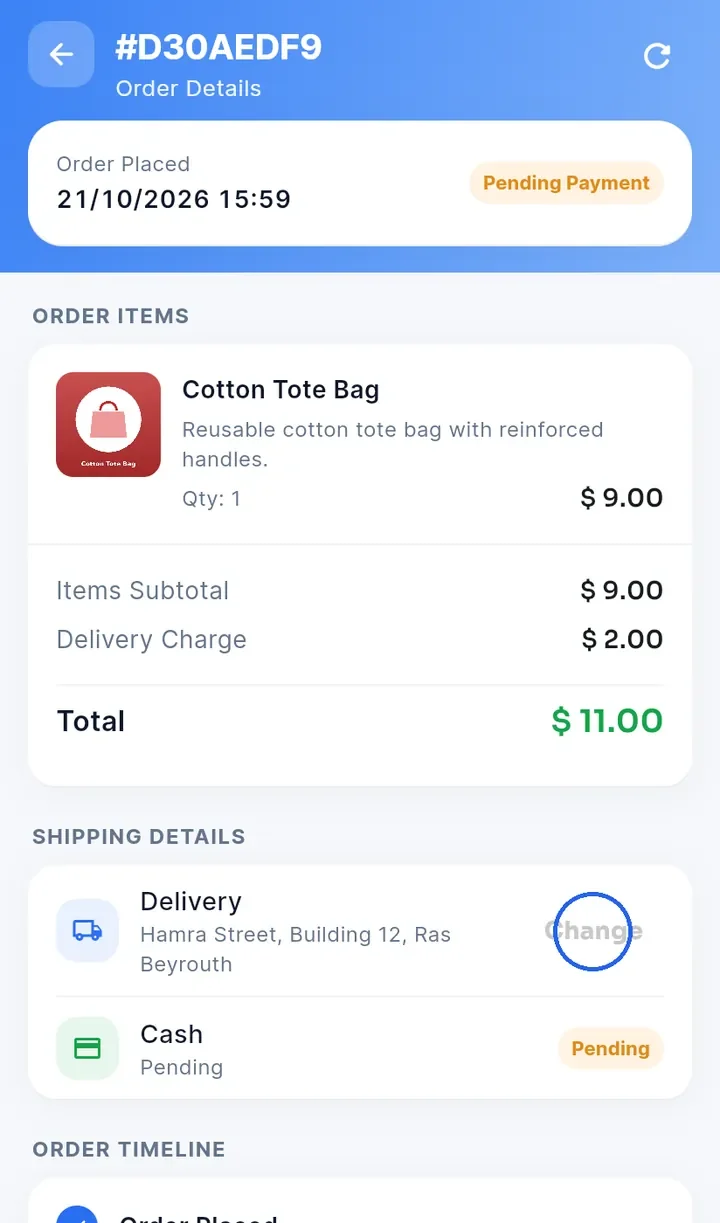
Open Orders and tap the order. Under Shipping Details, tap Change next to the delivery address. Change looks grey, but you can tap it.
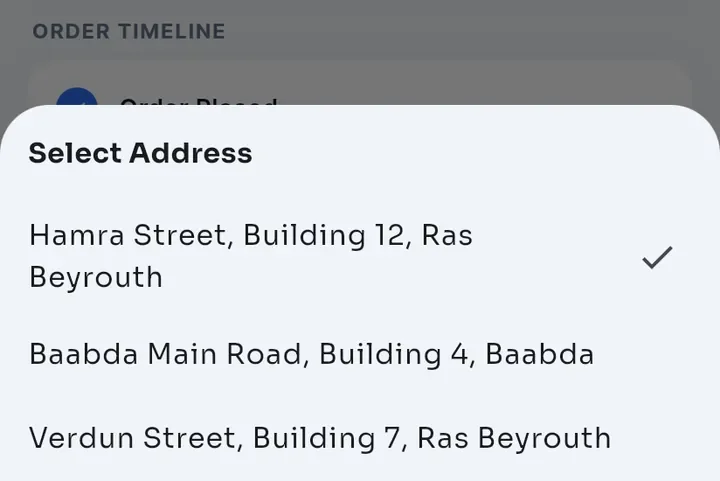
In Select Address, tap the address you want. A tick marks the address the order uses now.
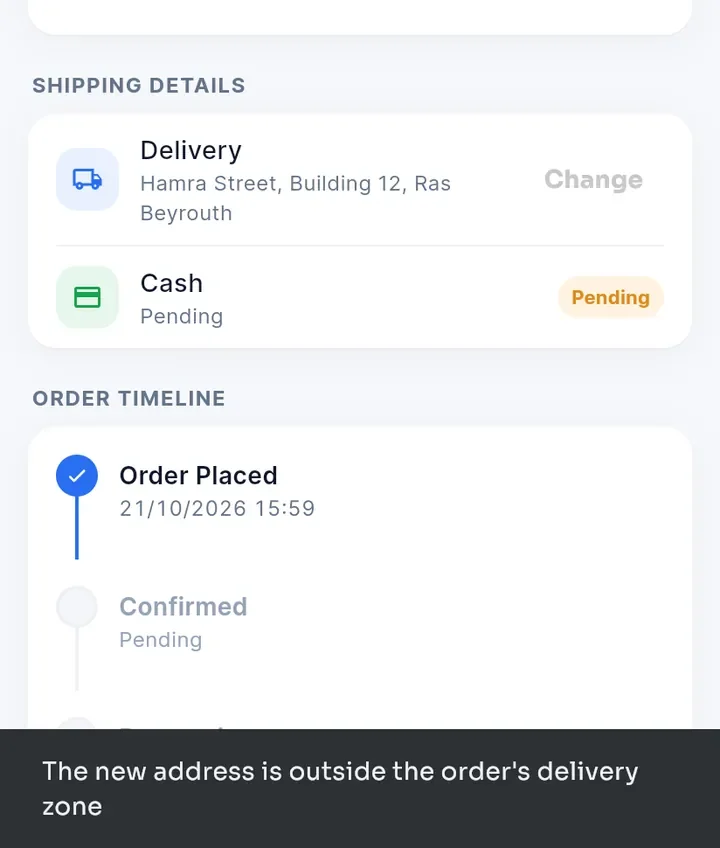
The new address must be in the order's delivery zone and have the same delivery charge. If it is outside the zone, the app shows "The new address is outside the order's delivery zone" and keeps the old address. For example, a Baabda address is refused for an order delivered in Ras Beyrouth.
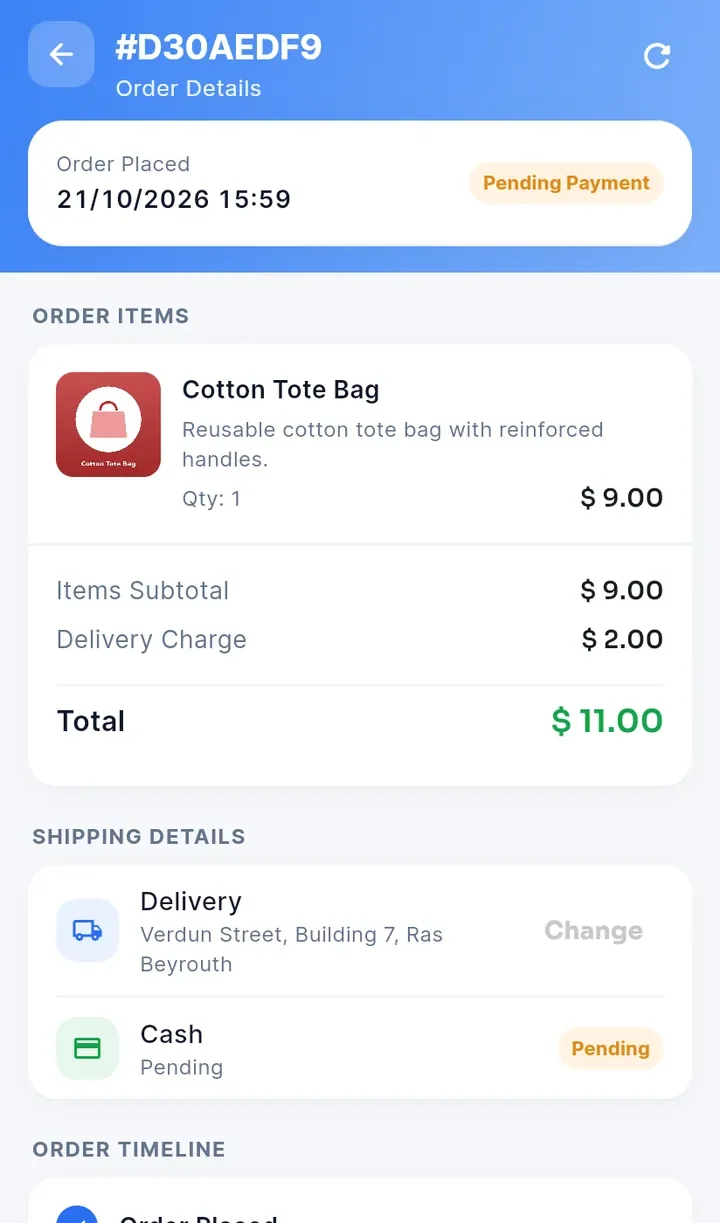
When the address fits, Shipping Details shows the new address, here Verdun Street, Building 7, Ras Beyrouth. The Delivery Charge and the Total do not change.
Note: you can change the address only on a delivery order, and only while its status is Pending or Pending Payment. Once the store confirms the order, Change no longer appears. Contact the store if the address must change after that.