Add a note and cancel an order
Keep notes on an order, and cancel an order with a reason and an optional refund record.
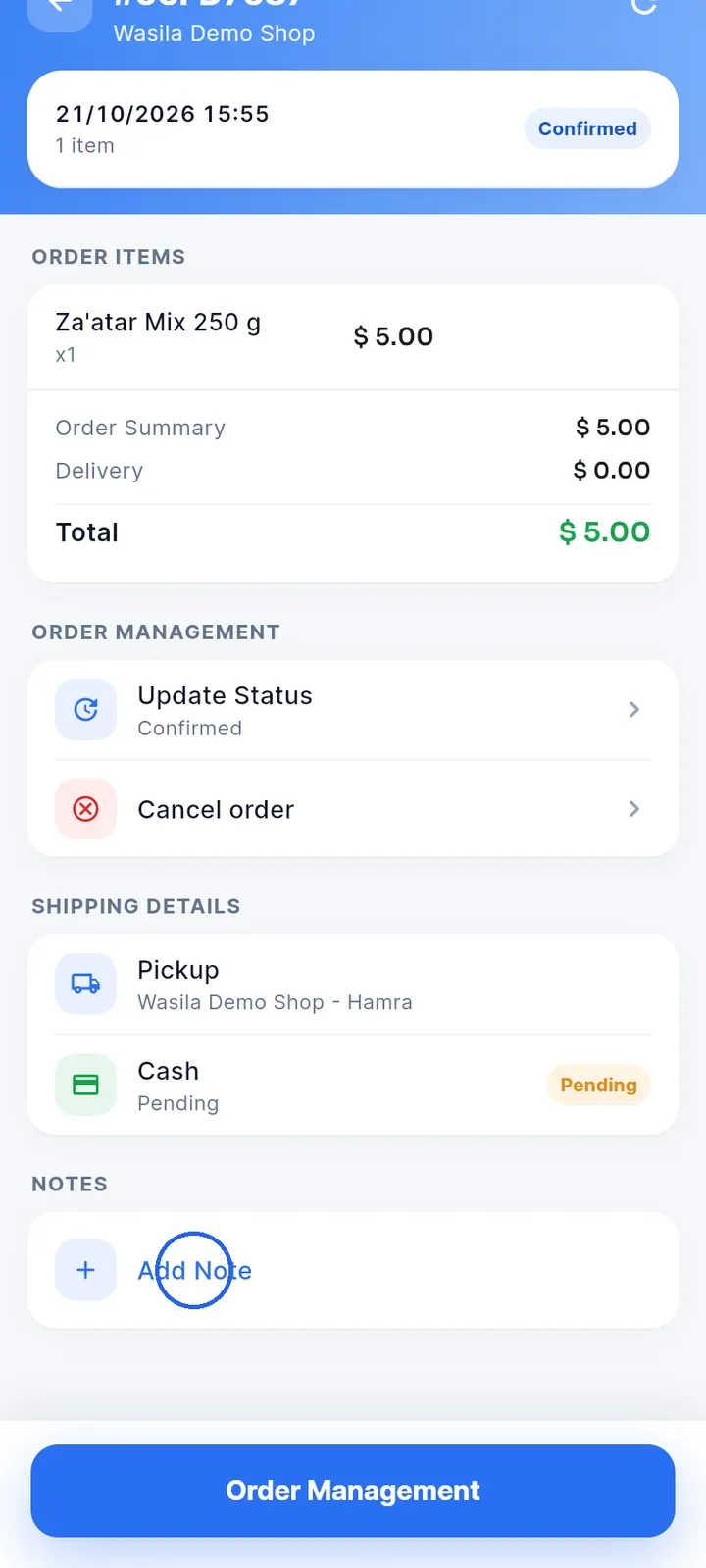
Open the order from Order management, scroll down to Notes and tap Add Note.
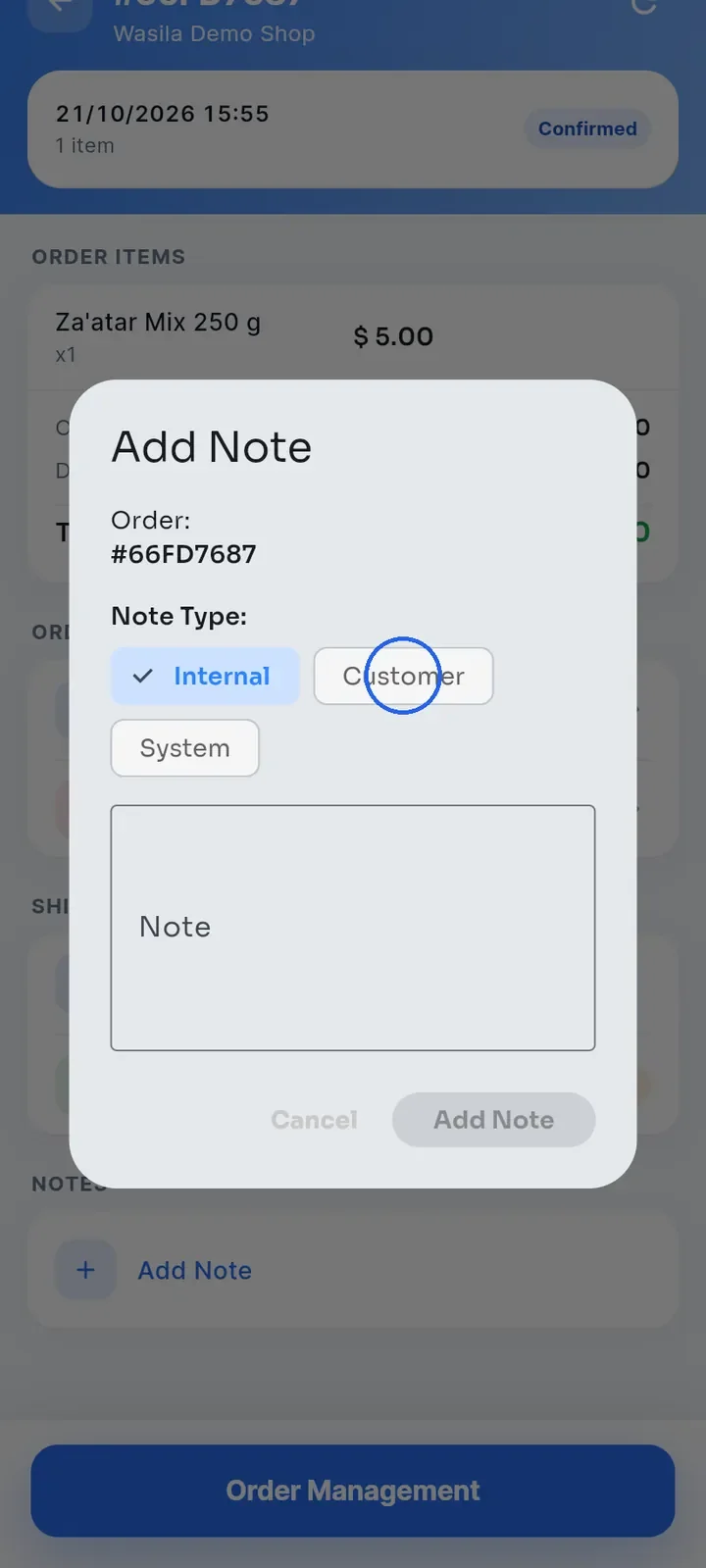
Choose a Note Type: Internal (selected first), Customer or System. Notes you type while changing a status are saved as System. In this example, tap Customer.
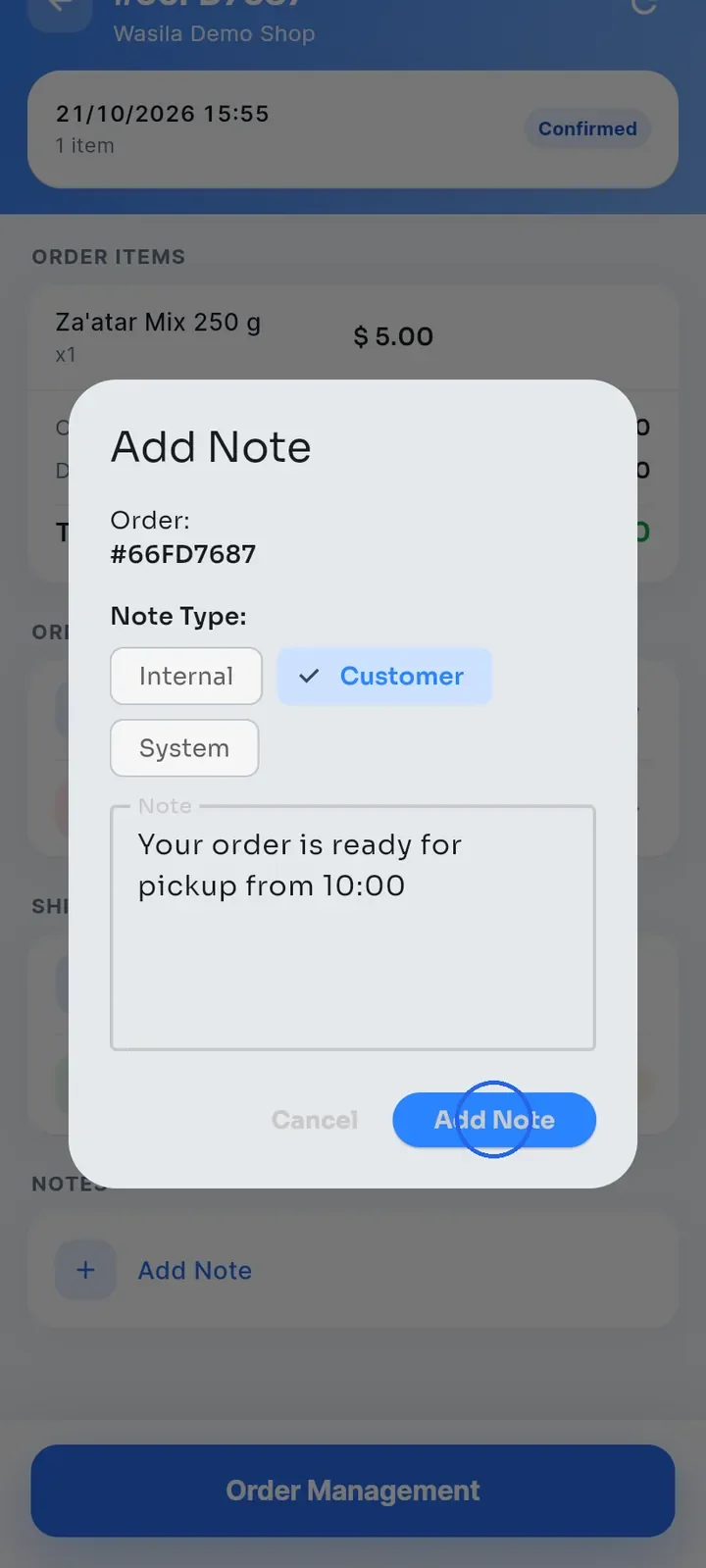
Type your text in Note, for example "Your order is ready for pickup from 10:00", and tap Add Note.
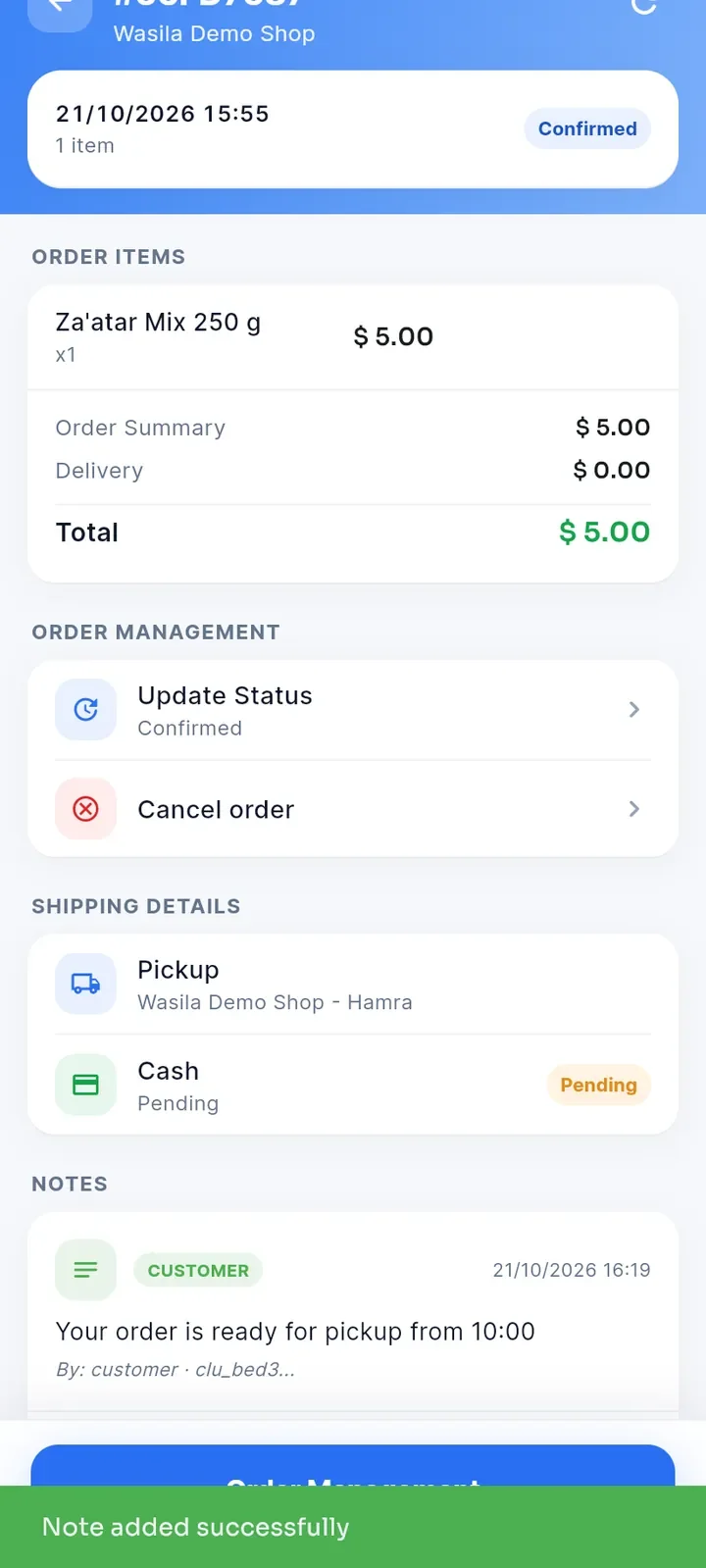
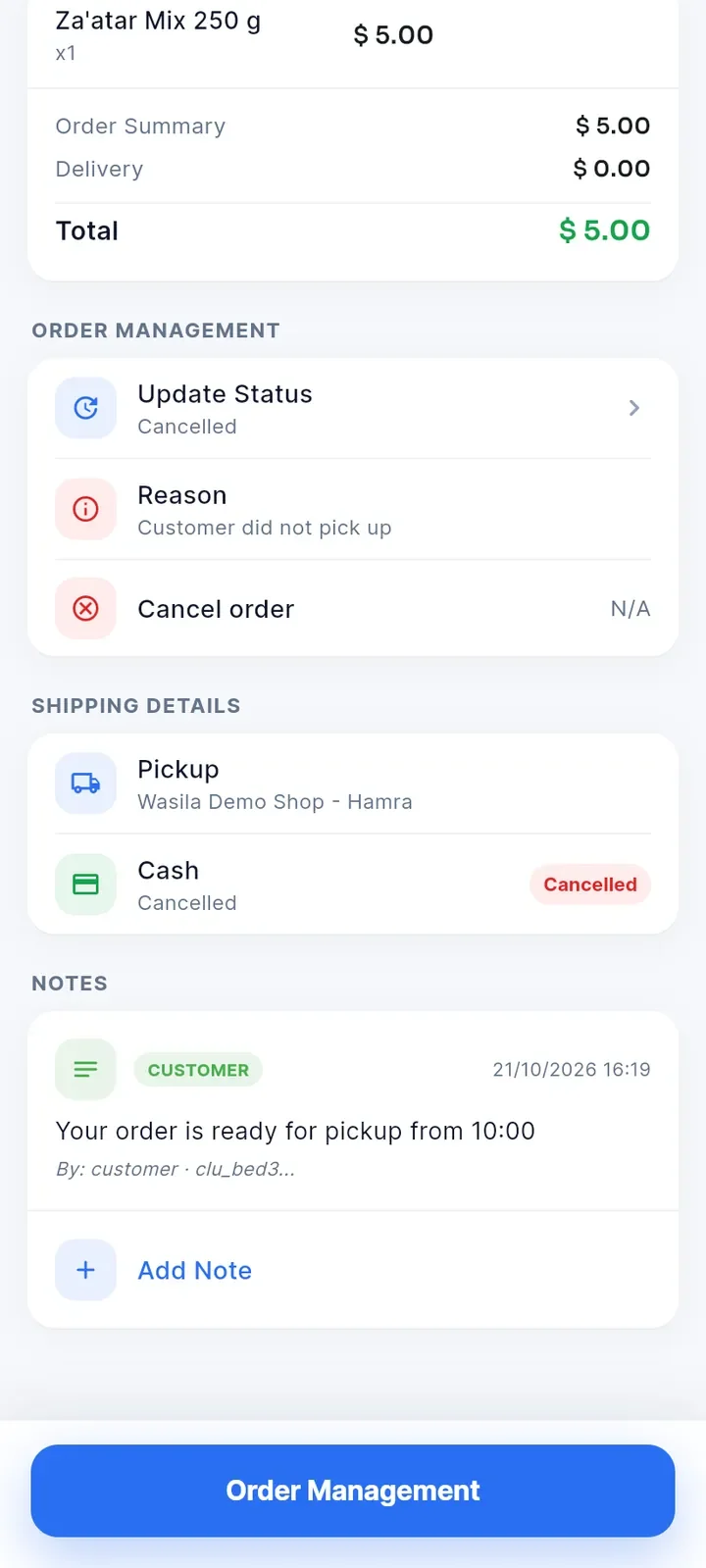
Note added successfully appears, and the note shows under Notes with its type and date.
Note: notes show only on your order screen. The buyer does not see them in the app, even with the Customer type.
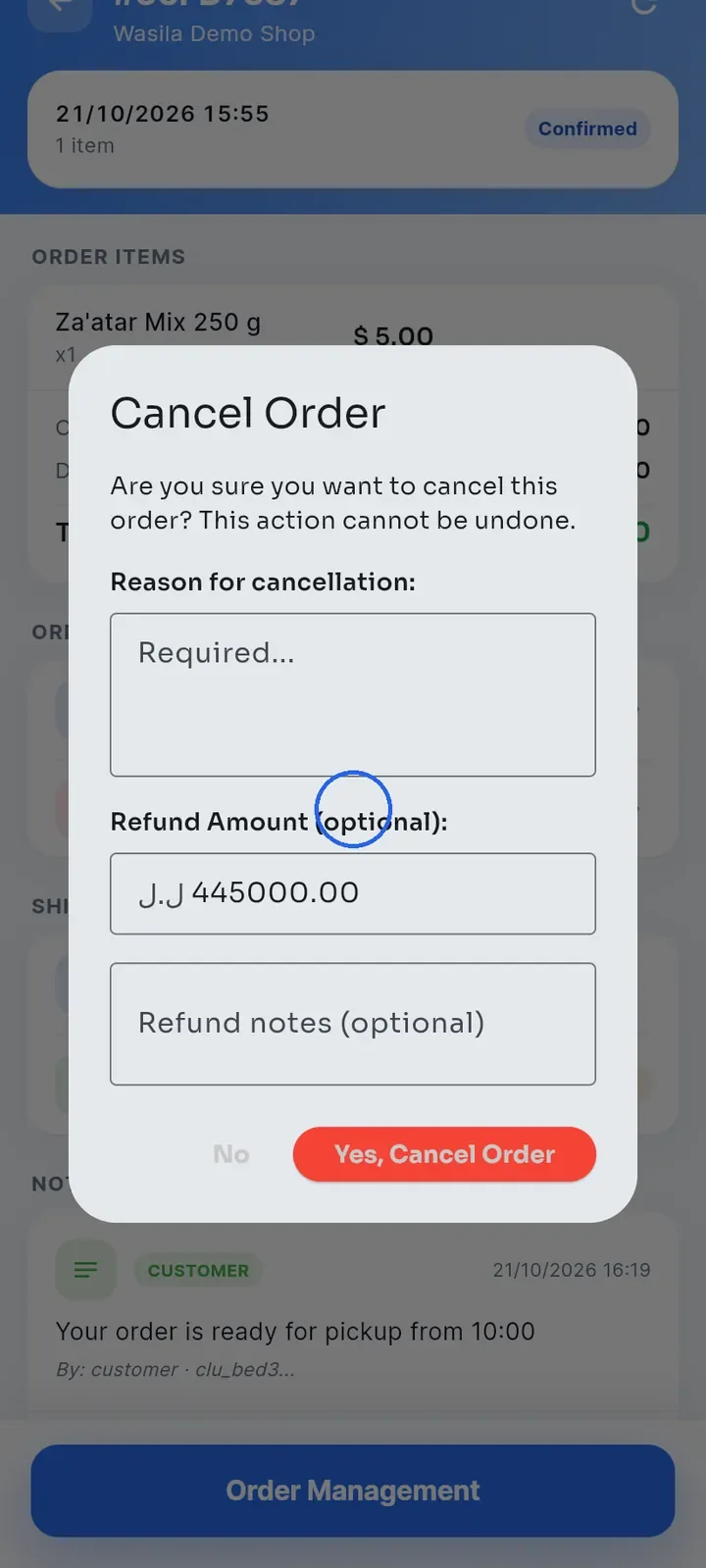
To cancel, tap Cancel order in the Order Management card. You can cancel while the order is Pending up to Ready. The Cancel Order window opens, and Refund Amount (optional) is already filled in with the full order total, which can show in Lebanese pounds (LBP).
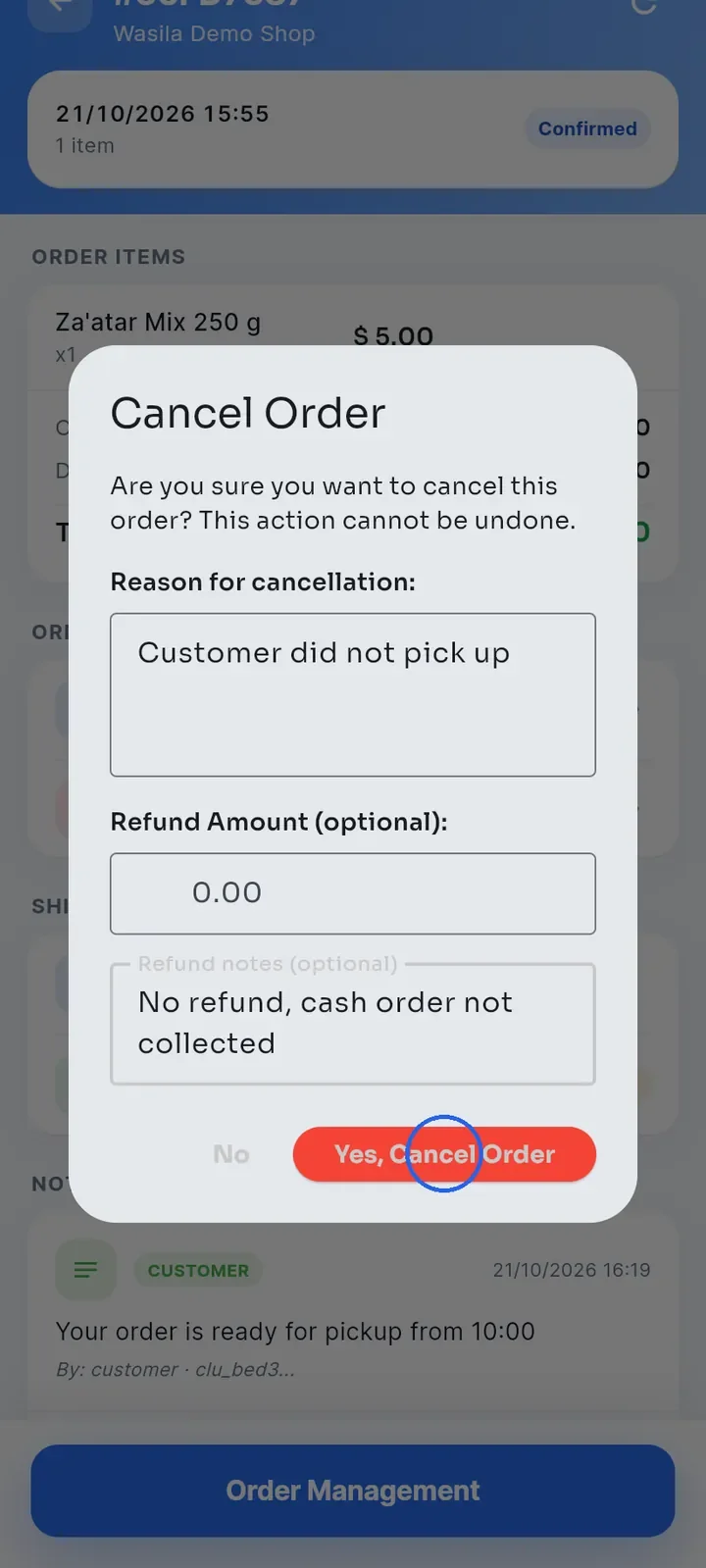
Enter the Reason for cancellation (required). Clear Refund Amount (optional) if you are not recording a refund, or enter the amount you refund. Add Refund notes (optional) if you want.
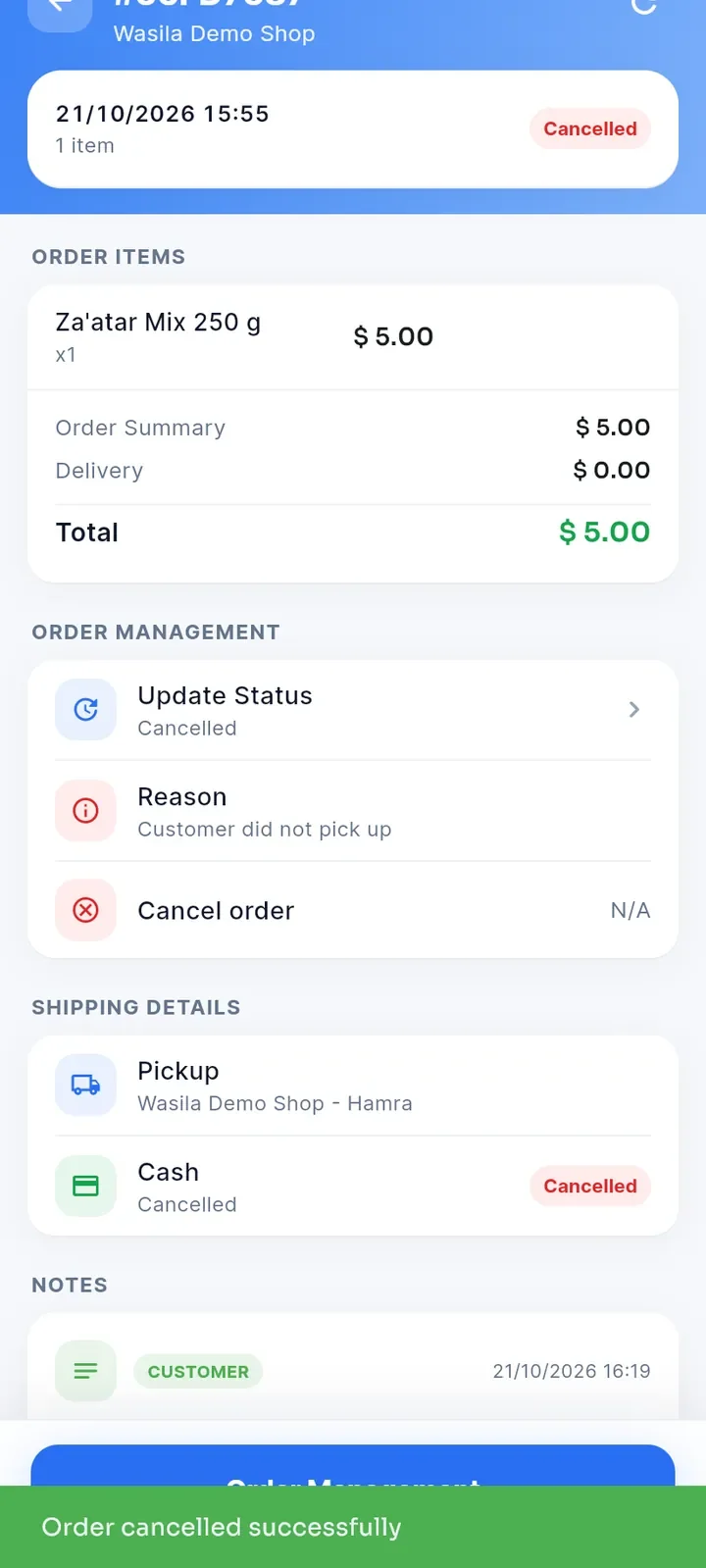
Tap Yes, Cancel Order. This cannot be undone. Order cancelled successfully appears, and both the order status and the payment change to Cancelled.
The order now shows your Reason, and Cancel order shows N/A because a cancelled order is final. Your notes stay under Notes.
Note: the app only records the refund amount and notes on the order. It does not send any money back to the buyer, so return any payment to the buyer yourself.