Cancel an order
Cancel an order the store has not confirmed yet, for example one you placed by mistake.
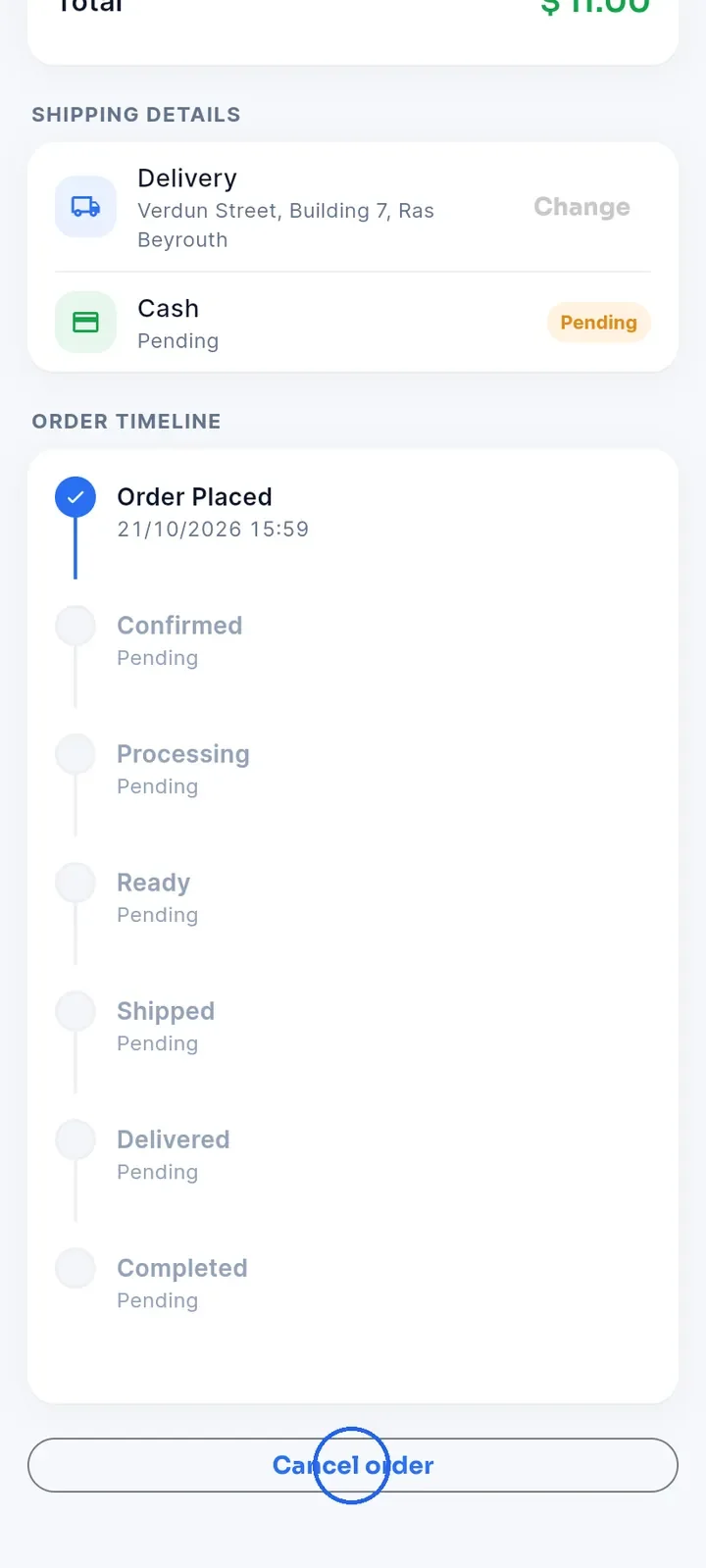
Open the order from Orders, scroll to the bottom and tap Cancel order.
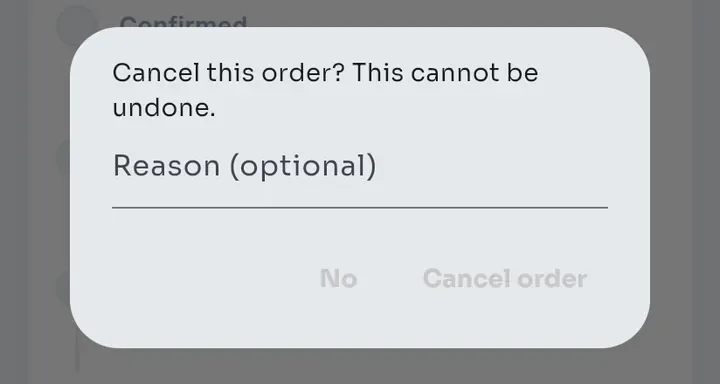
A window asks "Cancel this order? This cannot be undone." To keep the order, tap No.
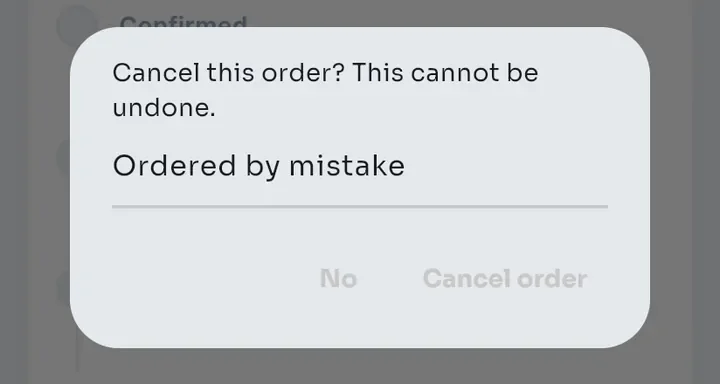
To tell the store why, type a reason in Reason (optional), for example "Ordered by mistake". The store sees it with the cancelled order.
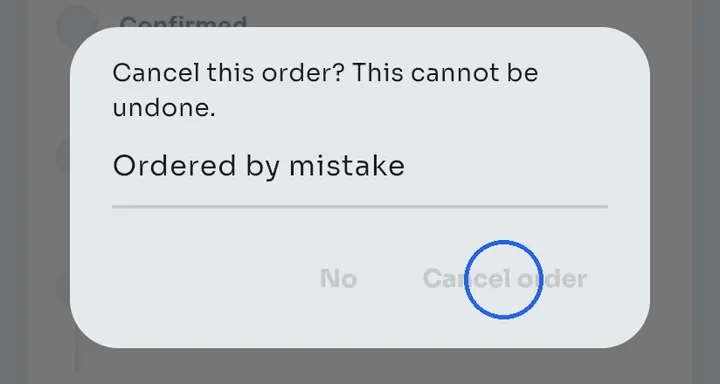
Tap Cancel order to confirm. The buttons look grey, but you can tap them.
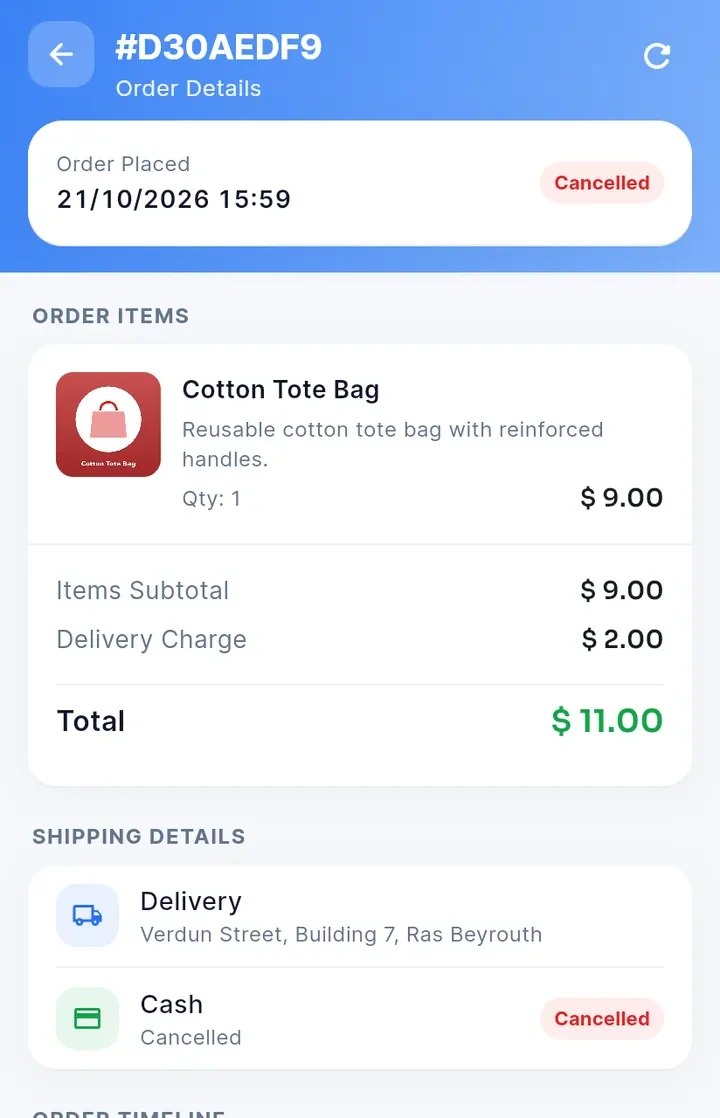
The app shows "Order cancelled." The status at the top and the payment now show Cancelled, and the Cancel order button is gone.
Note: the Order Timeline does not add a cancelled stage. The Cancelled label at the top shows the order's current status.
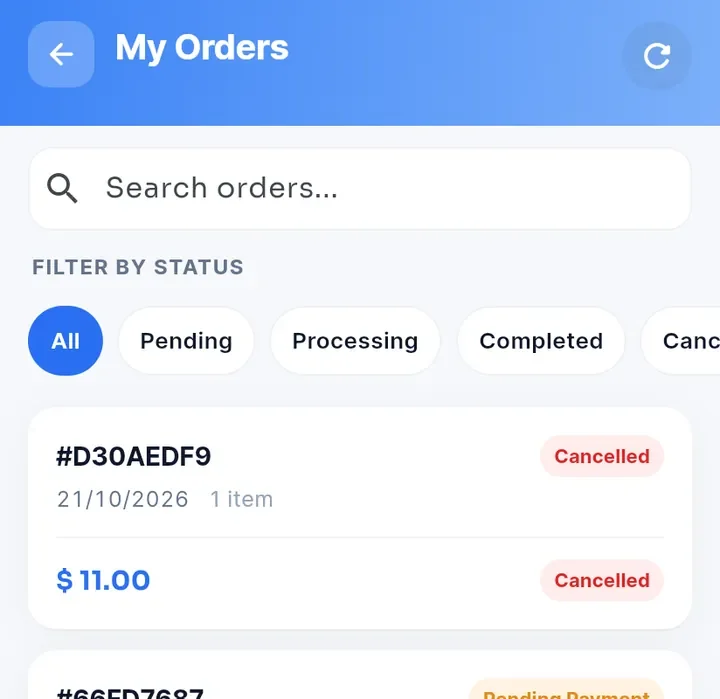
Back in My Orders, the order shows Cancelled. If it still shows the old status, tap the refresh arrow at the top right.
Note: you can cancel only while the order is Pending or Pending Payment. Once the store confirms it, Cancel order no longer appears. Contact the store if you still need to cancel.