Update several orders at once and export them
Find orders quickly, move several orders to a new status at once, and export your store orders to a CSV file.
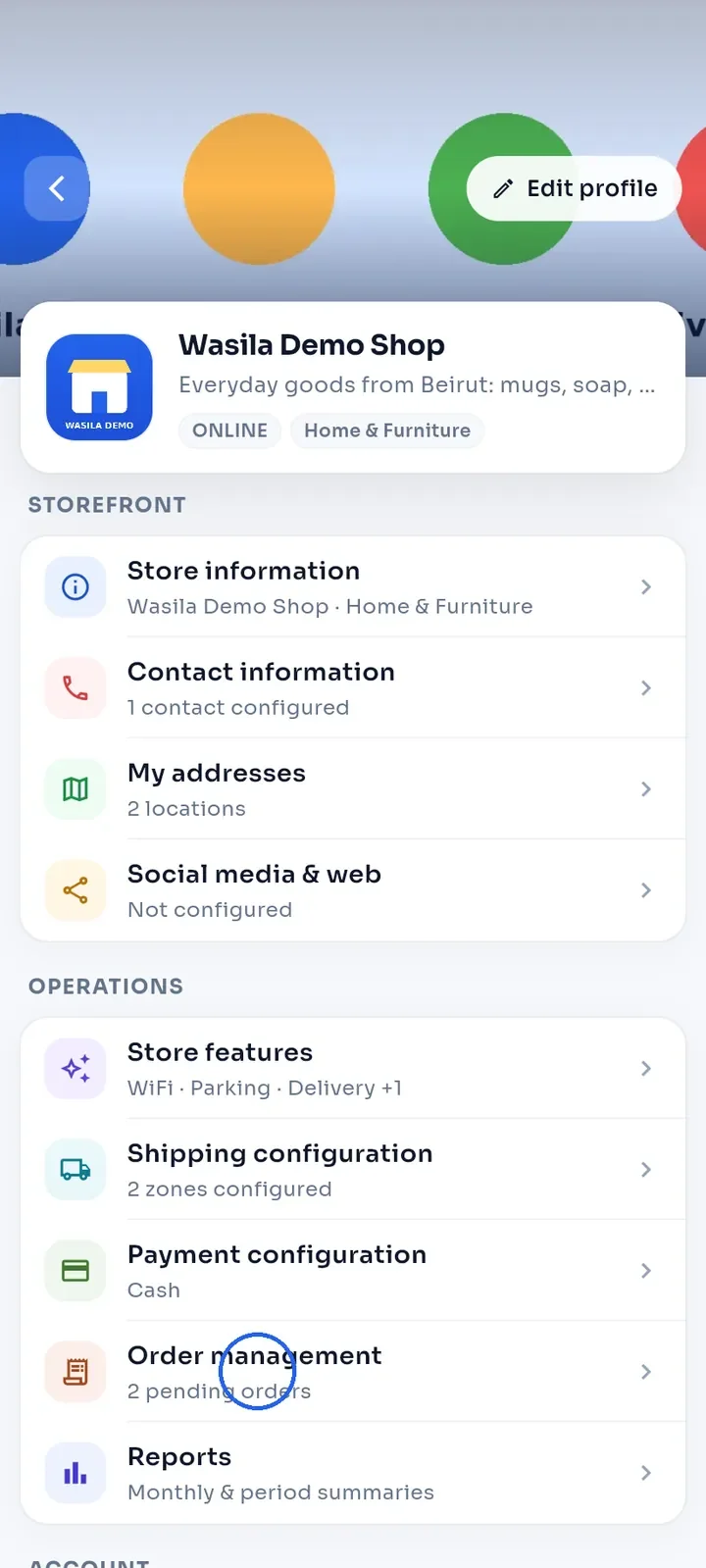
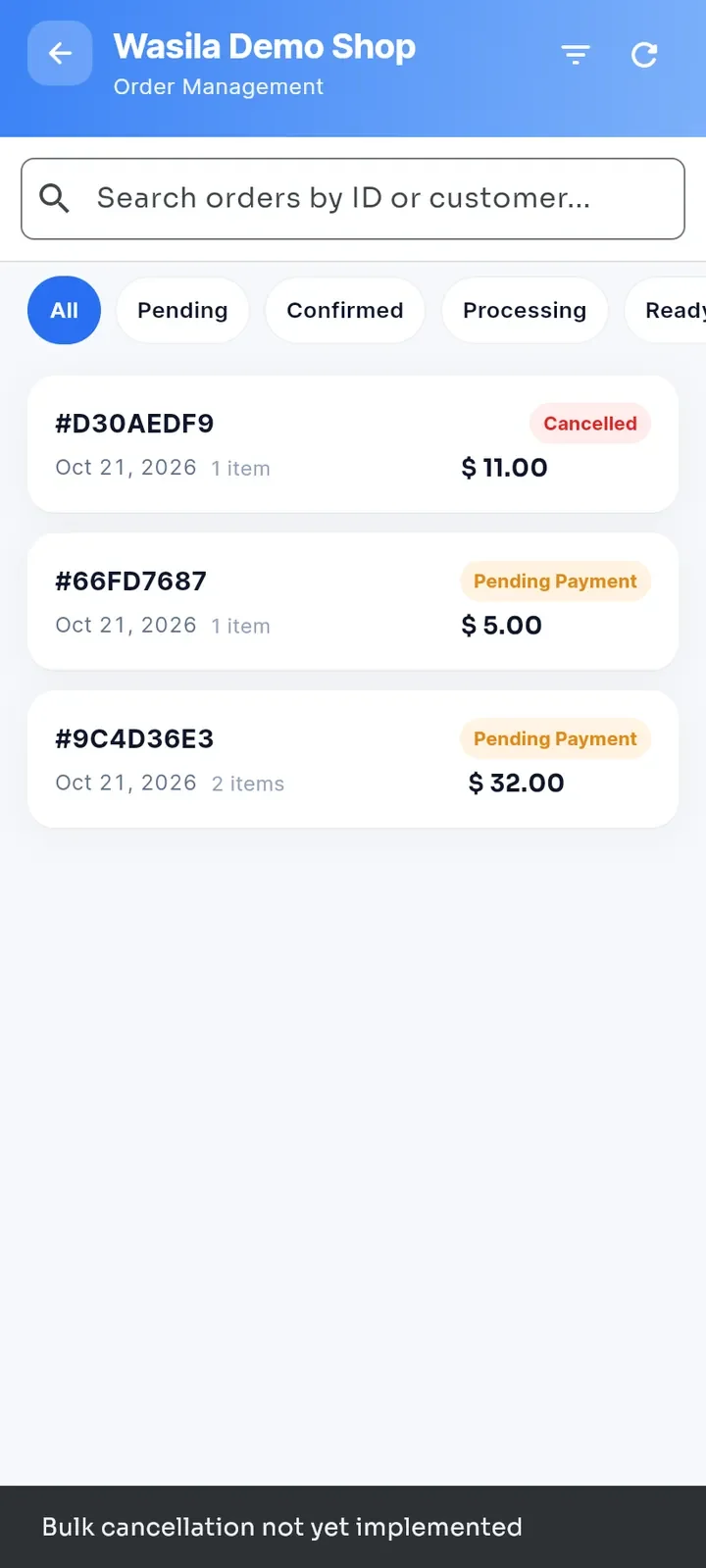
On your store dashboard, tap Order management. The line under it shows how many orders are pending.
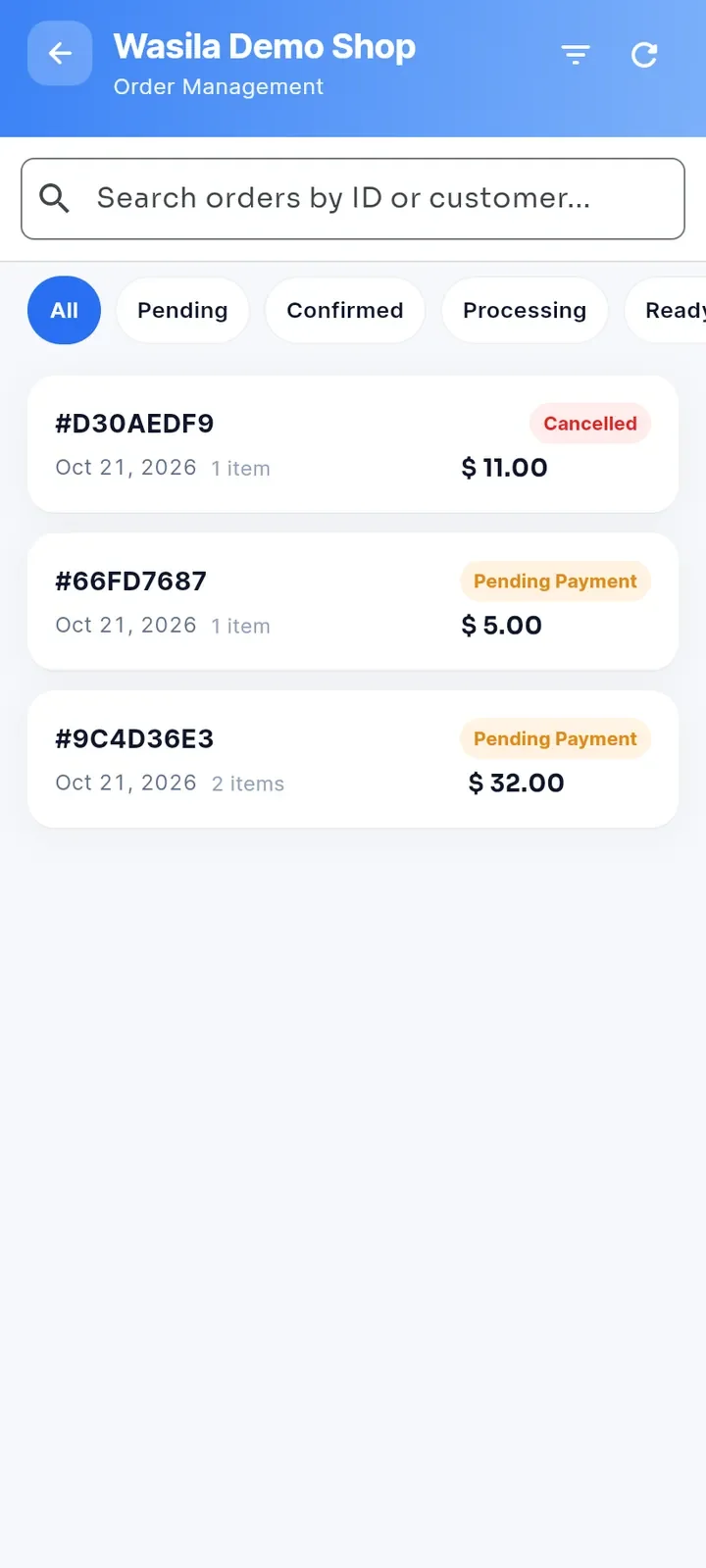
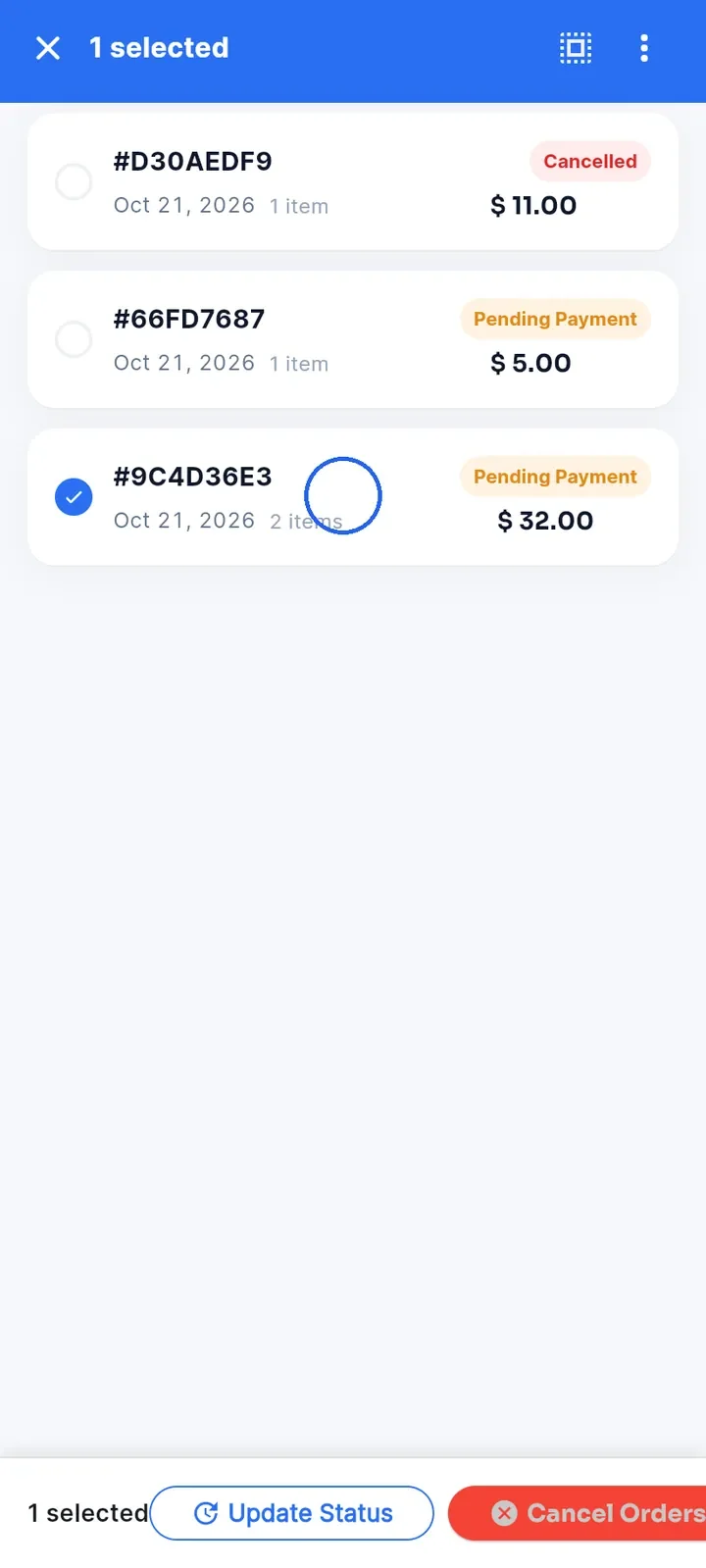
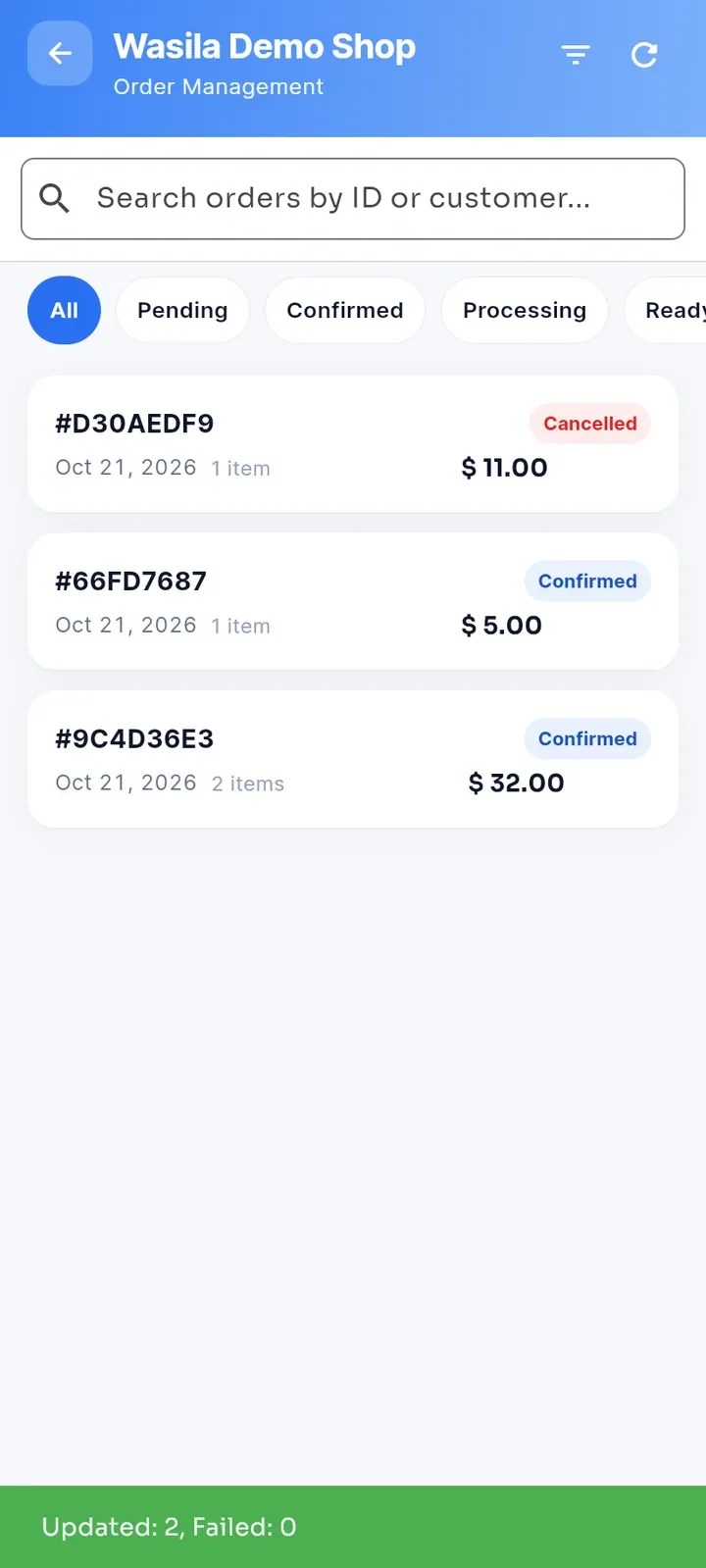
The list shows each order with its number, date, number of items, total and status, newest first.
Note: typing in the search box does not narrow the list yet. Use the status chips or the filter to find orders.
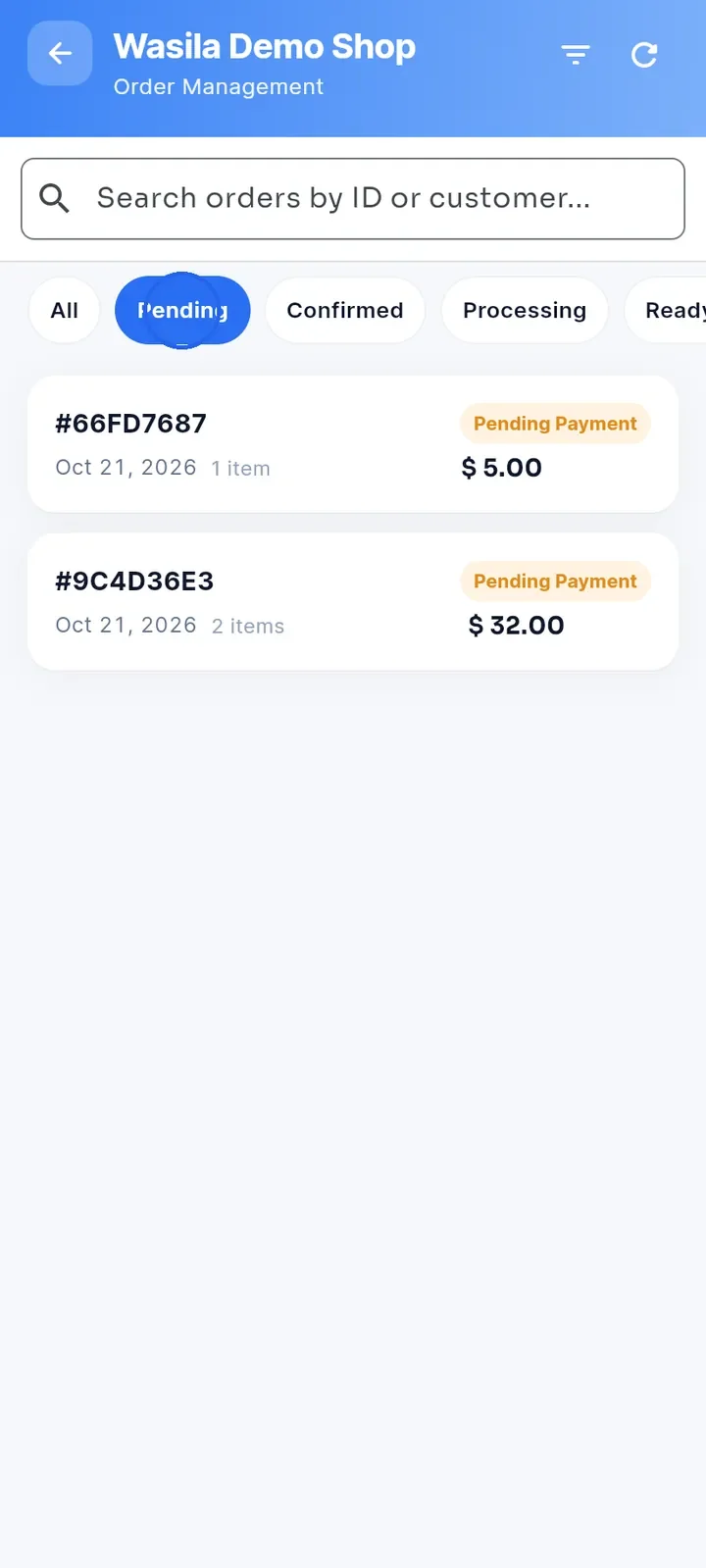
Tap a status chip such as Pending, Confirmed or Processing to show only those orders. Pending also includes orders in Pending Payment. Tap All to see every order again.
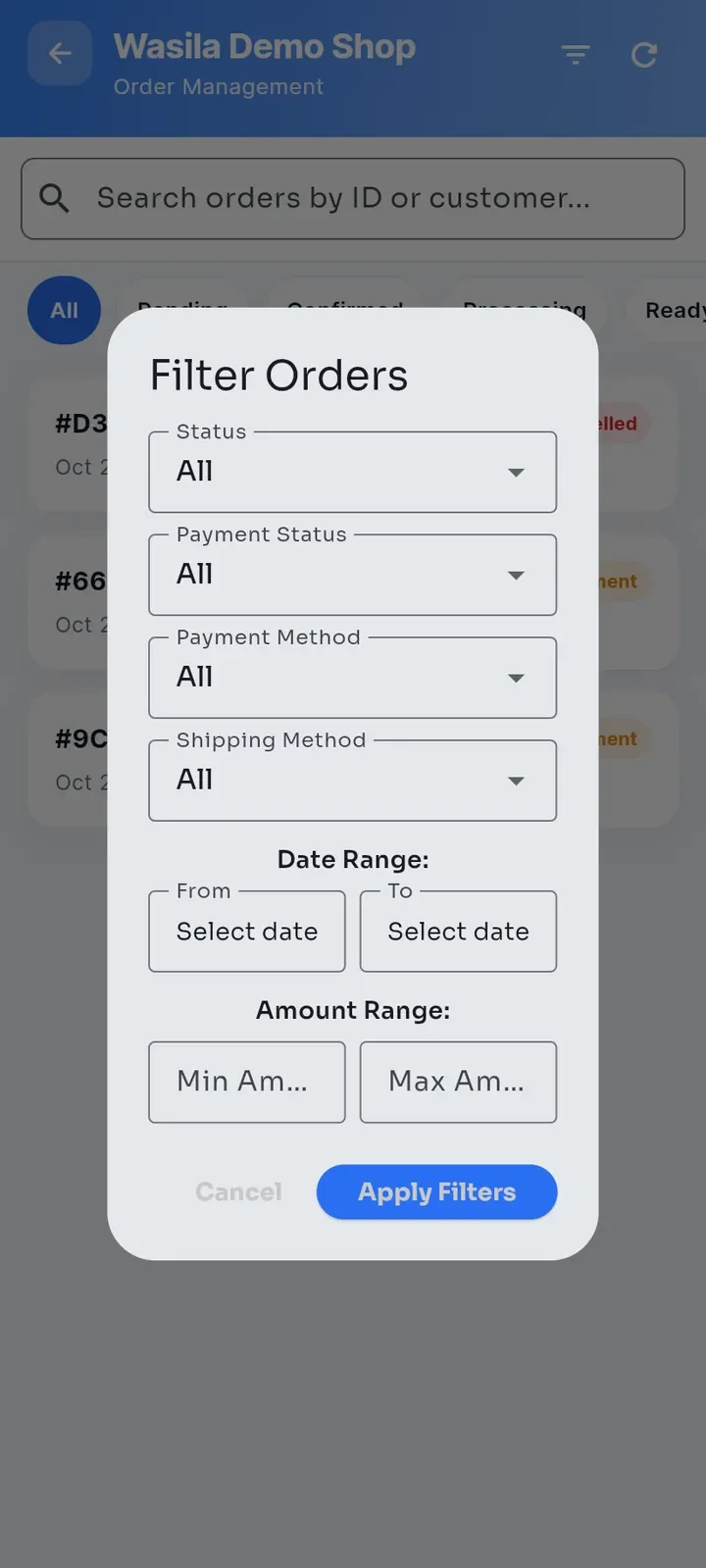
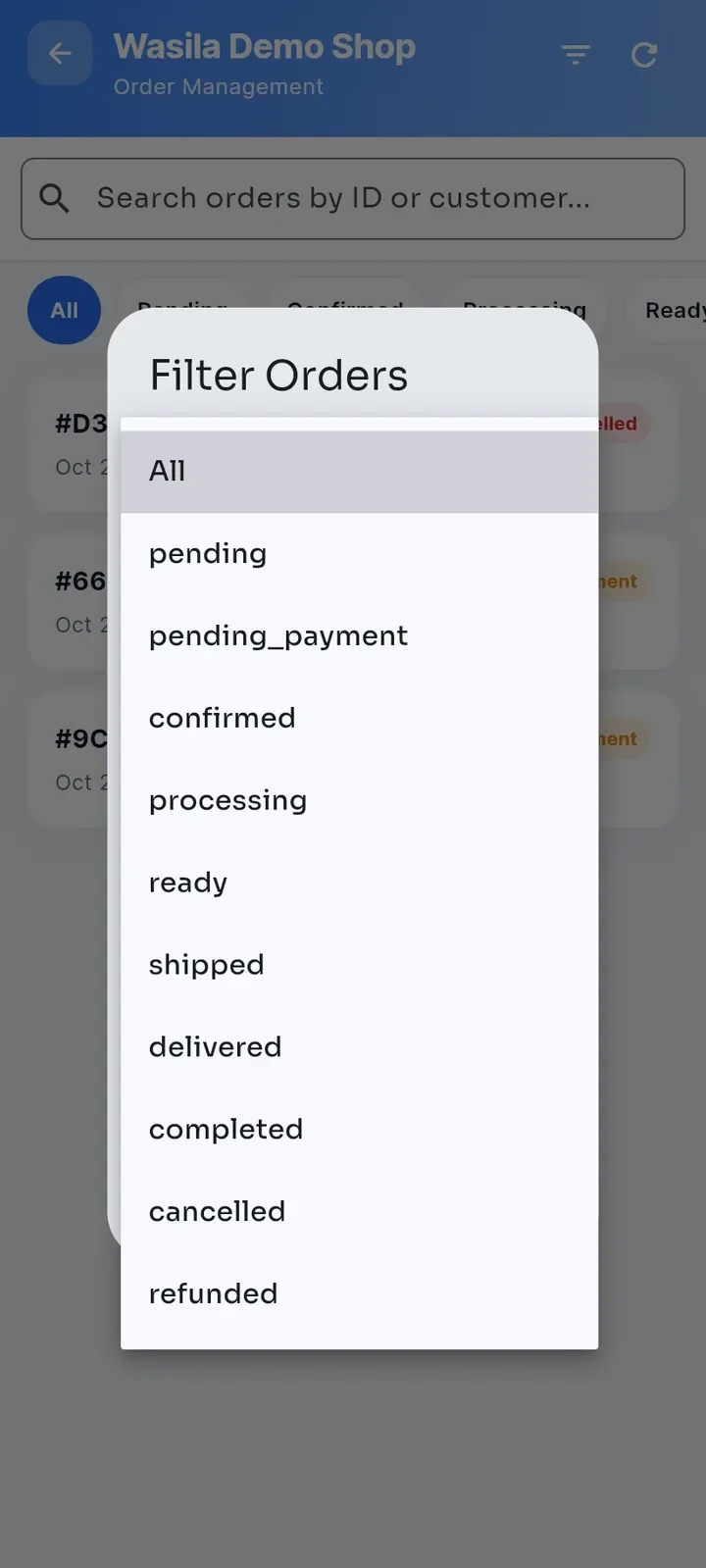
Tap the filter icon at the top right to open Filter Orders. You can filter by Status, Payment Status, Payment Method, Shipping Method, Date Range and Amount Range.
Choose your filters and tap Apply Filters, or tap Cancel to close without changes. The Status list shows statuses in lower case, for example pending_payment and ready.
To work on several orders, press and hold an order until it gets a blue tick and the top bar shows 1 selected.
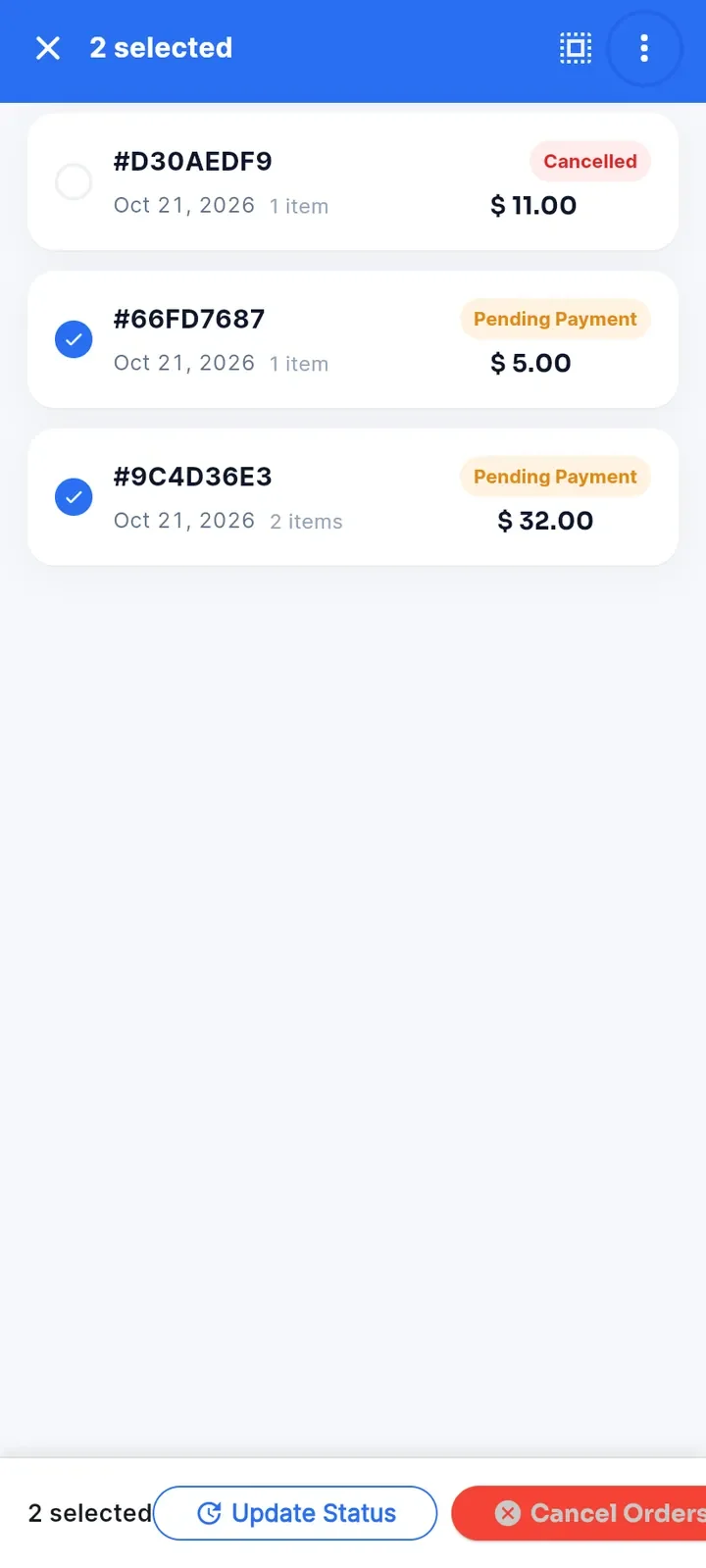
Tap more orders to add them. The top bar counts them, for example 2 selected. Tap the X at the top left to leave selection mode.
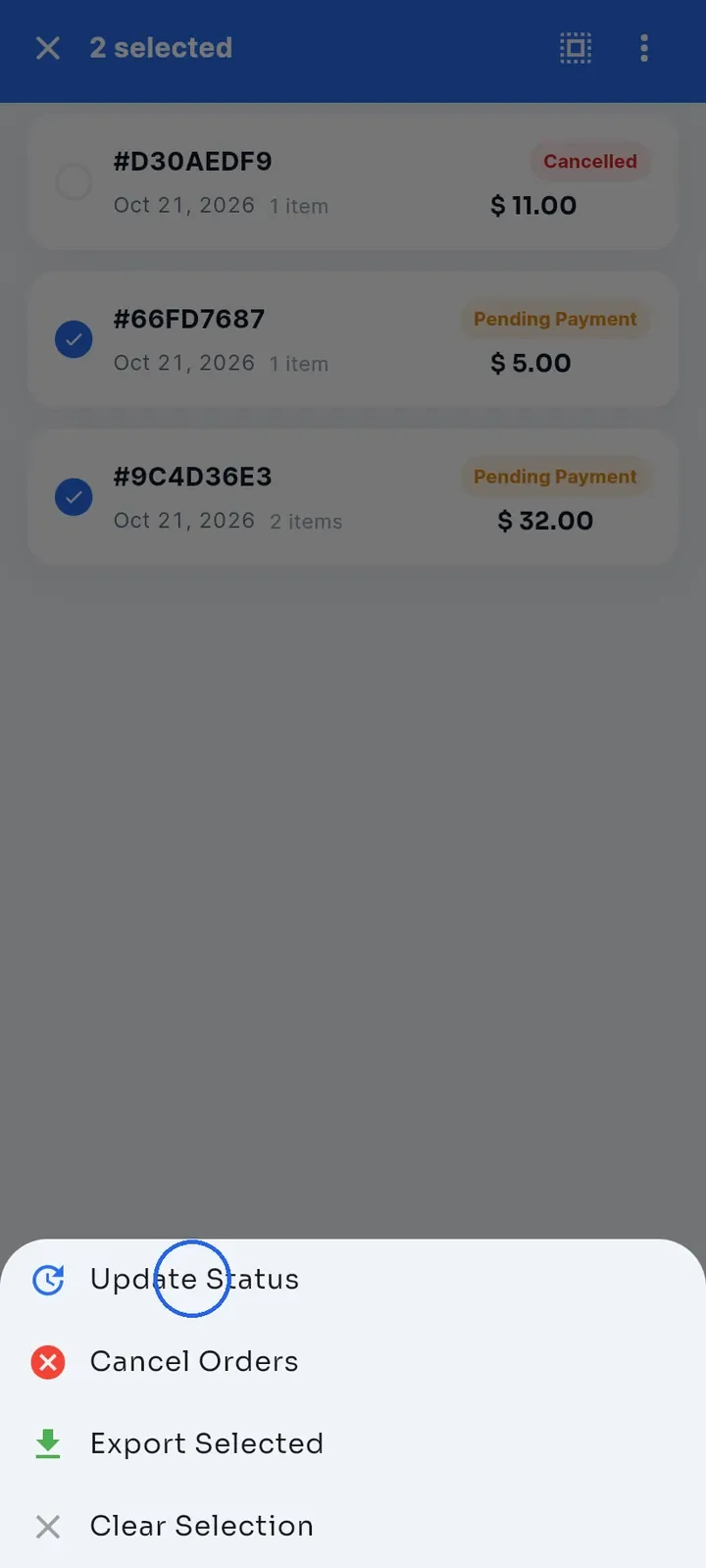
Tap the three dots at the top right and choose Update Status. The menu also offers Cancel Orders, Export Selected and Clear Selection. You can also tap Update Status in the bar at the bottom.
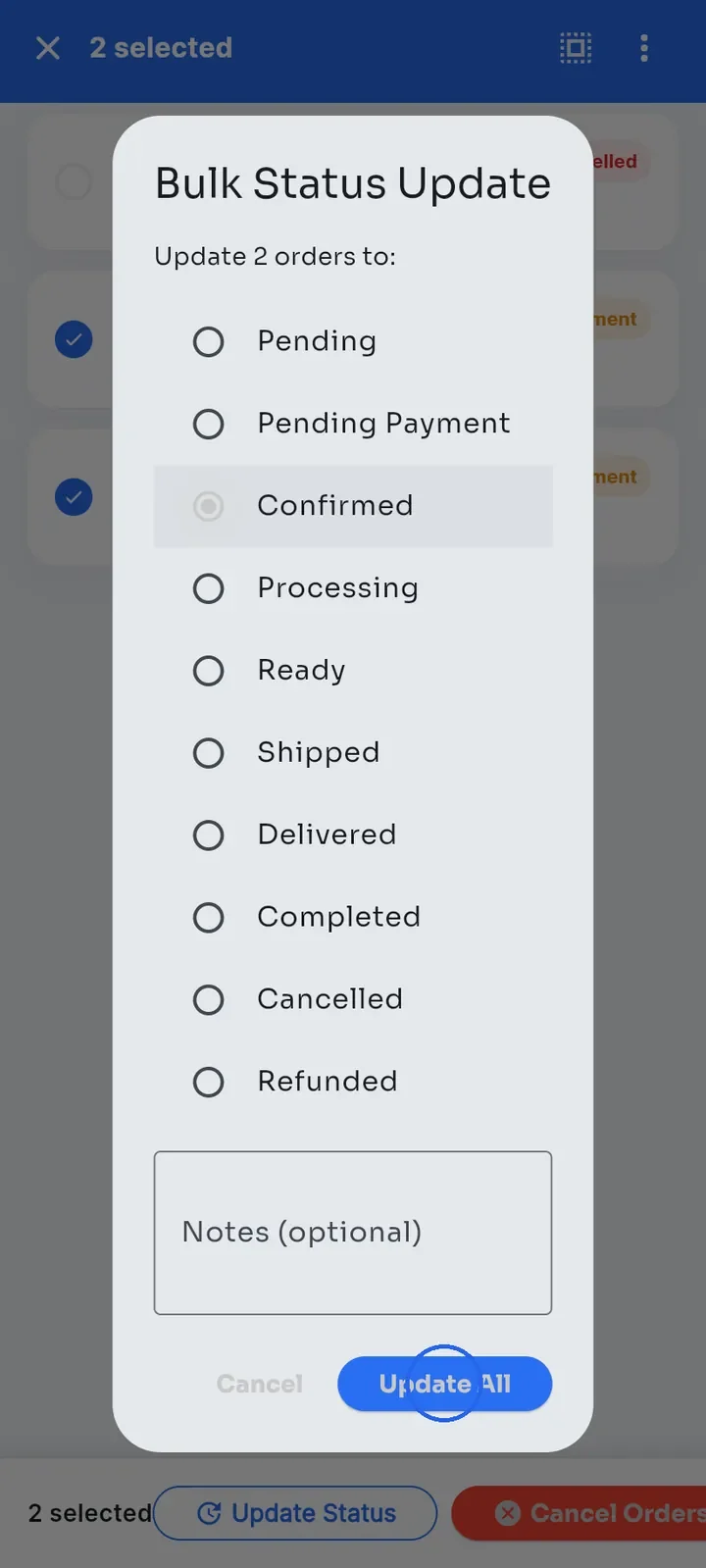
In Bulk Status Update, choose the new status, for example Confirmed, add Notes (optional) if you want, and tap Update All.
A green bar shows the result, for example Updated: 2, Failed: 0, and each order shows its new status. Orders that cannot move to the chosen status count as failed, and the bar turns red.
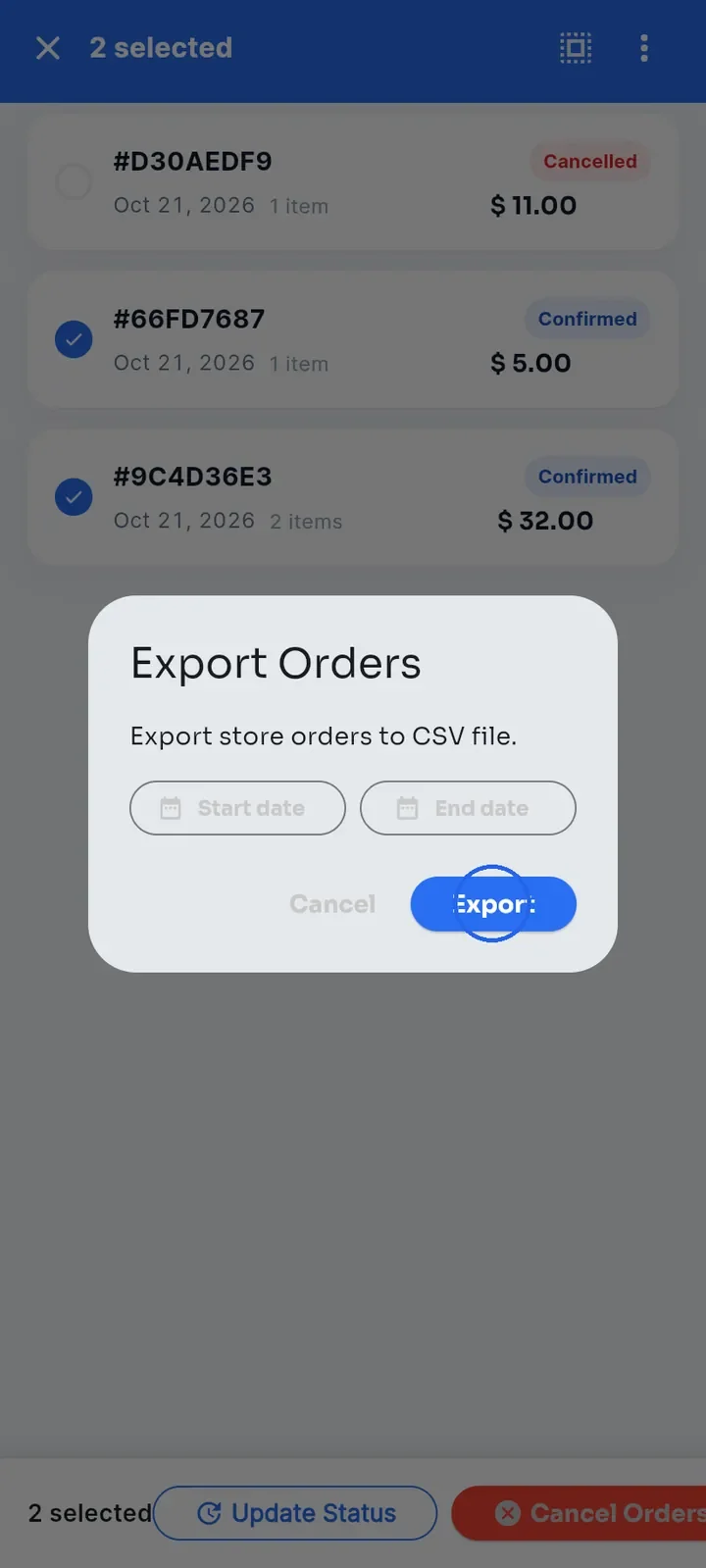
To export, select at least one order, tap the three dots and choose Export Selected. In Export Orders, pick a Start date and End date if you want, and tap Export.
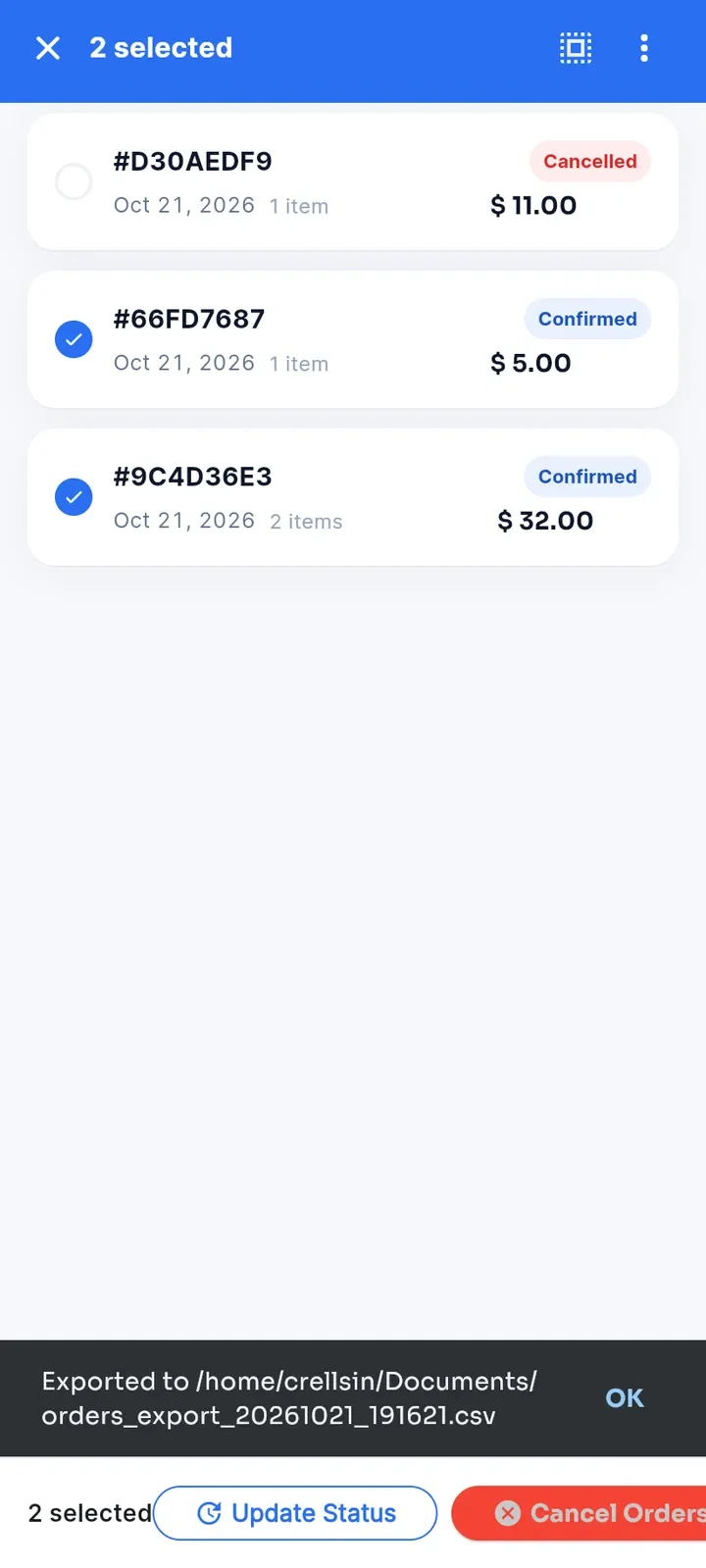
The app saves the CSV file on your device and shows Exported to with the file location. Tap OK to close the message. The app does not open a share menu for the file.
Note: the file contains all orders of the store within the dates you chose, not only the selected ones. It lists the order ID, buyer ID, date, total, order status, payment status, payment method, shipping method and item count. Totals are in Lebanese pounds (LBP), even when the app shows USD.
Note: Cancel Orders in selection mode does not cancel orders yet. After you enter a reason, the app shows Bulk cancellation not yet implemented and the orders stay unchanged. To cancel an order, open it and tap Cancel order.