Add a product
Add a new product to your store with photos, a price, a category and stock.
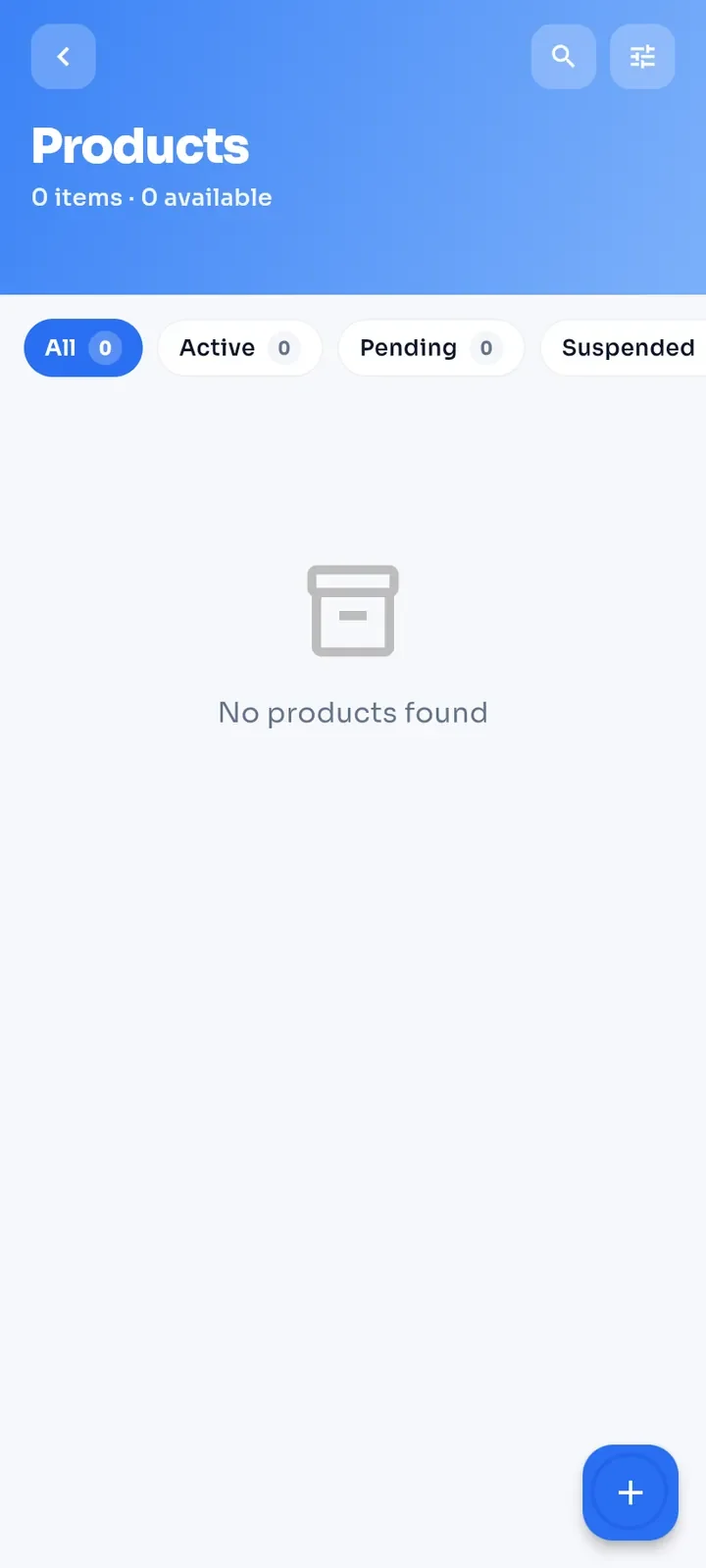
Open the menu and tap My Stores. On your store card, tap Products.
Tap the + button at the bottom right.
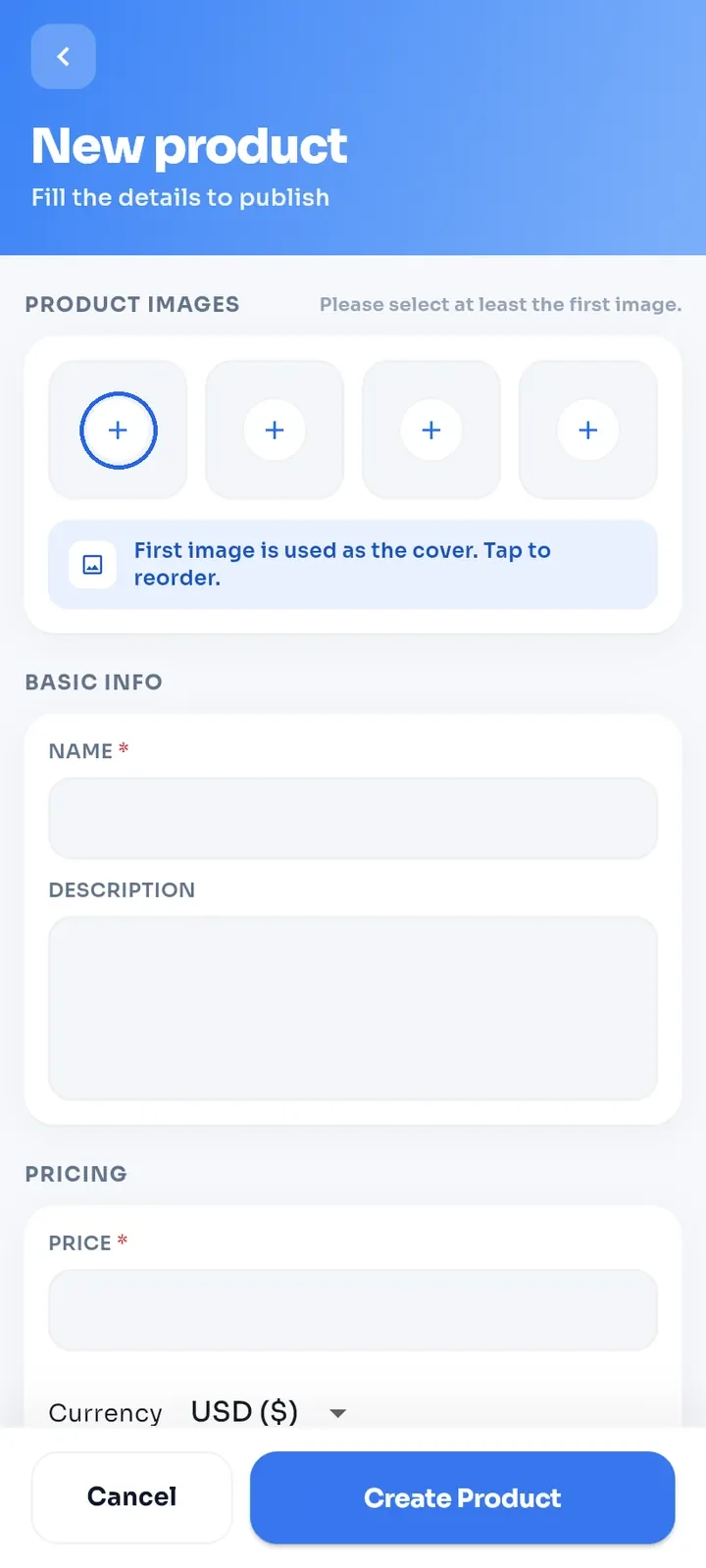
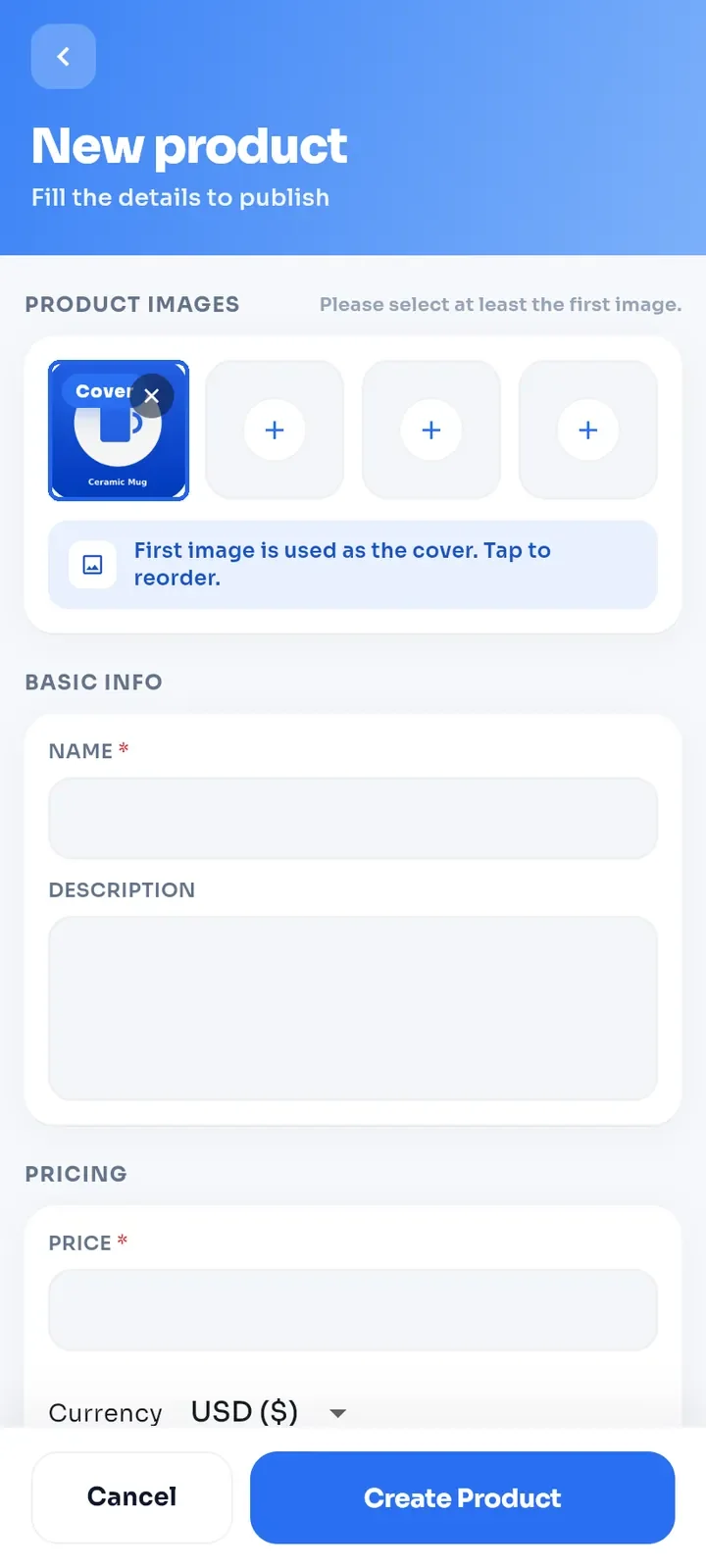
Under PRODUCT IMAGES, tap the first + and choose a photo. The first image is required.
The first photo is your cover and shows the Cover label. To add more photos (up to 4), tap the other + boxes. To remove a photo, tap the x on it.
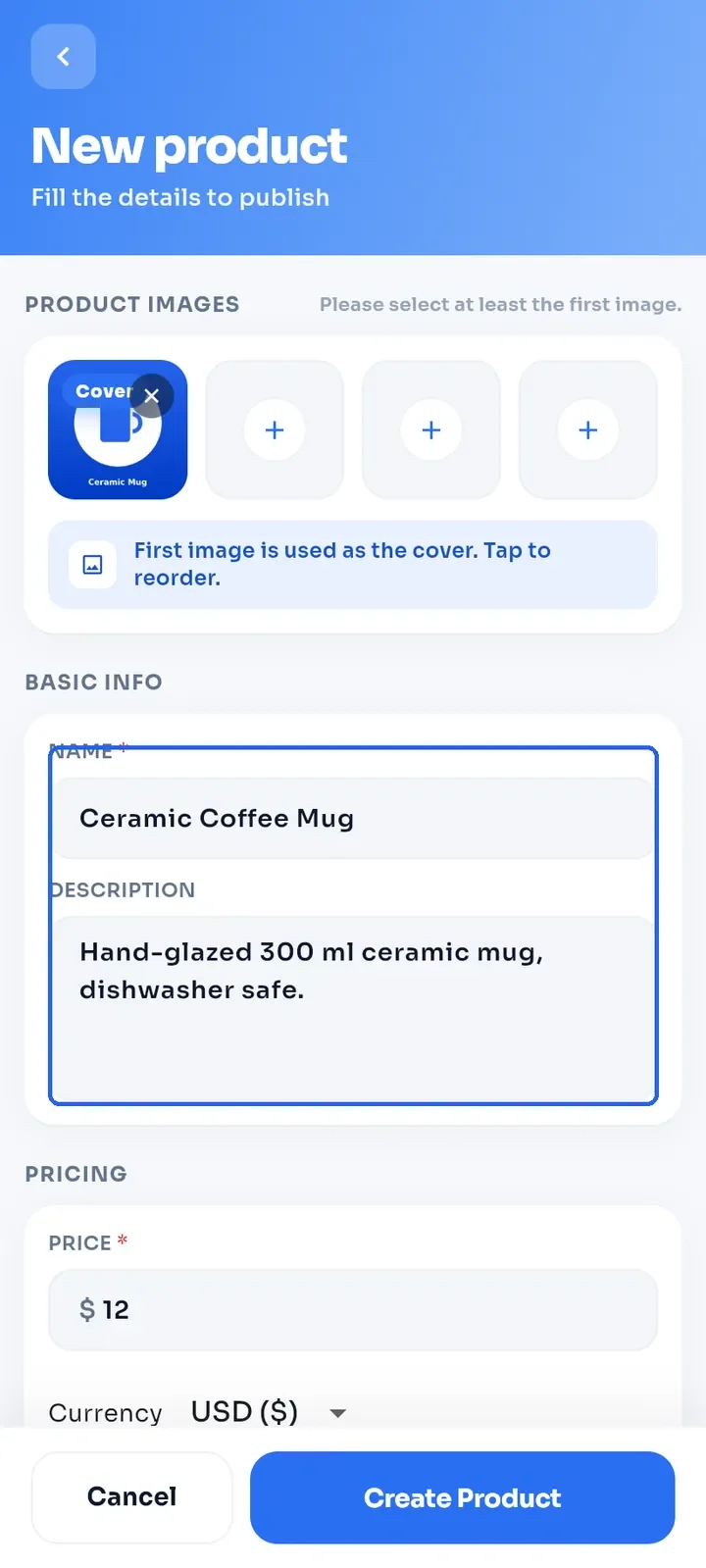
Enter a NAME (required) and a DESCRIPTION.
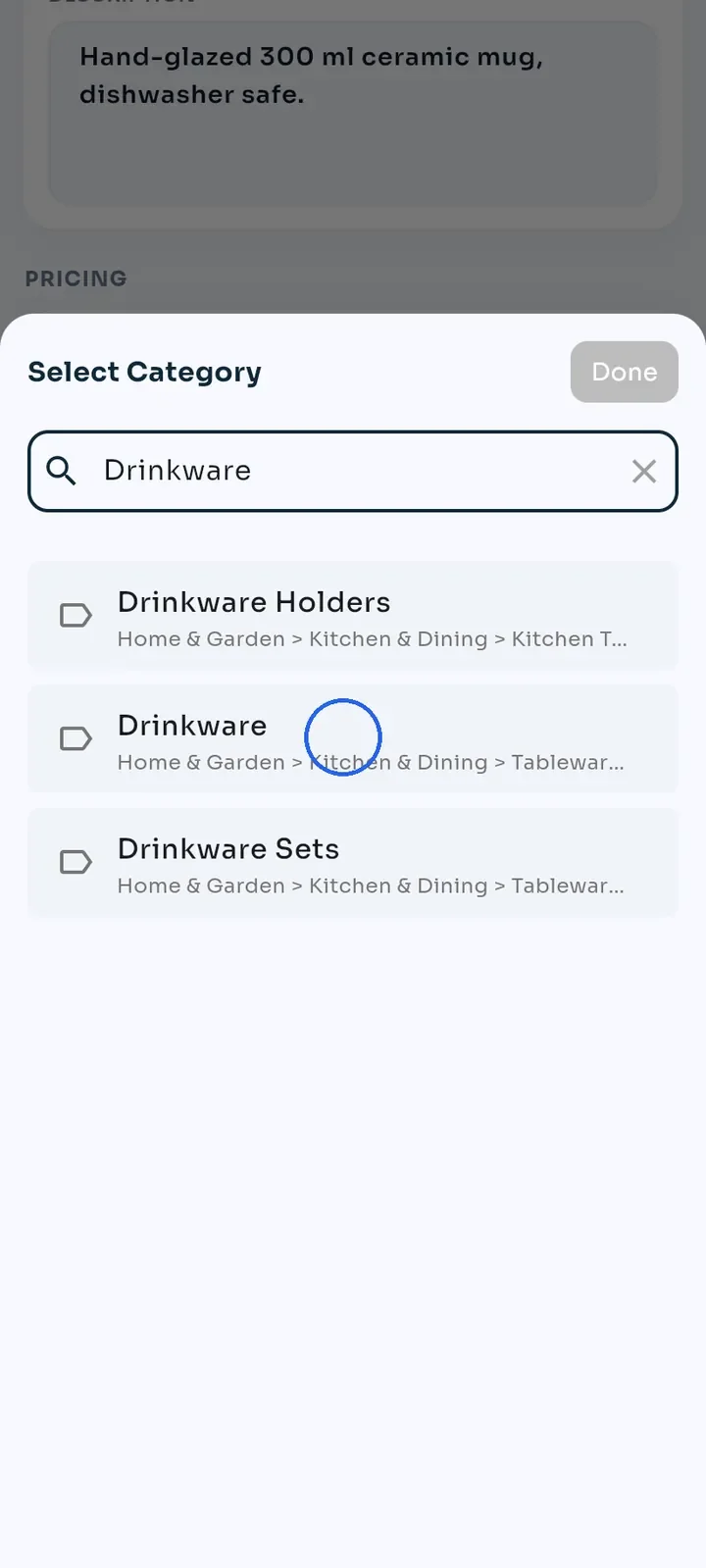
Tap CATEGORY and search for your category, for example Drinkware. Tap the right result, then tap Done.
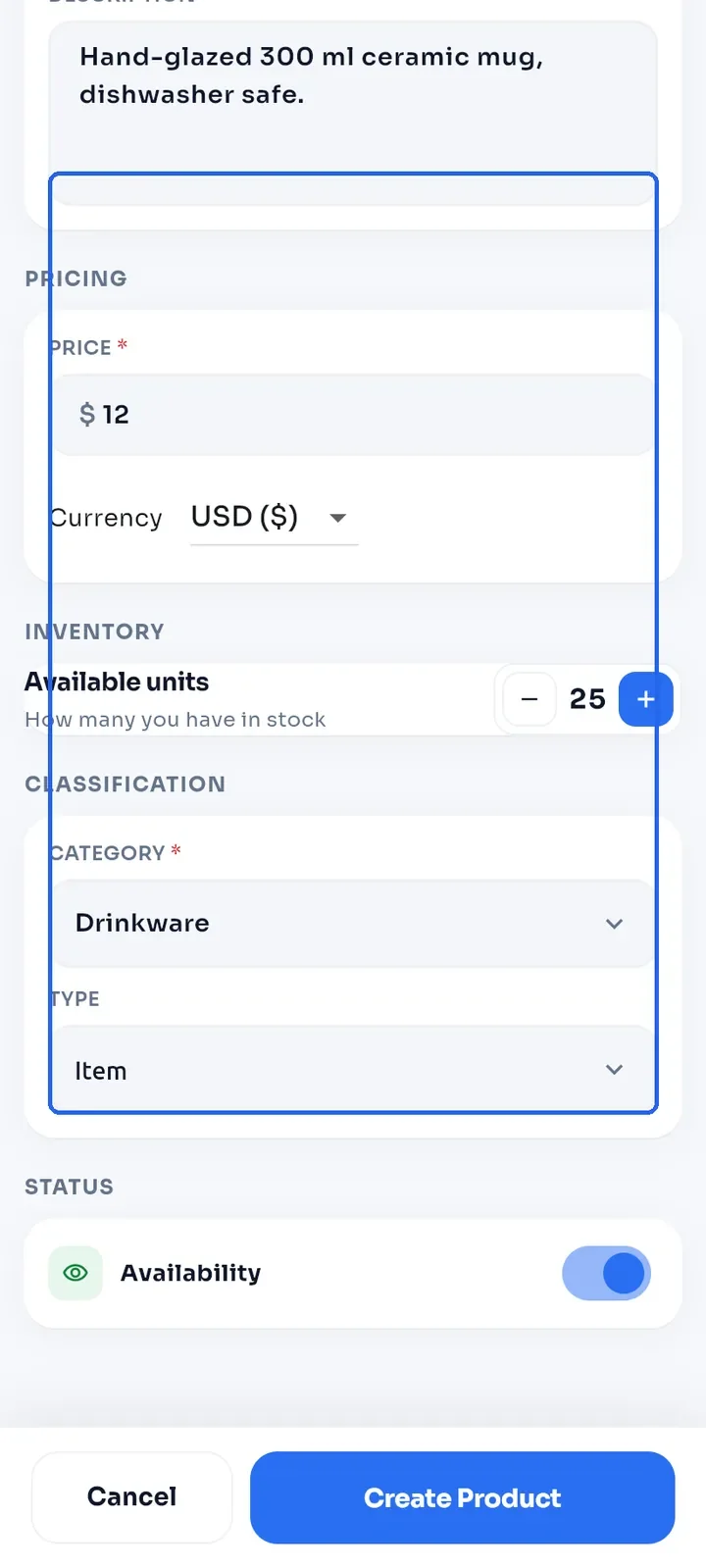
Enter the PRICE and choose the Currency, for example 12 and USD ($). Next to Available units, tap + or - until it shows your stock. You cannot type the number.
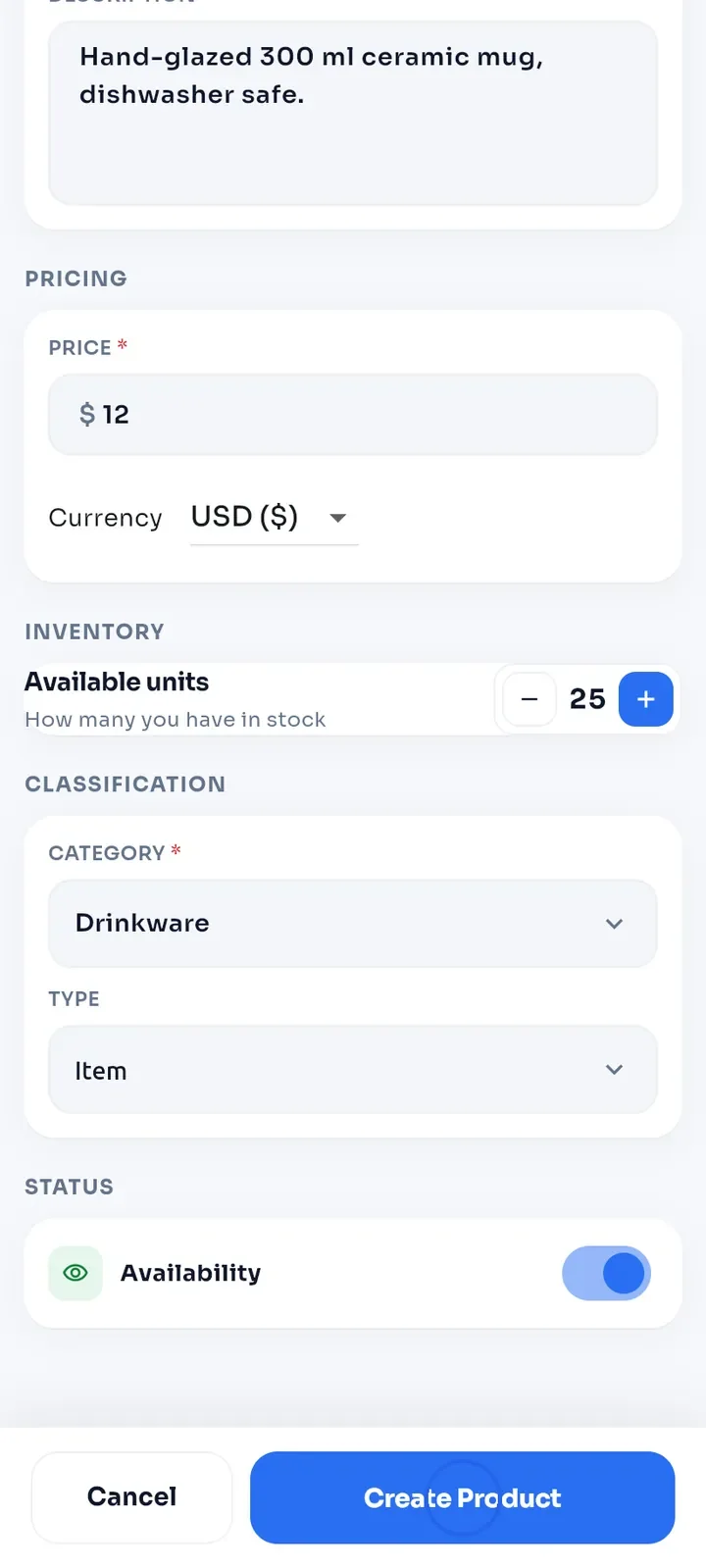
Leave Availability on, or switch it off to keep the product hidden for now. Then tap Create Product.
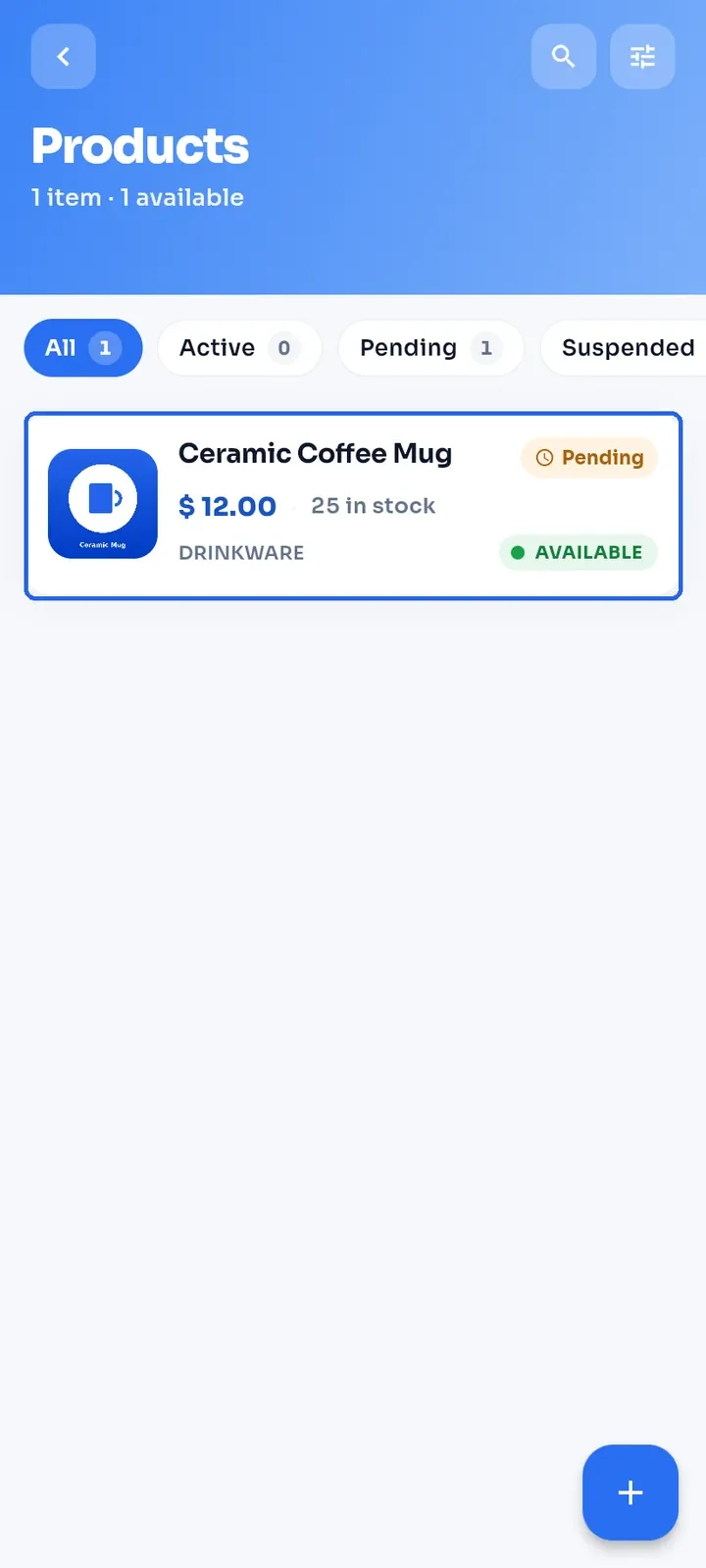
You return to Products. The new product shows a Pending pill, which means it is waiting for review by the E-Wasila team, and an AVAILABLE tag.
Note: each store has a product limit. When you reach it, a Limit Reached dialog appears with an Upgrade button.