Add products and manage your cart
Add products to your cart, change quantities and start checkout for one store at a time.
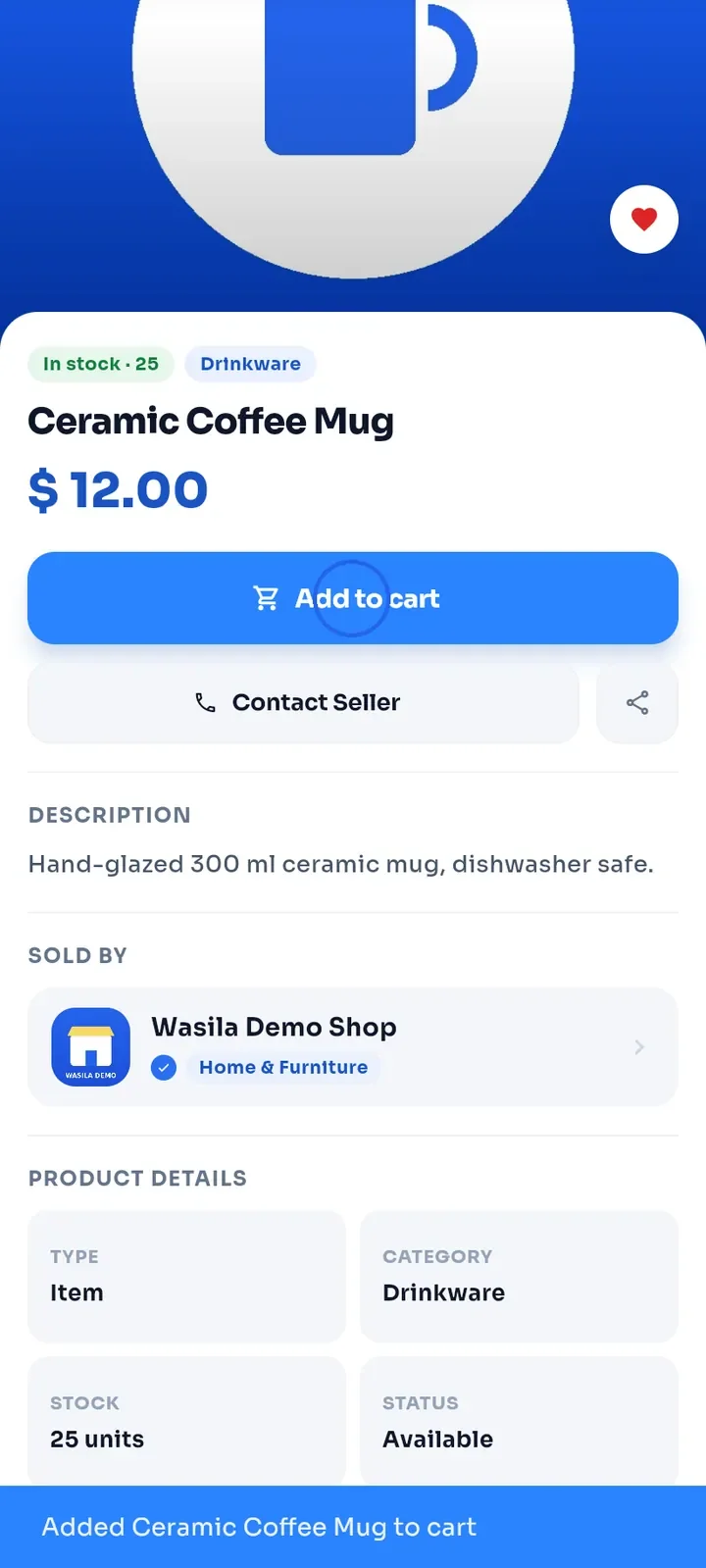
On a product page, tap Add to cart. A message at the bottom confirms that the product was added.
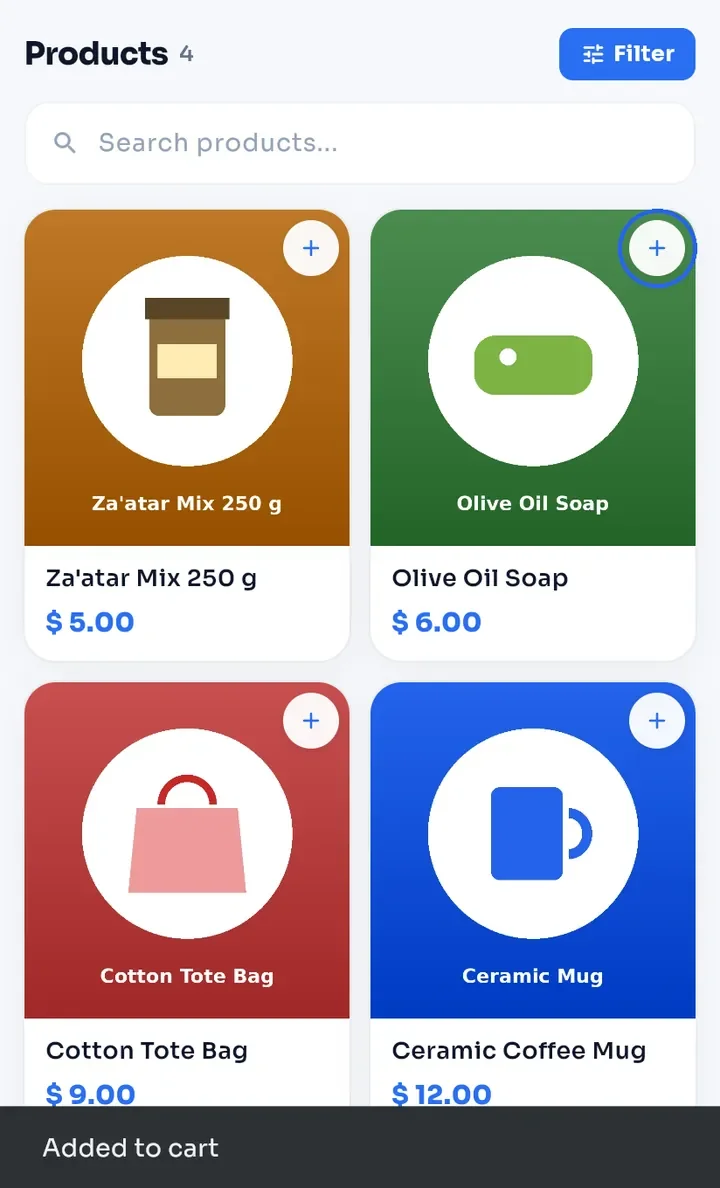
On a store page, tap + on a product card to add that product straight to your cart. Added to cart appears at the bottom.
Tip: tapping Add to cart again does not always raise the quantity. To get more than one, change the quantity in your cart.
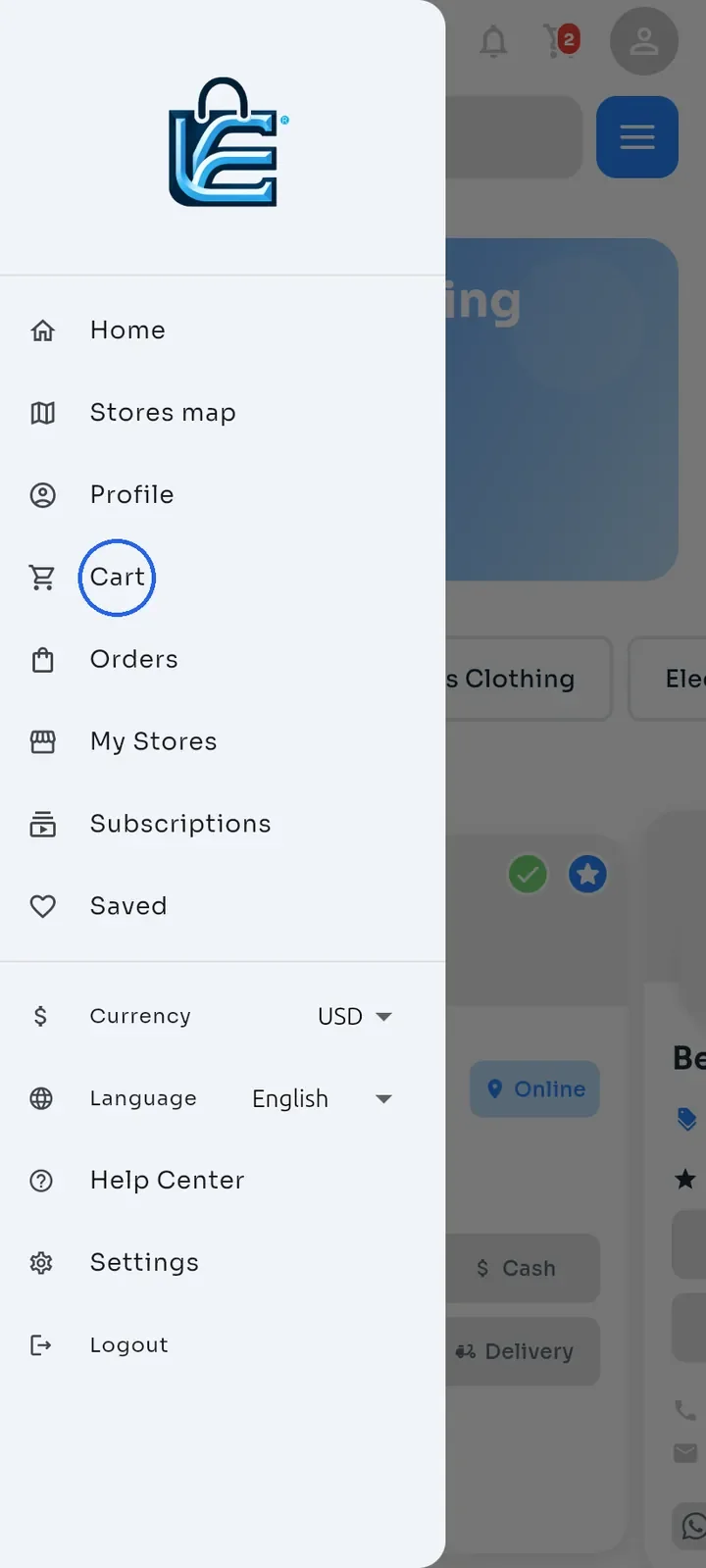
To open your cart, open the side menu and tap Cart. The red number on the cart icon at the top shows how many products are in your cart.
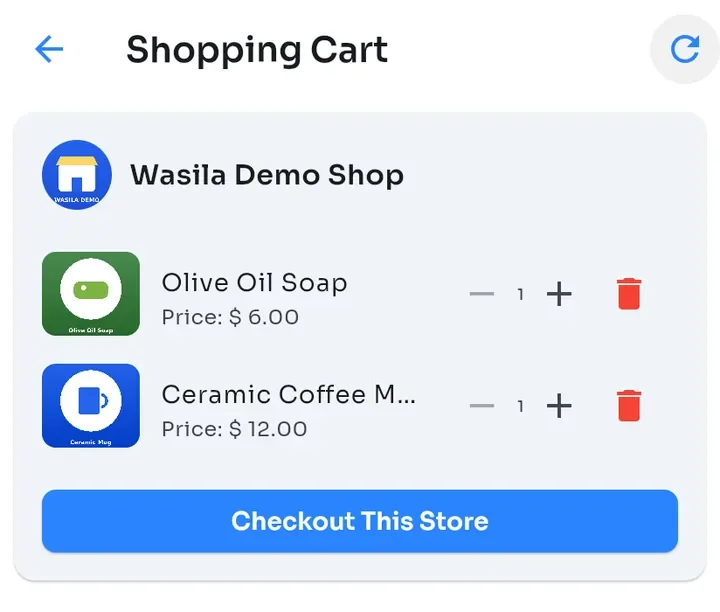
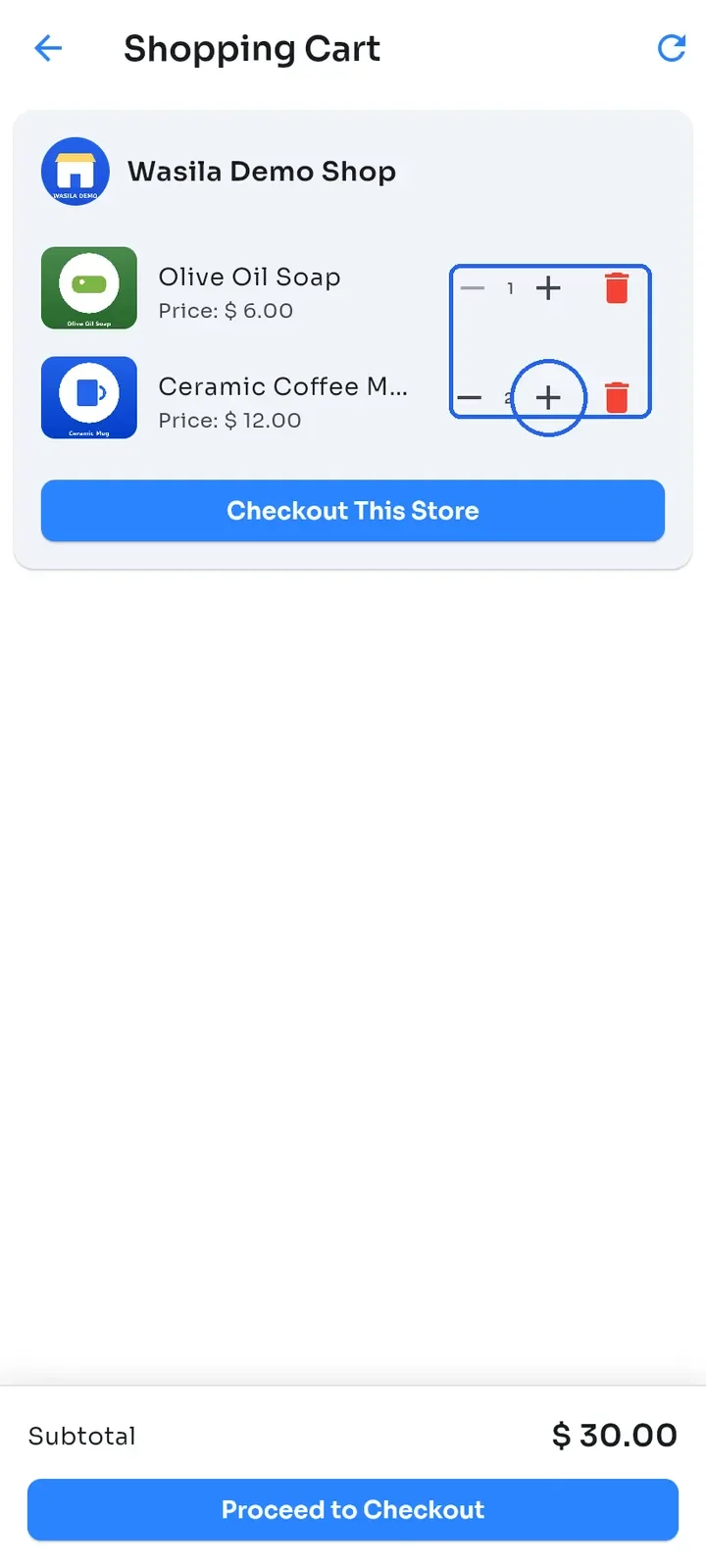
The Shopping Cart groups your products by store. Each product shows its price and quantity.
Tap + or - to change a quantity. The Subtotal at the bottom updates. To remove a product, tap the red bin next to it.
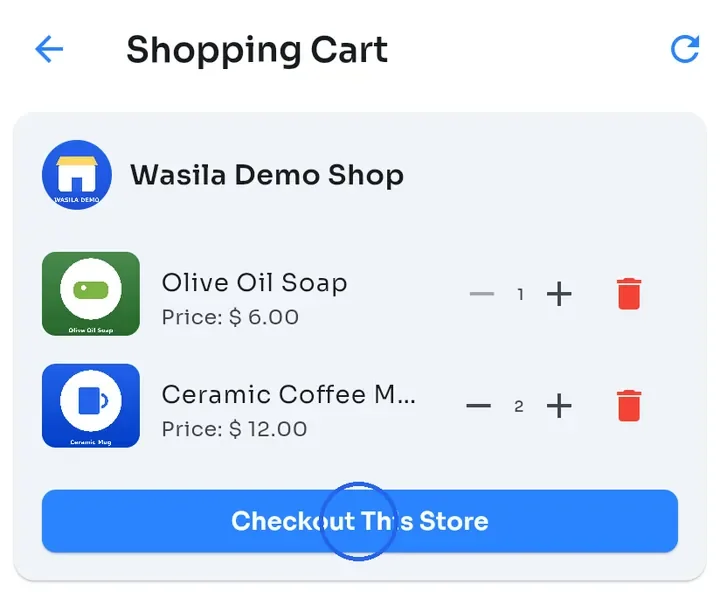
Tap Checkout This Store to check out the products from that store.
Note: Proceed to Checkout at the bottom checks out only the first store in your cart. If your cart holds products from several stores, tap Checkout This Store on each store in turn.
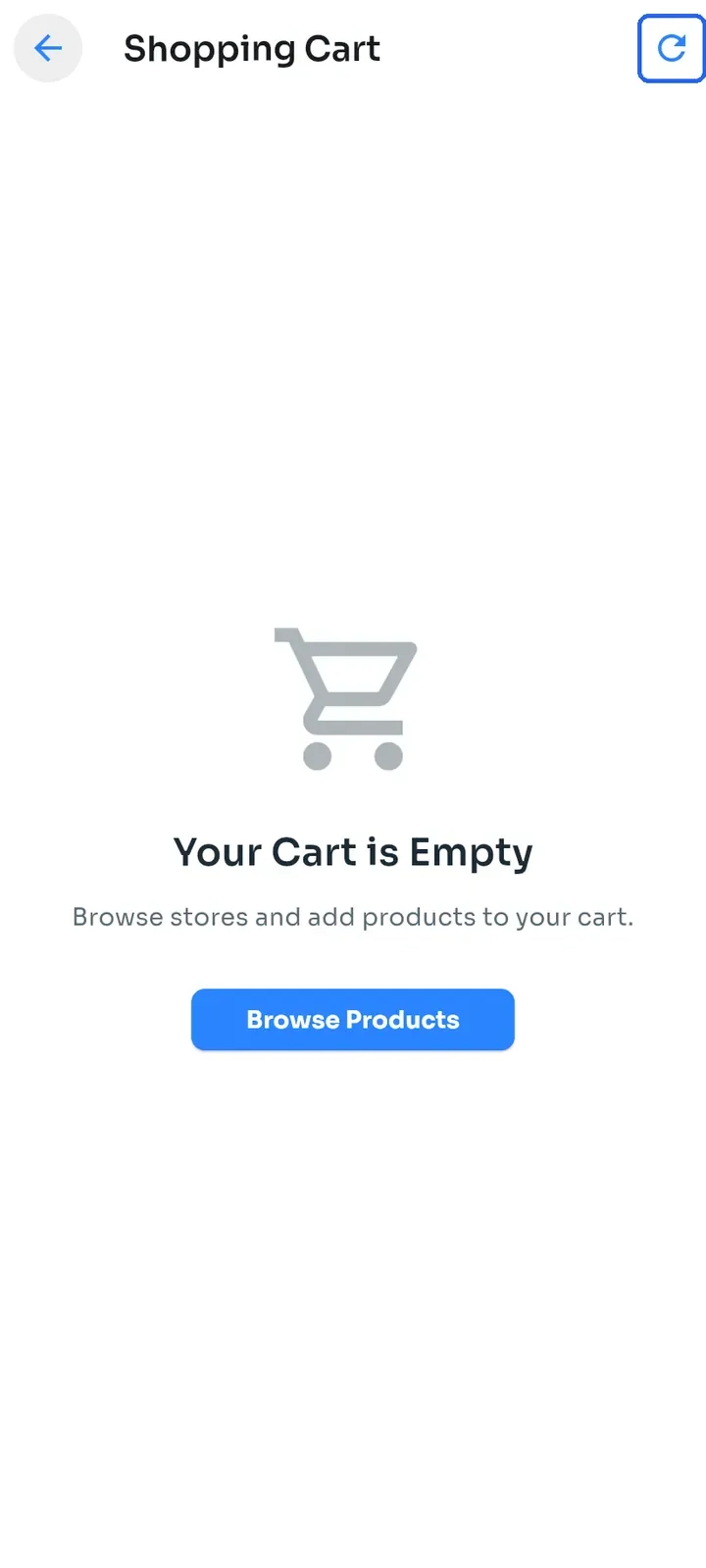
Tip: if the cart shows Your Cart is Empty right after you open it, wait a few seconds or tap the refresh arrow at the top right. Your products then appear.