Visit a store page
Read about a store, see where it is, and browse its products.
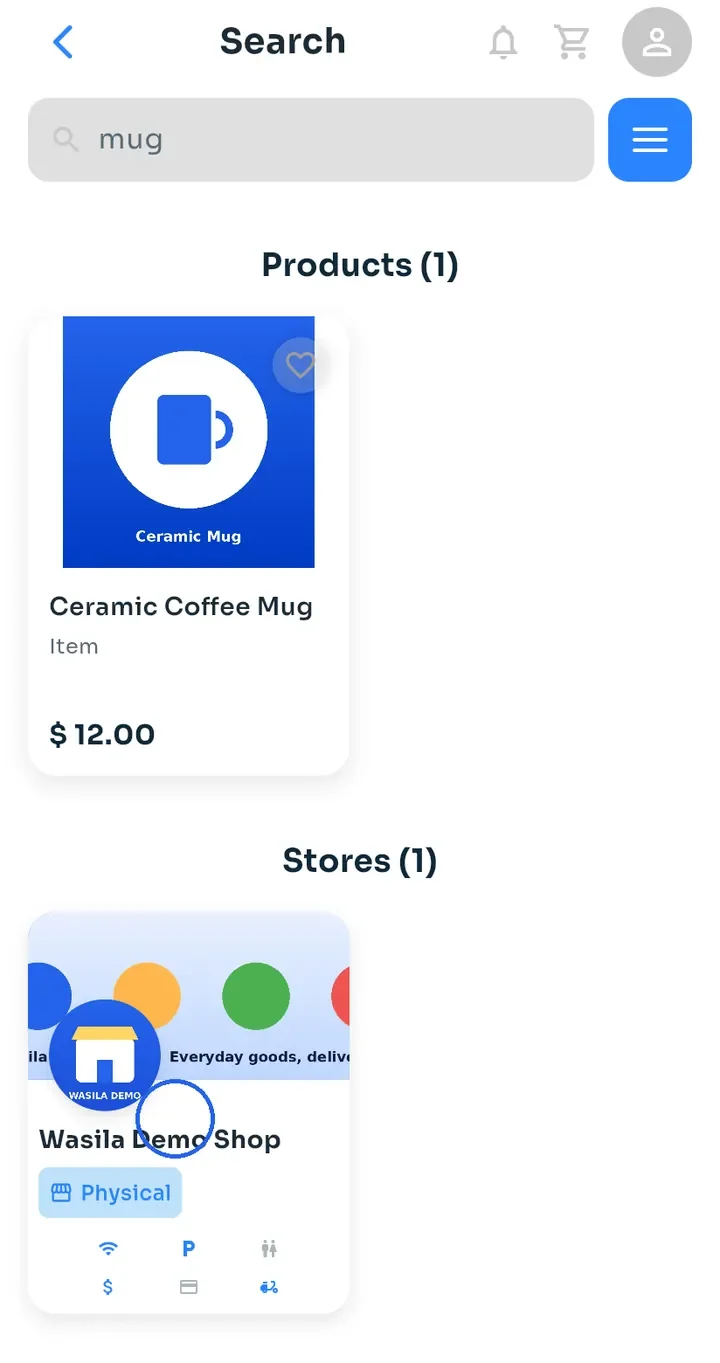
Tap a store card to open the store, for example in your search results, on Home or in Saved.
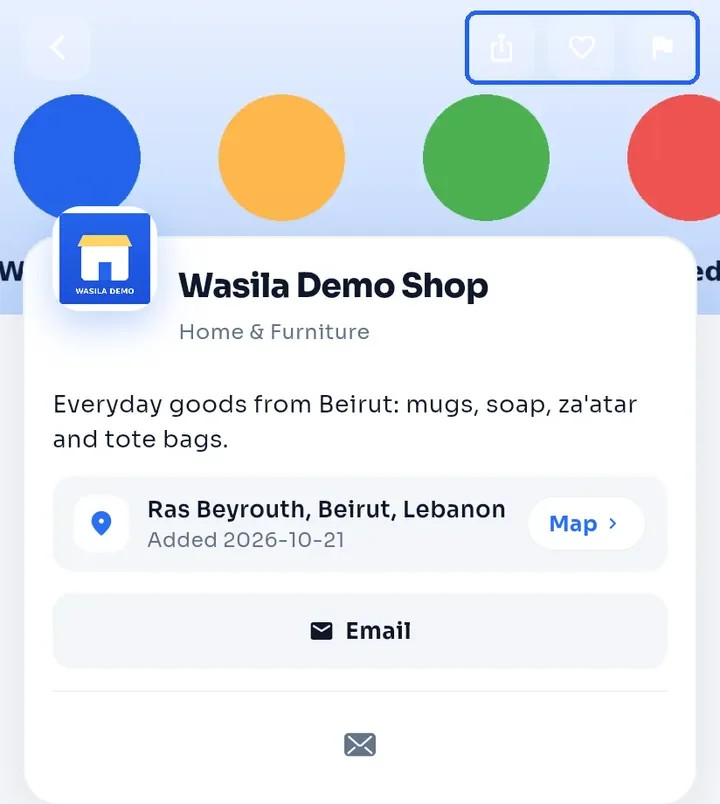
At the top you see the store name, its category and its description. The three buttons at the top right share the store, save it (heart) and report it (flag).
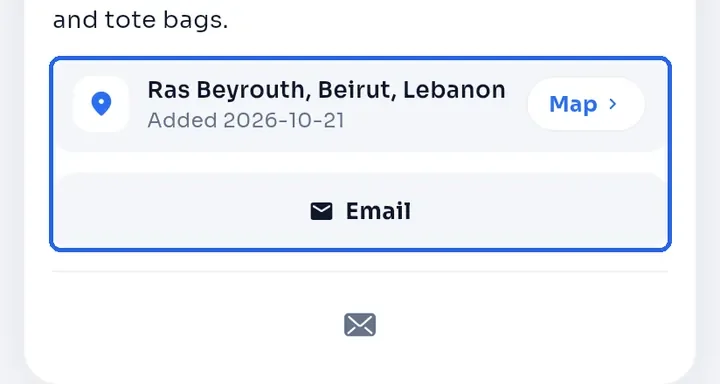
The address row shows where the store is. Below it, a contact button appears for each contact detail the store has added, such as Email, or Call when it has a phone number.
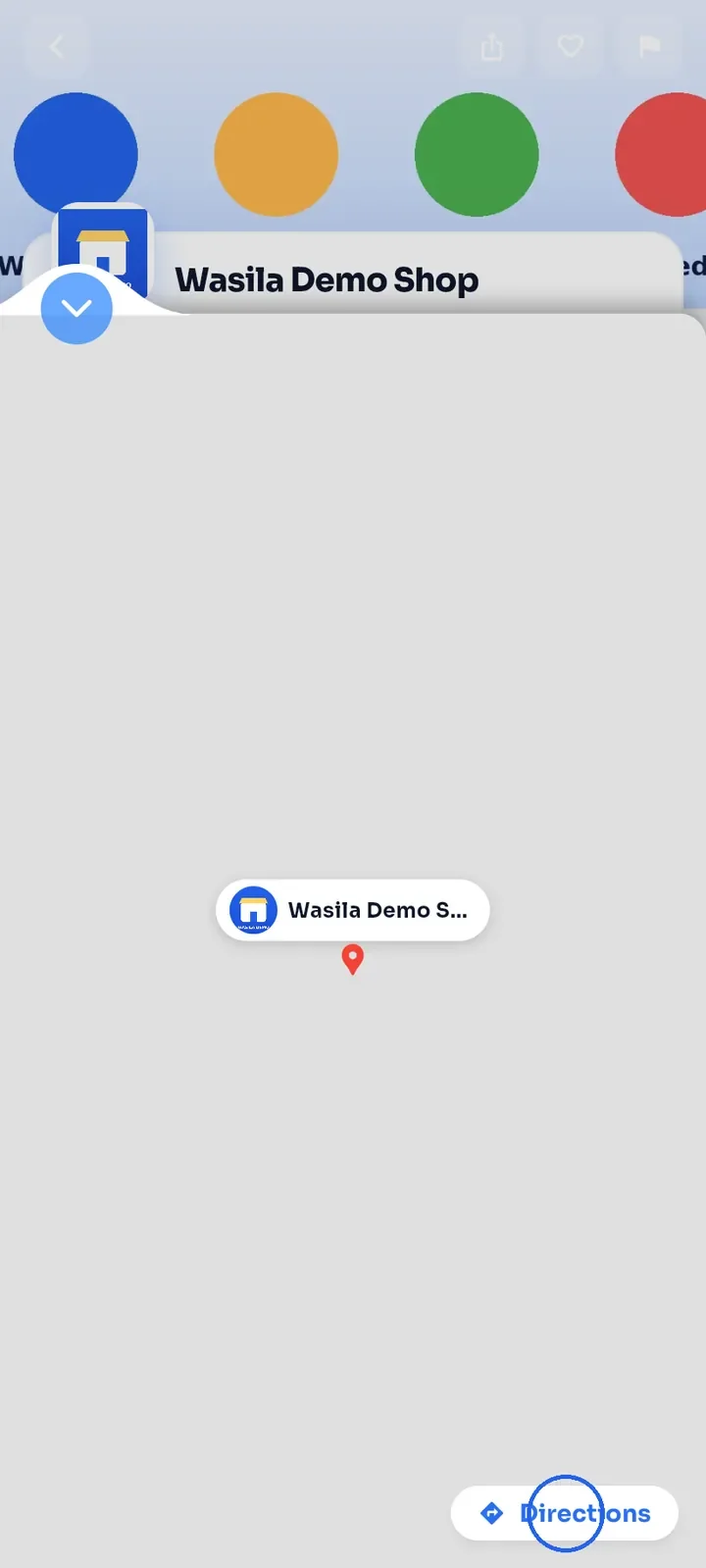
Tap Map to see the store on a map, with a Directions button at the bottom right. Tap the down arrow at the top left to close the map.
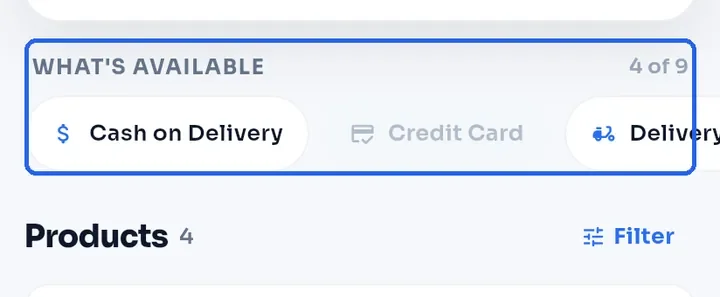
WHAT'S AVAILABLE lists the store's features, such as Cash on Delivery or Delivery. Greyed-out features are not offered. Swipe the row to see them all.
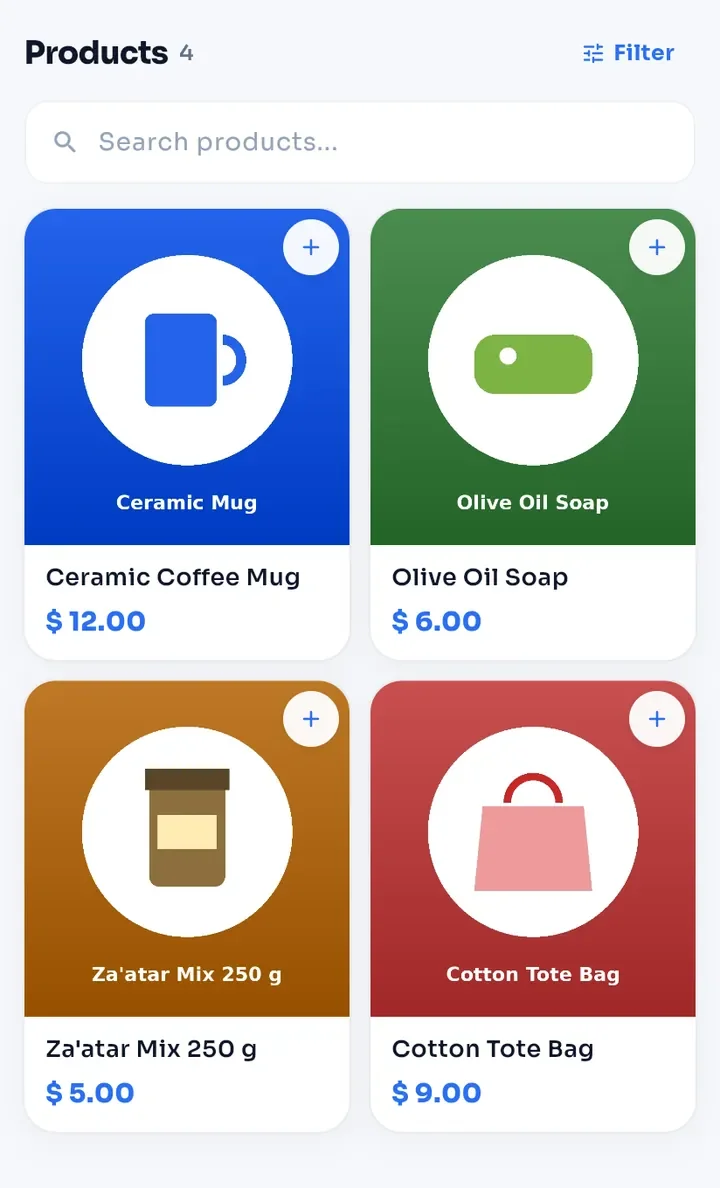
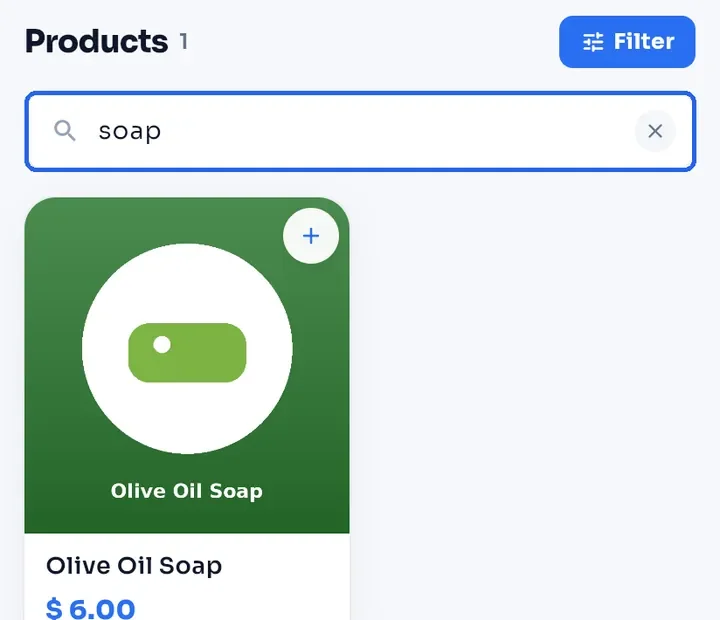
Scroll down to Products to see everything the store sells. Tap + on a card to add the product to your cart, or tap the card to open the product.
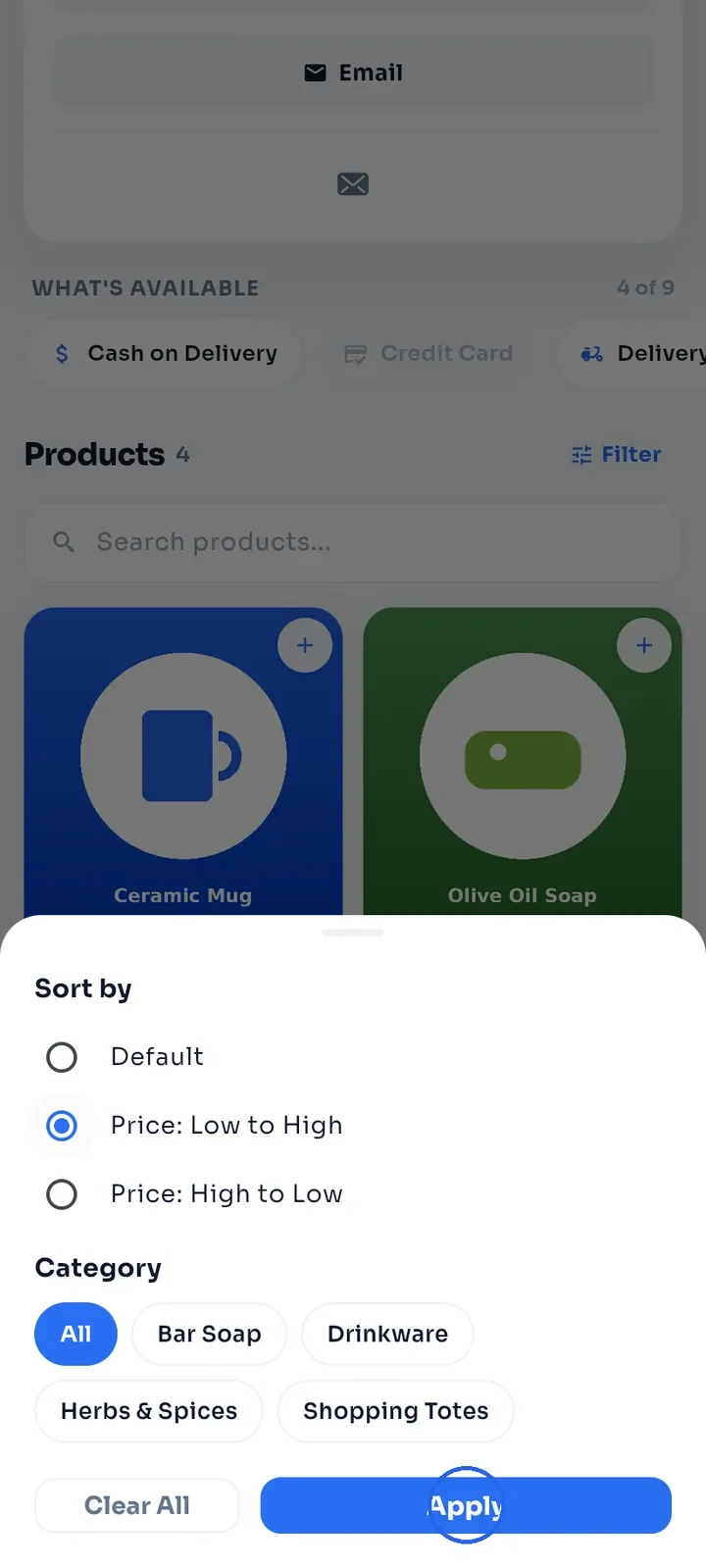
Tap Filter to sort the products by Price: Low to High or Price: High to Low, or to show one Category. Tap Apply.
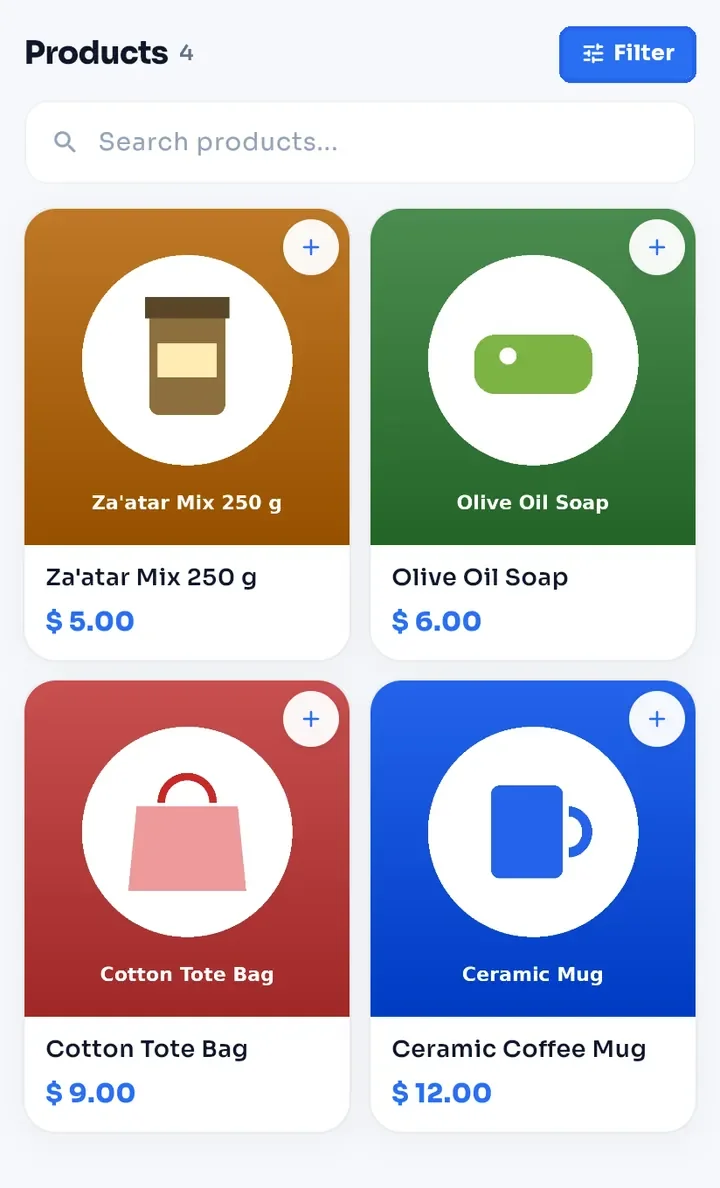
The list is sorted again, and the Filter button turns blue while a sort or category is active. To undo it, open Filter and tap Clear All.
To find a product in this store, type a word in Search products... and press the search key on your keyboard.
Tip: when a store has a WhatsApp or Telegram contact, a floating button for it appears on the store page.