Understand your store dashboard
Learn what each section of your store dashboard does and what the status chip means.
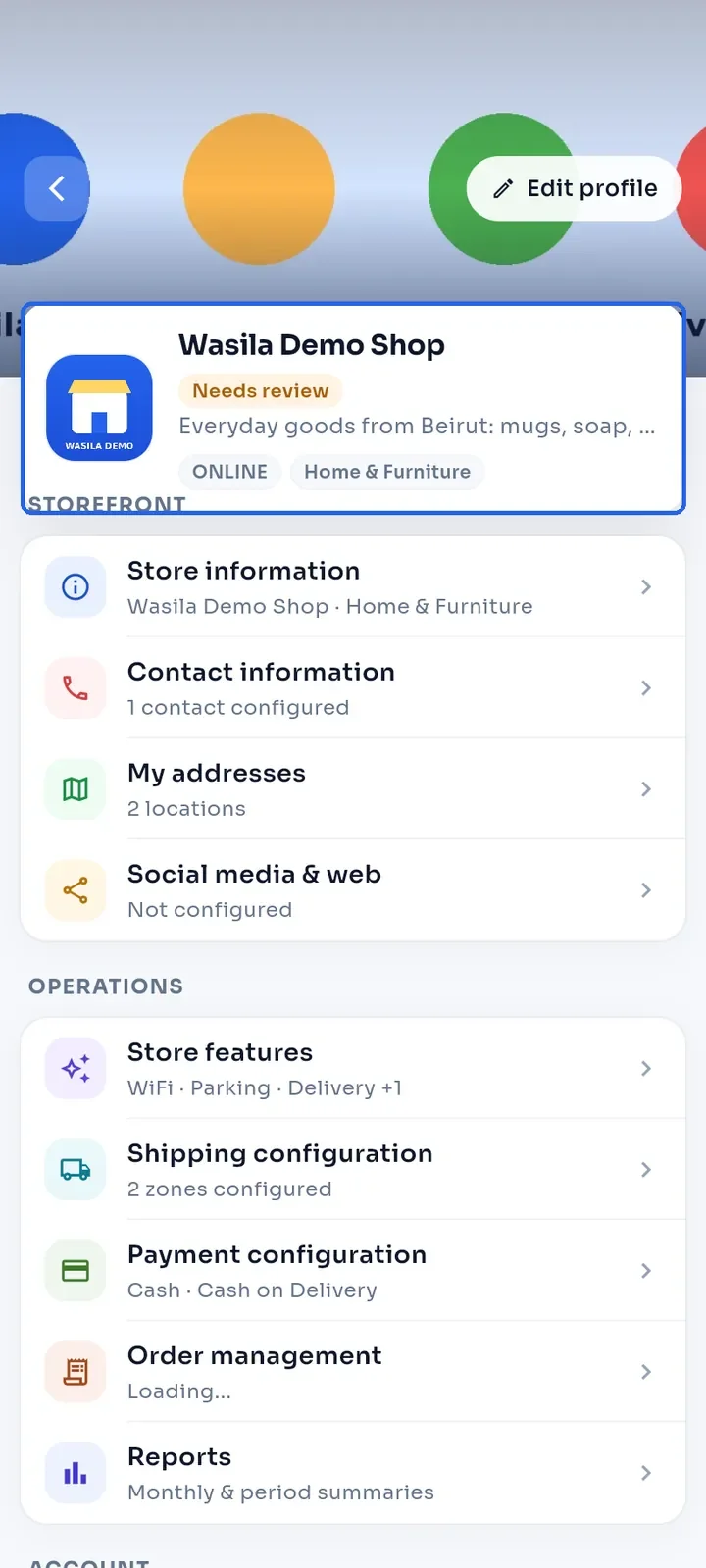
Open My Stores and tap your store. At the top you see the store name, its status chip, its description, the store type and the category.
The chip shows where your store stands. Needs review means the E-Wasila team has not approved it yet. Active means it is live. Suspended means the team has suspended it; contact support if you see this.
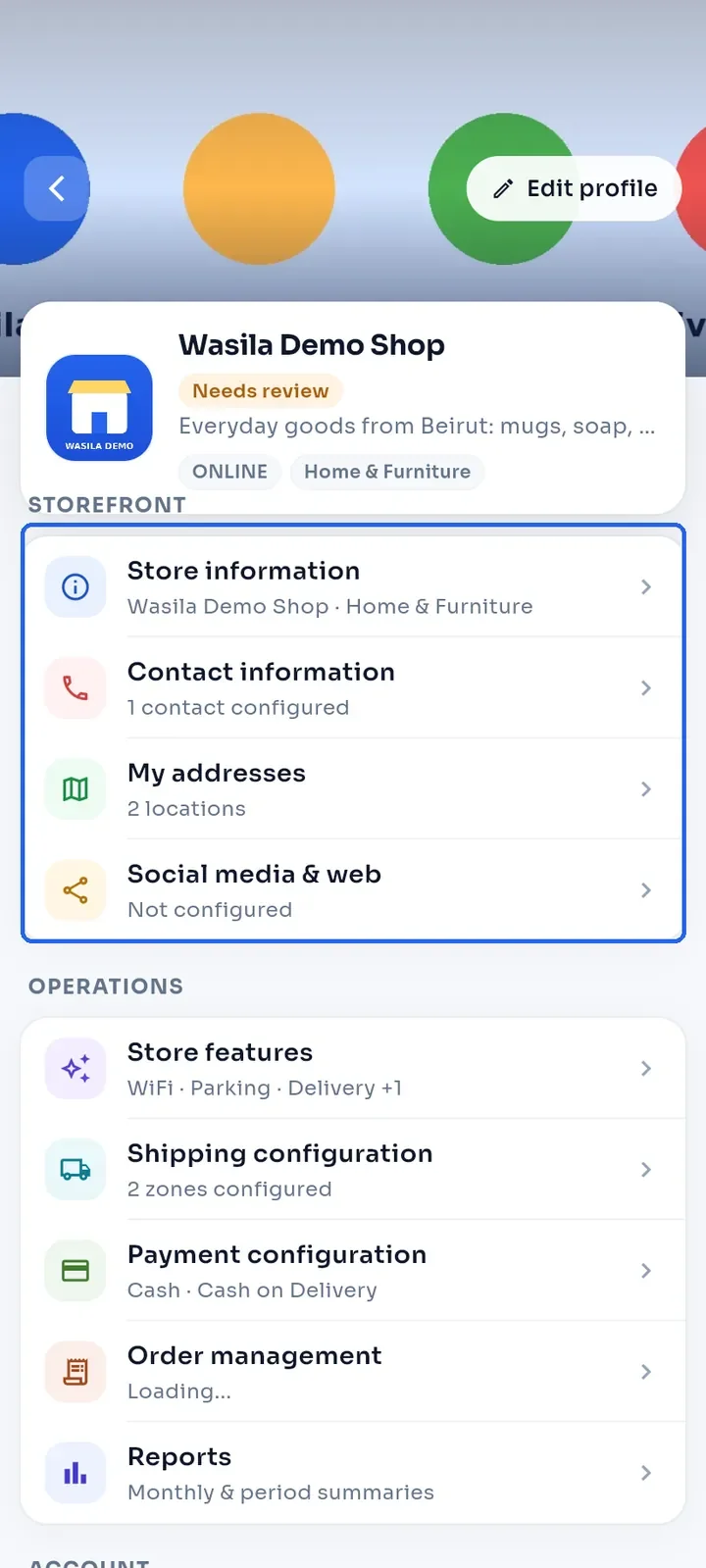
The STOREFRONT section holds what shoppers see: Store information, Contact information, My addresses and Social media & web.
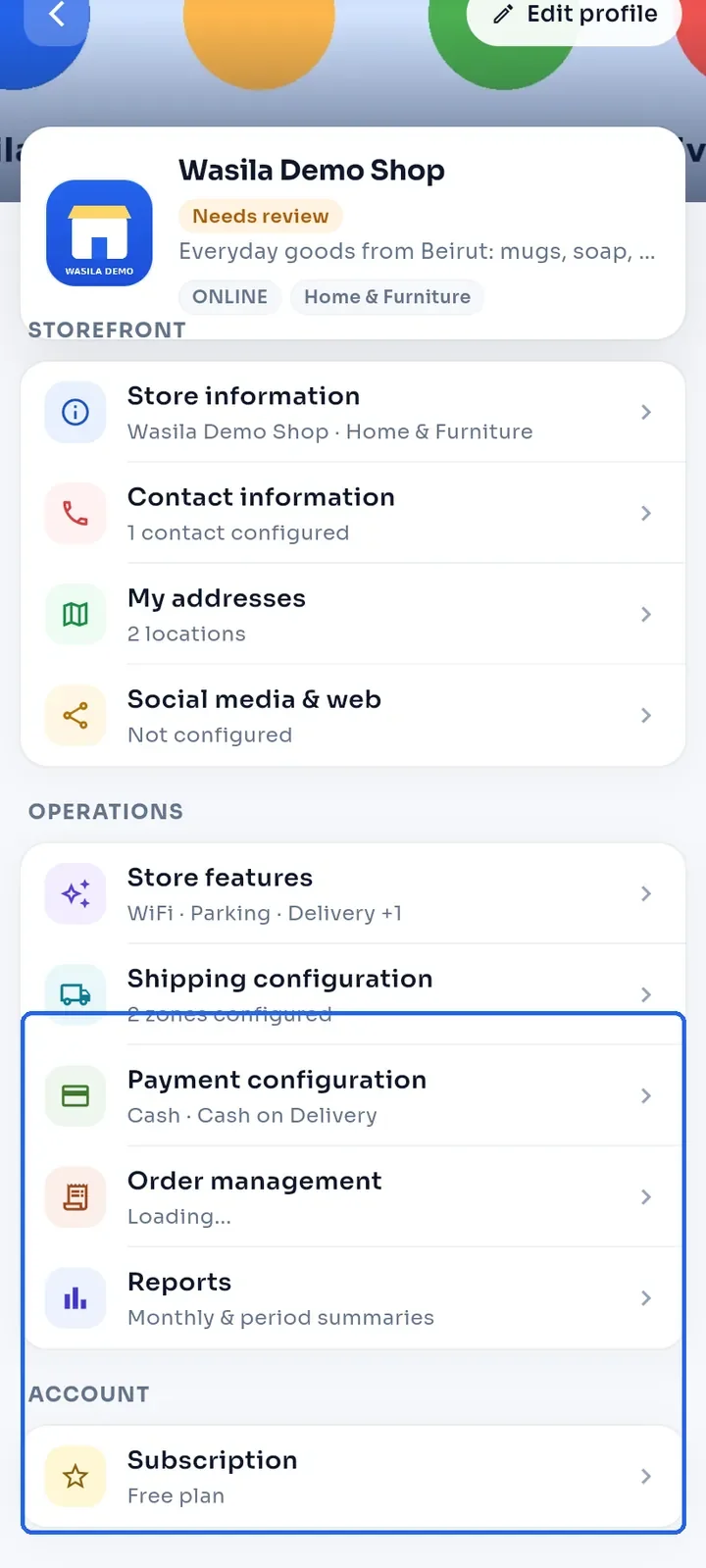
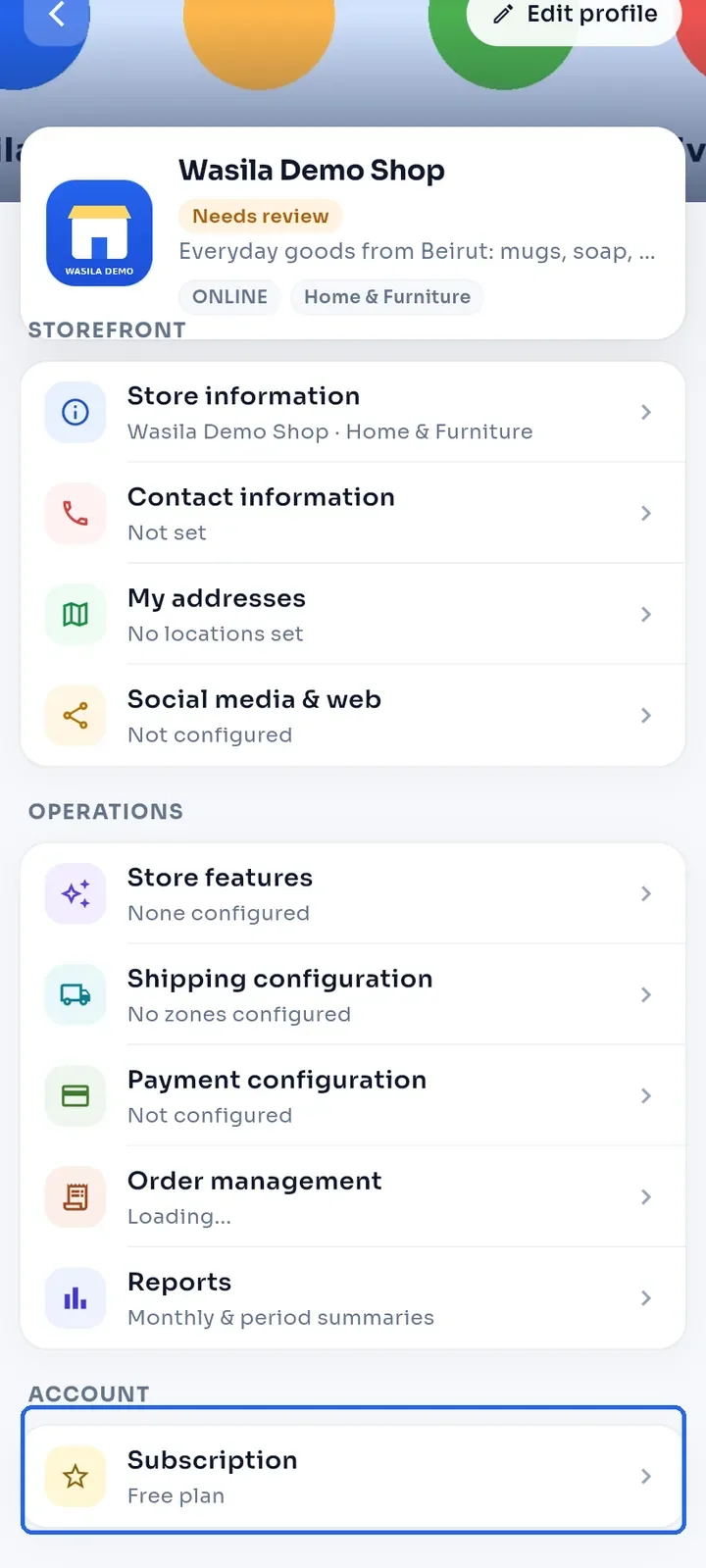
The OPERATIONS section holds how you sell: Store features, Shipping configuration, Payment configuration, Order management and Reports. The grey line under each row shows what is set up. If it looks out of date after a change, open your store again from My Stores.
The ACCOUNT section has Subscription. It shows your current plan, for example Free plan. Tap it to see the plans and upgrade.
Note: while the chip says Needs review, shoppers cannot find your store in search and it cannot take orders. See "Why does my store or product say Needs review or Pending?" for what to do.