Open a product page
See a product's photo, price and stock, add it to your cart, and contact the seller.
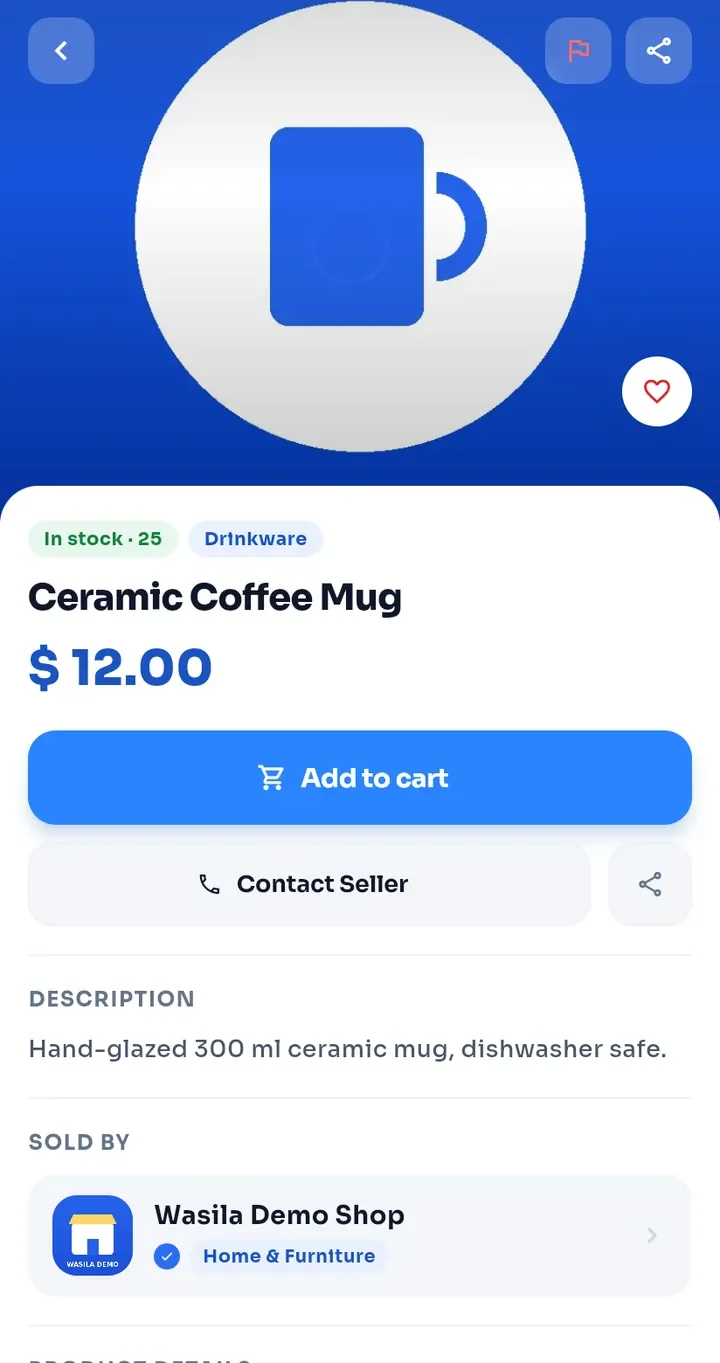
Tap a product card to open its page. The product photo is at the top.
Tap the photo to see it full screen. Tap the back arrow at the top left to return.
Under the photo, a green tag shows the stock, for example In stock · 25, next to the product category. The name and price are below.
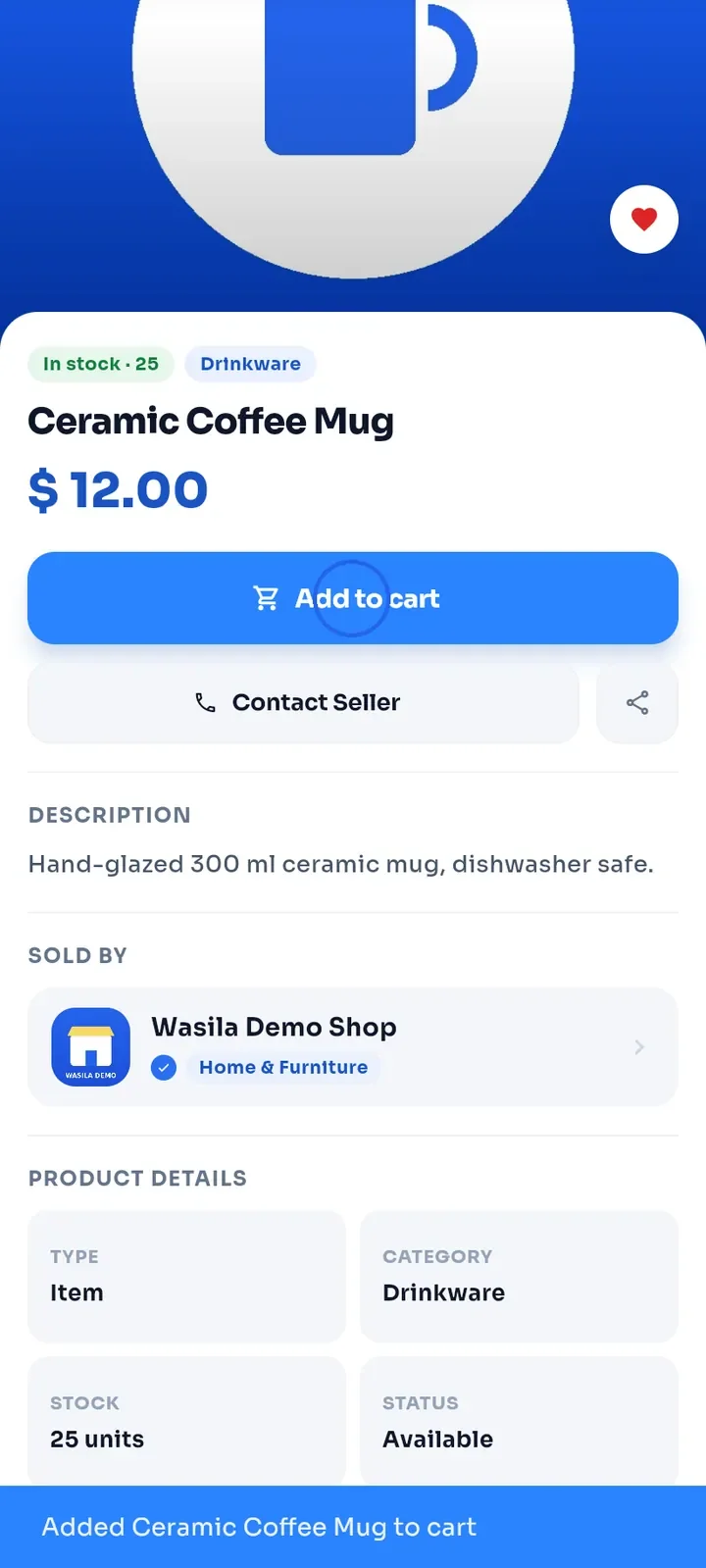
Tap Add to cart. A message at the bottom confirms it, for example Added Ceramic Coffee Mug to cart.
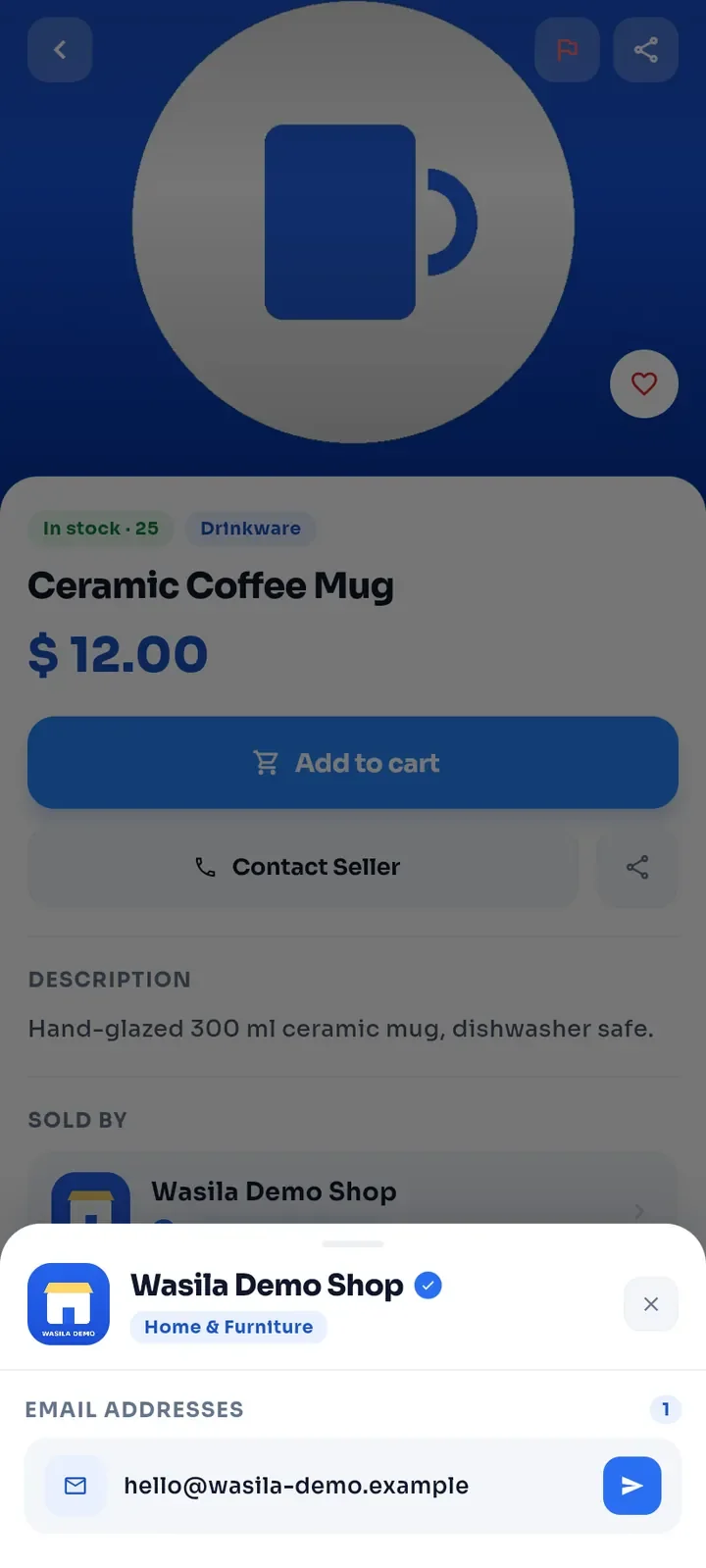
Tap Contact Seller to see how to reach the store, for example under EMAIL ADDRESSES. Tap the paper-plane button next to an address to write to the store.
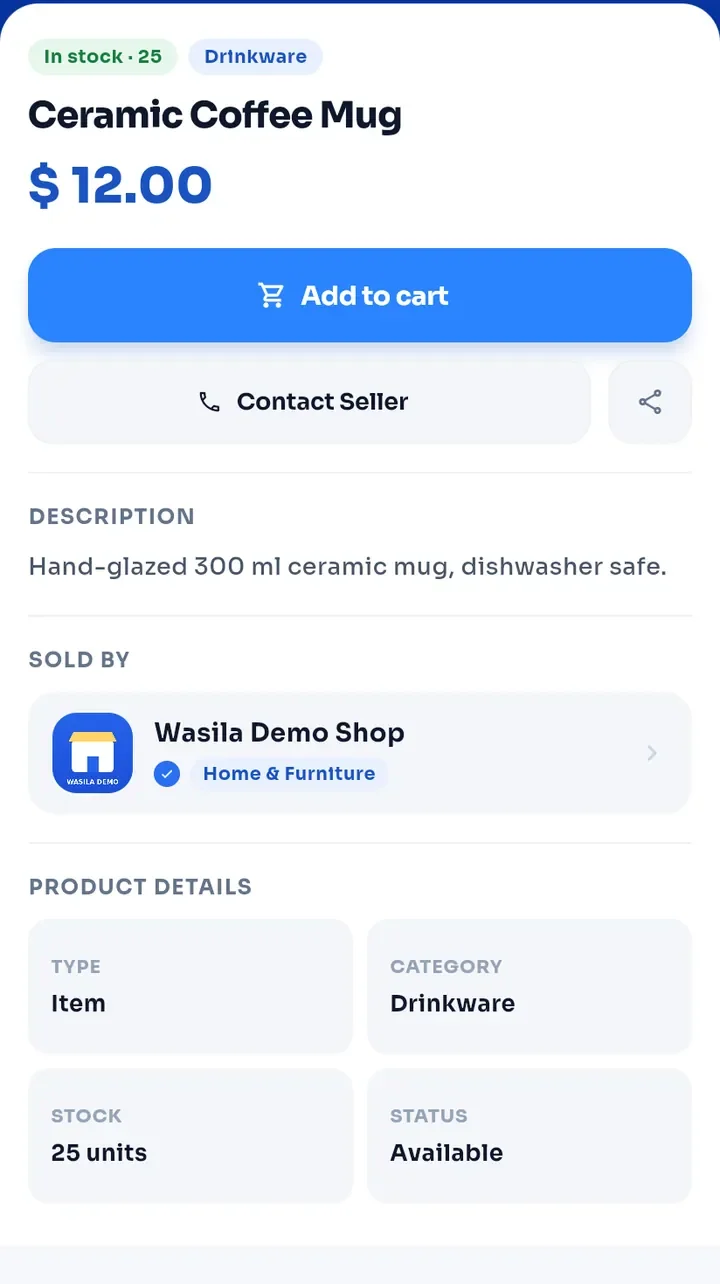
Scroll down to read the DESCRIPTION and the PRODUCT DETAILS: type, category, stock and status.
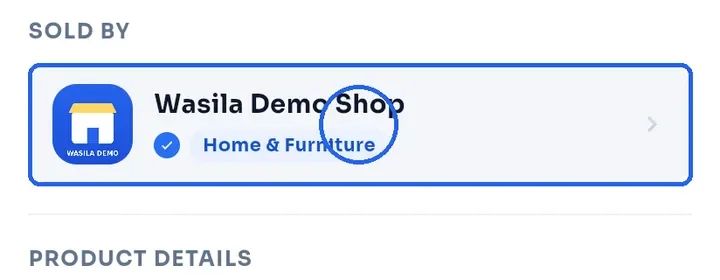
The SOLD BY card shows the store. Tap it to open the store page.
Note: Add to cart stays active even when a product is out of stock. Check the stock tag before you order; a red Out of stock tag means none are left.