Read your notifications
Follow updates about your orders and payments, mark them as read and open the order they are about.
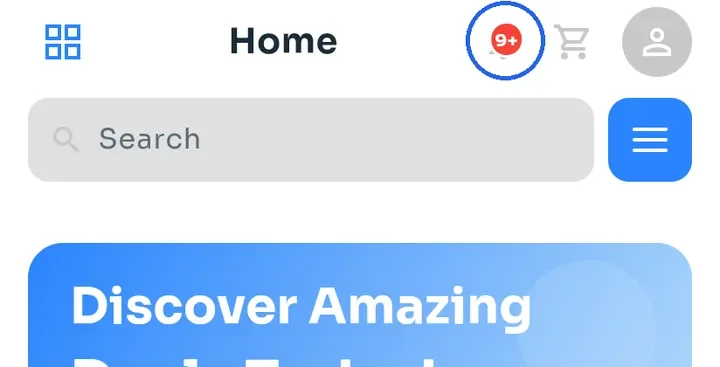
On the Home screen, tap the bell icon at the top. A red badge shows how many notifications you have not read yet; 9+ means more than nine.
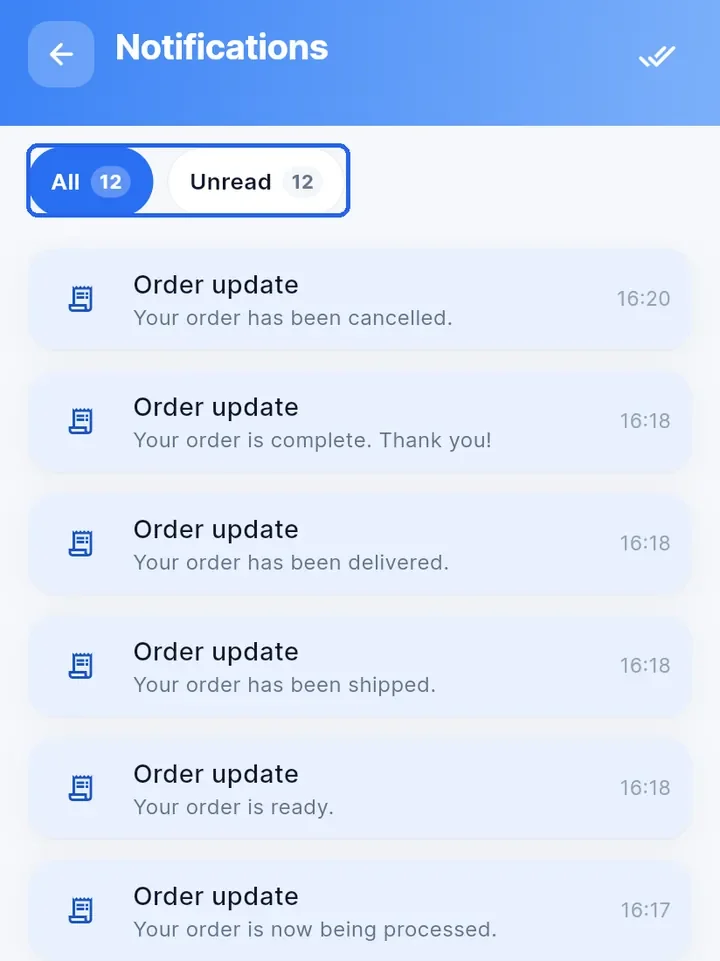
Notifications opens with two tabs, All and Unread, each with a counter. The newest notifications come first, each with a title such as "Order update", a short message and the time. Unread notifications have a blue tint.
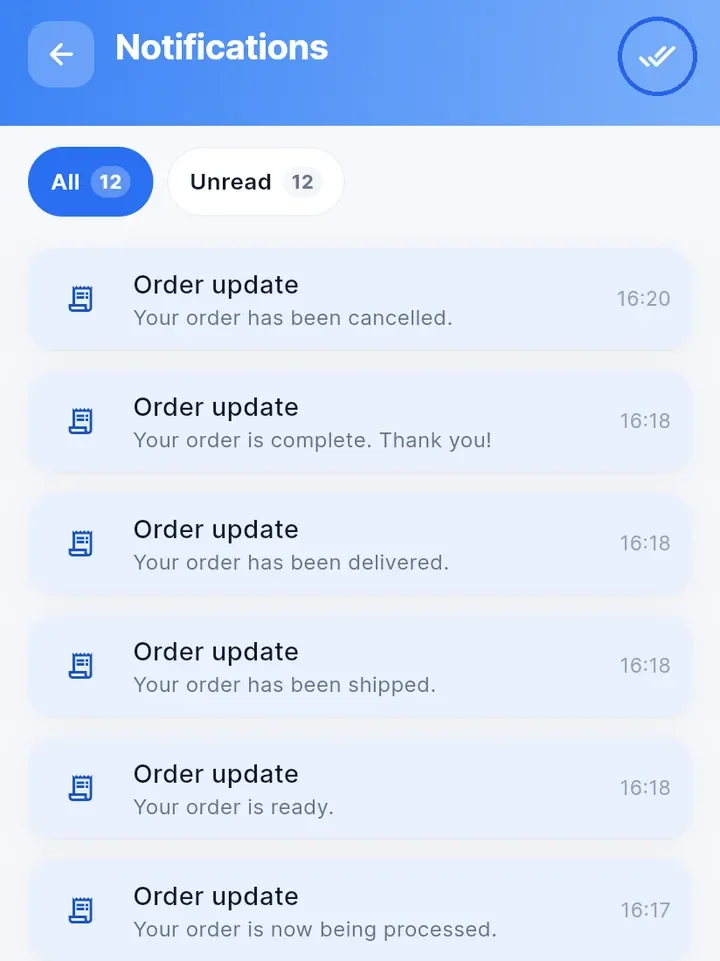
To mark all notifications as read, tap the double-check icon at the top right. The tint disappears and the Unread counter drops to 0. The icon shows only while you have unread notifications.
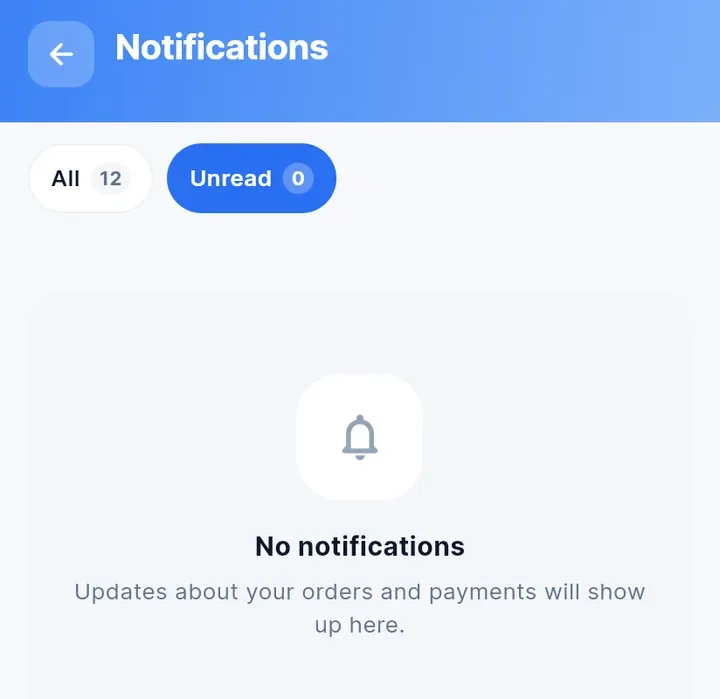
Tap Unread to see only the notifications you have not read. When there are none, the screen shows No notifications and "Updates about your orders and payments will show up here."
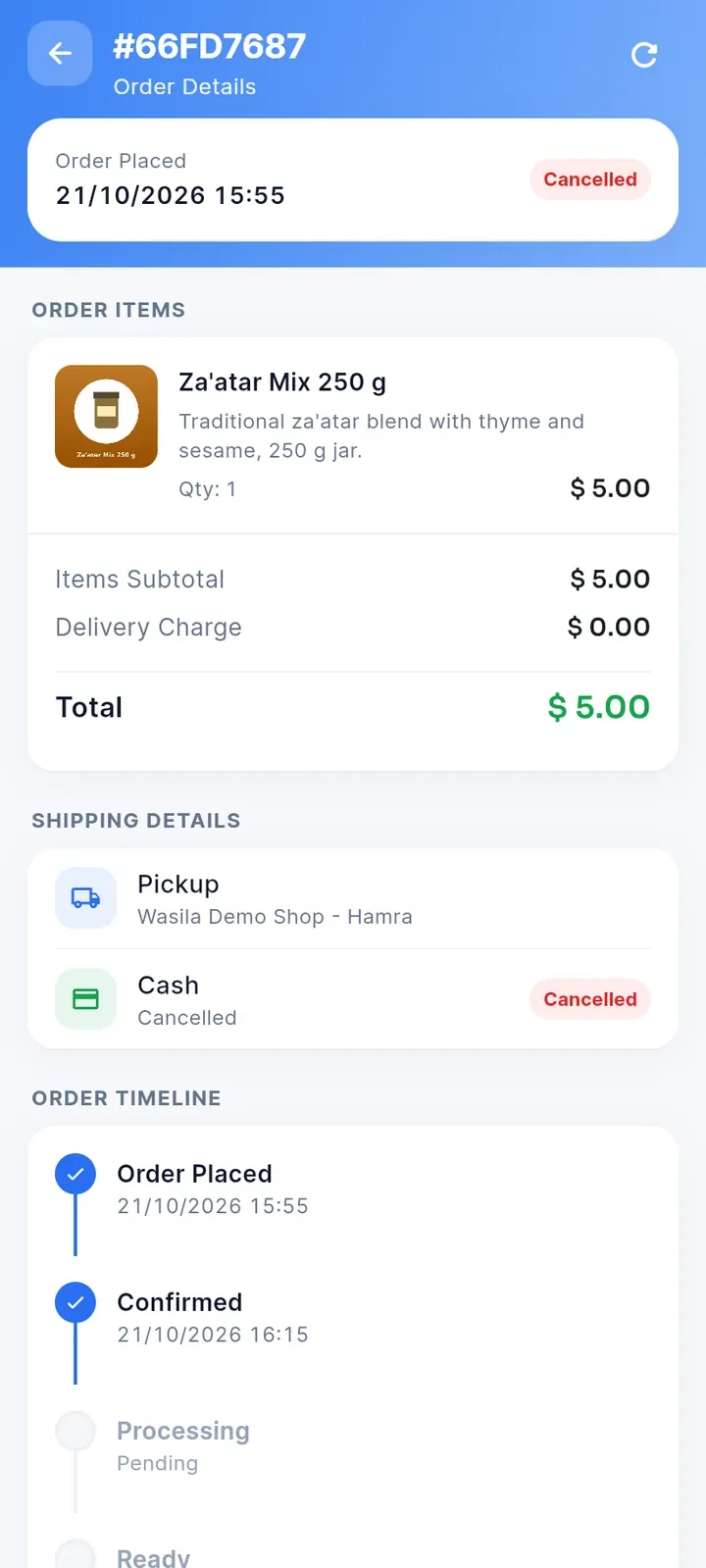
Tap a notification about an order to open that order in Order Details, with its items, shipping, payment and timeline. The notification is marked as read.
Note: if you have many notifications, a Load more button appears at the end of the list.
Tip: the app may ask whether it can send you notifications. If you refuse, you still find every update on this screen.