Create your store
Set up your own store on E-Wasila with a name, description, category, logo and cover image.
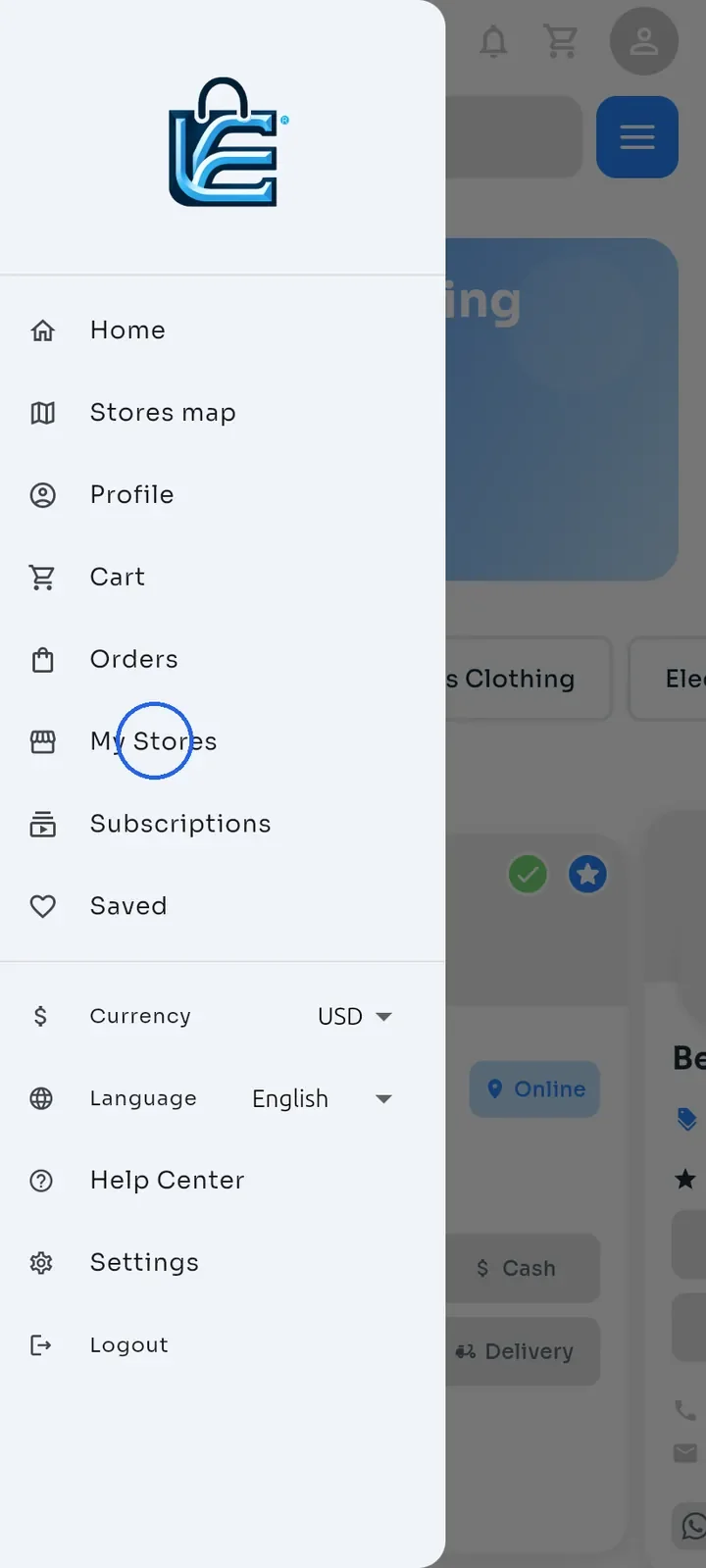
Open the menu and tap My Stores.
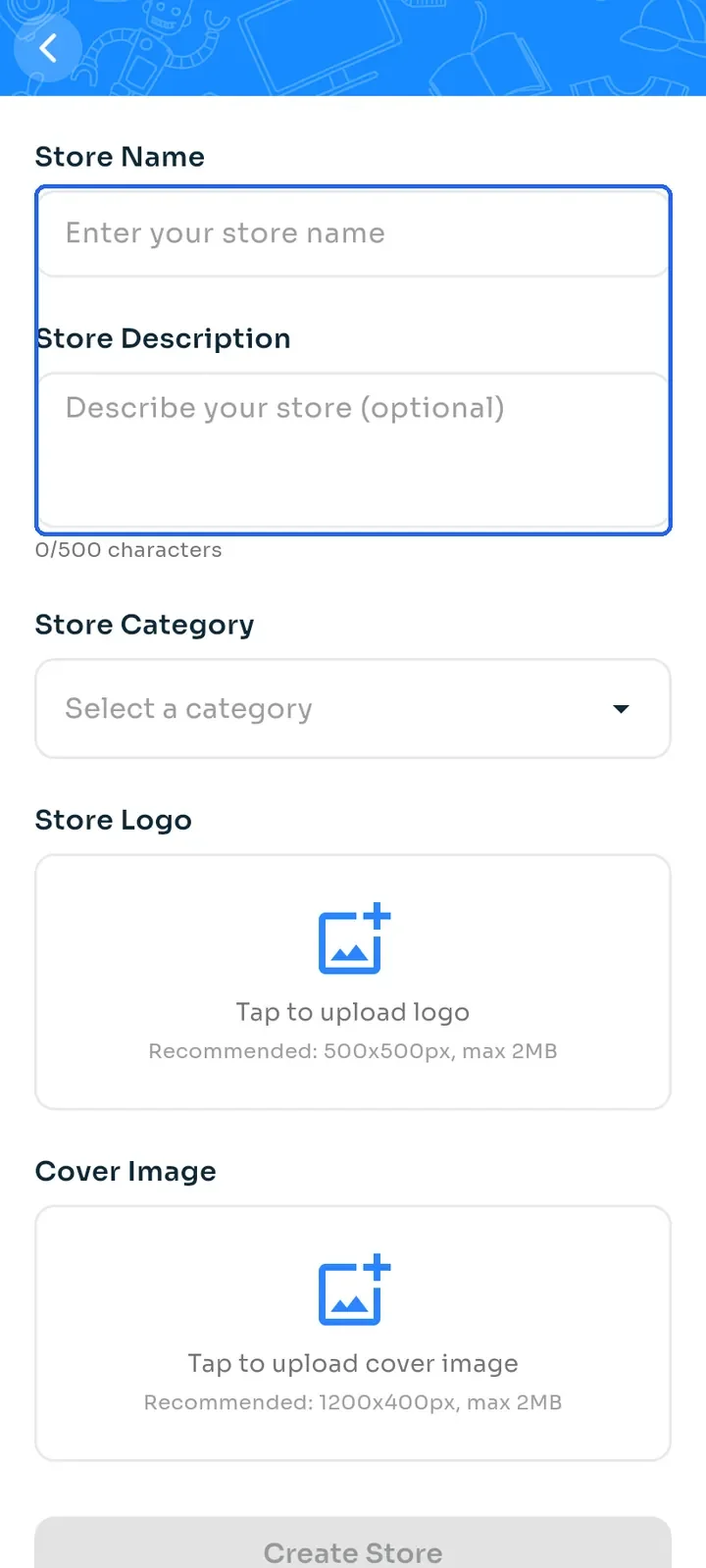
Tap New store.
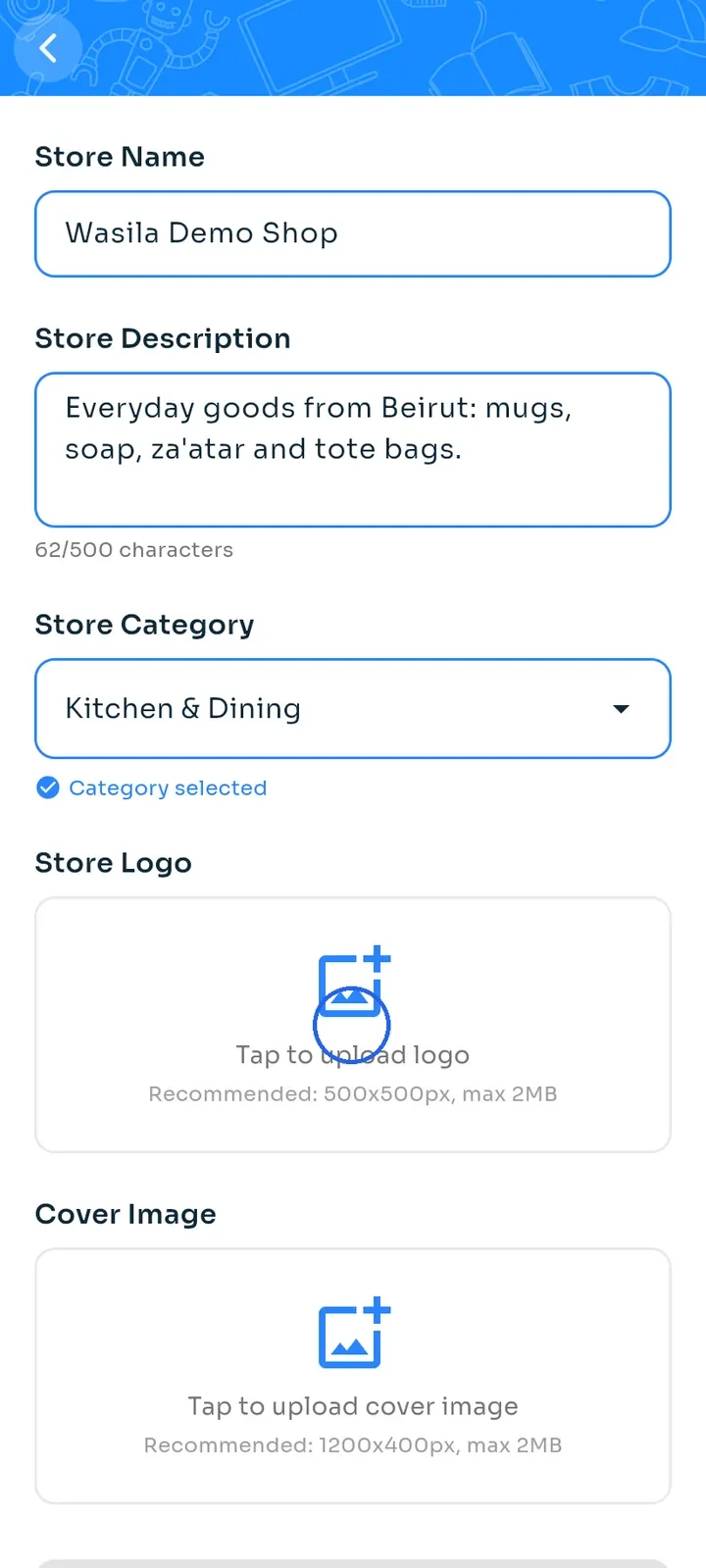
Enter your Store Name (at least 3 characters) and a Store Description of up to 500 characters. The Create Store button stays grey until every field on this screen is filled in.
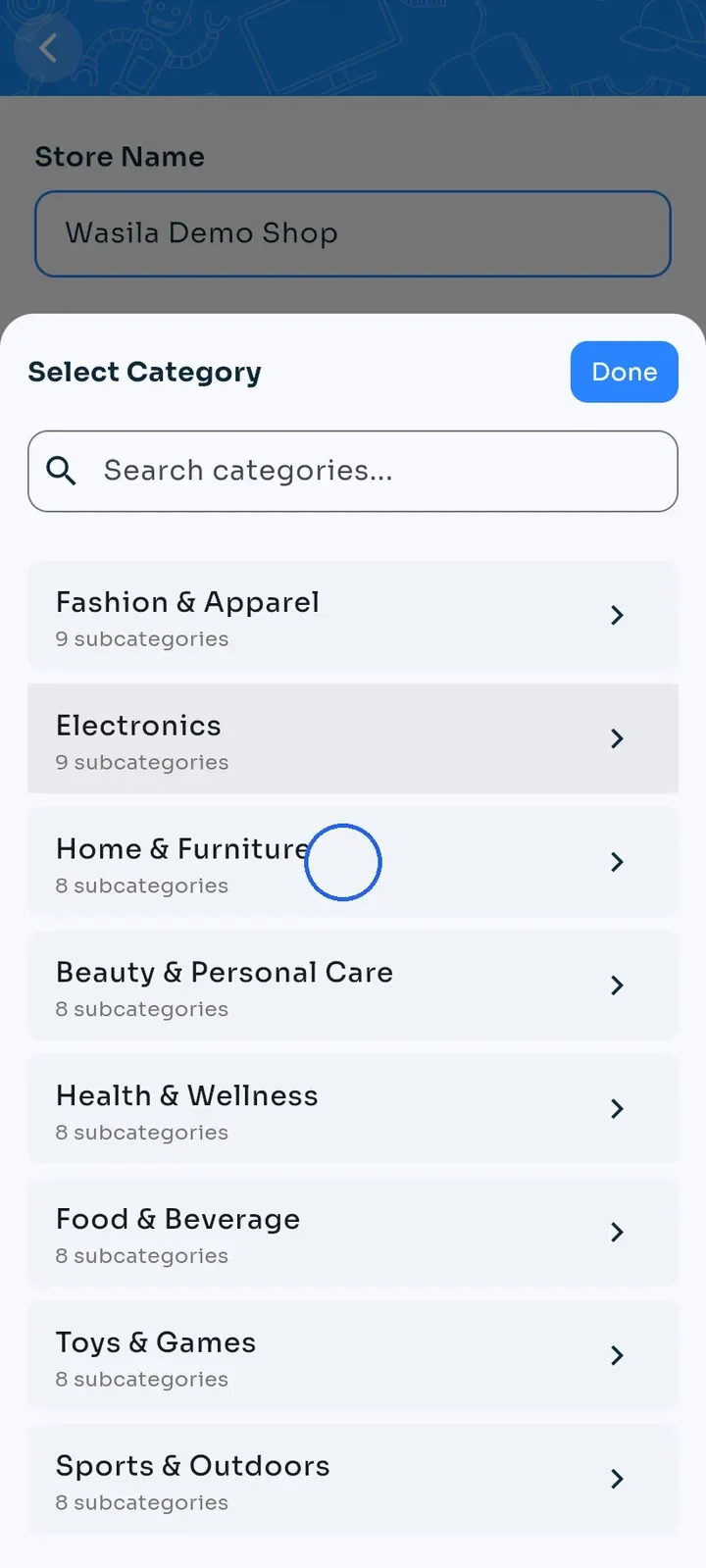
Tap Select a category and choose a main category, for example Home & Furniture.
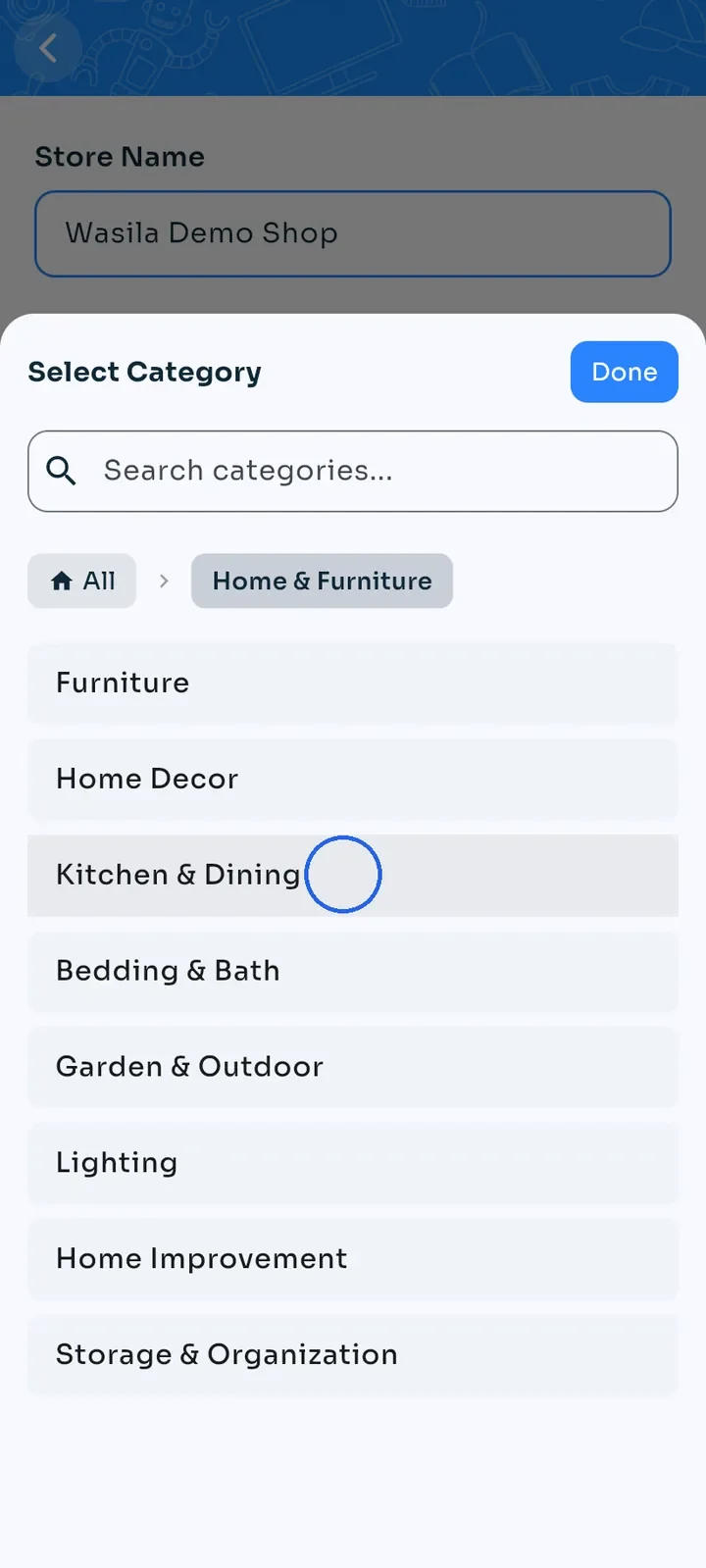
Choose a sub-category, for example Kitchen & Dining. The sheet closes and Category selected appears under the field.
Under Store Logo, tap Tap to upload logo.
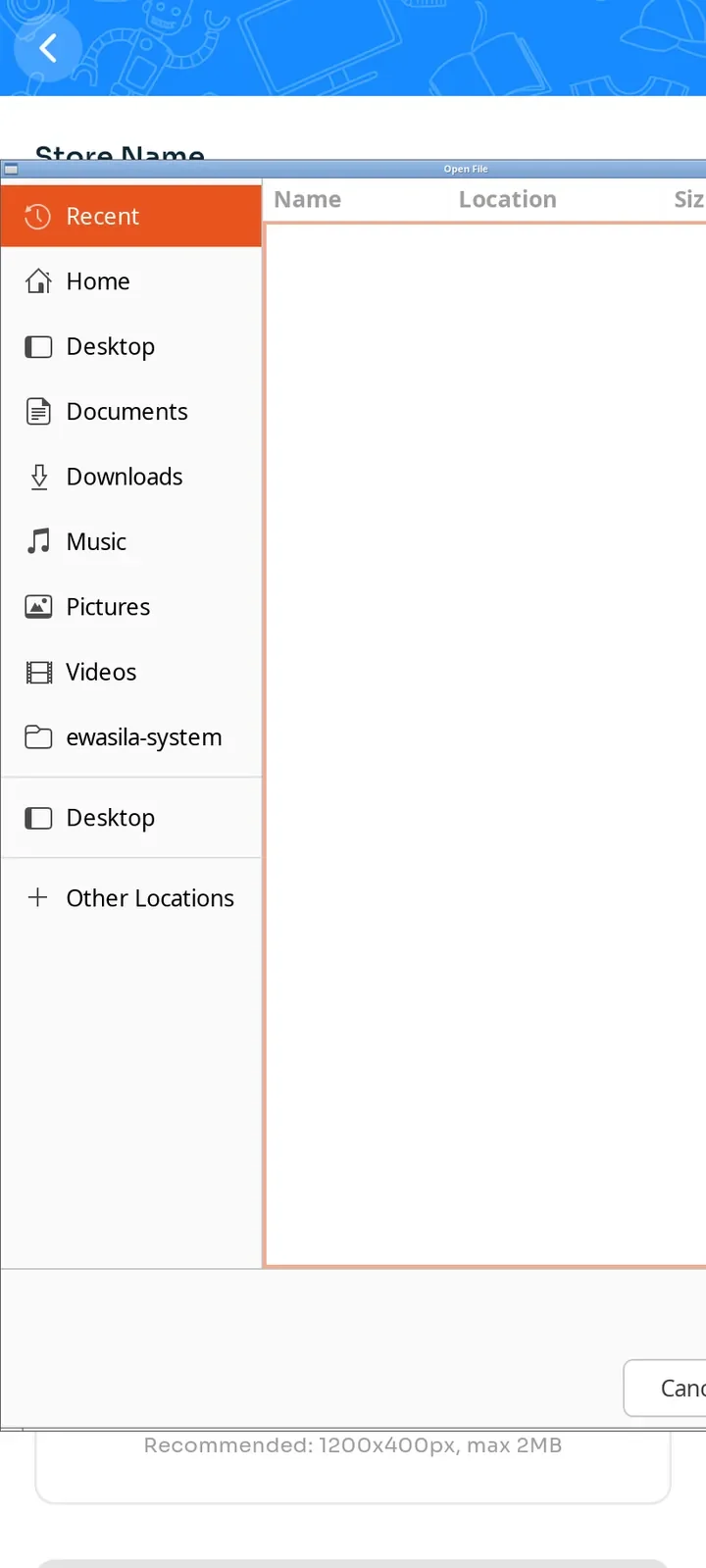
Choose an image from your device. A square logo of 500x500 px works best.
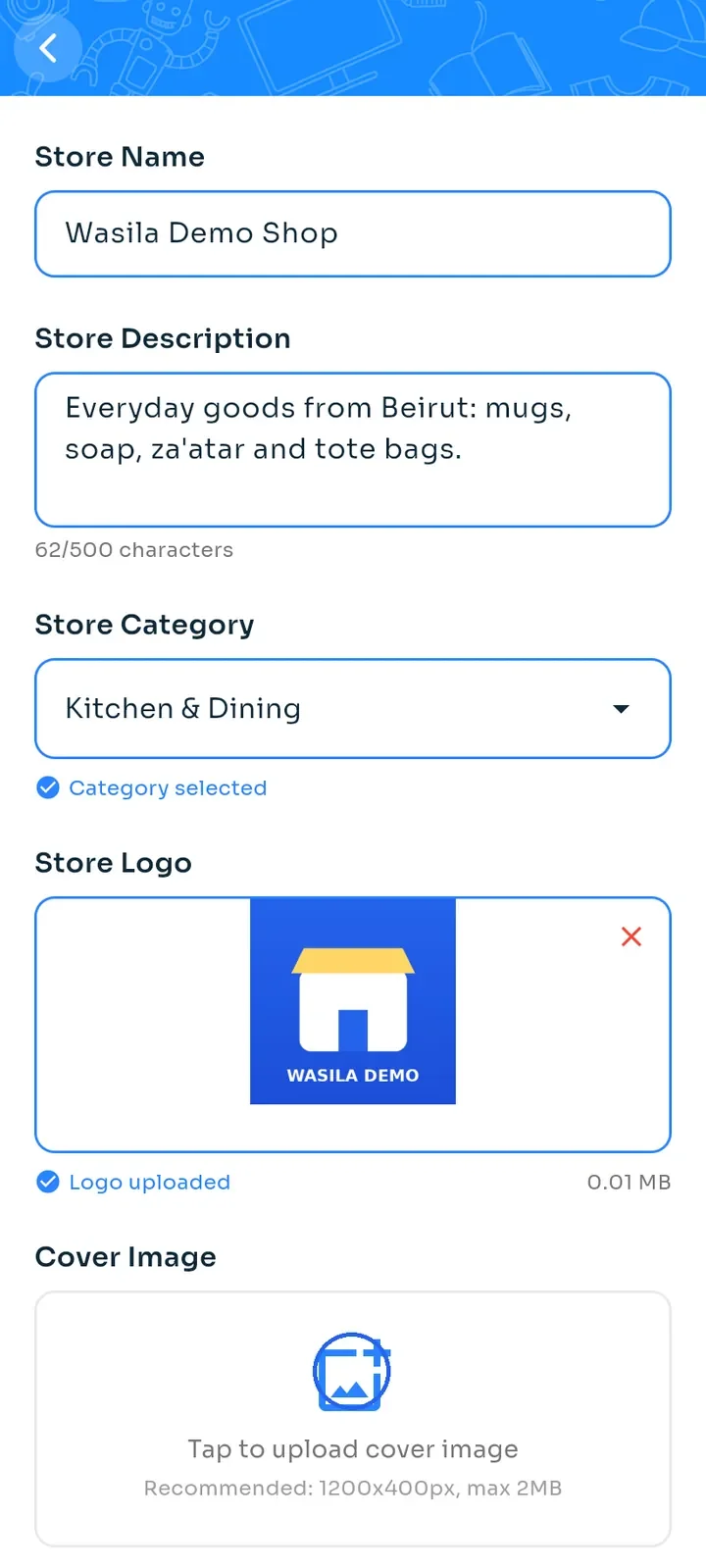
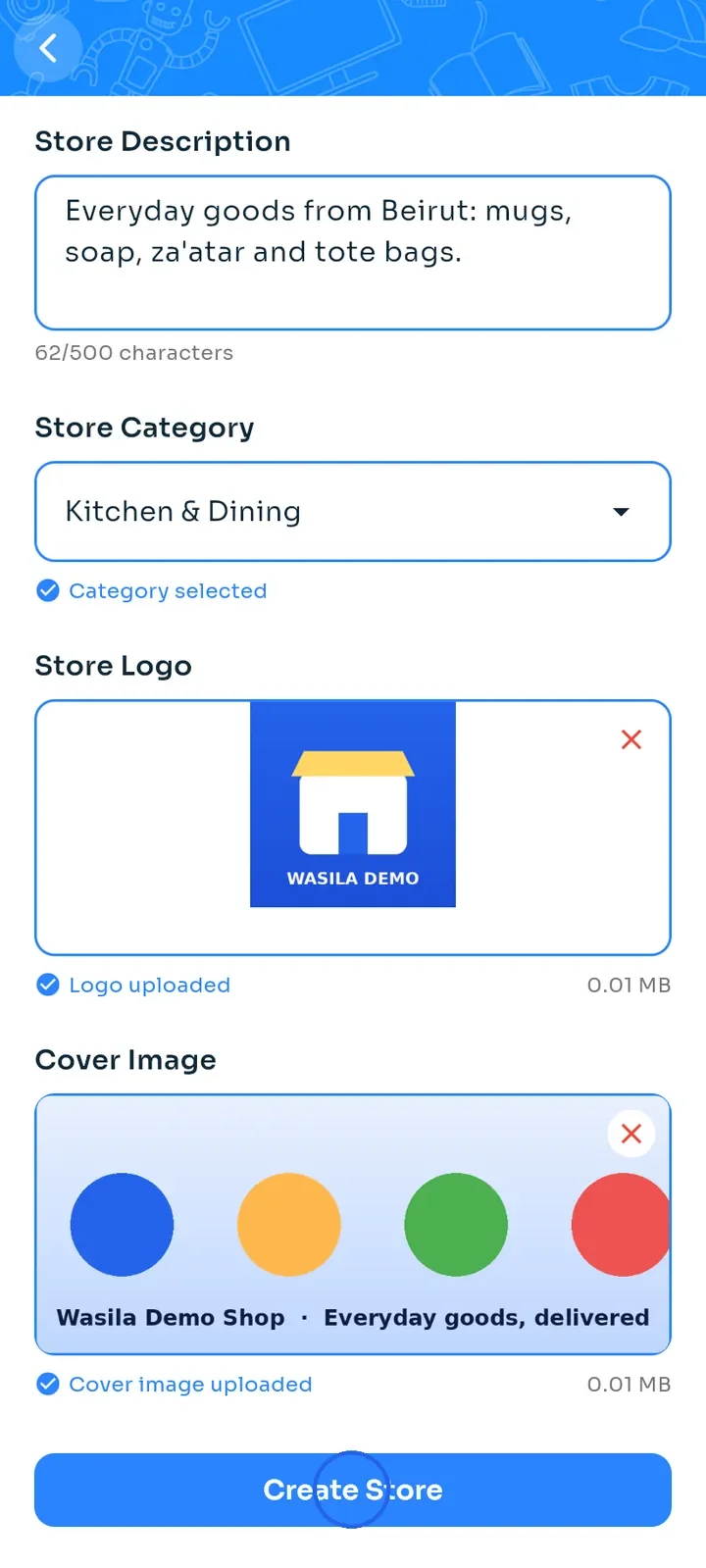
Logo uploaded appears under your logo. Now tap Tap to upload cover image and choose a wide image. 1200x400 px is recommended.
Note: each image can be at most 2 MB. The app refuses a larger image, so choose a smaller one.
When the name, description, category, logo and cover are all set, the button turns blue. Tap Create Store.
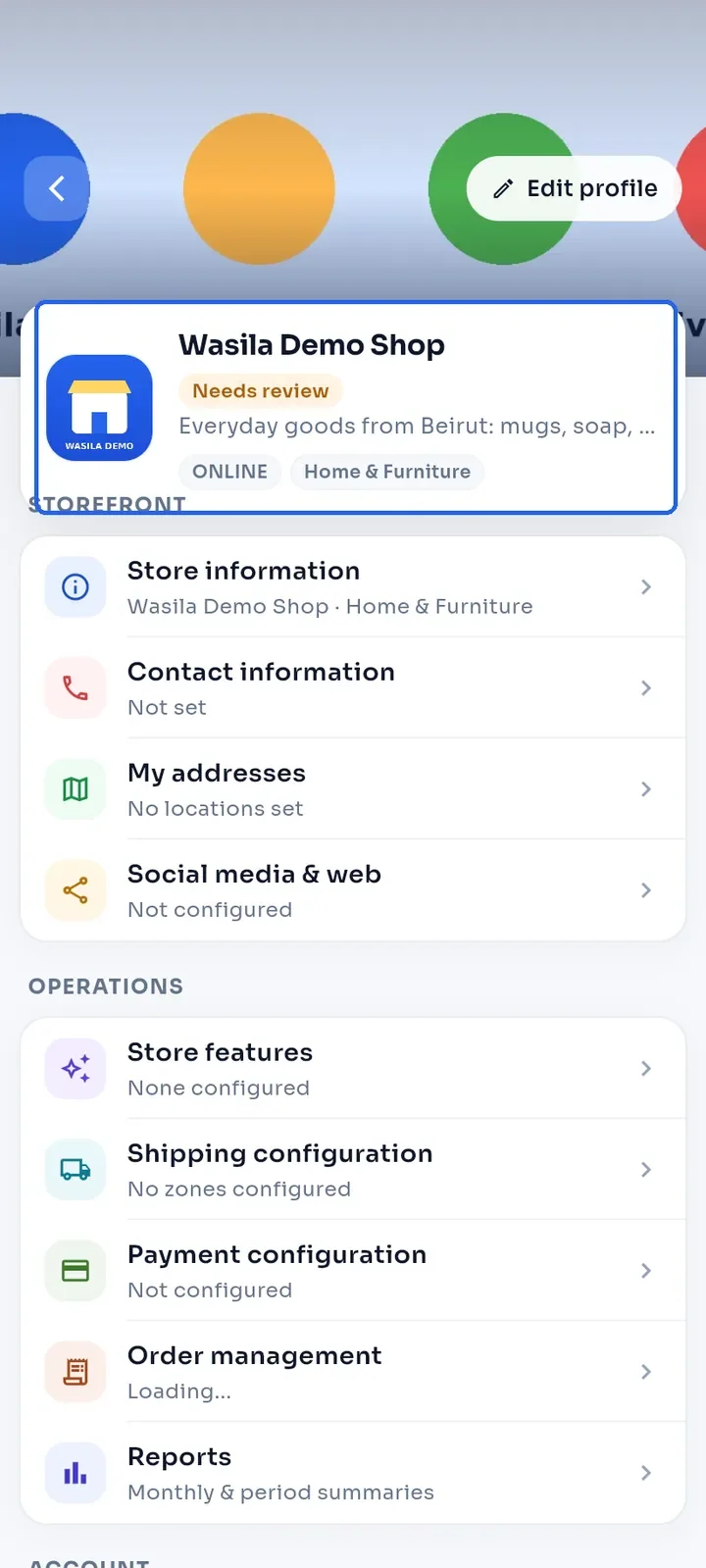
Your store dashboard opens. The status chip shows Needs review until the E-Wasila team approves your store.