Add and edit a delivery address
Save a delivery address with a map pin, and edit it later.
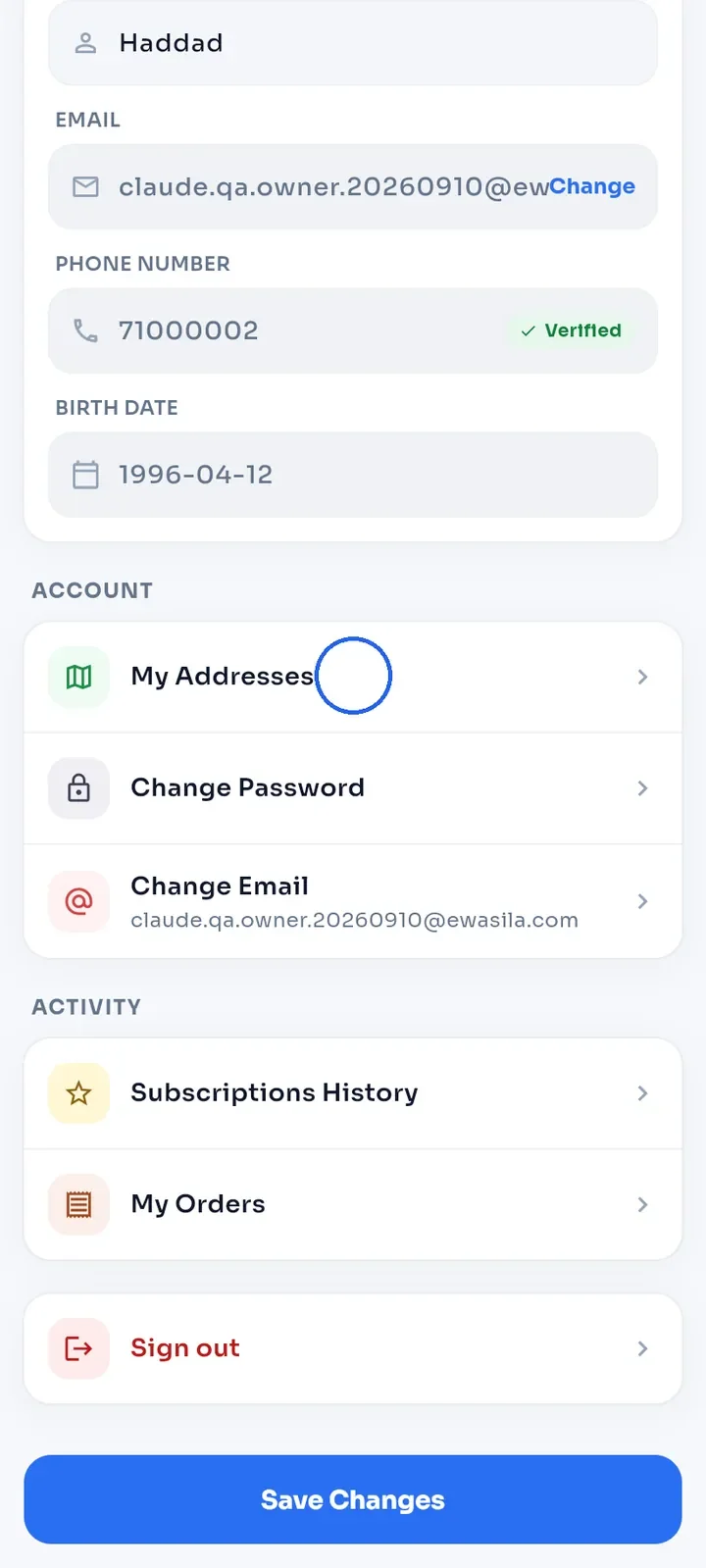
Open My Profile and tap My Addresses in the Account section.
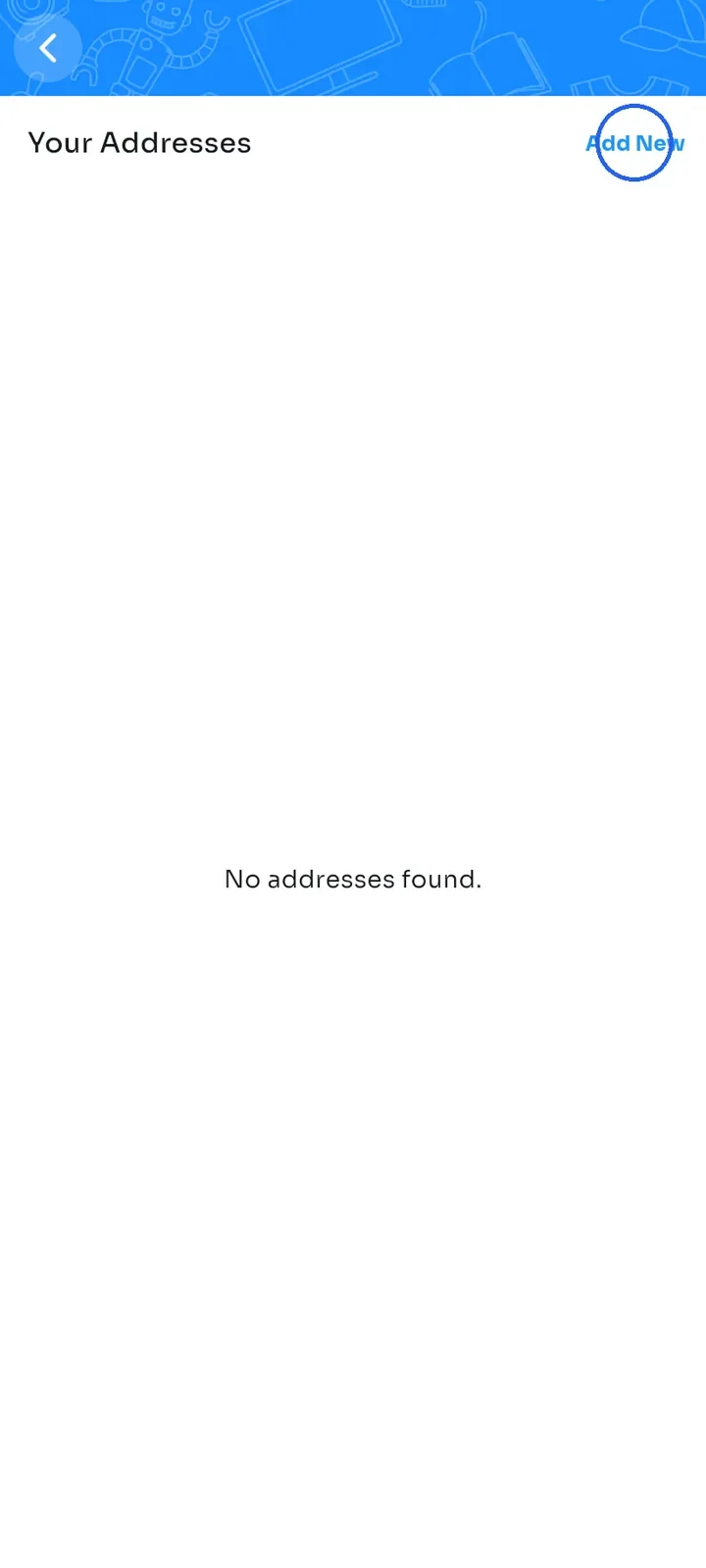
The Your Addresses screen opens. If you have no addresses yet, it shows "No addresses found." Tap Add New at the top right.
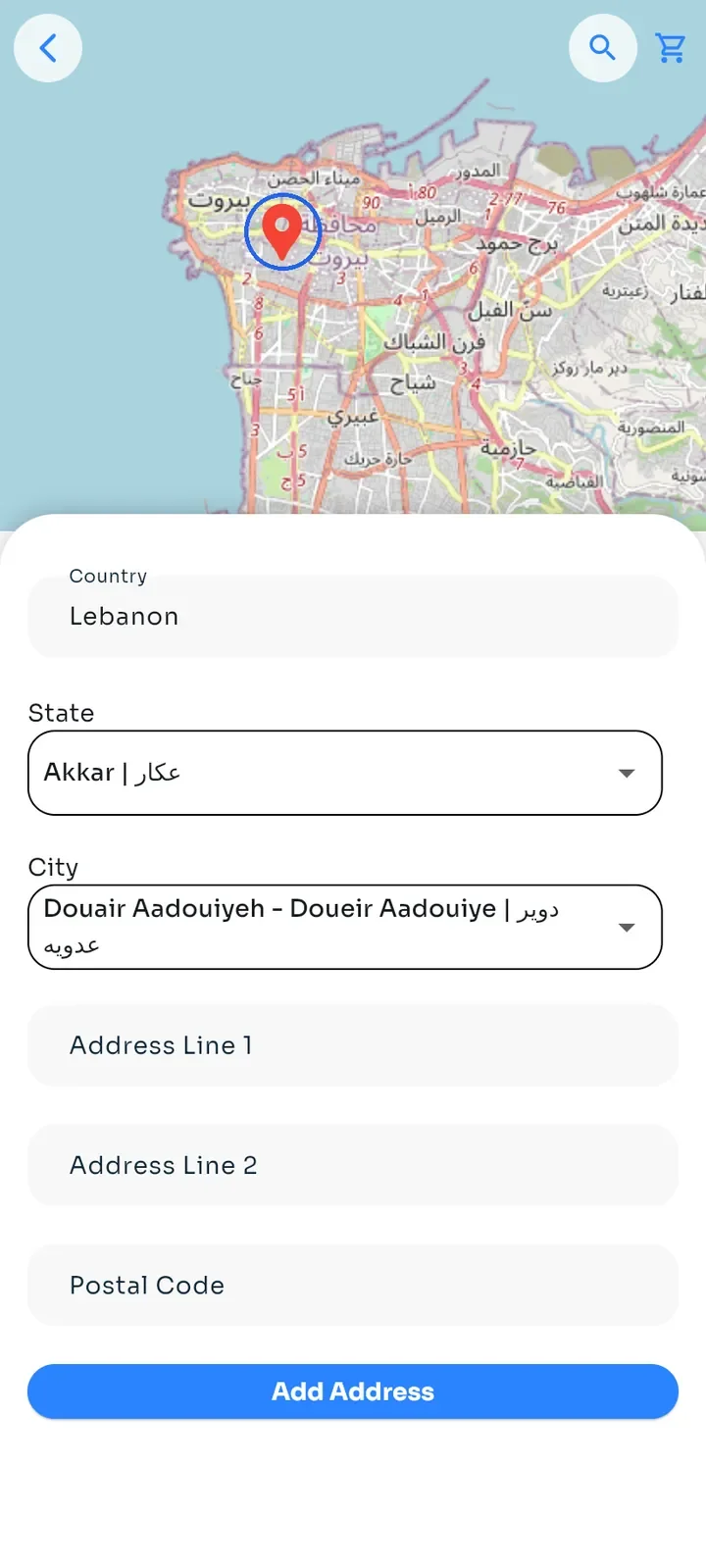
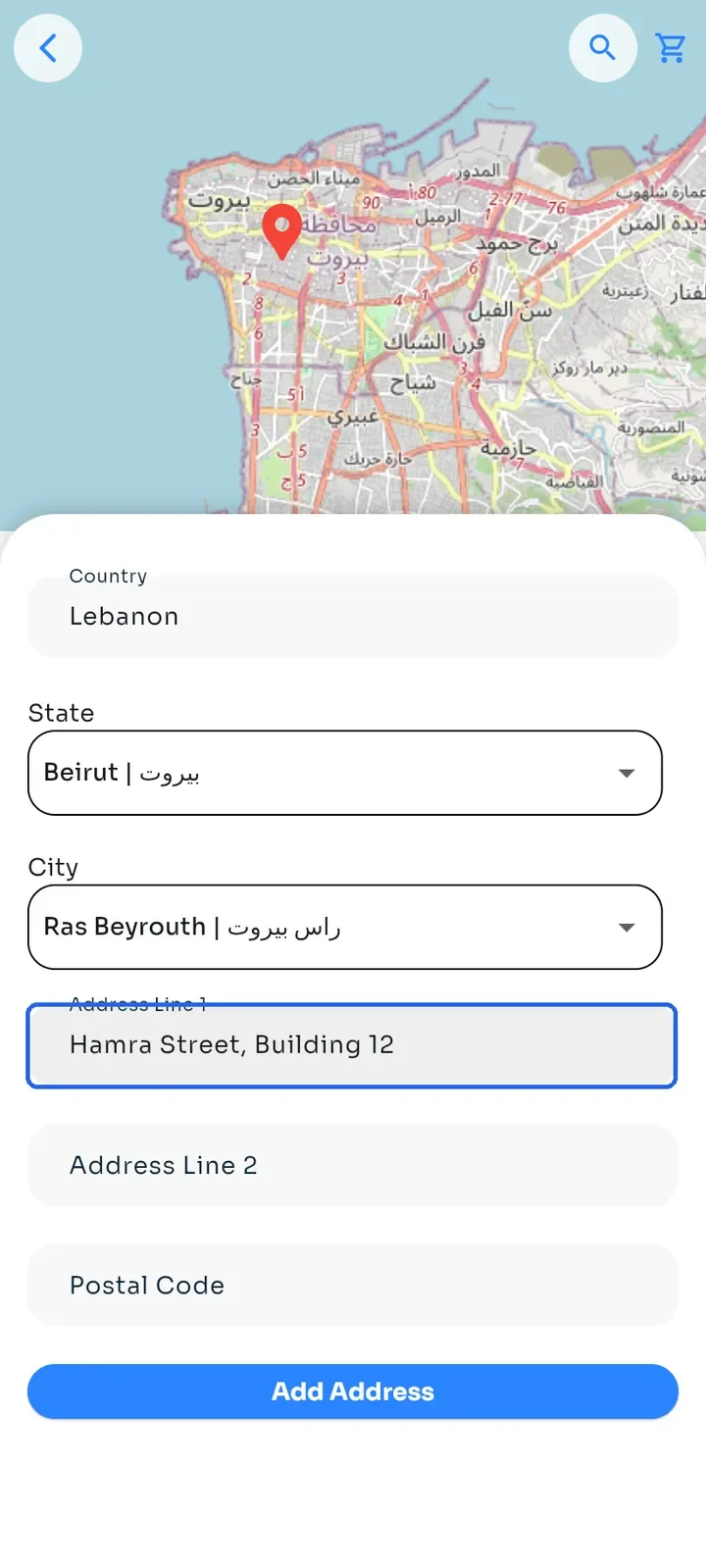
Pinch to zoom in on the map and tap your location. A red pin marks the spot. The pin is required: without it, the app shows "Tap the map to drop a pin before saving."
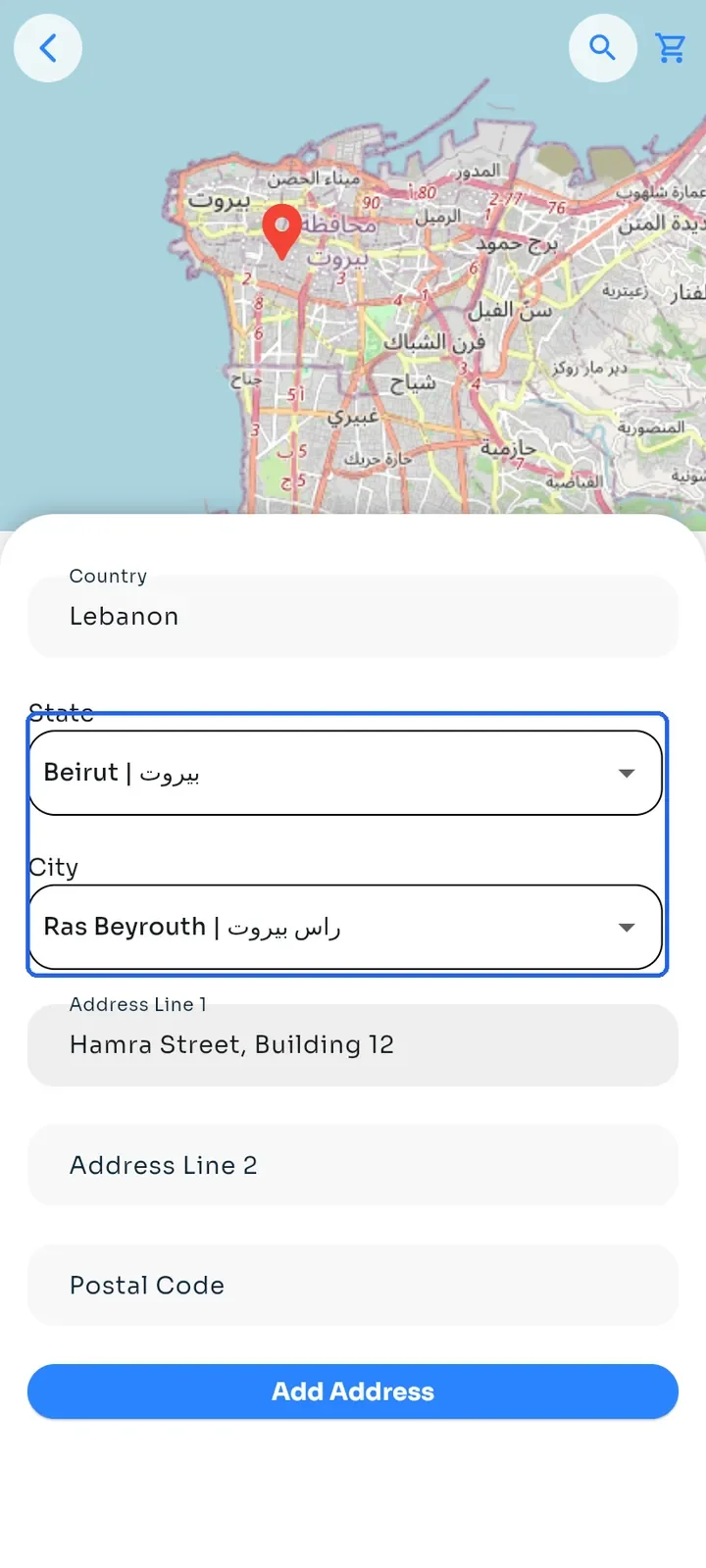
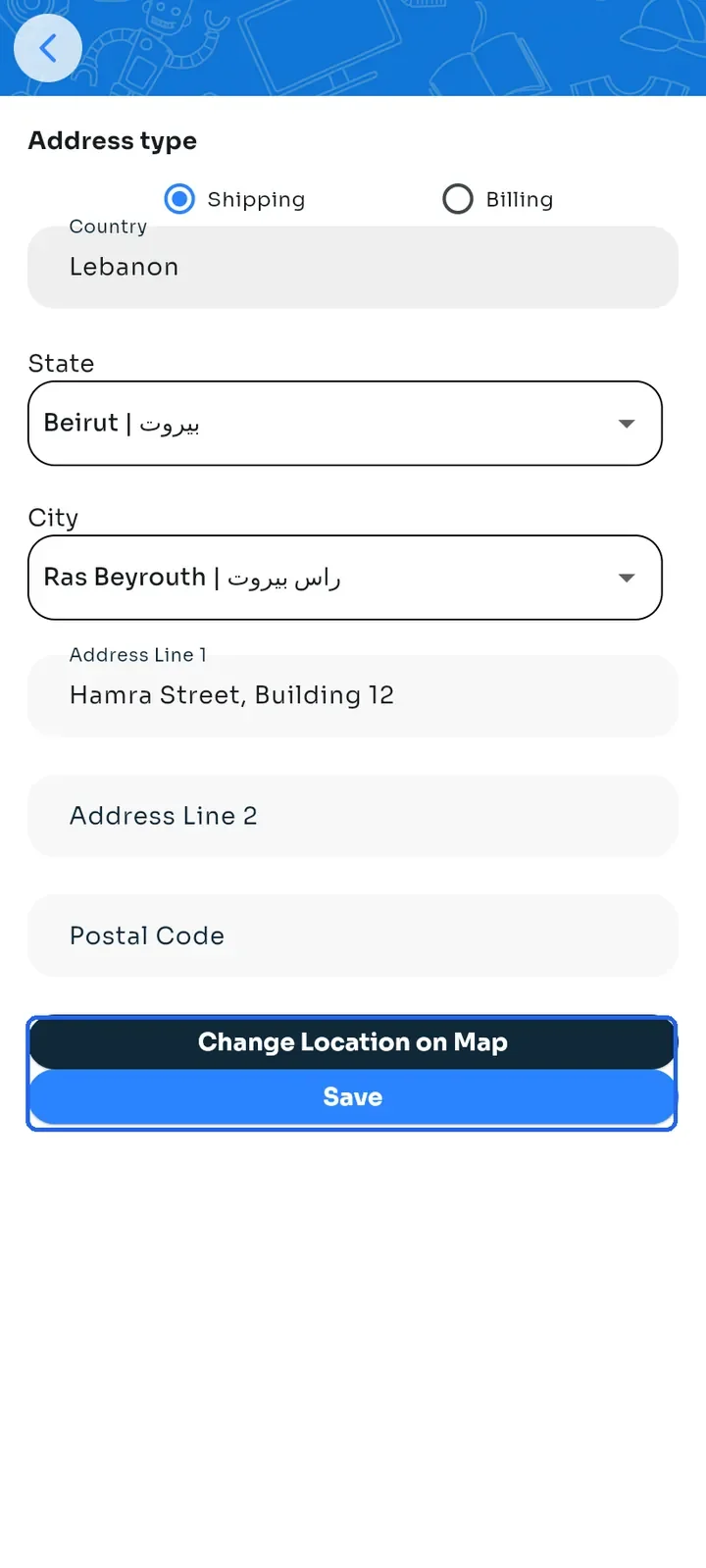
Choose your State and City from the lists. The pin does not fill them in, so set both yourself.
Type your street and building in Address Line 1. Address Line 2 and Postal Code are optional.
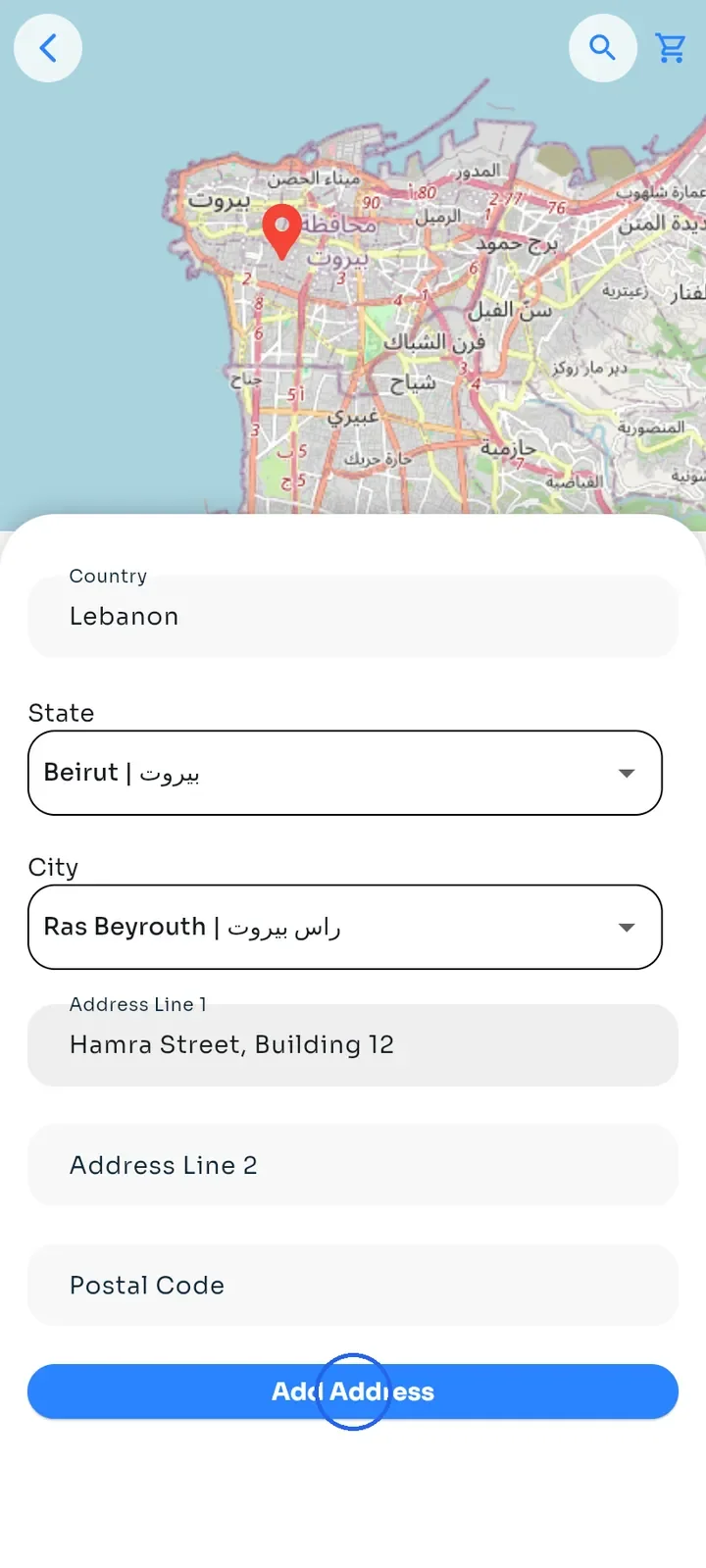
Tap Add Address. The app shows "Address added successfully!".
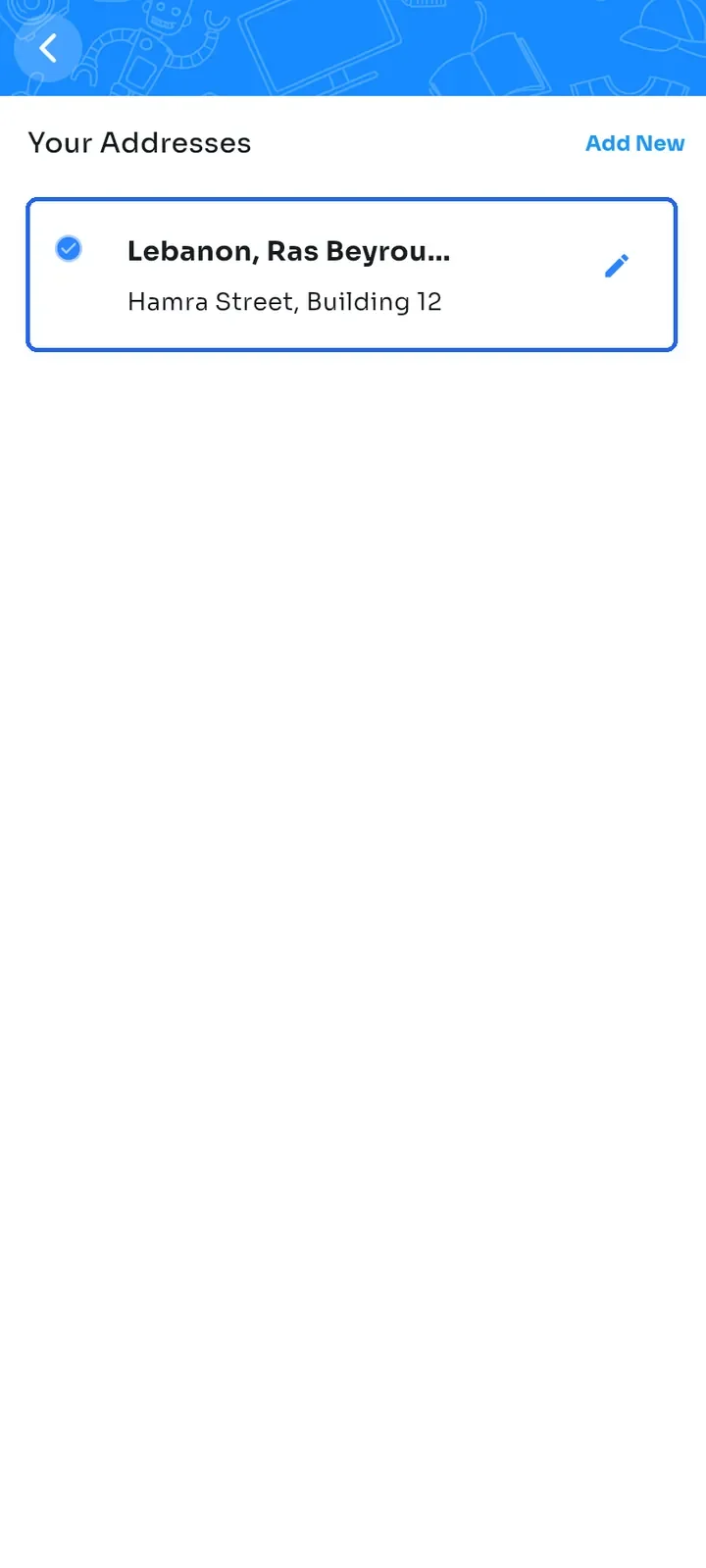
Your address appears in the list. Your first address becomes your default and has a blue tick. When you add another address later, tick Default Address to make it your default.
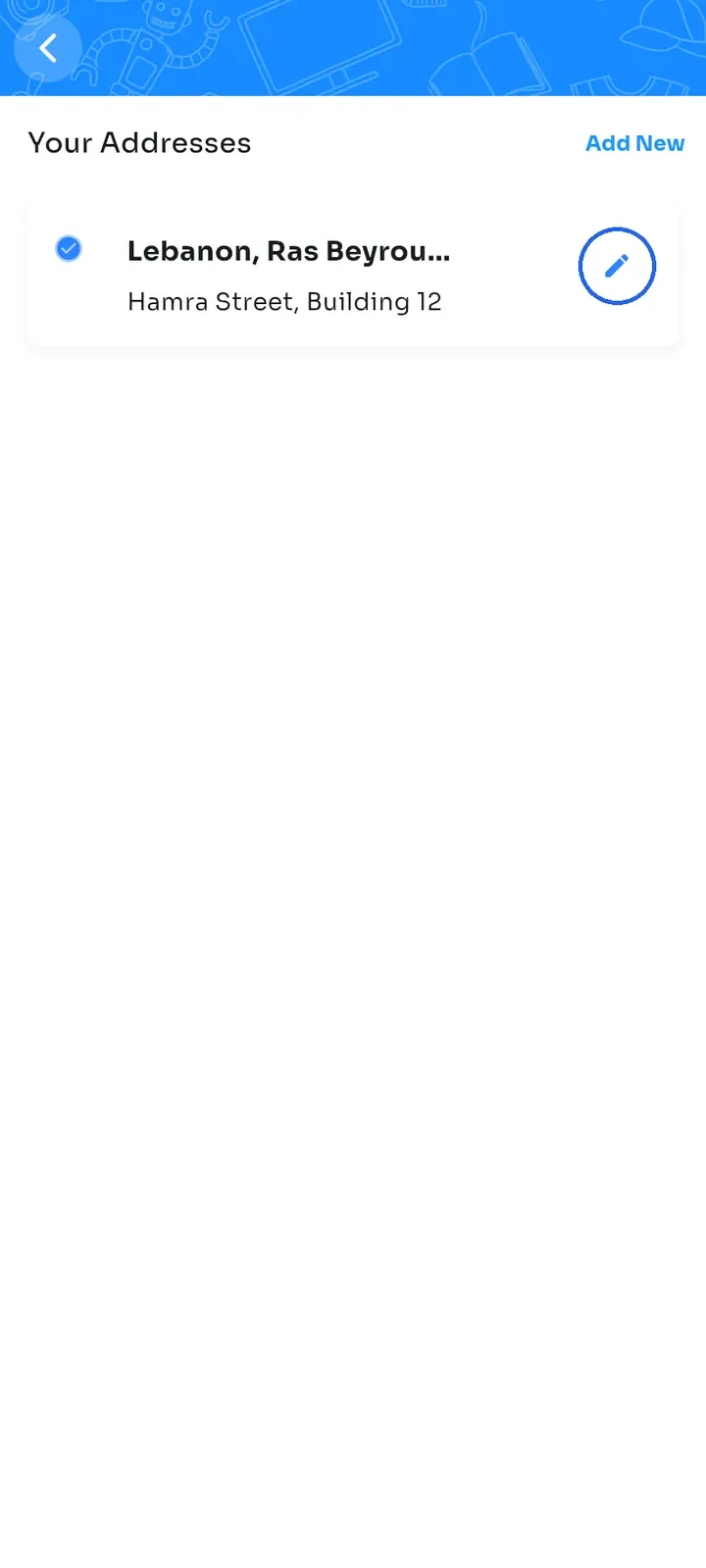
To change an address, tap the pencil icon on its card.
Edit the fields you need. You can also switch Address type between Shipping and Billing, or tap Change Location on Map to move the pin.
Tap Save.
Note: addresses cannot be deleted in the app yet. If an address is wrong, edit it.