Upgrade your store plan
Buy a plan that gives one of your stores the premium tag or a higher product limit.
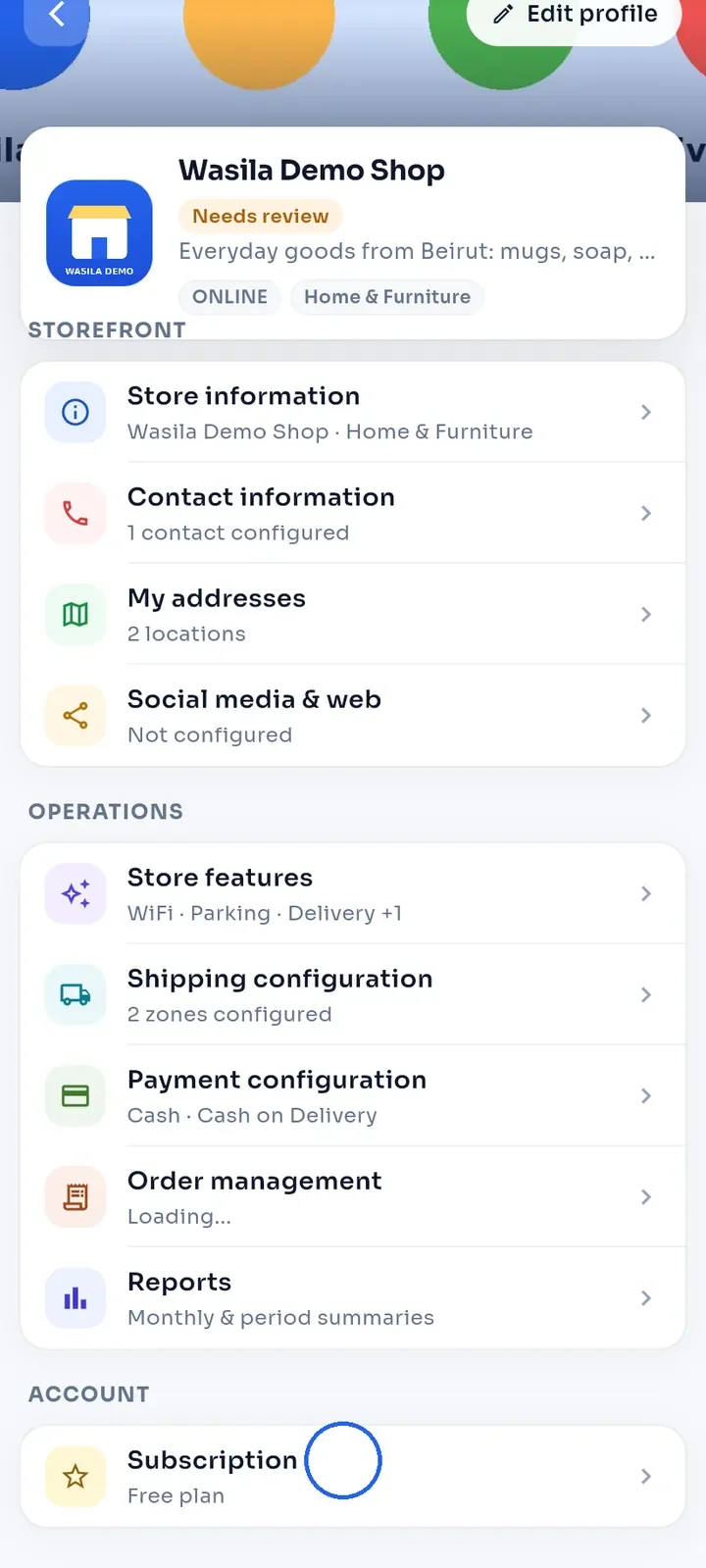
On the store dashboard, scroll down and tap Subscription. The row shows your current plan, for example Free plan.
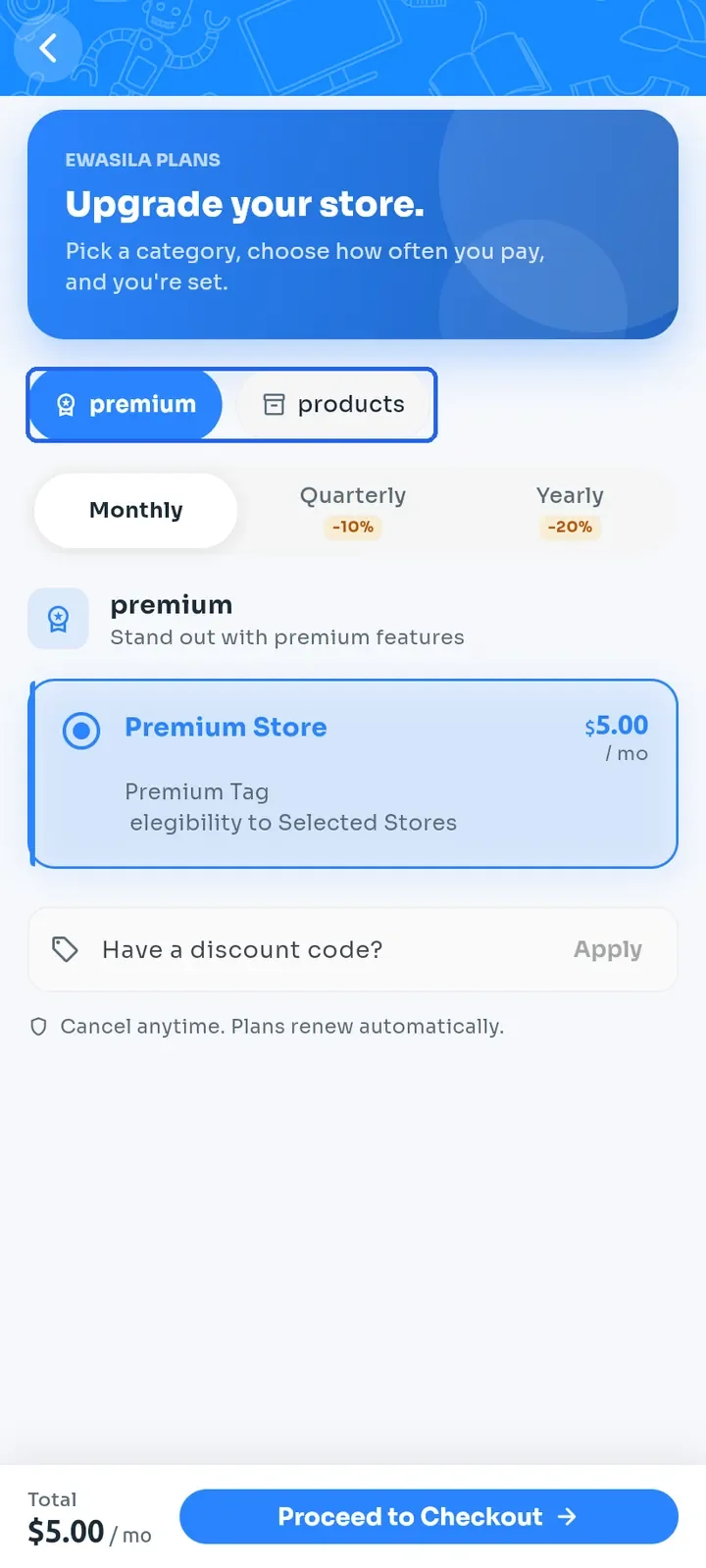
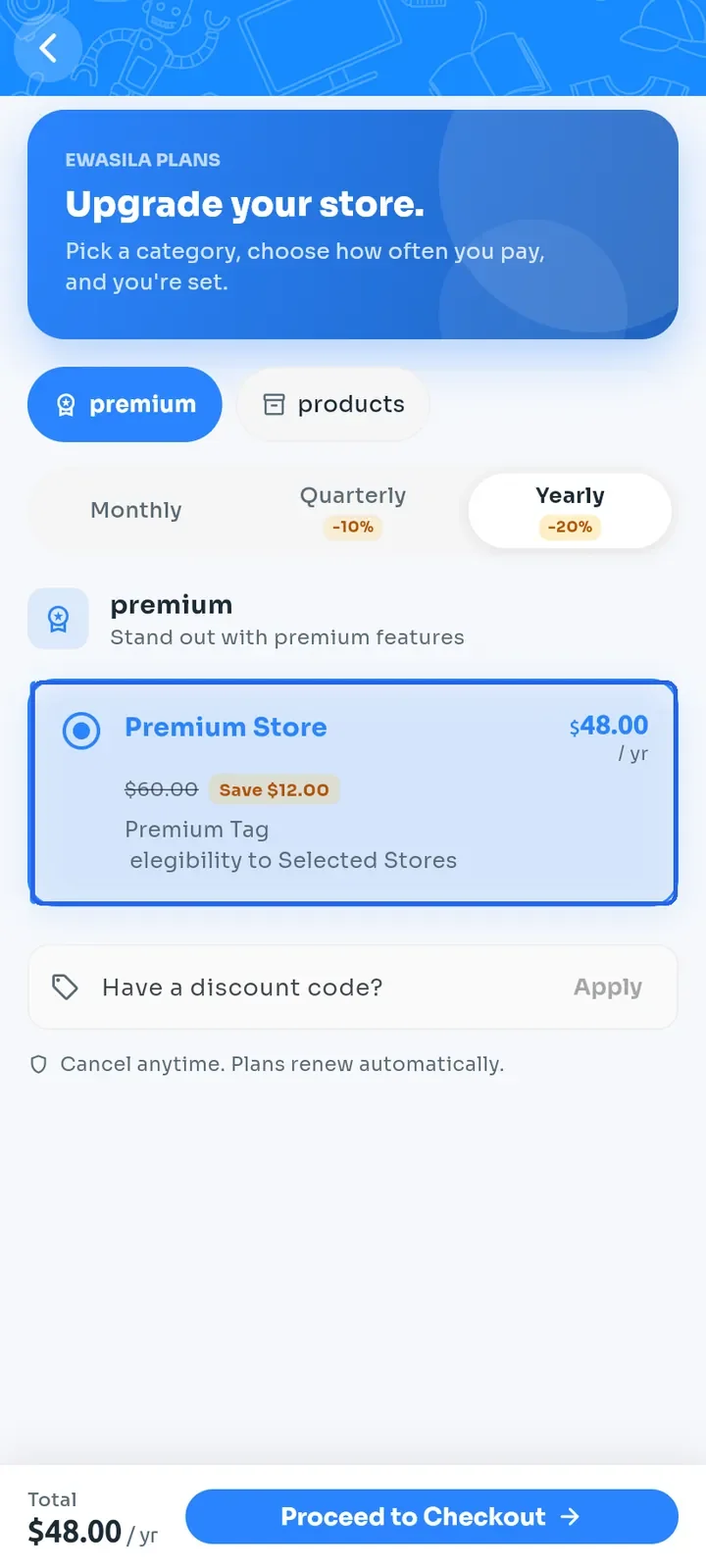
Choose a plan type at the top. premium has the Premium Store plan, which gives your store the premium tag.
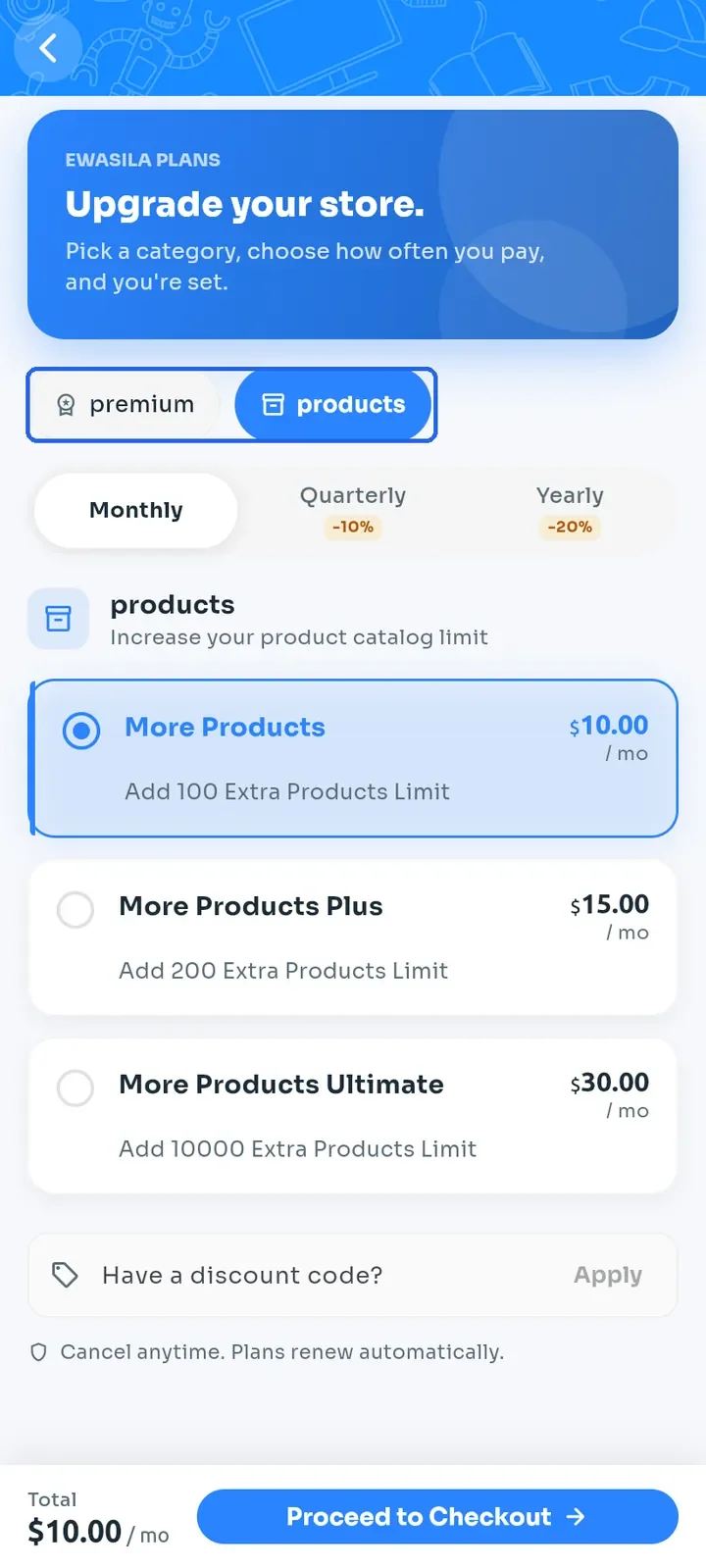
Tap products to see plans that raise your product limit: More Products adds 100 products, More Products Plus adds 200 and More Products Ultimate adds 10000.
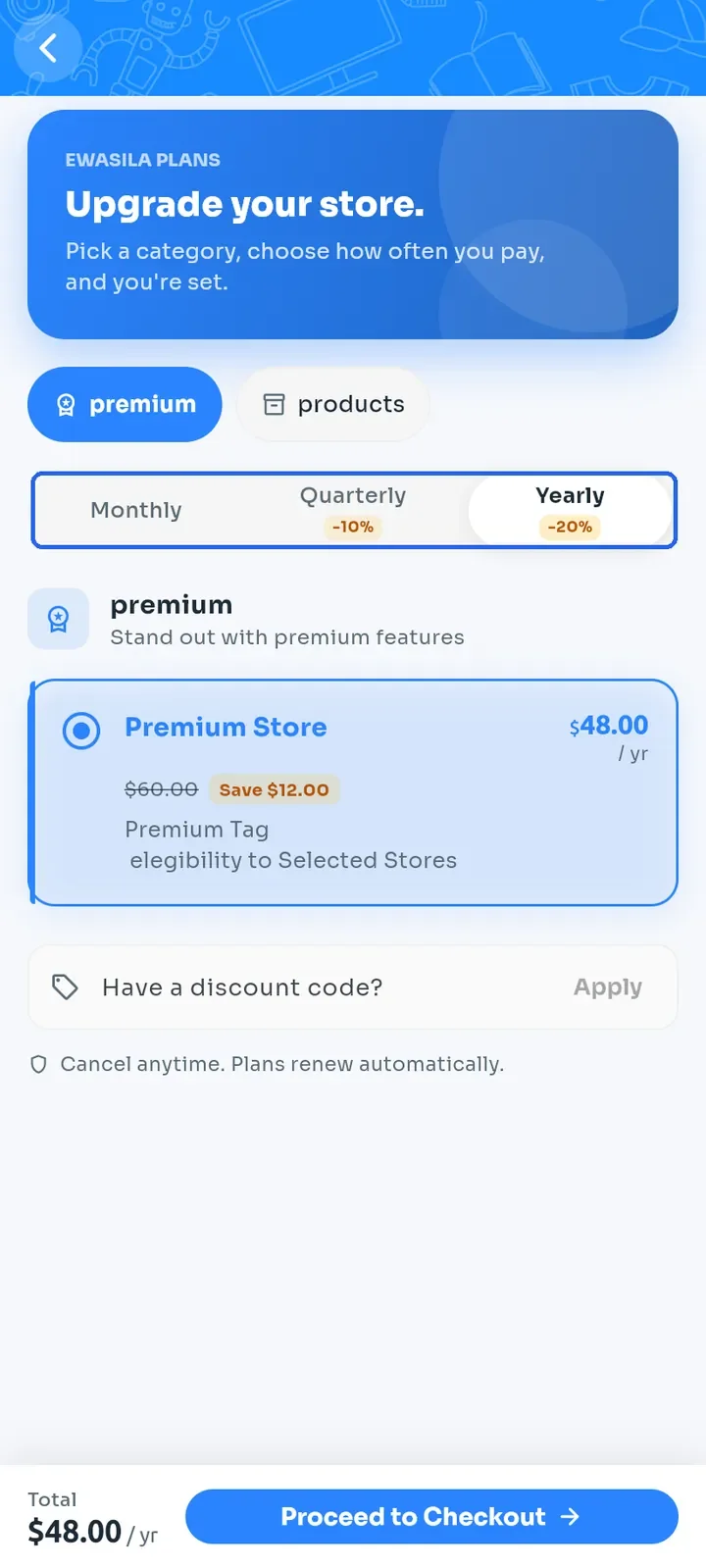
Choose how often you pay: Monthly, Quarterly (10% off) or Yearly (20% off). The plan cards show the discounted price and how much you save.
Tap a plan card to select it. The Total at the bottom updates.
Tip: if you have a discount code, tap Have a discount code?, enter the code and tap Apply before you continue. The checkout sheet has no code field.
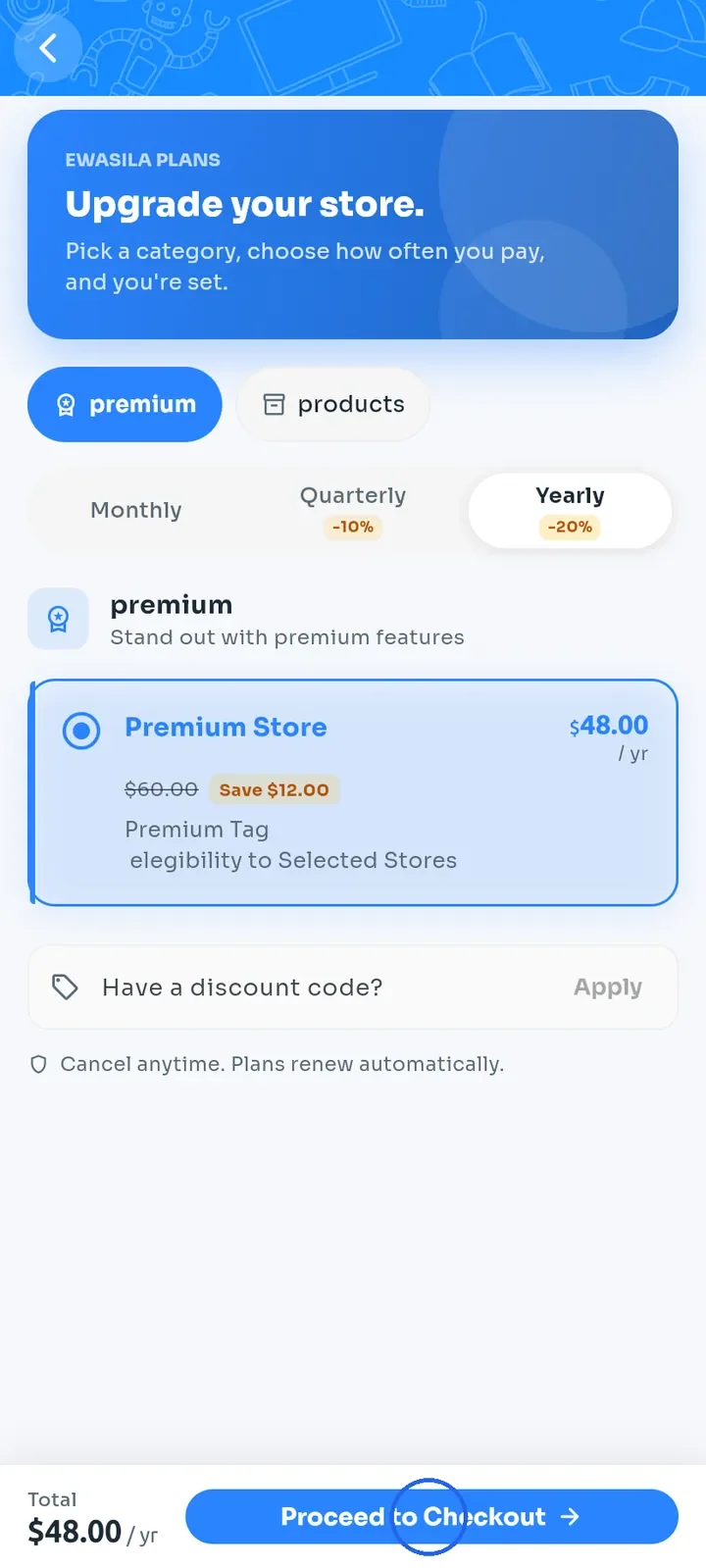
Tap Proceed to Checkout.
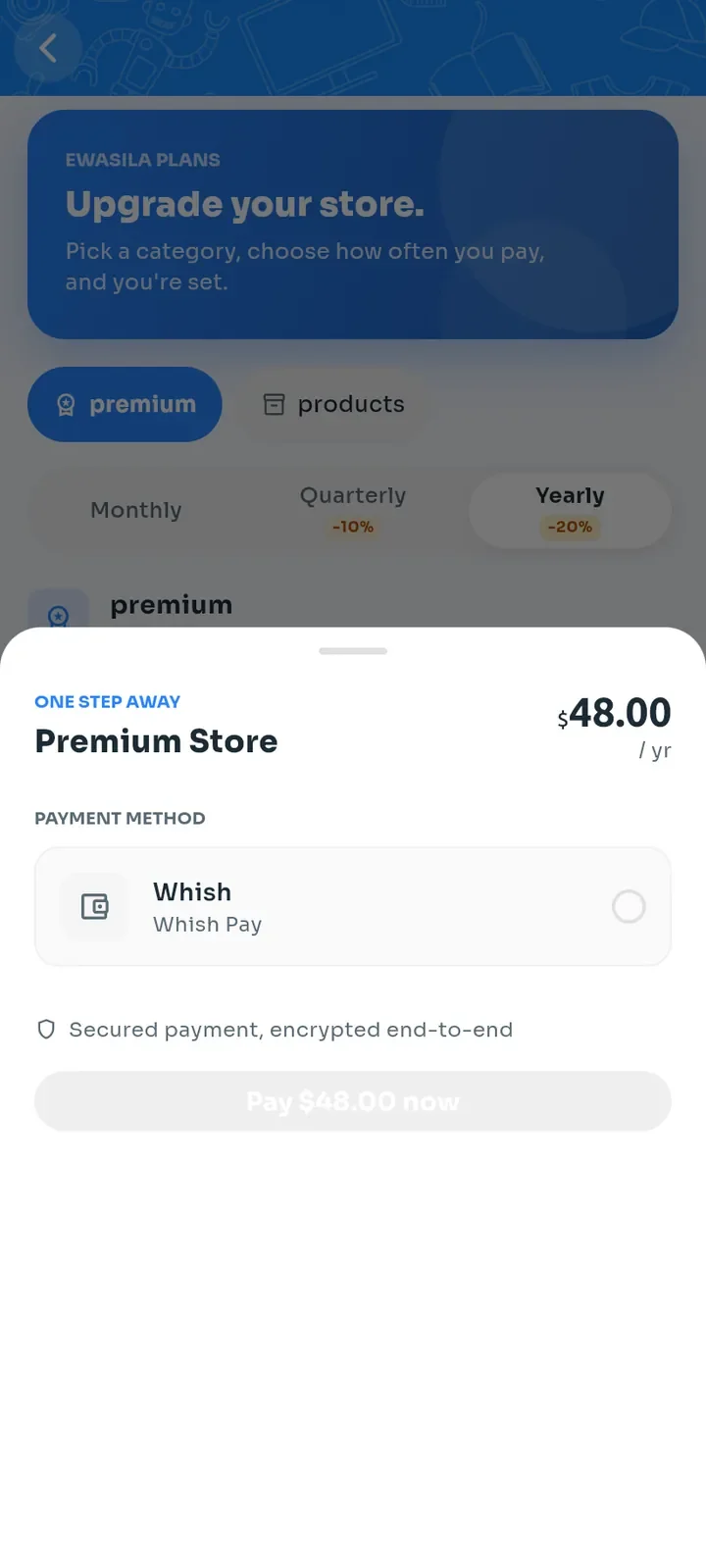
In the ONE STEP AWAY sheet, tap Whish to select it, then tap the pay button, here Pay $48.00 now, to continue to Whish and pay. The pay button stays grey until Whish is selected.
Note: nothing is charged until you tap the pay button. To stop, tap outside the sheet to close it.