Edit your store information
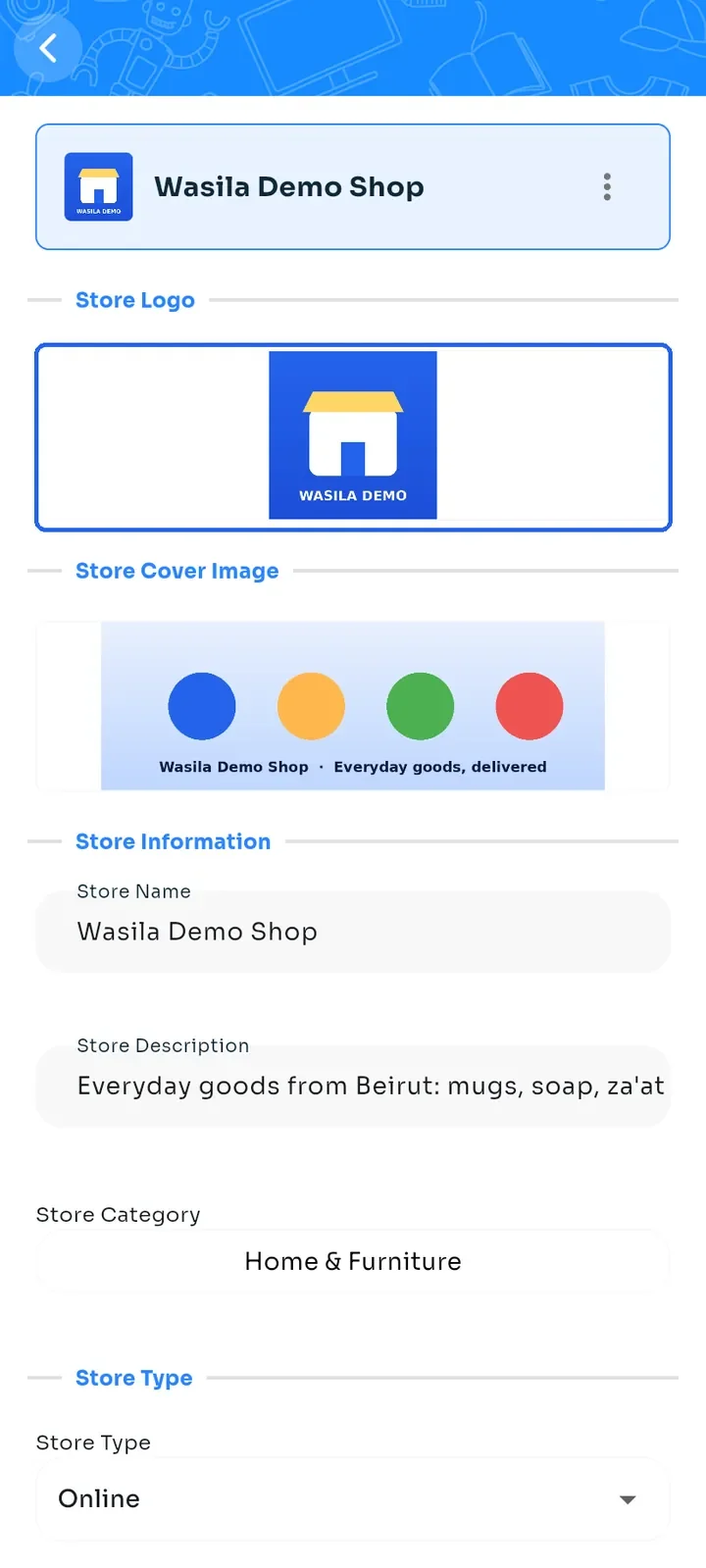
Change your store's logo, cover, name, description, category and type, and find the option to delete the store.
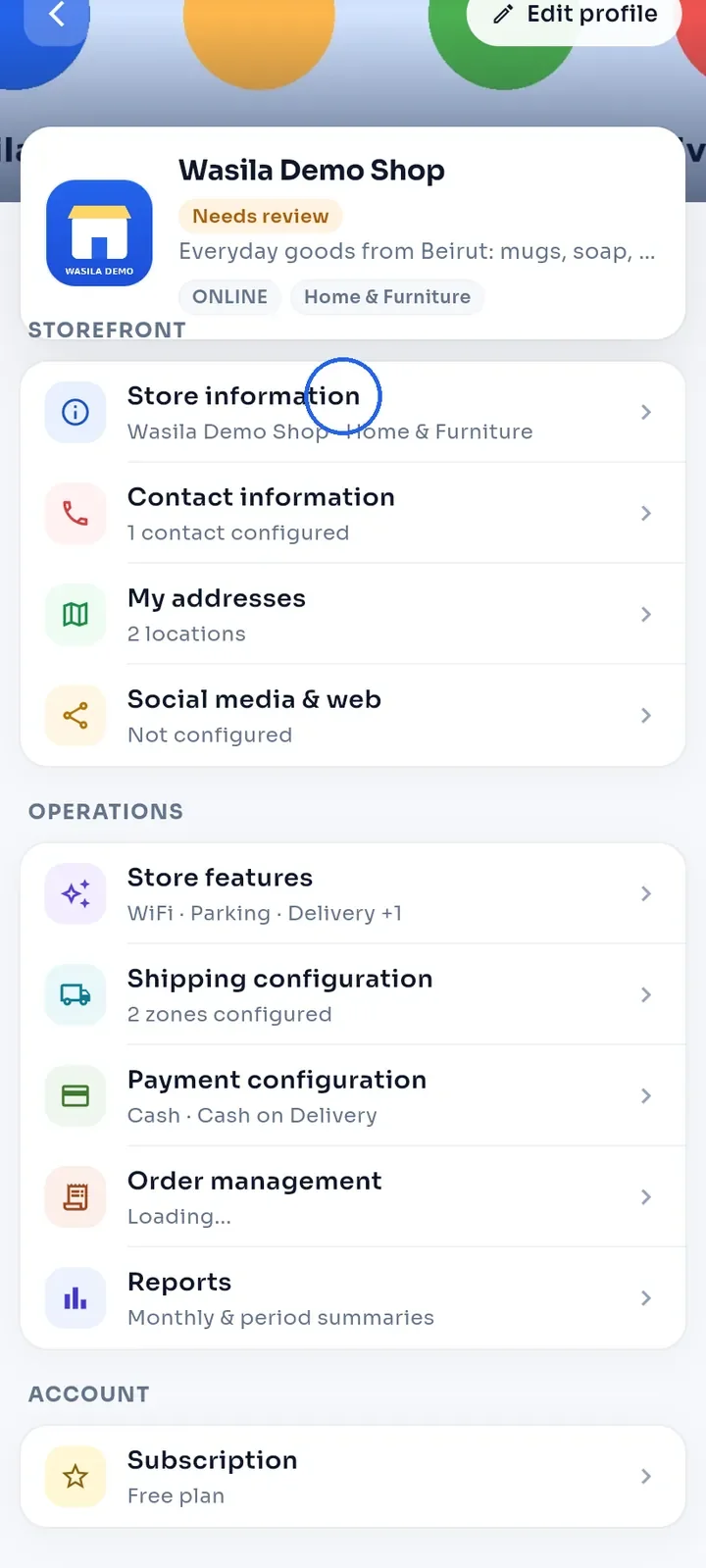
On the store dashboard, tap Store information. You can also tap Edit profile at the top of the dashboard.
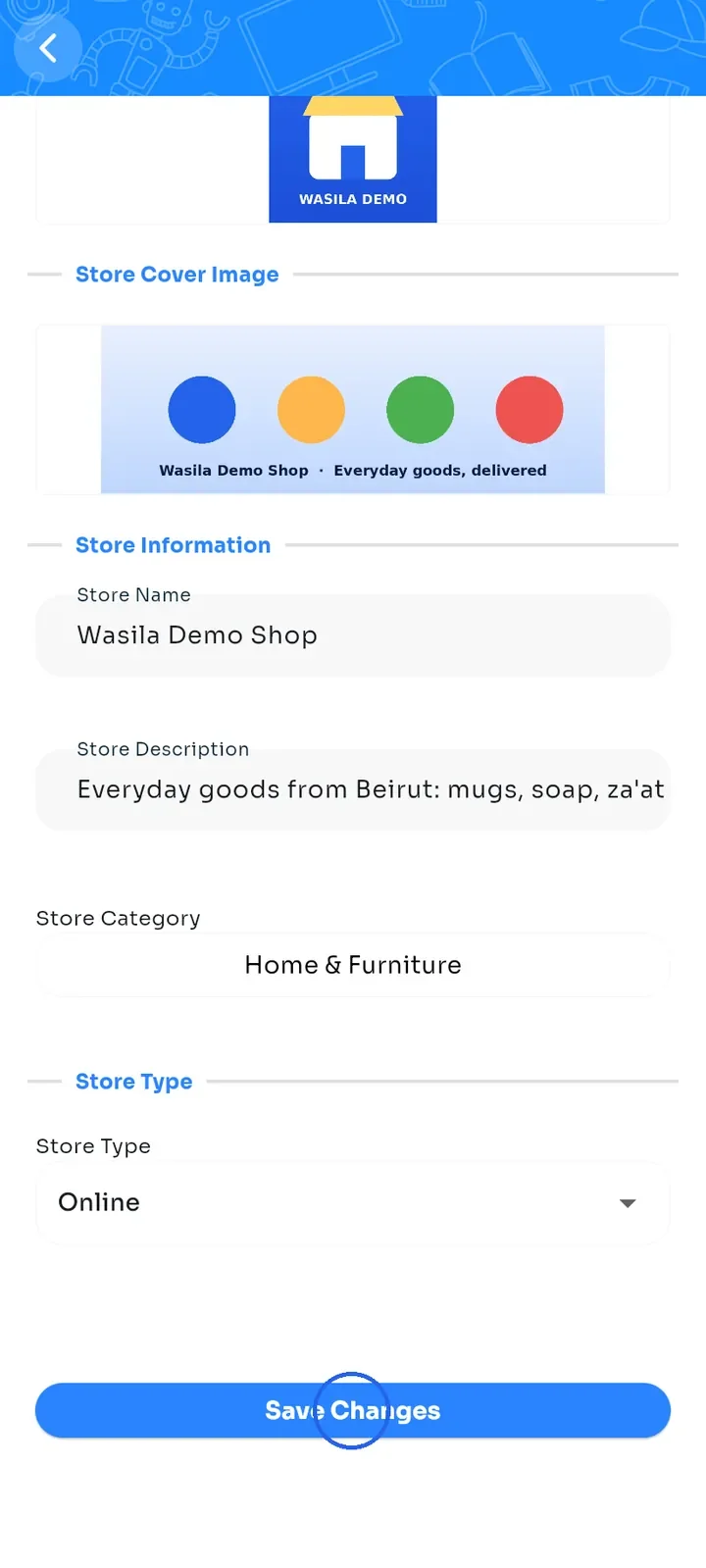
To change the logo or cover, tap the image under Store Logo or Store Cover Image and choose a new one. Each image can be at most 2 MB.
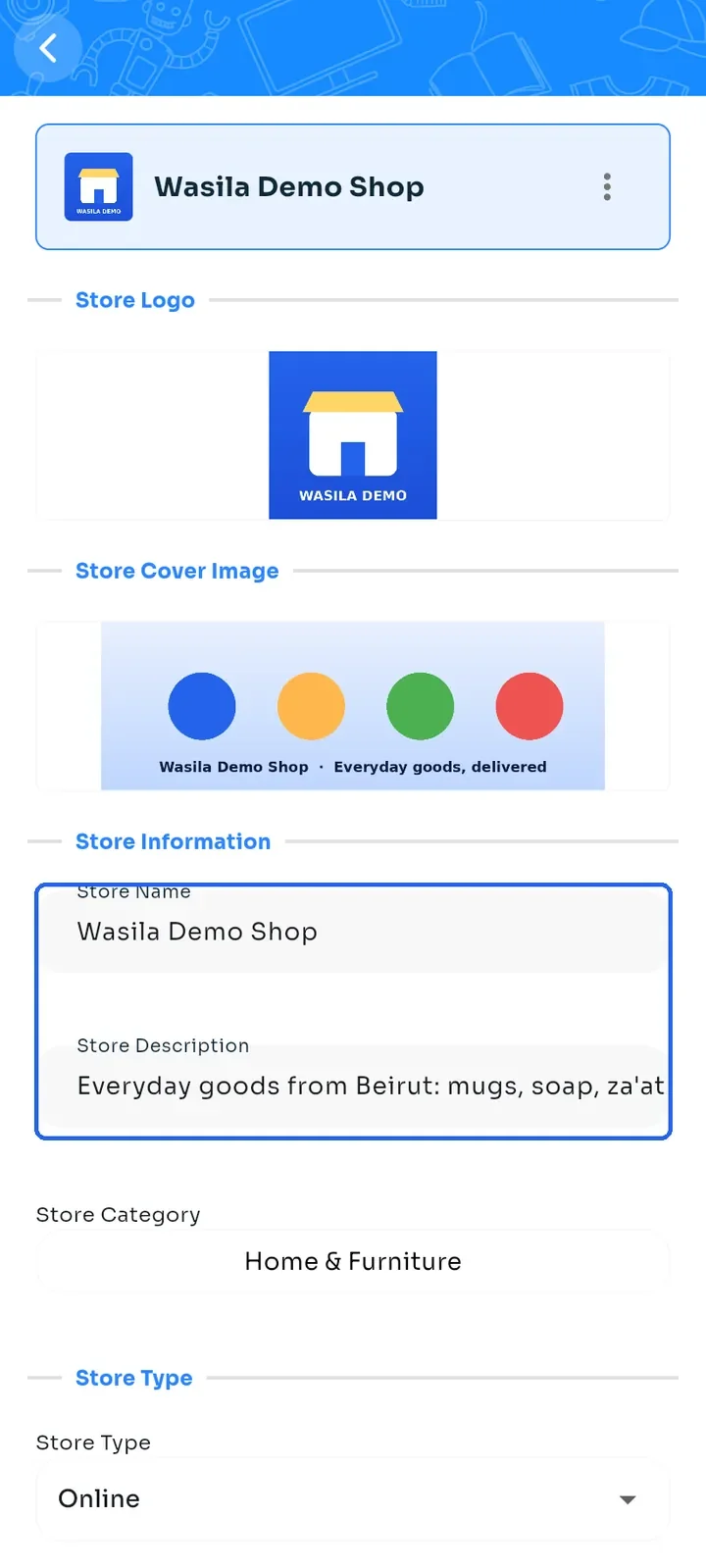
Edit the Store Name and Store Description in their fields. To change the category, tap the field under Store Category. It may show the main category, for example Home & Furniture, even if you chose a sub-category.
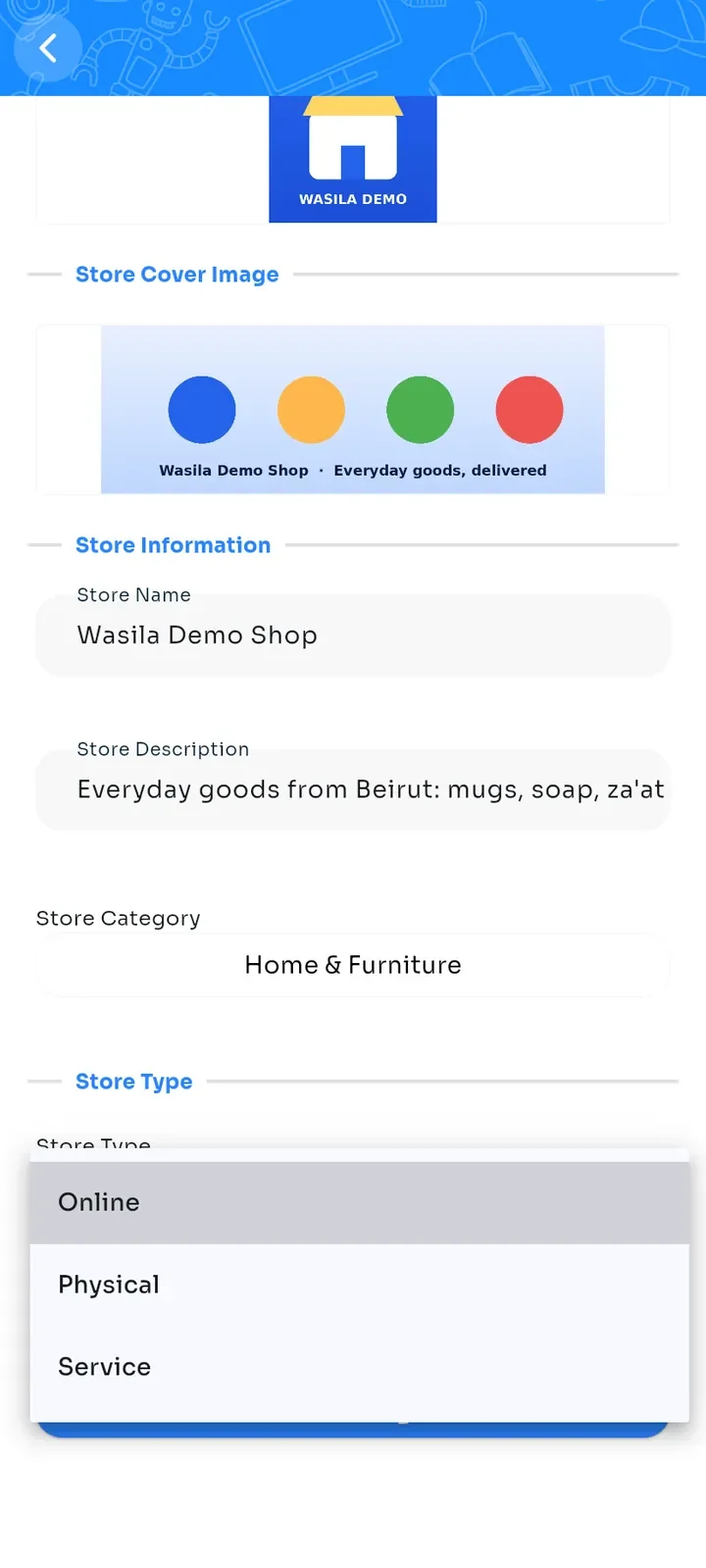
Under Store Type, tap the field and choose Online, Physical or Service.
When you are done, scroll down and tap Save Changes.
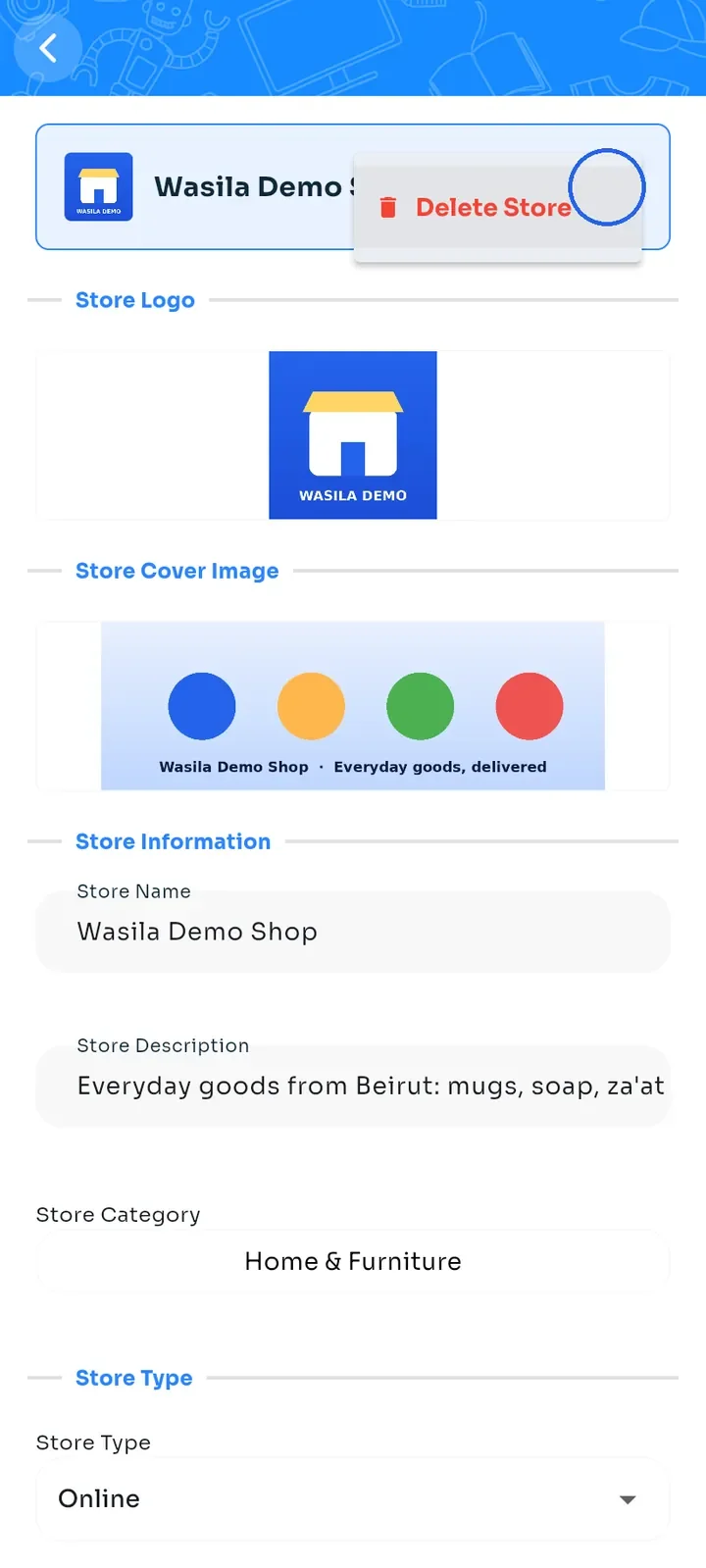
To delete the store, tap the three dots next to the store name at the top of the screen, then tap Delete Store.
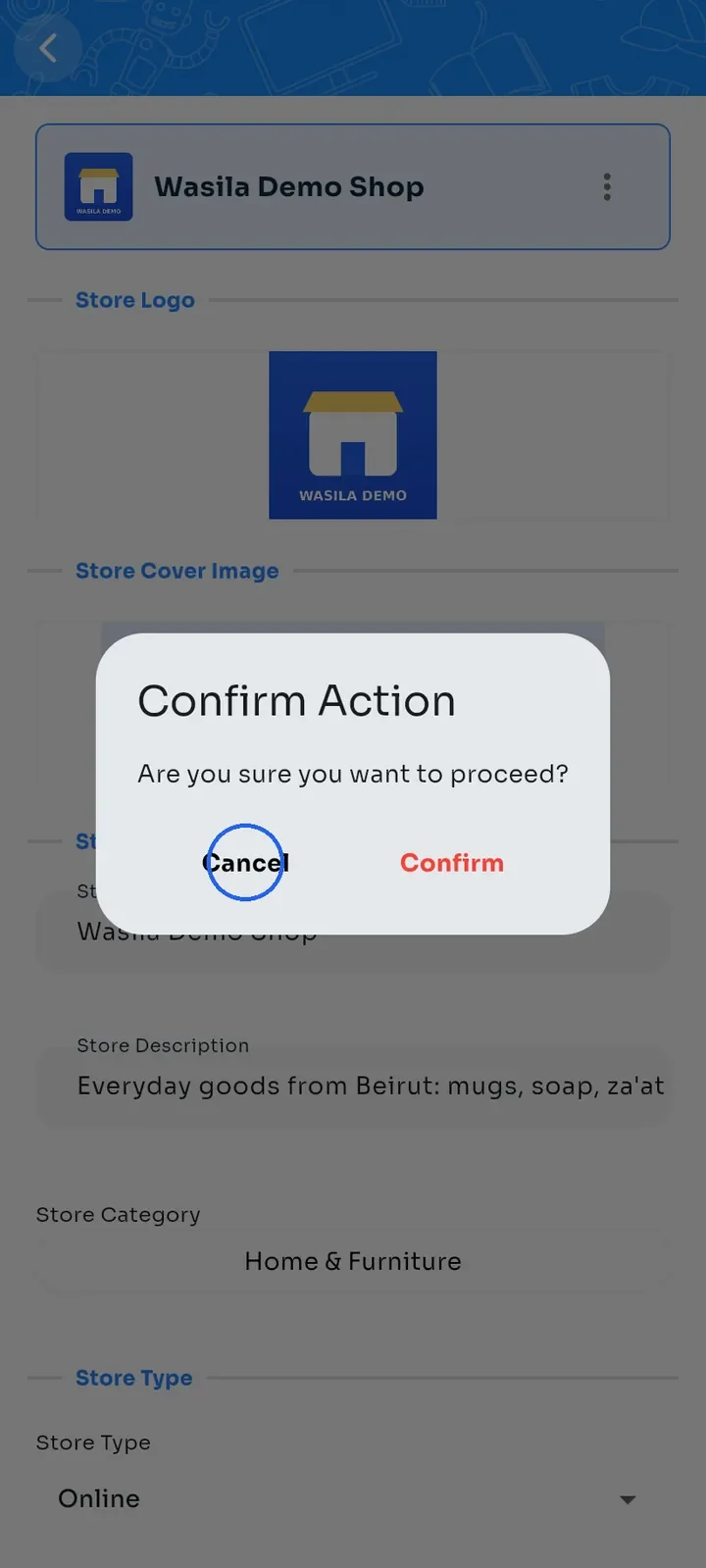
A Confirm Action dialog asks Are you sure you want to proceed? Tap Cancel to keep your store.
Note: deleting a store removes it from E-Wasila. Tap Confirm only if you are sure.