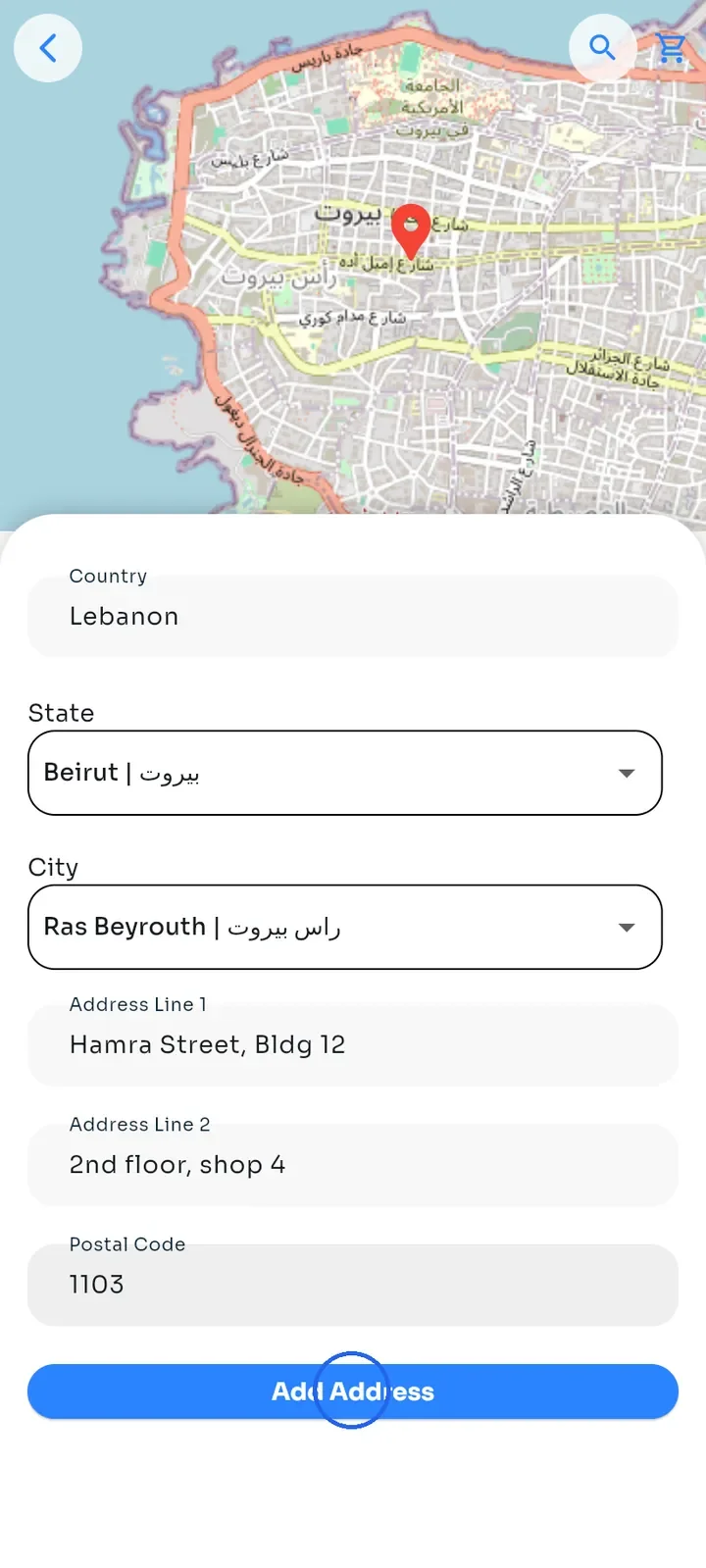
Add a store address
Pin your store on the map and save its address so customers can find you.
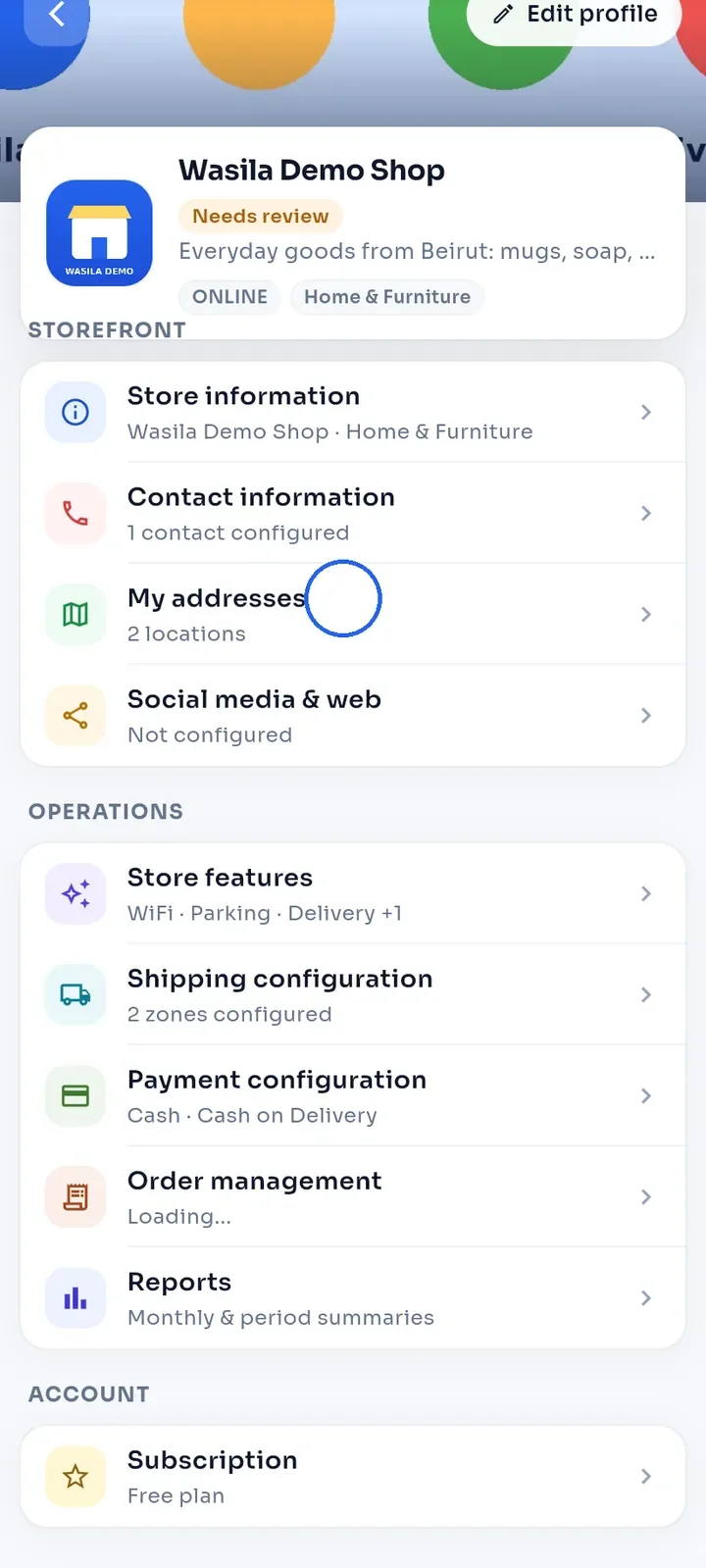
On the store dashboard, tap My addresses.
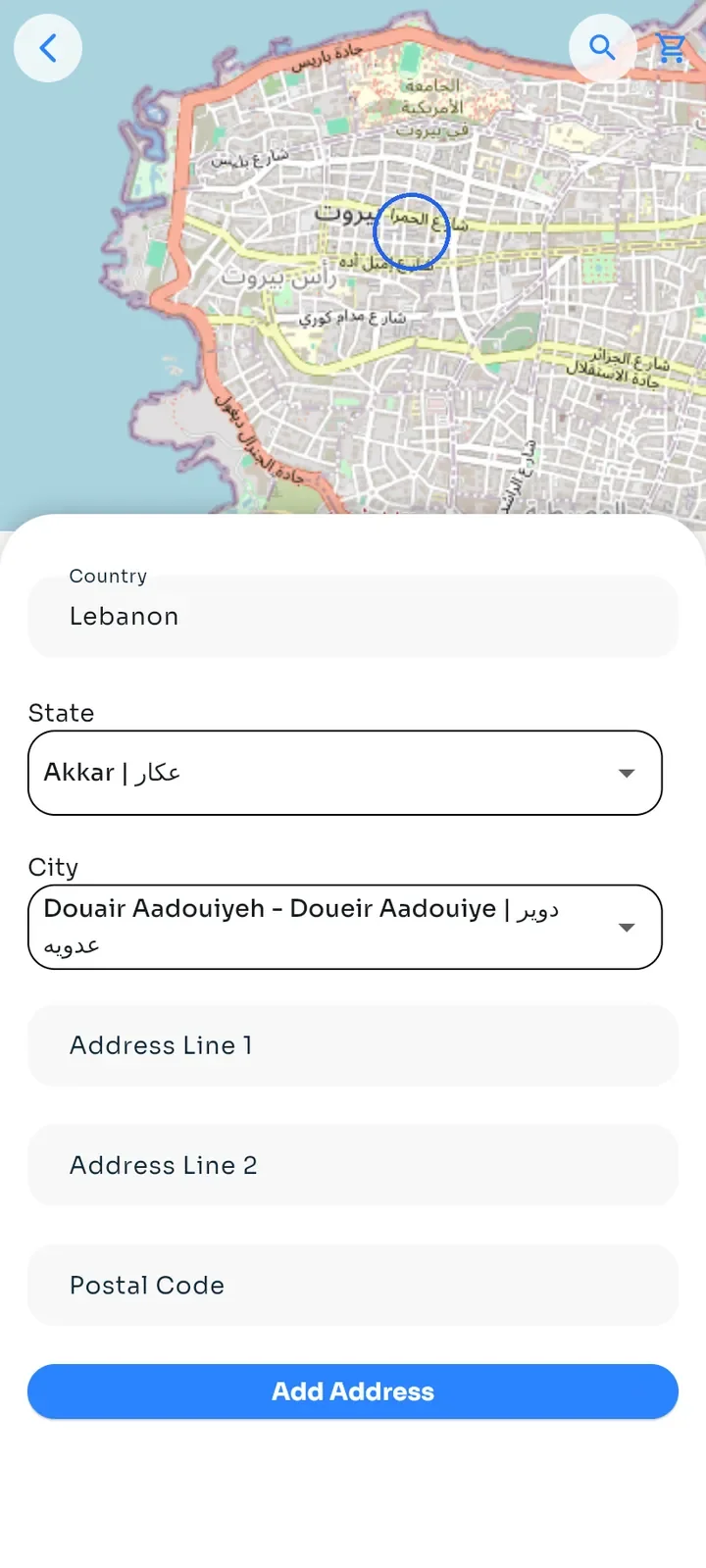
Tap Add next to Store Addresses.
The map opens. Pinch to zoom in until you can see your street.
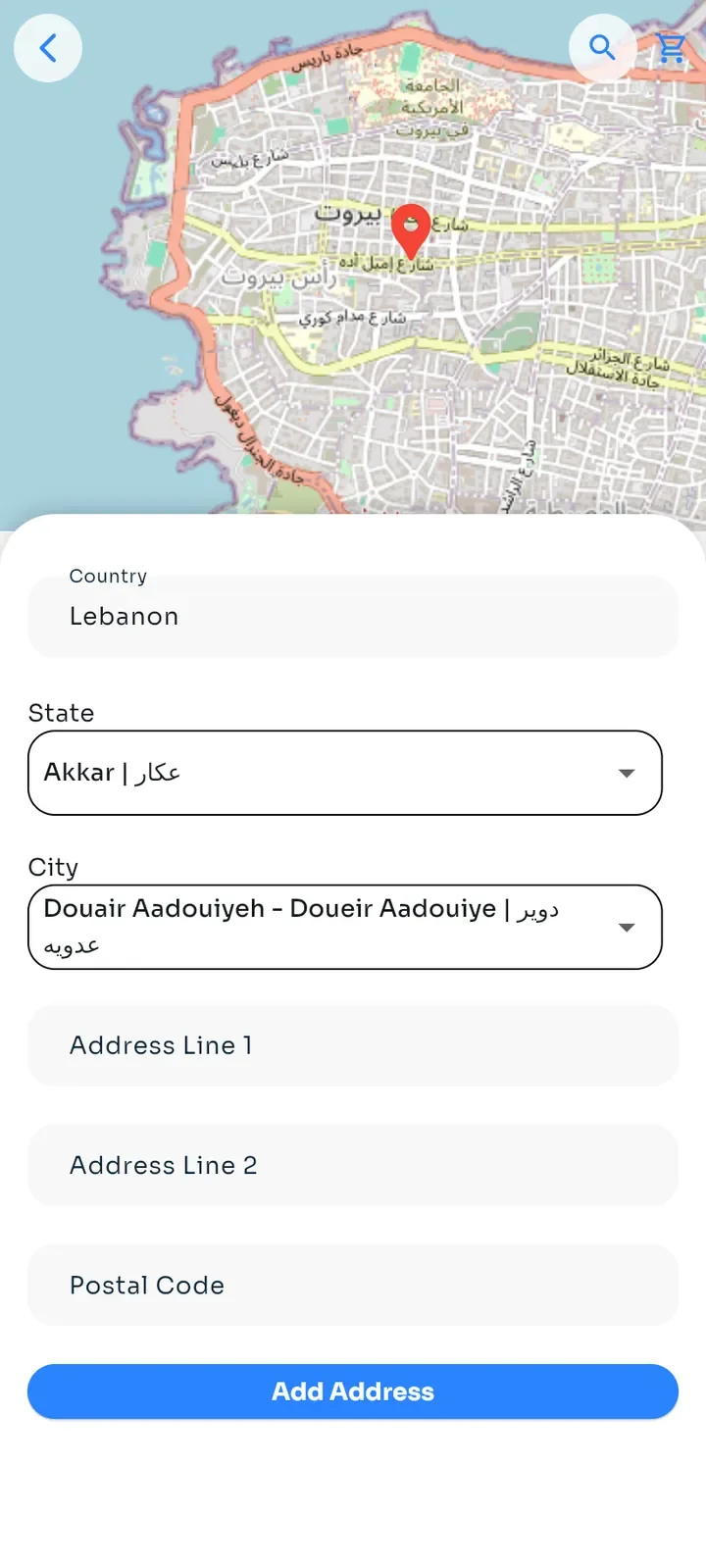
Tap the map where your store is. A red pin marks that spot.
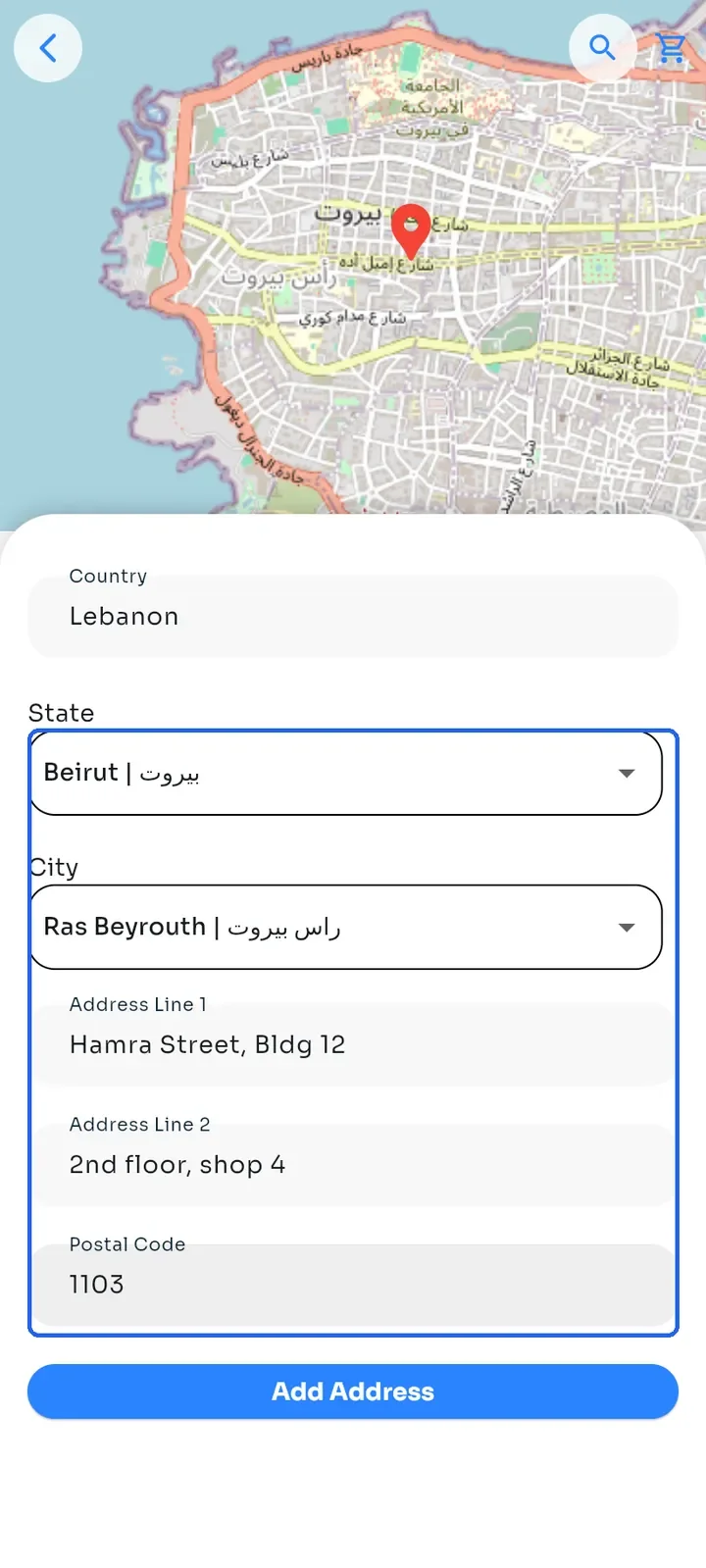
Choose your State and City, then fill in Address Line 1, Address Line 2 and Postal Code.
Note: the State and City are not filled in from the pin, so choose them yourself.
Tap Add Address once. The screen stays open after saving and shows no message, so tap the back arrow when you are done.
Note: each tap on Add Address saves the address again, and store addresses cannot be deleted in the app. Tap it only once.
Back on the store dashboard, My addresses shows how many locations you have saved.