Save products and stores
Keep the products and stores you like in one list, so you can find them again later.
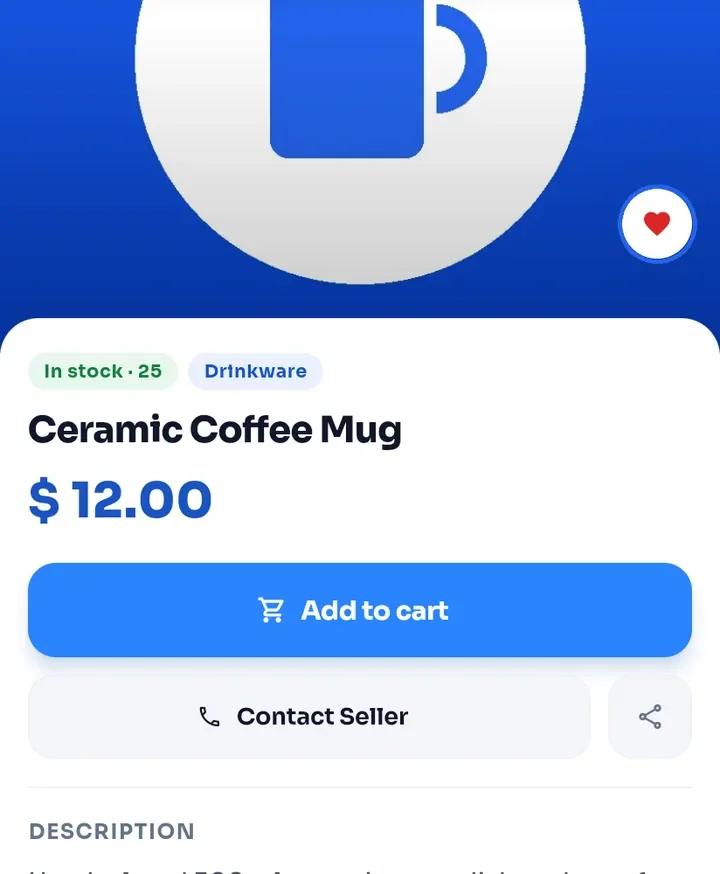
On a product page, tap the heart on the photo. It turns red when the product is saved.
On a store page, tap the heart at the top right. It turns red when the store is saved.
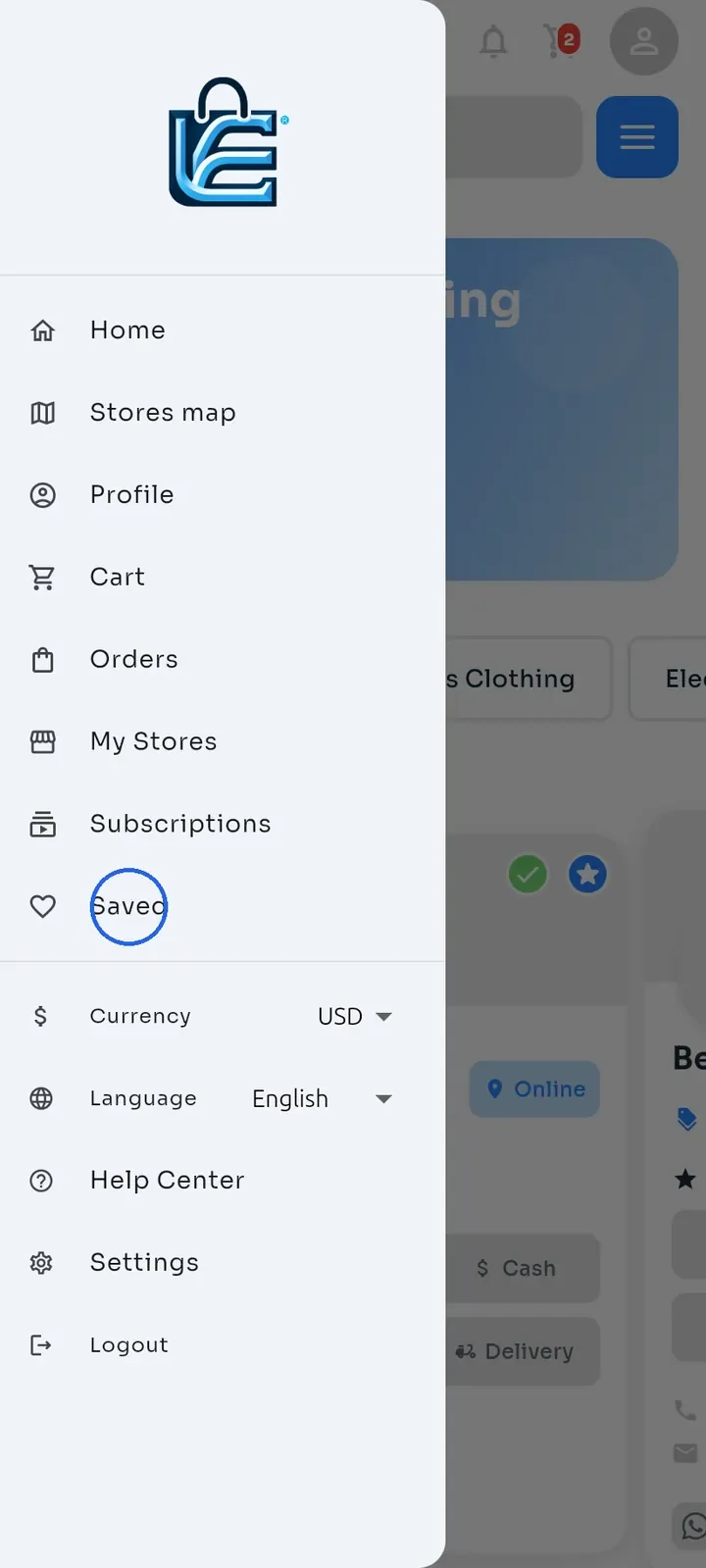
Tap the menu icon at the top left of Home to open the side menu, then tap Saved.
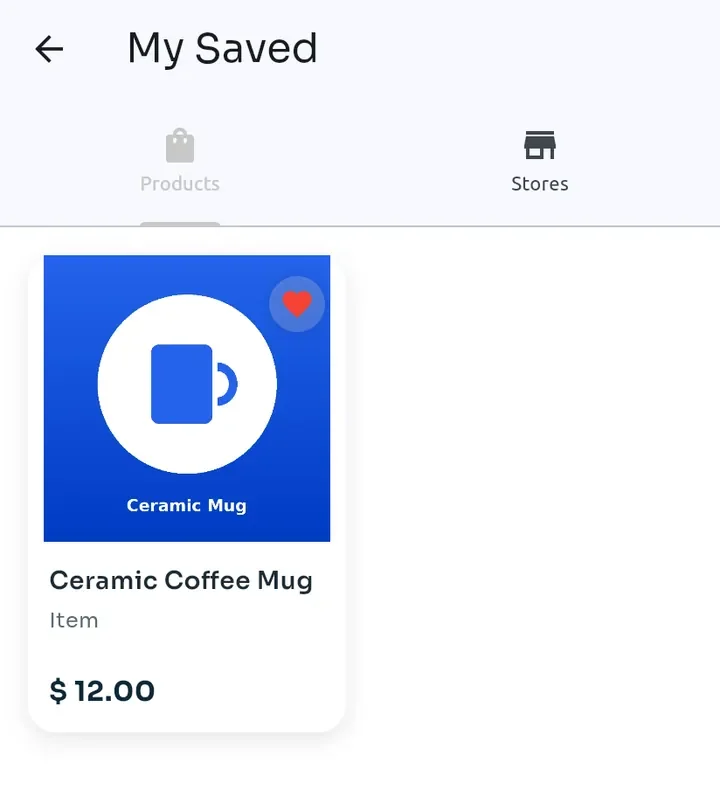
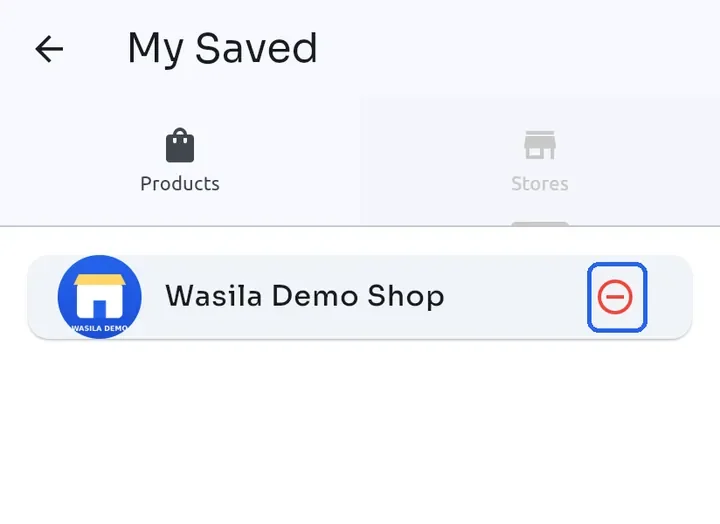
My Saved opens on the Products tab with the products you saved. Tap a product to open it.
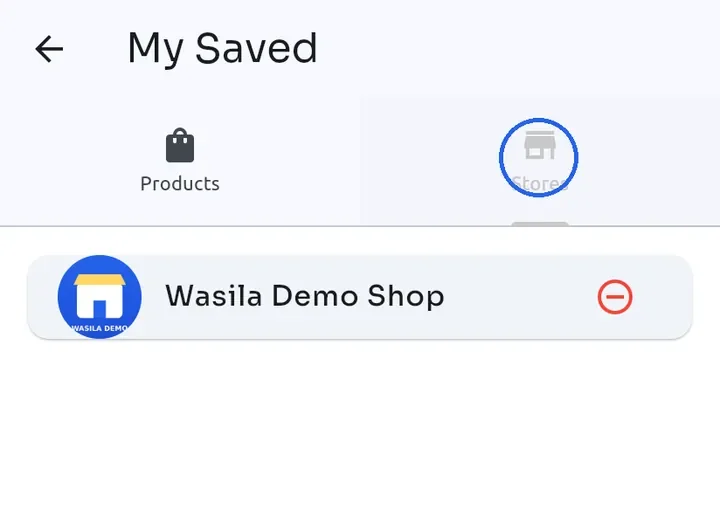
Tap the Stores tab to see the stores you saved. Tap a store to open it.
To remove a store from the list, tap the red minus icon next to it.
Tip: to remove a saved product, tap its red heart again.
Note: saved items are kept on this device only. They are cleared when you sign out and do not appear on your other devices.