Upgrade when you reach a limit
Learn why the Limit Reached message appears and how to get room for more stores or products.
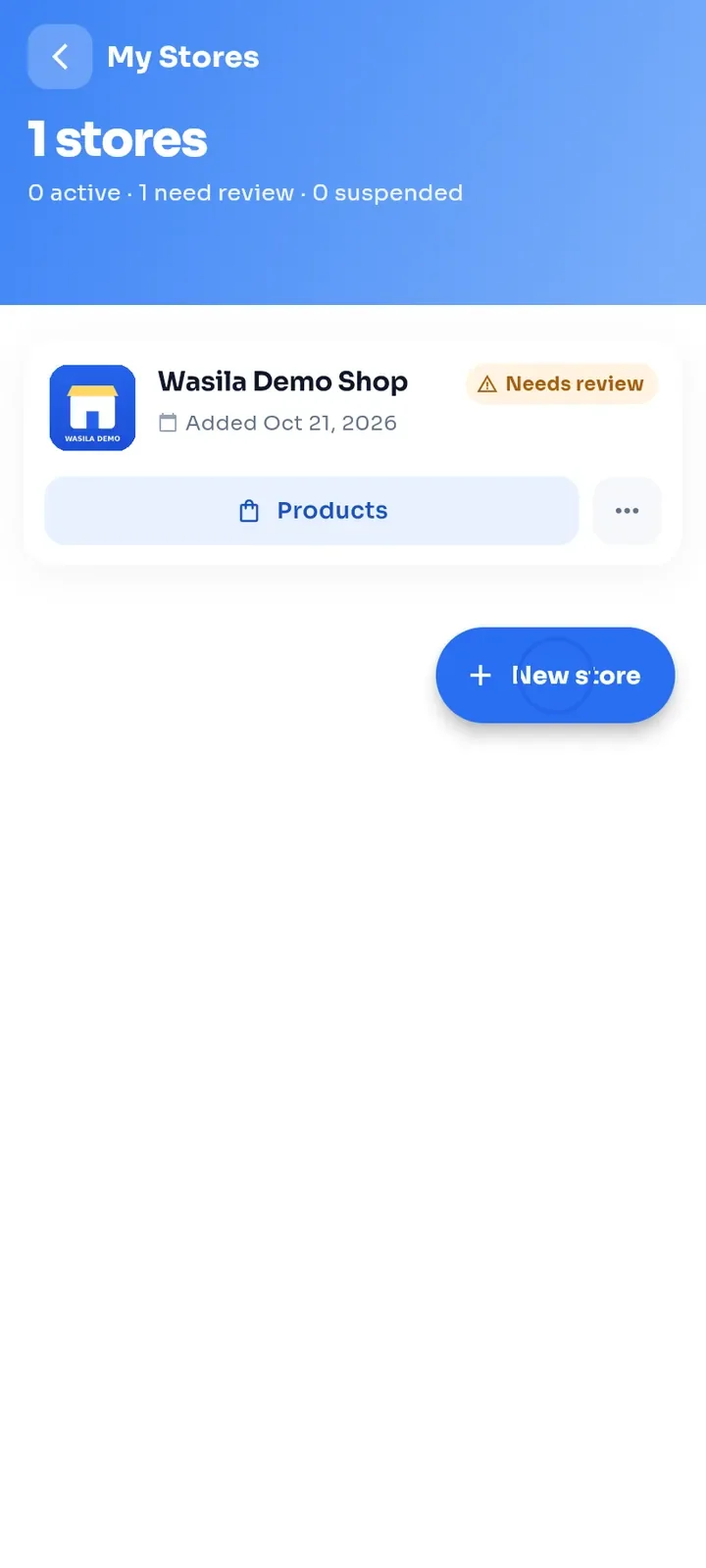
Open My Stores and tap New store. Every account has a store limit; in this example it is 1 store.
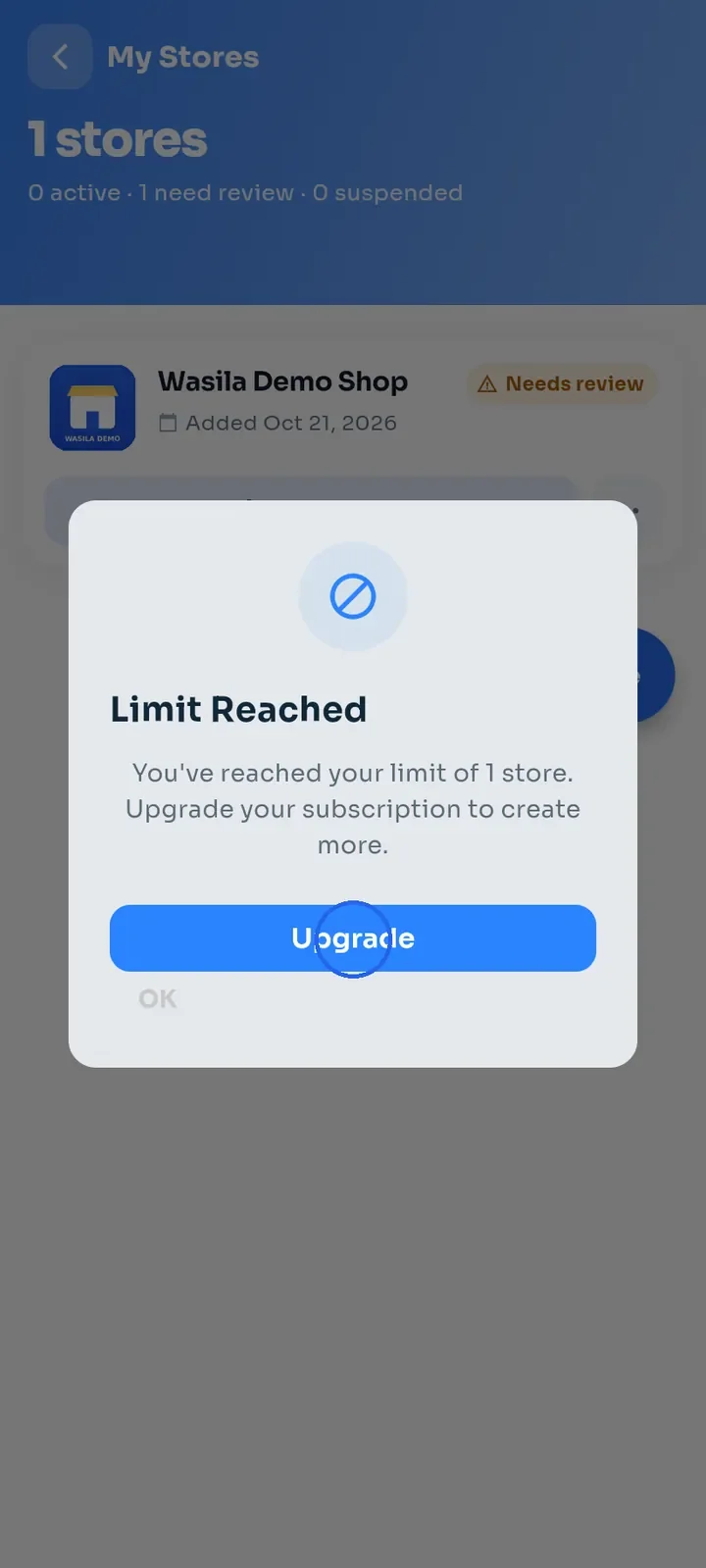
If you have reached the limit, a Limit Reached message opens: "You've reached your limit of 1 store. Upgrade your subscription to create more." Tap Upgrade to see plans, or OK to close the message.
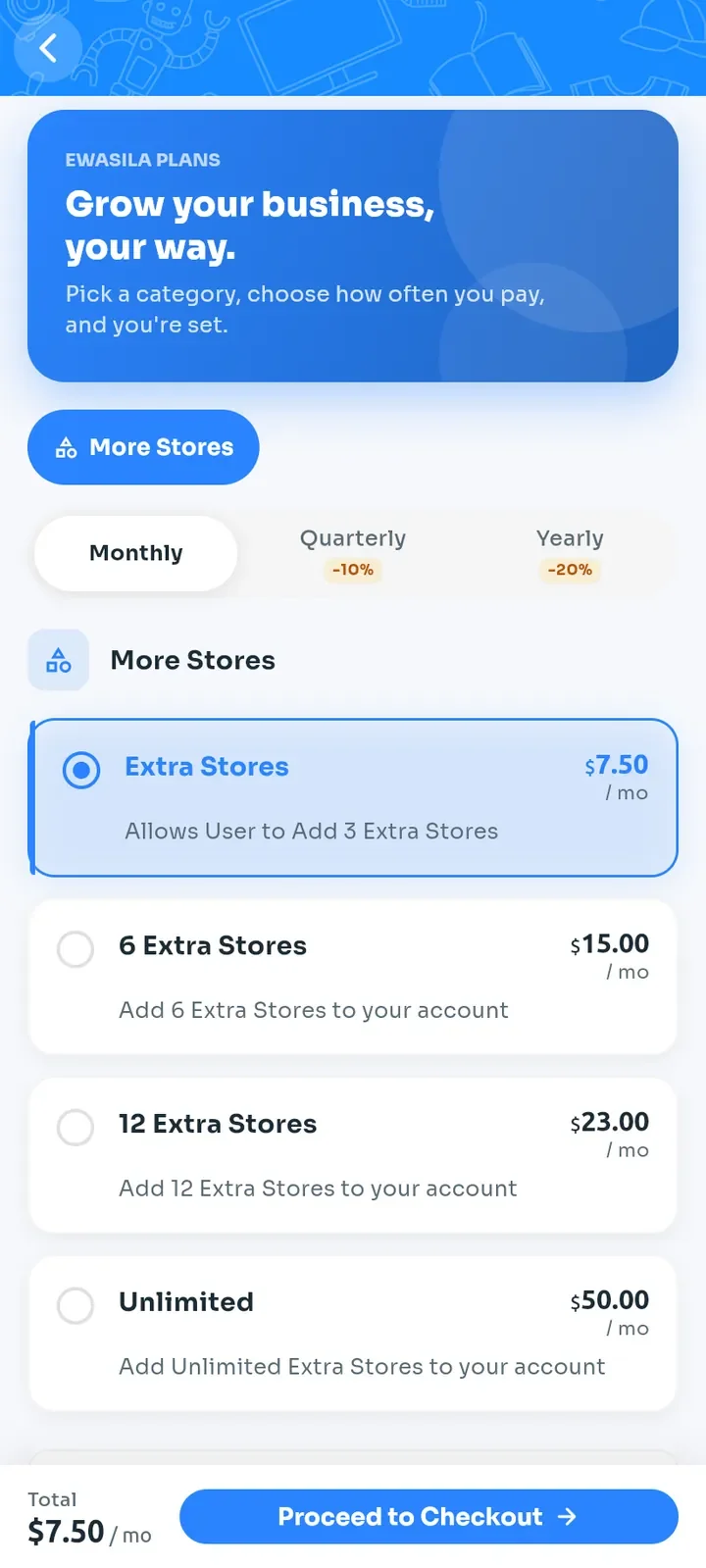
On the plans page that opens, choose a More Stores plan to add extra stores. You are not charged until you complete checkout. For the full steps, see "Upgrade your account plan".
Note: the same message appears when a store reaches its product limit. In that case, Upgrade opens that store's plans, where the products plans raise the limit. See "Upgrade your store plan".