Change the app language and currency
Switch the app between English, French, Arabic, Portuguese and Spanish, and choose whether prices show in USD or LBP.
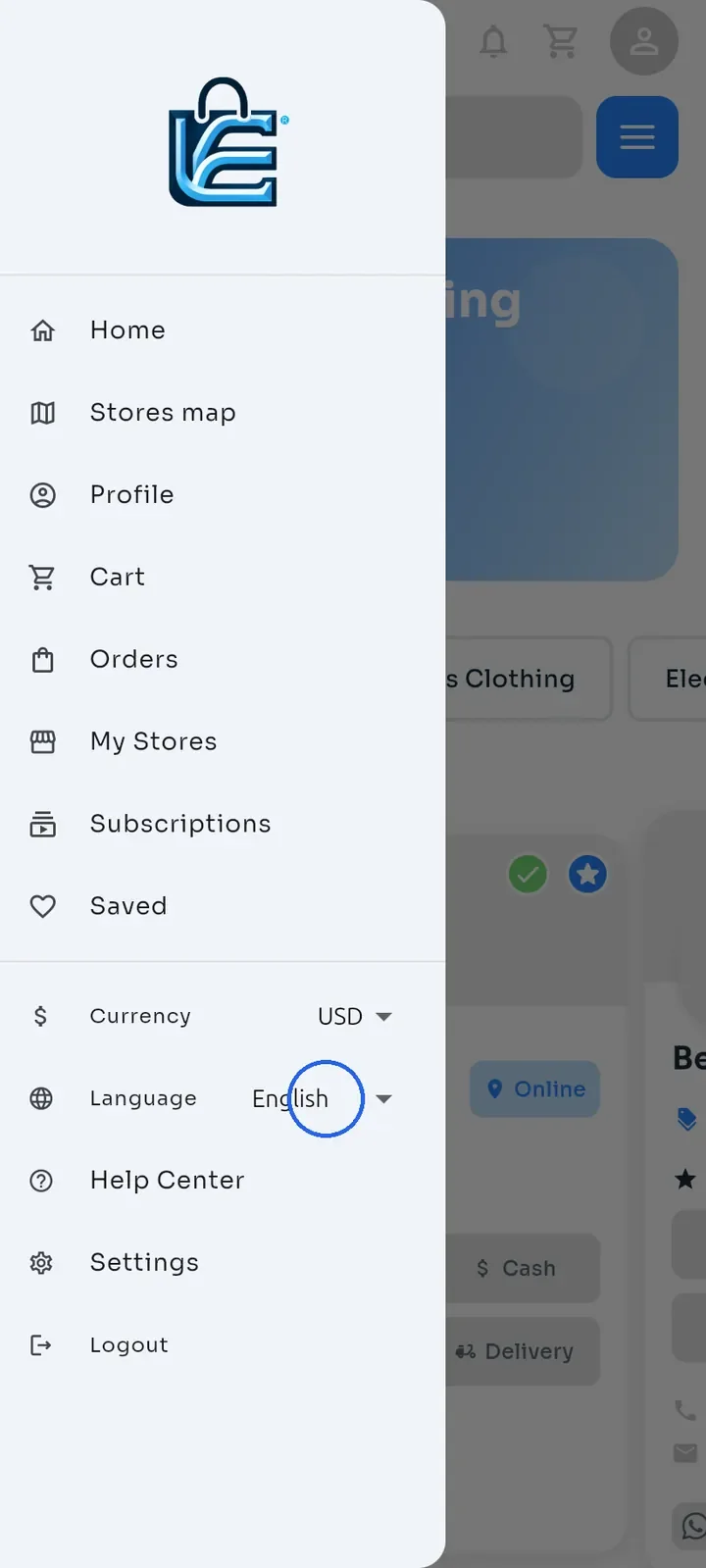
On Home, tap the menu icon at the top left.
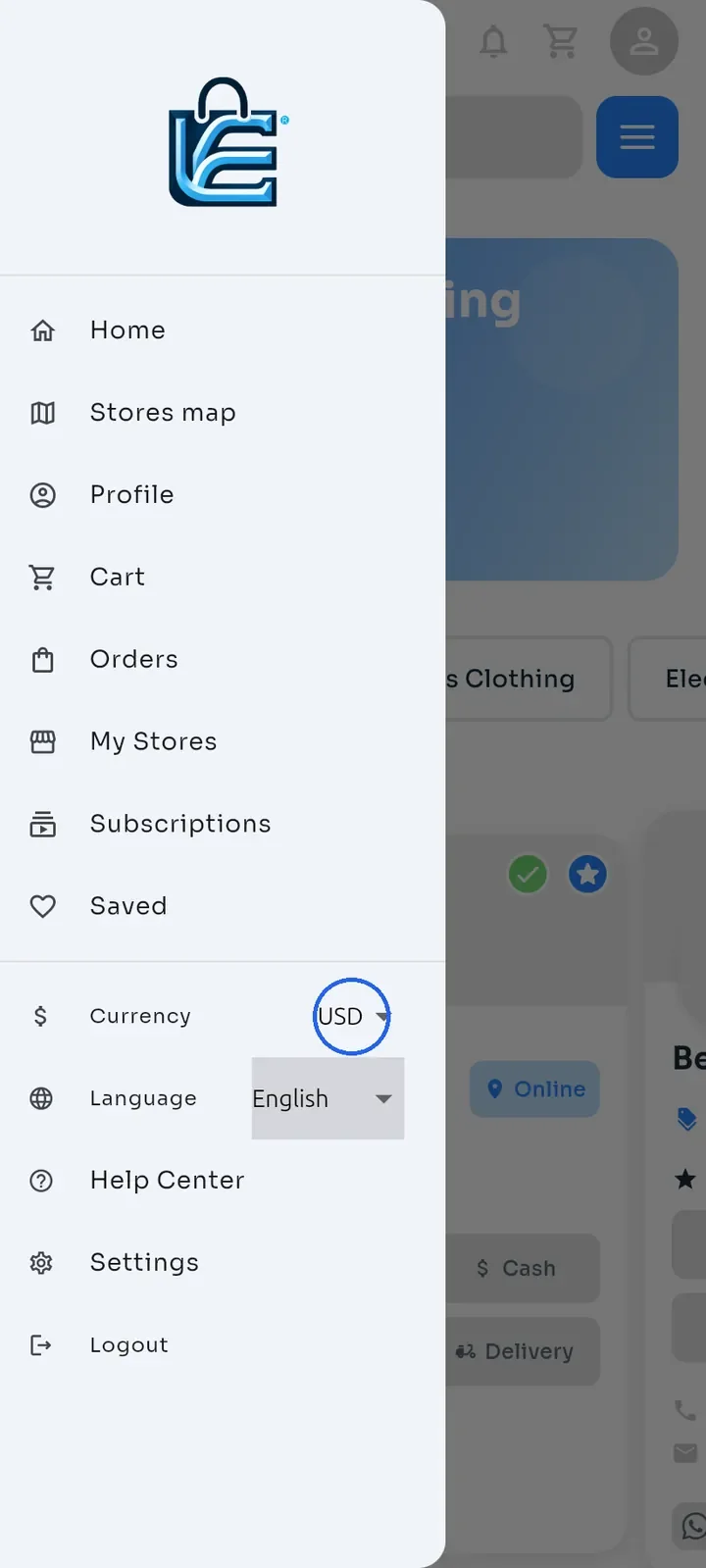
Next to Language, tap the current language (for example English) to open the list.
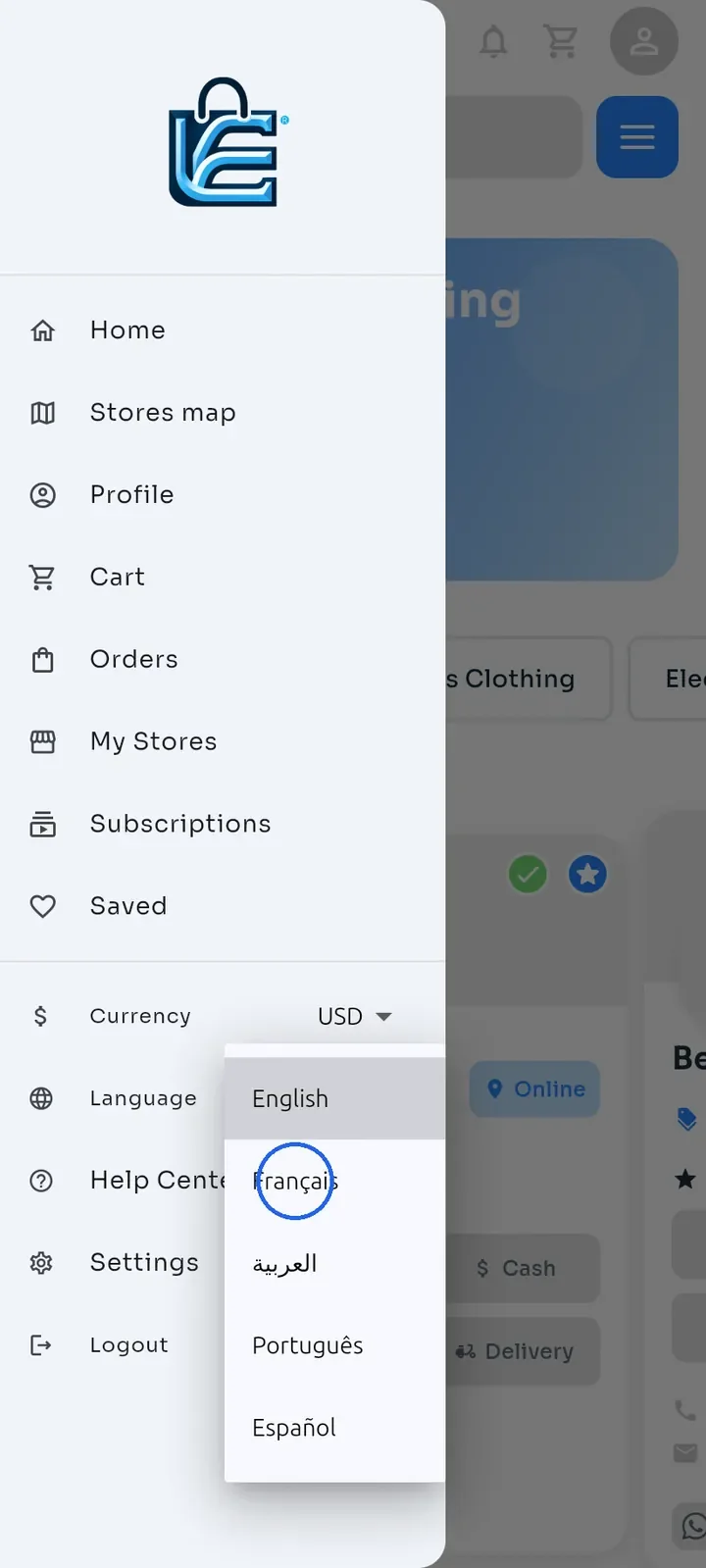
Choose your language: English, Français, العربية, Português or Español. The app switches language at once and the menu stays open.
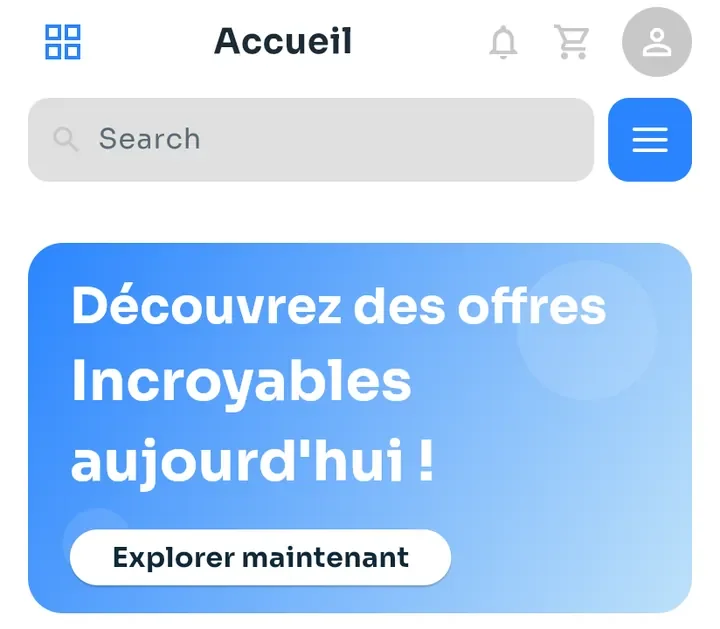
Tap the dimmed area to the right of the menu to close it. Home now shows in your language; this example shows French.
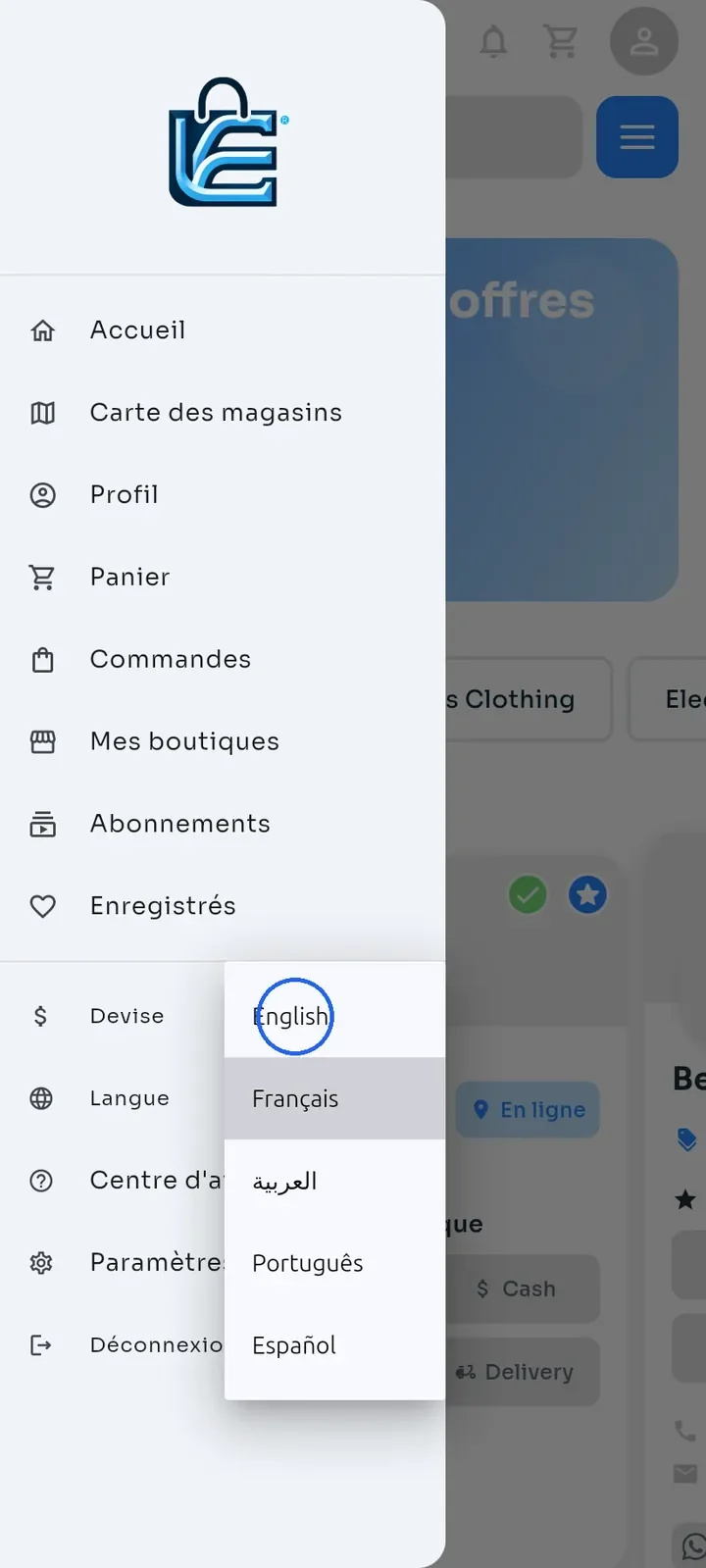
To switch back, open the menu again, tap the current language and choose English. The menu labels are now in your language, for example Langue for Language in French.
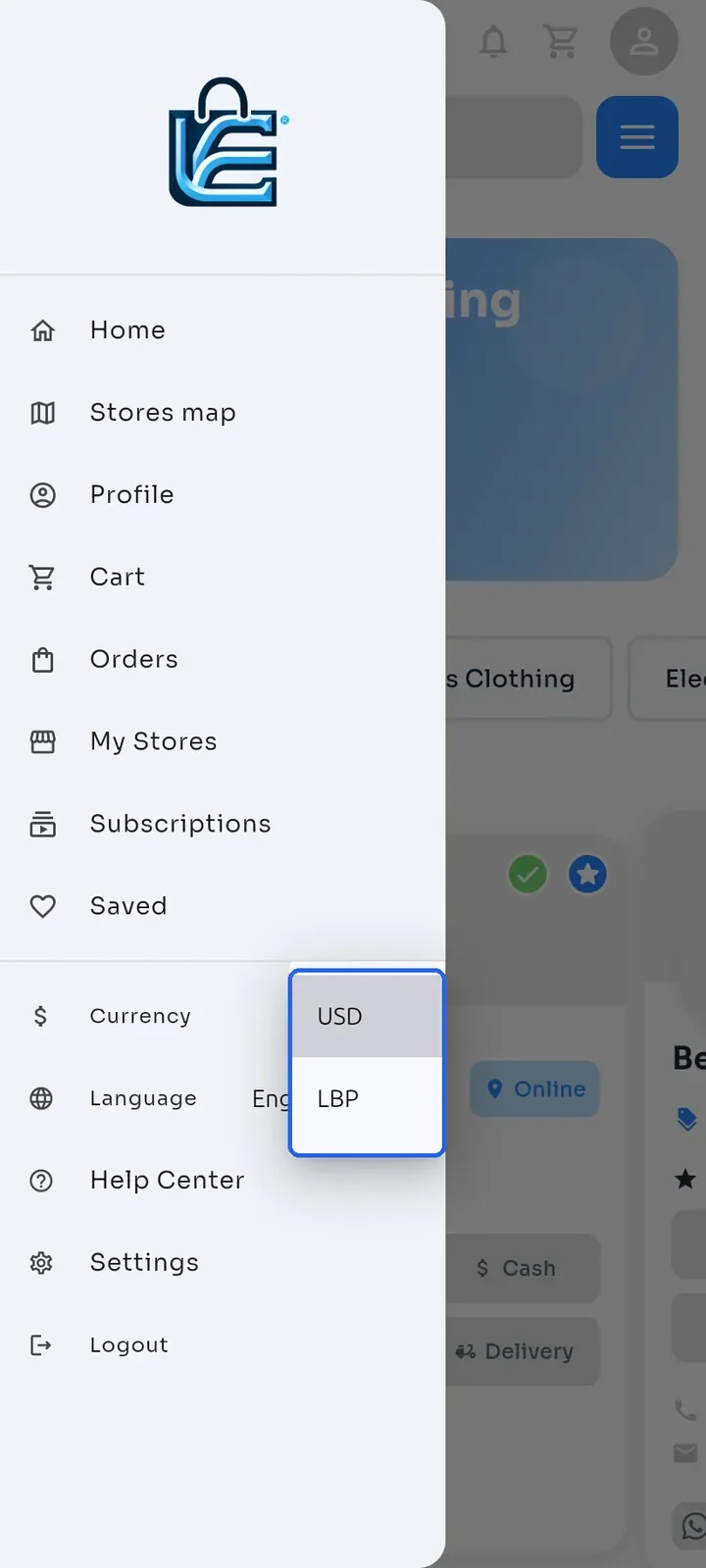
To change the currency, tap the current currency (for example USD) next to Currency in the menu.
Choose USD or LBP. Prices are then shown in that currency.
Note: the Help Center opens in the app language. You can also choose the language before you sign in, from the list at the top right of the sign-in screen.