Find your way around the app
Get to know the top bar, the search bar and the side menu so you can reach every part of the app.
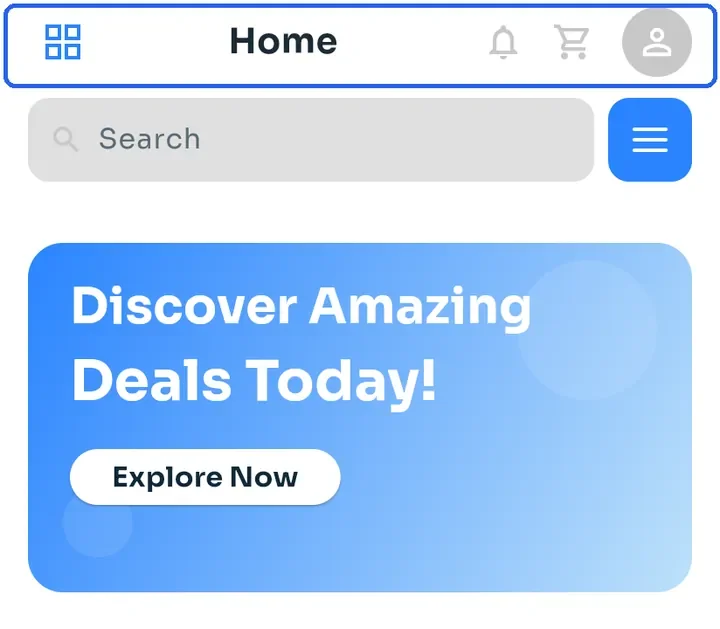
Sign in. The Home screen opens. The top bar shows the menu icon on the left and, on the right, the notifications bell, the cart and your profile picture.
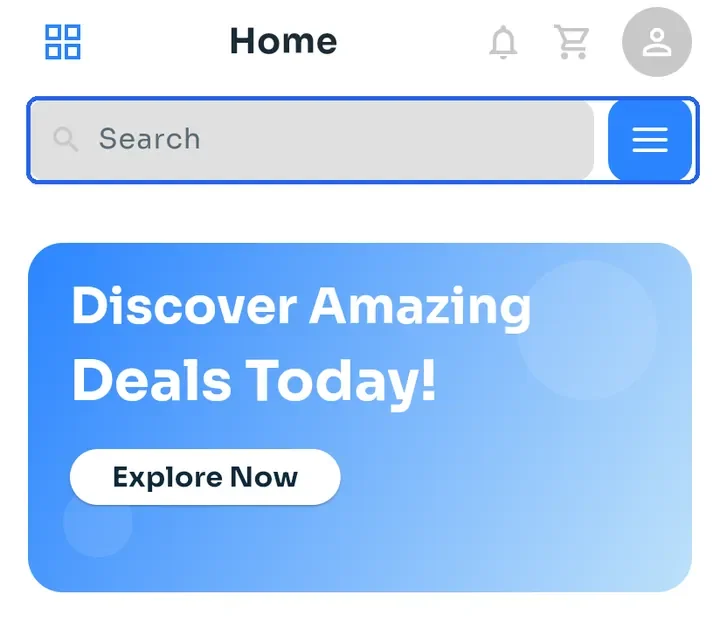
Type in the Search bar under the top bar to find products and stores (see "Search for products and stores"). Tap the blue button next to it to open Filters.
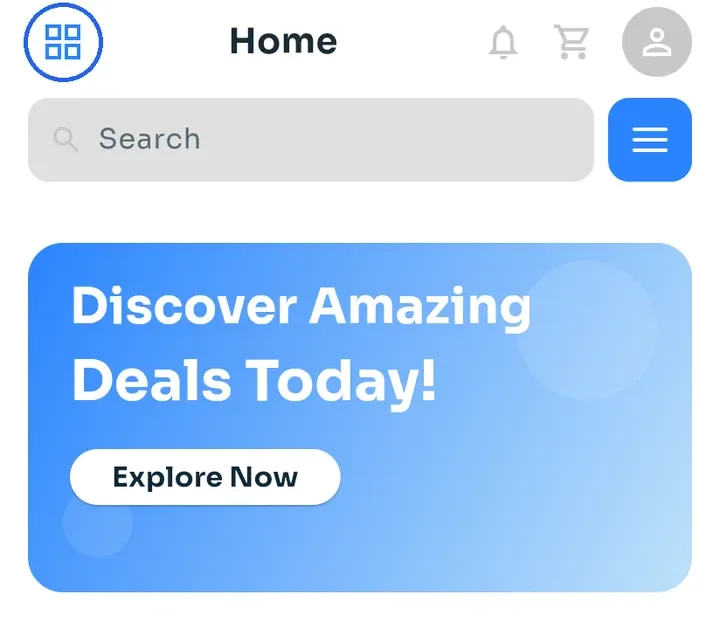
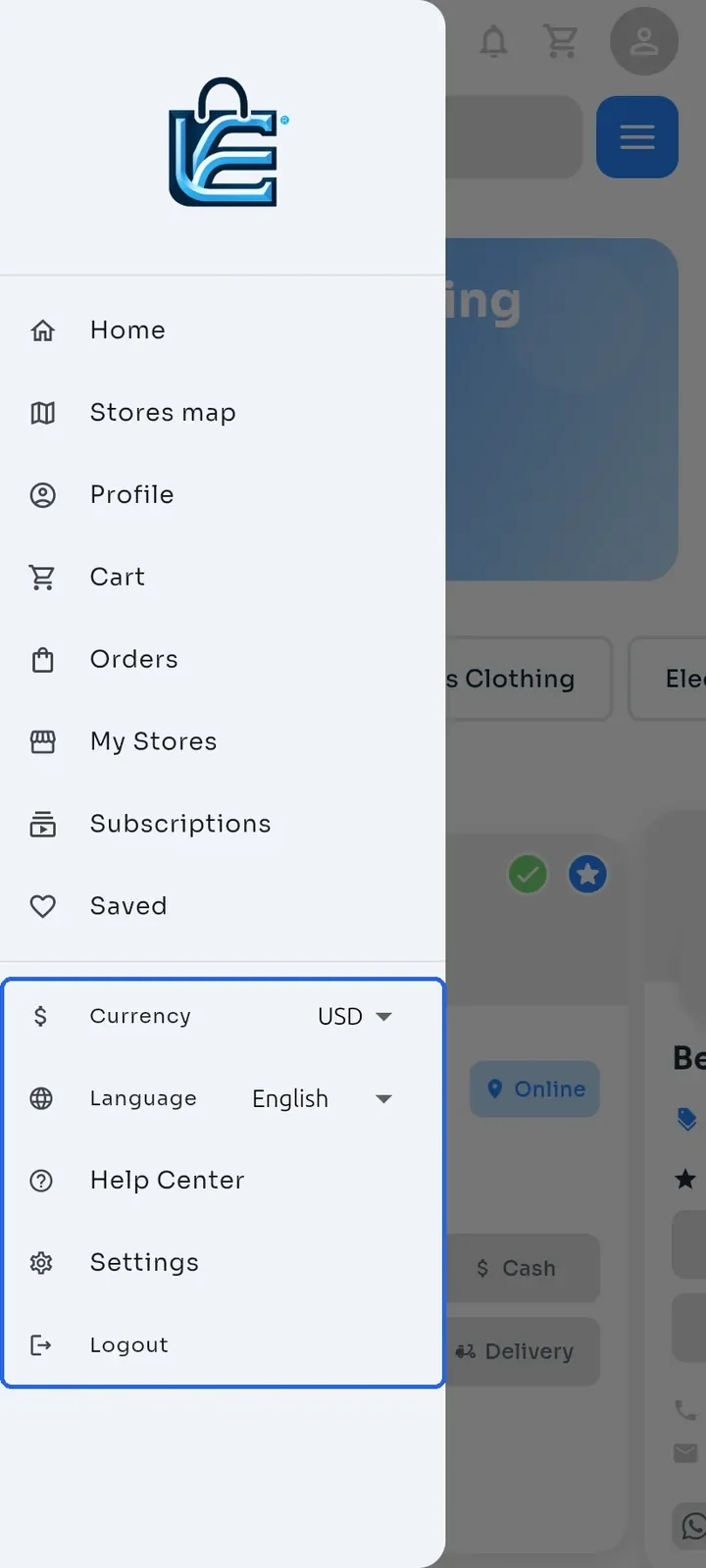
Tap the menu icon at the top left to open the side menu.
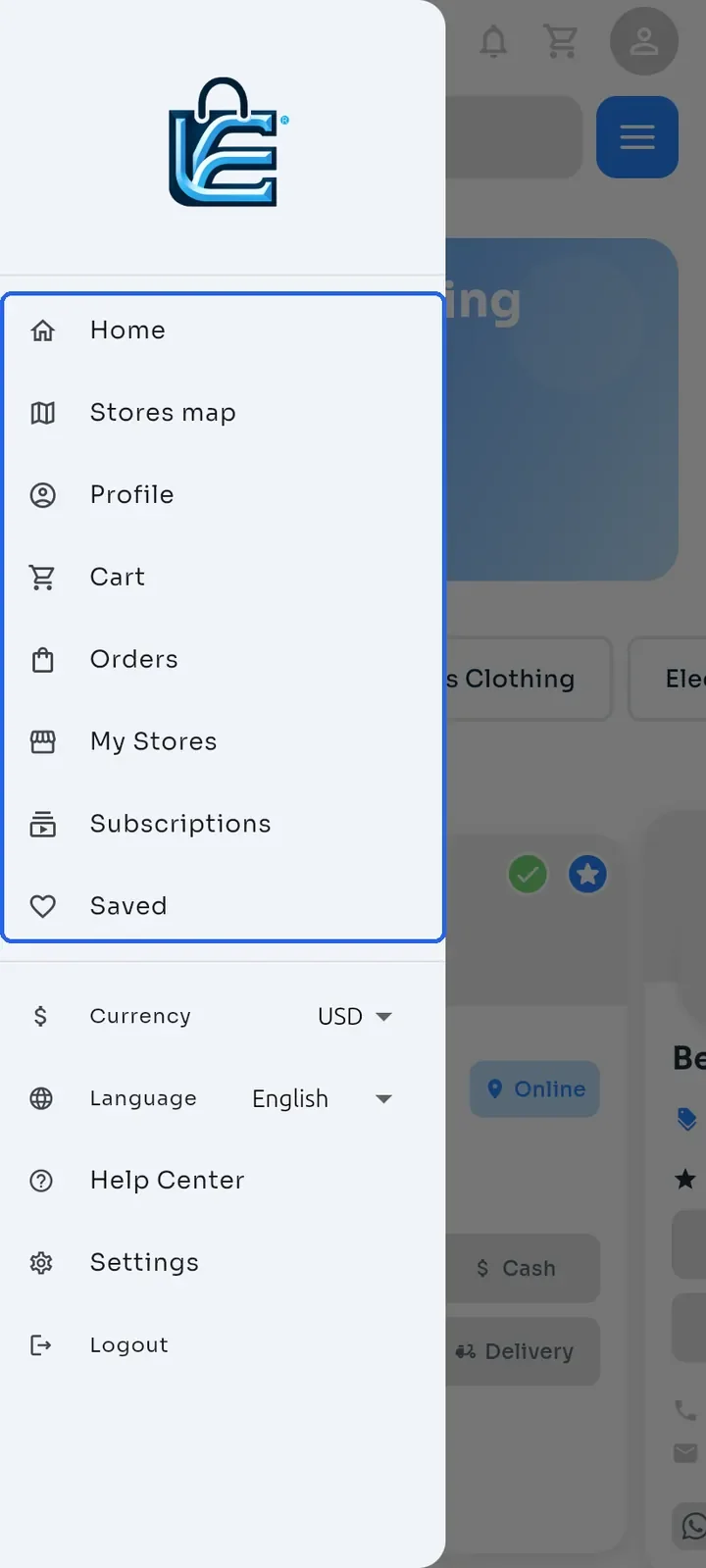
The top of the menu takes you to Home, Stores map, Profile, Cart, Orders, My Stores, Subscriptions and Saved.
Further down are Currency and Language (see "Change the app language and currency"), then Help Center, Settings and Logout.
Tip: tap your profile picture at the top right of Home to go straight to My Profile.
Note: you must be signed in to use the app. To sign out, tap Logout at the bottom of the menu.