Edit your profile
Update your name and birth date, and find your email, phone number and other account settings.
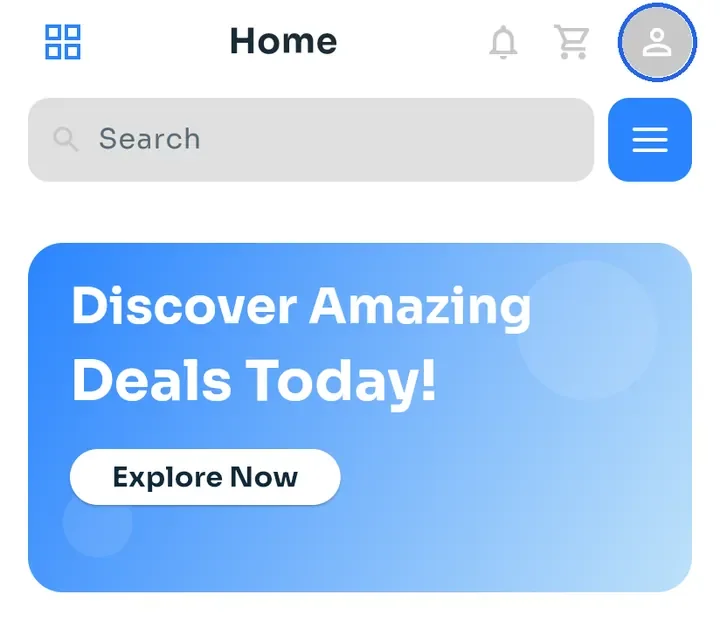
On Home, tap the profile icon at the top right.
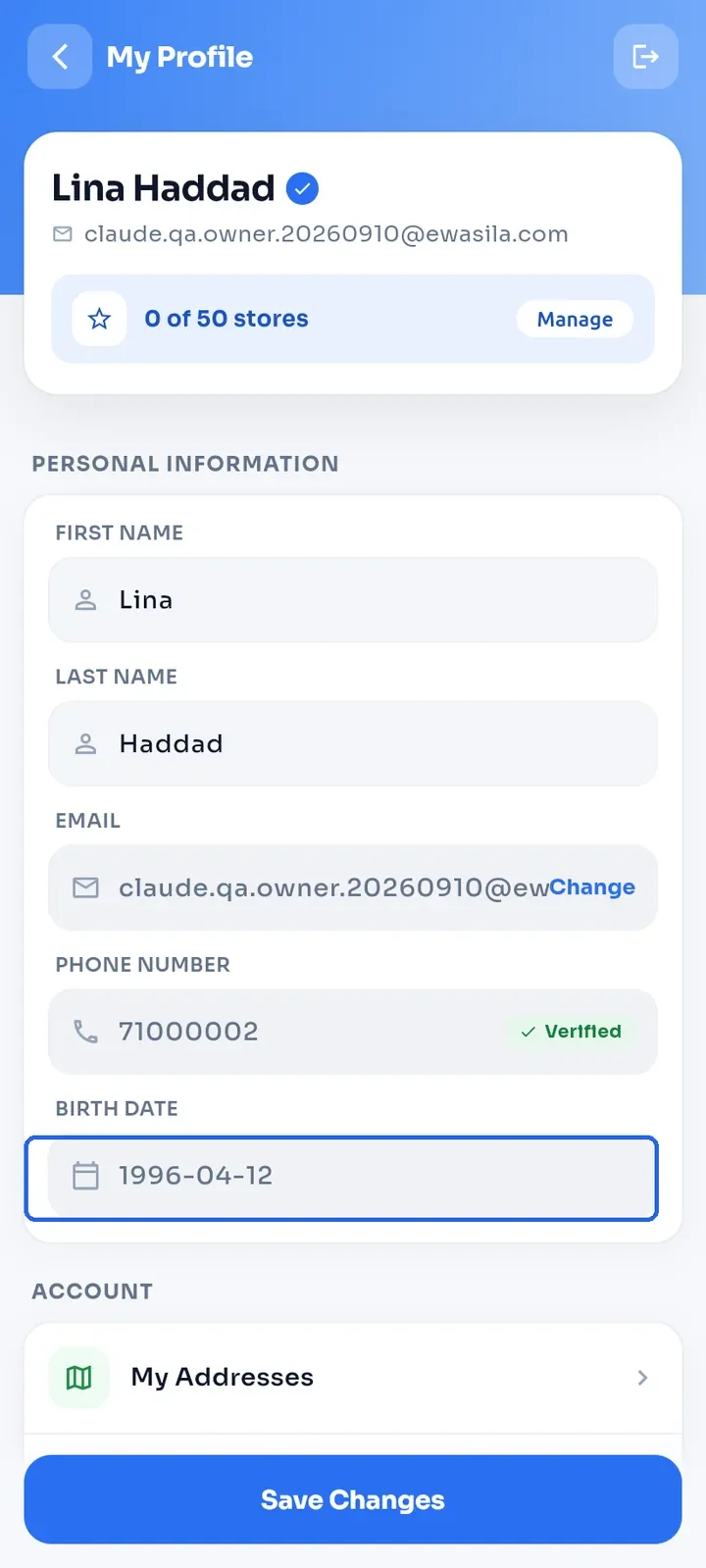
My Profile opens. The top card shows your name, your email and your store count, for example "0 of 50 stores". To see the plans, tap Manage.
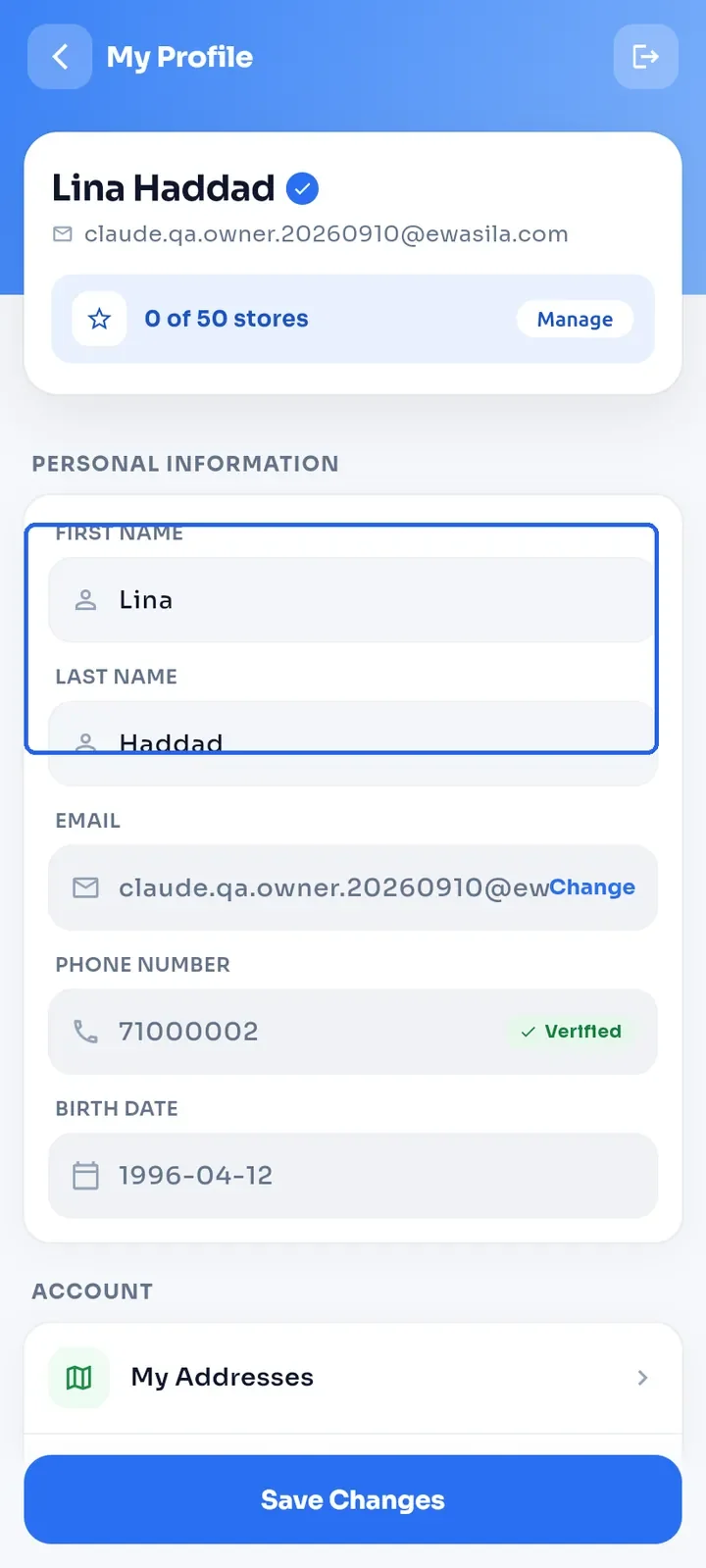
Edit your First Name and Last Name.
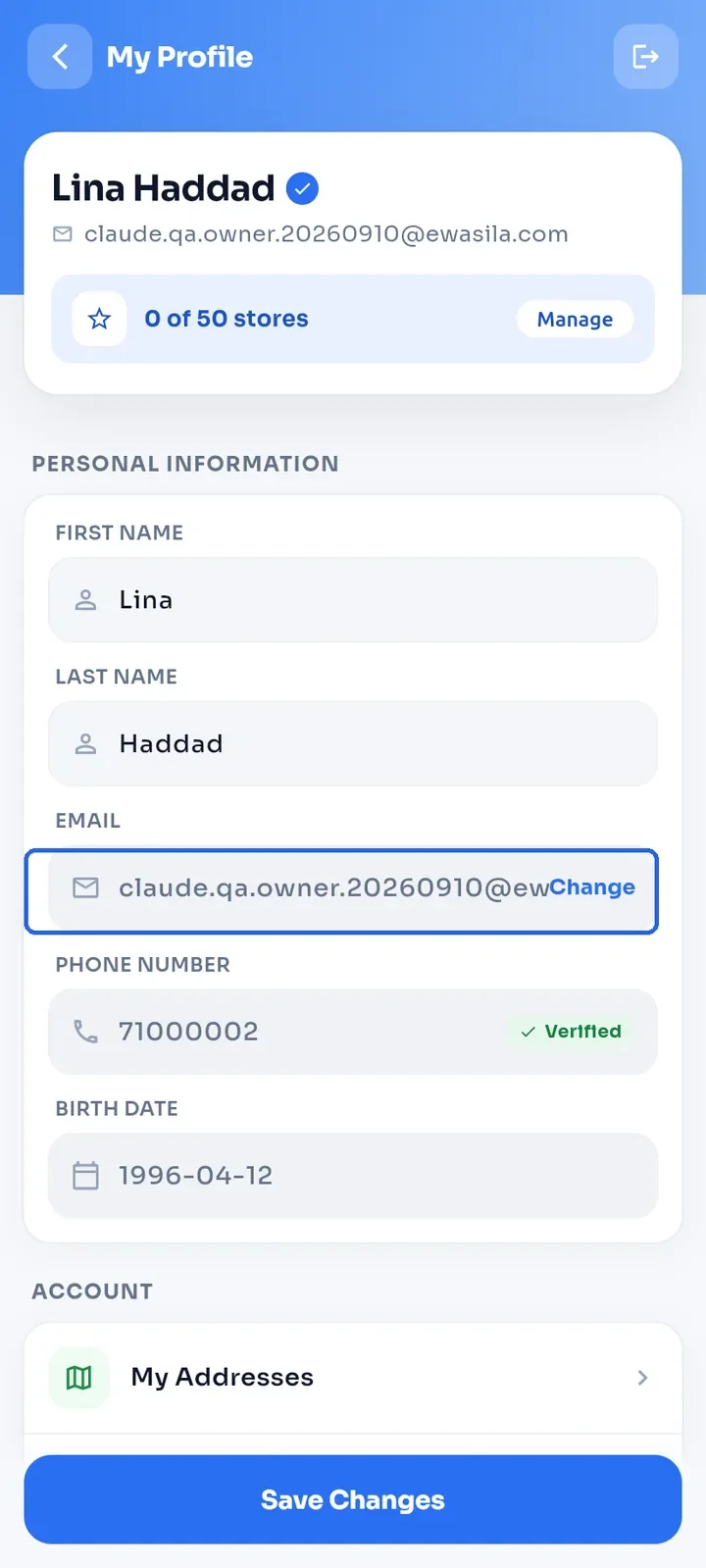
You cannot type in the Email field. To use a new address, tap Change next to it (see "Change your email").
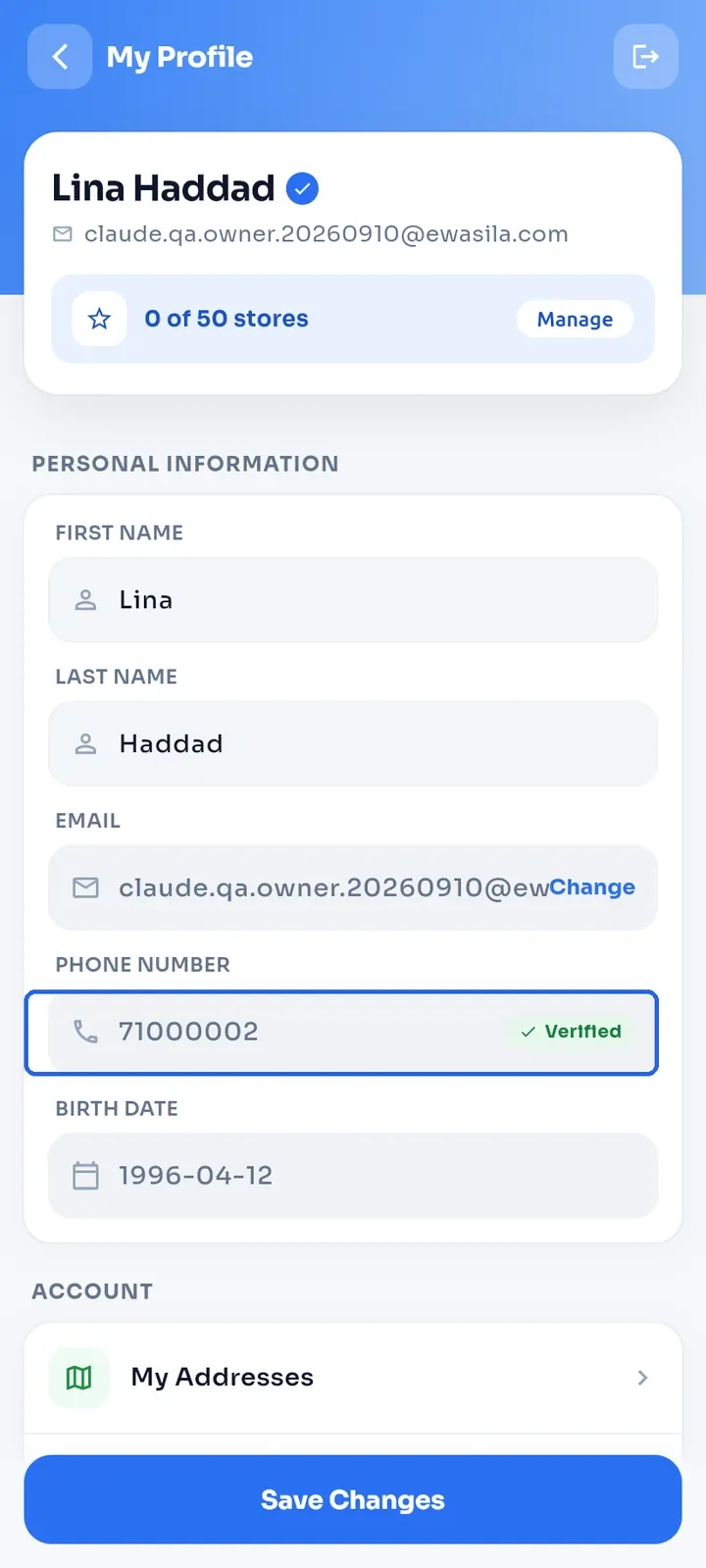
You cannot type in the Phone Number field either. It shows Add if you have no number yet, Verify if your number is not verified, or Verified. To add or verify a number, see "Verify your phone number".
Tap Birth Date and choose a date in the calendar.
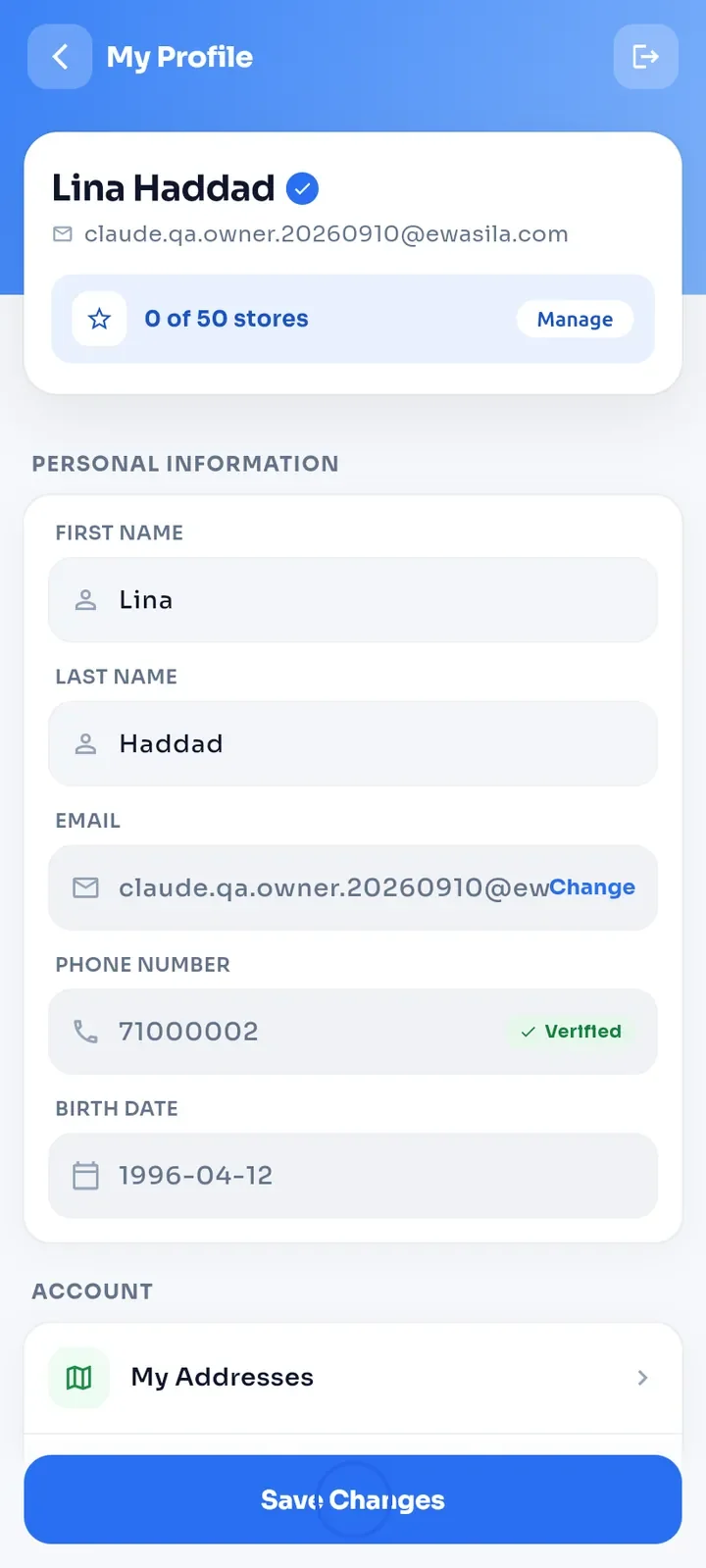
Tap Save Changes at the bottom. The app shows "Changes saved successfully".
Note: First Name, Last Name and Birth Date cannot be empty. If one is empty, the app shows "Please fill all fields" and saves nothing.
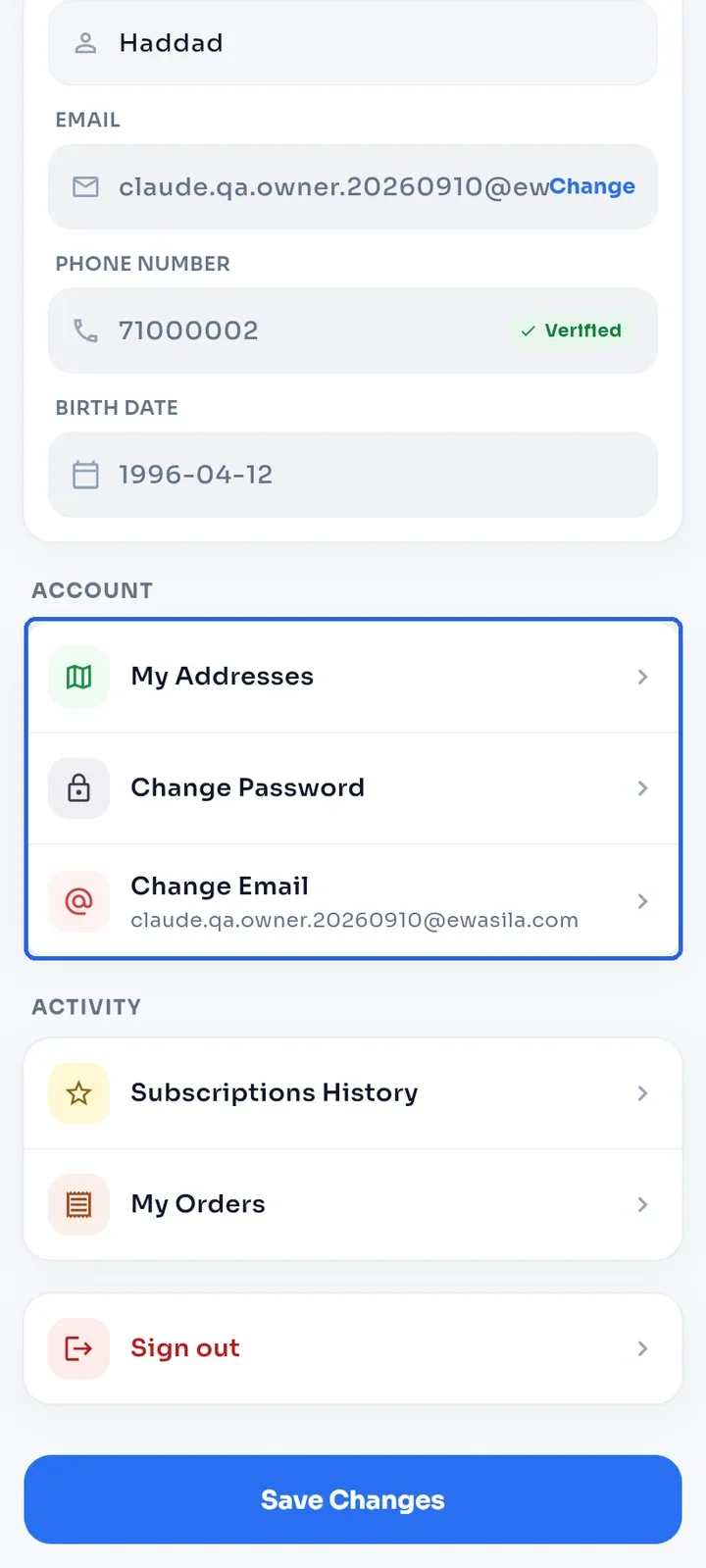
Scroll down to the Account section. It has My Addresses, Change Password and Change Email.
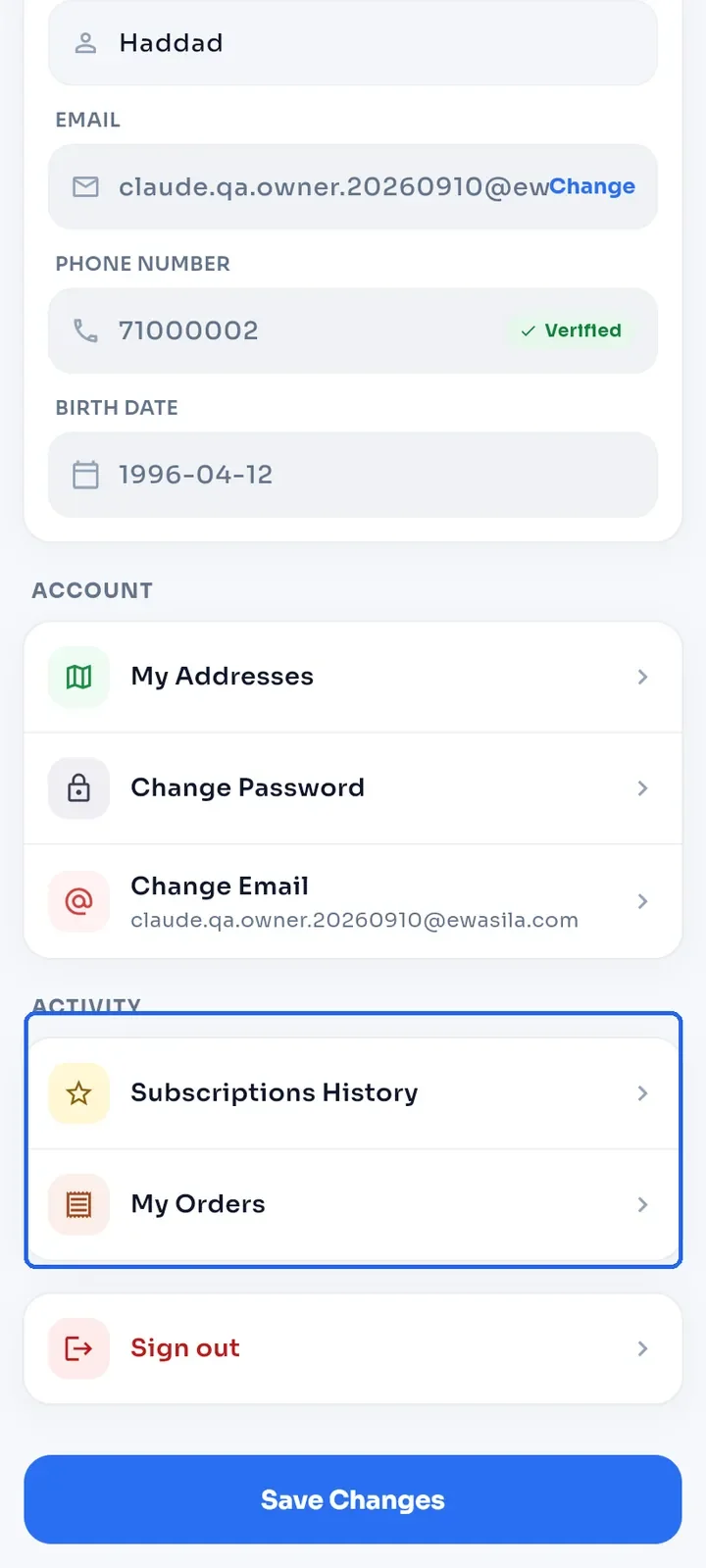
Below it, the Activity section has Subscriptions History and My Orders. Sign out is at the bottom.